FAQ - How to Show the Appliance’s Current Run Status in the Dashboard using Custom Actions
 Visually display the appliance’s current state (e.g., Washing, Error, or Finished) in your dashboard using a dropdown helper.
Step 1: Create a Dropdown Helper
-
In the sidebar, go to Settings → Devices & Services.
-
Click the “Helpers” tab at the top.
-
Click “+ Create Helper” (bottom right).
-
Select “Dropdown” from the list.
-
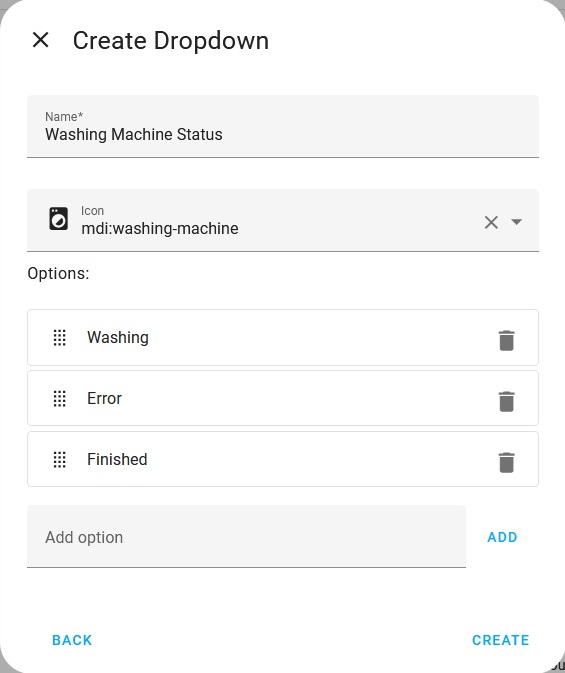
Fill out the fields:
-
Name: e.g., Washing Machine Status
-
Icon (optional): e.g.,
mdi:washing-machine -
Options:
Enter your dropdown options, e.g.:- Washing
- Error
- Finished
-
Click Create.
Step 2: Add State Changes Using Custom Actions in the Blueprint
-
Enable Custom Actions in your blueprint.
-
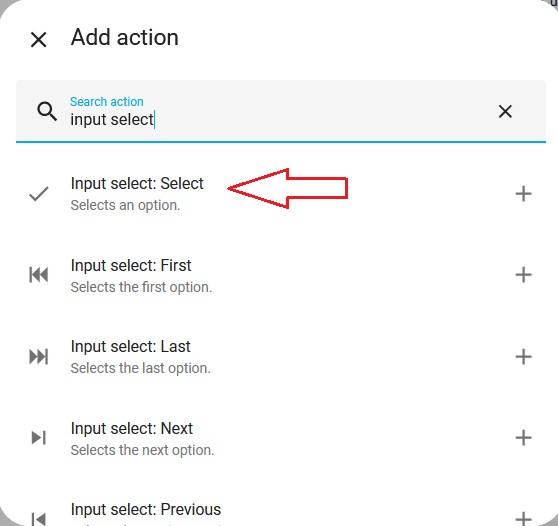
For each custom action (e.g., Start, Watchdog, End):
- Click Add Action
- Search Input select
- Then choose Input select: Select
-
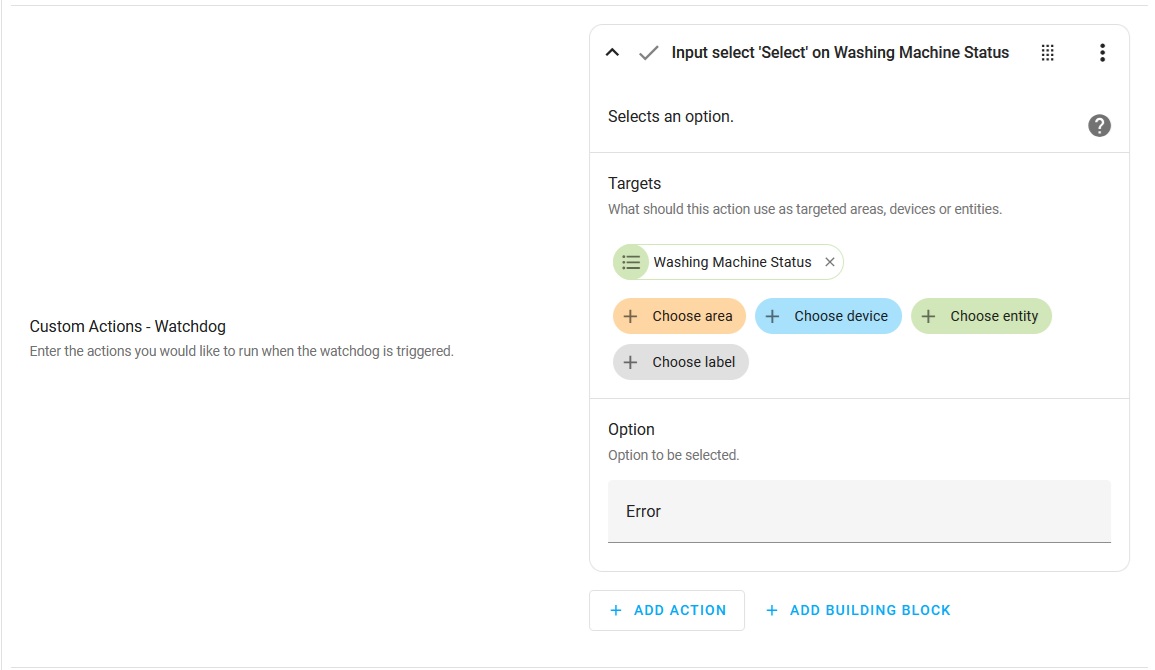
Choose your dropdown helper, then set the Option to match the action:

-
Start
-
Watchdog
-
End


Extra Tip: Add a “Ready” State After Clothes Are Removed 
If you have a door contact sensor, you can enhance the End action by waiting for the door to open, indicating that the clothes have been removed and the washing machine is ready for the next load.
To do this:
- Add a new option to your dropdown helper, such as
Ready,Available,Idle, orStandby, whichever best fits your setup. - In your End action:
- Add a Wait for Trigger action after the
finishedInput select: Select action. - In the Wait for Trigger action click Add Trigger and search
stateand select State. - Select your door contact sensor and set it to trigger when the state changes from closed to open.
- Add a Wait for Trigger action after the
- After the wait step, add another Input select: Select action to update the dropdown to your new “Ready” state.
Step 3: Add the Dropdown to Your Dashboard
Now add your new dropdown helper to any dashboard card you like.
You can style it as simple or advanced as you want, even tie it into other visuals using Mushroom, Button Card, or Tile Card.

 Share your setup and card design in this post to inspire others! Screenshots, tips, or YAML examples are all welcome.
Enjoy
Blacky 
Back to FAQ: Click Here