[!NOTE]
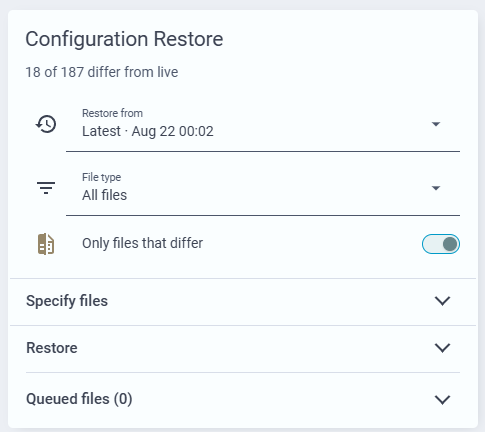
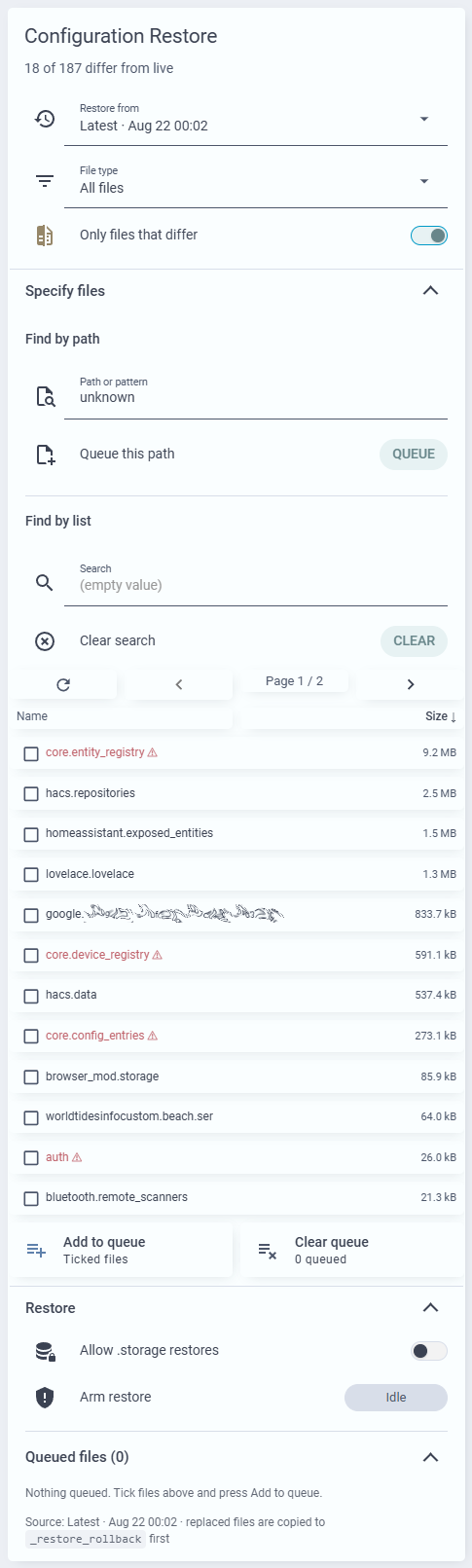
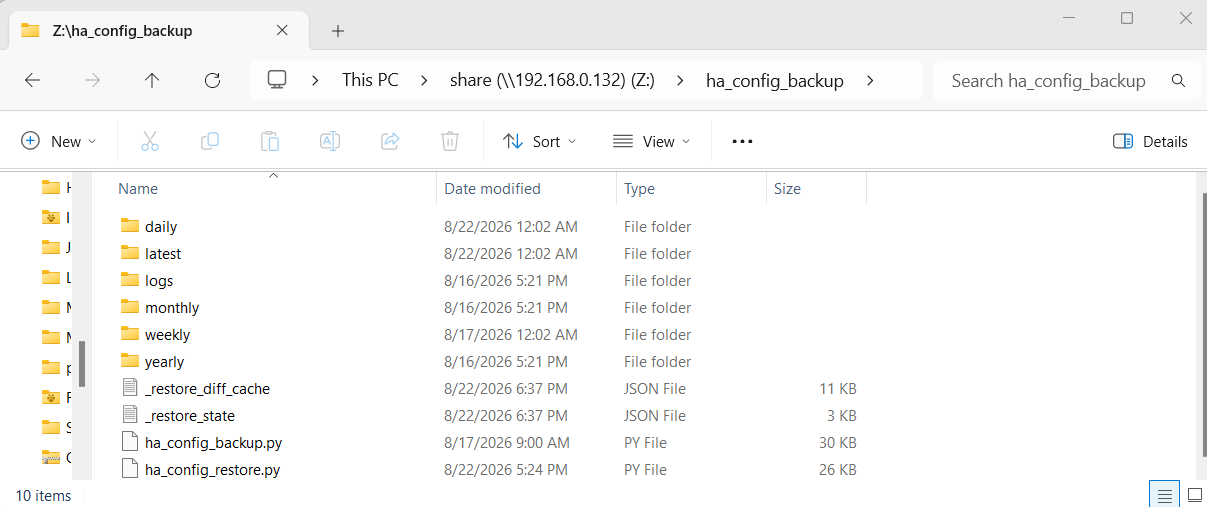
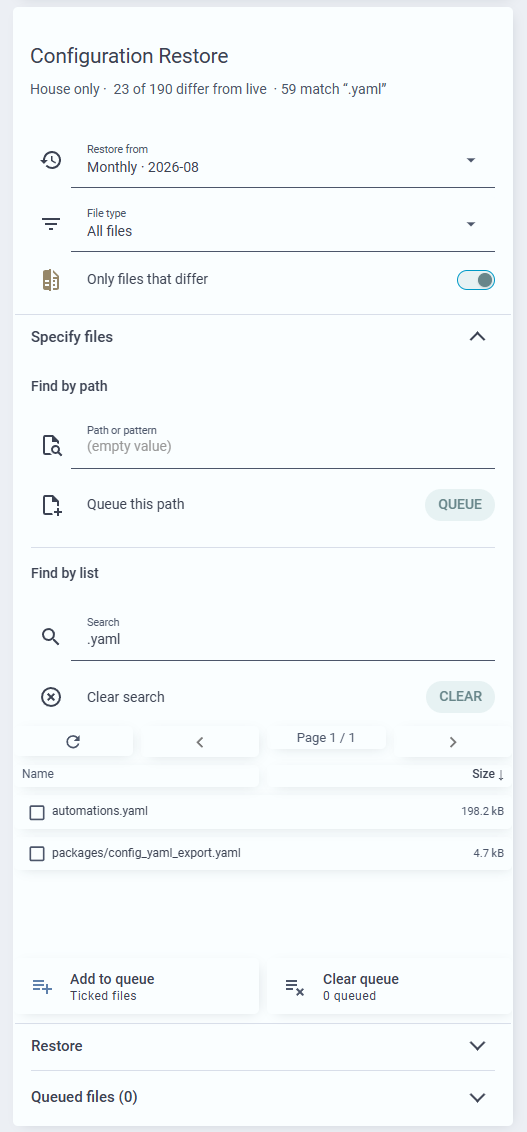
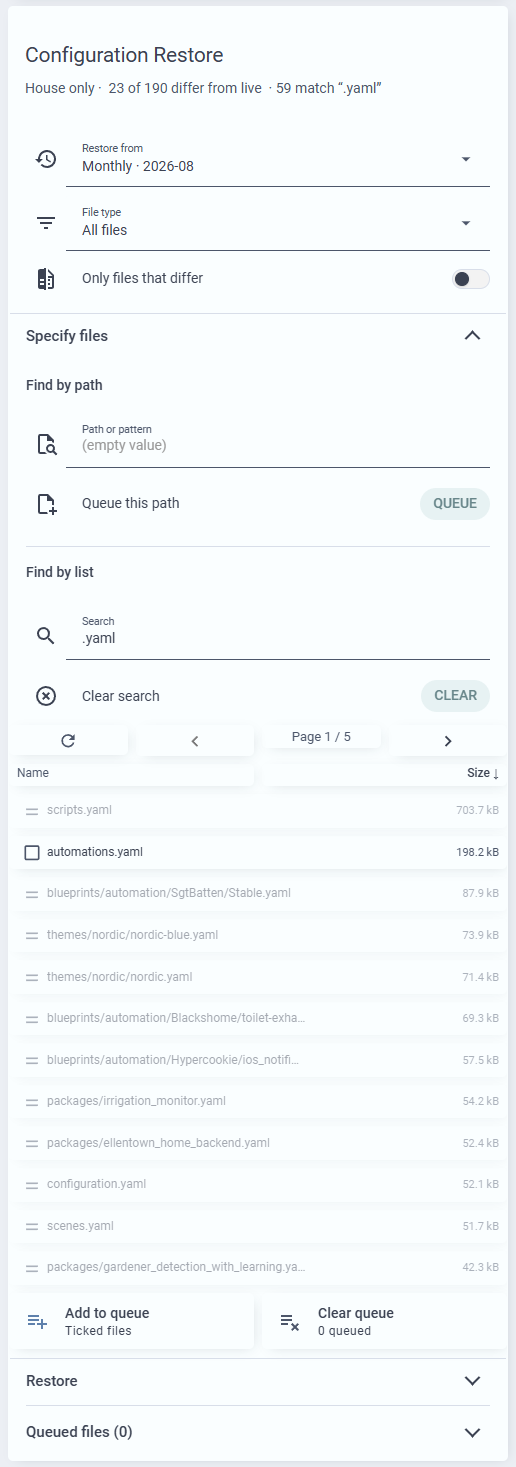
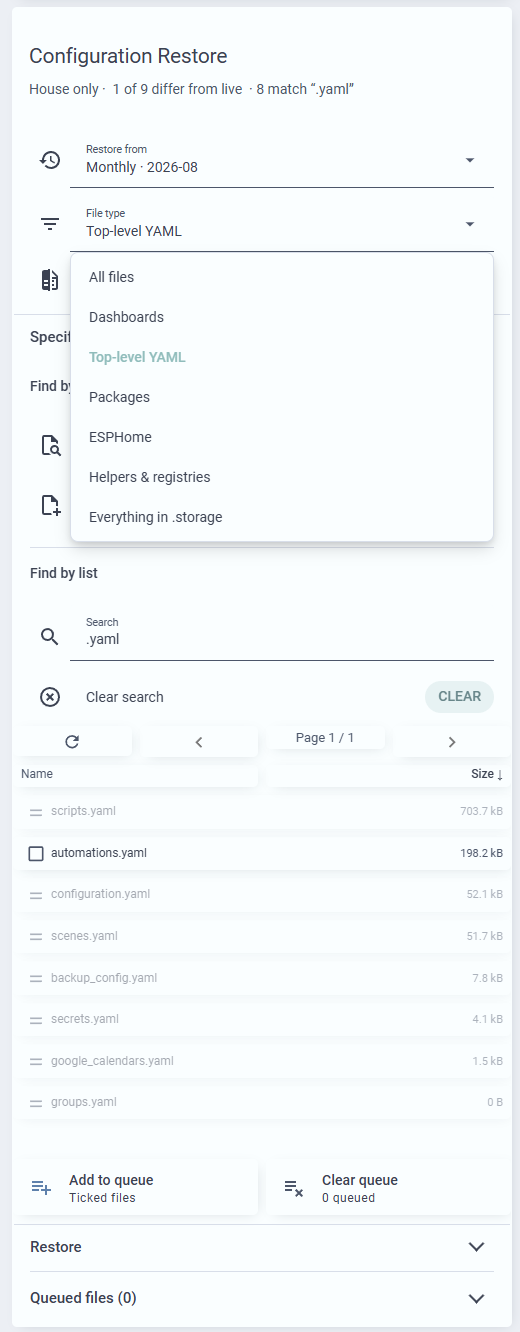
Updated — the project now lives on GitHub: GitHub - FortranFour/ha-config-export: Generational YAML/JSON config backups for Home Assistant, with .storage converted to YAML and selective restore · GitHubIt has gained selective file-by-file restore, search and sorting, optional redaction and encryption, and several minor fixes. The code in the next two posts below is the original version and is kept for reference; install from the repository instead. Later posts in this thread announce what has changed since.
Home Assistant’s built-in backups restore a whole instance well. They are less good at answering the question I keep having:
What did my dashboard, automations, or scripts, etc. look like three weeks ago, before I broke it?
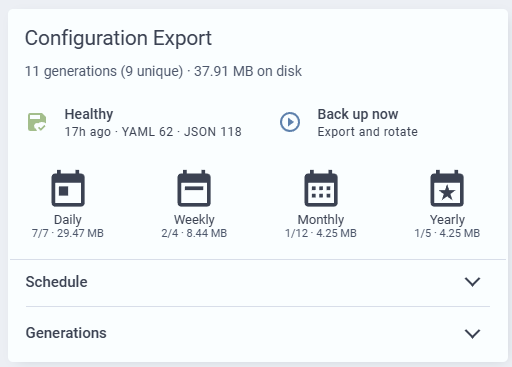
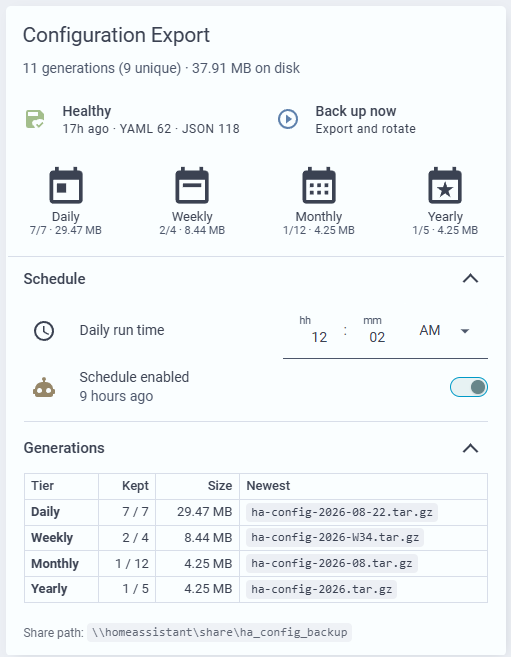
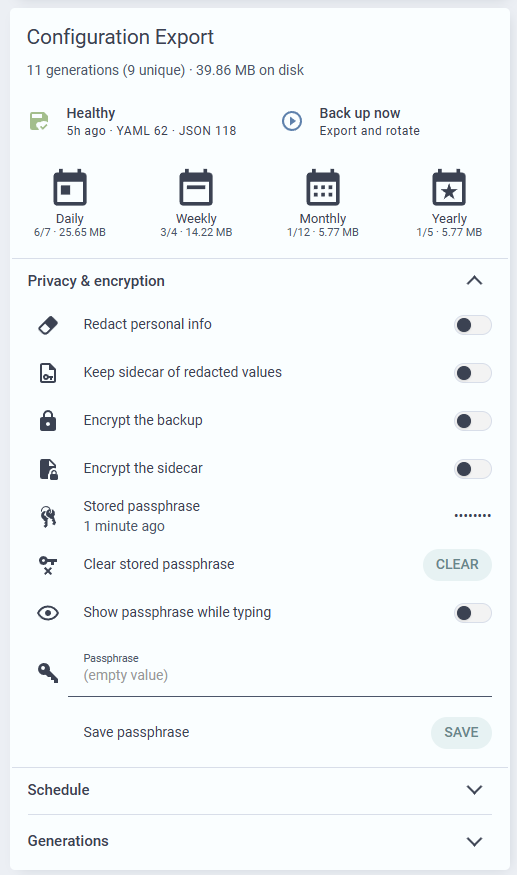
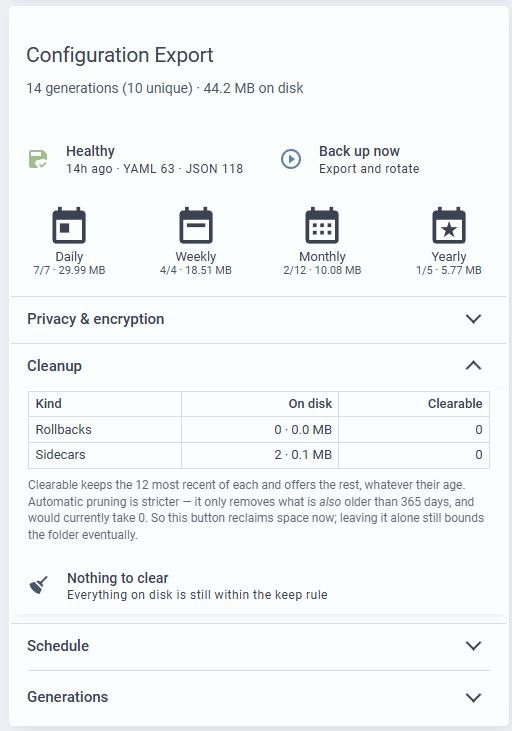
So I put together a script that quickly and compactly exports every user-configurable YAML and JSON file to a Samba share, browsable on your PC/Mac/Linux desktop, on a schedule, converts the UI-managed JSON in .storage into readable YAML, and keeps generational copies — 7 daily, 4 weekly, 12 monthly, 5 yearly. Plus a dashboard card to run it, schedule it, and see what’s on disk.

What it does
- Copies every
*.yaml,*.ymland*.jsonin your config directory - Copies all of
.storage— helpers, entity/device/area/floor/label registries, energy config, exposed entities, config entries - Converts every JSON file to YAML alongside the original, so you can read and diff them
- Extracts each UI dashboard from its
.storagewrapper into a ready-to-use YAML-mode dashboard file - Fetches the Frigate add-on config over its API (add-on configs aren’t readable from the HA Core container)
- Keeps GFS generations with hardlinks, so 28 generations cost roughly the size of one
- Maintains an uncompressed
latest/mirror for browsing and diffing without extracting anything - Writes a
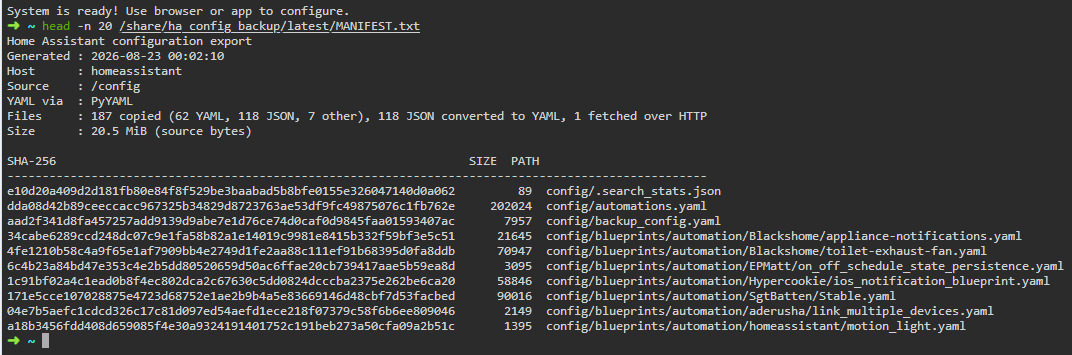
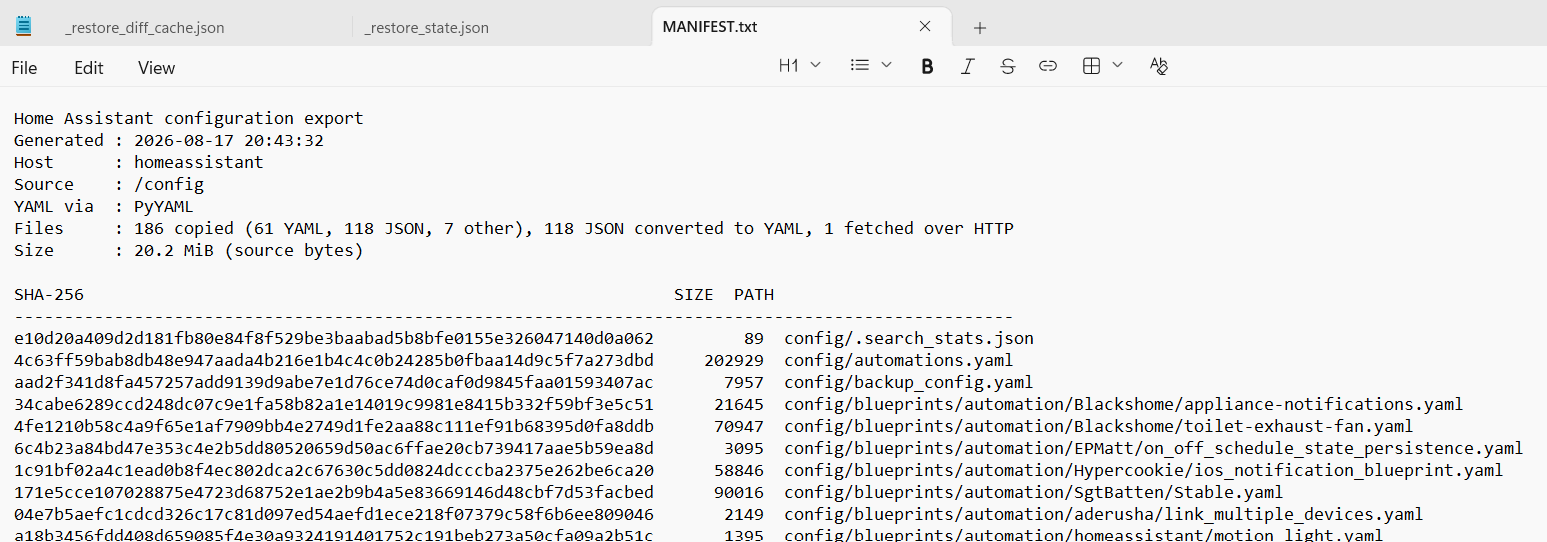
MANIFEST.txtwith SHA-256 per file, so diffing two generations tells you exactly what changed
Typical run here: ~190 files, ~120 converted to YAML, 4.3 MB compressed, 12 seconds.
Deliberately skipped: custom_components/, www/, deps/, the database, logs, .storage/core.restore_state, saved traces, SQLite scratch files, and anything over 25 MB. All tunable at the top of the script.
Nothing is redacted.
secrets.yaml,.storage/auth*, API tokens, ADB keys, camera RTSP credentials and Frigate’s raw config all land in the share in plaintext. That is intentional — it’s what makes this restore-grade — but the destination deserves the same protection as your config directory. Don’t put it anywhere world-readable.
Requirements
- Home Assistant OS / Supervised (tested on HA OS, bare metal)
- The Samba share add-on
packages: !include_dir_named packagesinconfiguration.yaml- For the card:
stack-in-card,mushroom,button-card,card-mod,fold-entity-row(all HACS)
No Python dependencies — it uses PyYAML if present (it is, inside the HA Core container) and falls back to a built-in YAML emitter otherwise.
Step 1 — Set up the Samba share
On Home Assistant: Settings → Add-ons → Add-on Store → Samba share. Install, set a username and password in the Configuration tab, start it, enable “Start on boot”. The add-on exposes config, share, media, backup, ssl and addon_configs. This project lives in share.
Windows
File Explorer → This PC → Map network drive:
Folder: \\homeassistant\share
Tick “Reconnect at sign-in” and “Connect using different credentials”, then enter the add-on username and password. If the hostname doesn’t resolve, use the IP: \\192.168.1.50\share. From the command line instead:
net use Z: \\homeassistant\share /persistent:yes
macOS
Finder → Go → Connect to Server (⌘K):
smb://homeassistant/share
Enter the add-on credentials. To remount at login, add it under System Settings → General → Login Items. It mounts at /Volumes/share.
Linux
One-off via your file manager: smb://homeassistant/share
Permanent via /etc/fstab (install cifs-utils first):
//homeassistant/share /mnt/ha-share cifs credentials=/etc/ha-smb.creds,uid=1000,gid=1000,iocharset=utf8 0 0
with /etc/ha-smb.creds containing username= and password= lines. chmod 600 it, then sudo mount -a.
Step 2 — Install the script
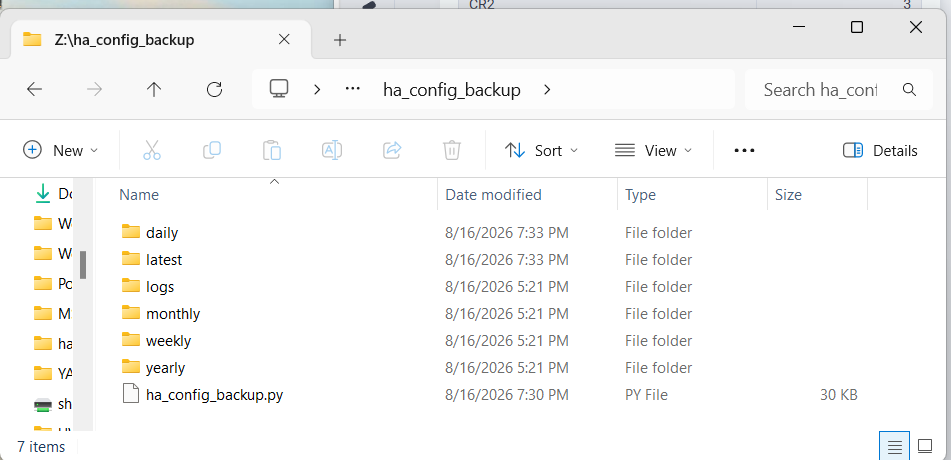
Create a folder ha_config_backup in the share and drop ha_config_backup.py into it, so it lands at /share/ha_config_backup/ha_config_backup.py.
It lives in the share rather than in /config for two reasons: Home Assistant updates can never touch it, and the backups sit next to it where you can already reach them from your desktop. The script locates its own directory, so moving the whole folder elsewhere just works.
 The script is in post #2 below — at 750 lines it’s past the per-post limit.
Step 3 — Install the package
Save as /config/packages/config_yaml_export.yaml and reload. This creates:
| Entity | Purpose |
|---|---|
input_datetime.config_export_time |
Run time, settable from the card |
script.config_export_run_now |
The “Back up now” button |
automation.config_export_daily |
The schedule |
sensor.config_export_status |
Status plus per-tier generation inventory |
Change the notify service in the failure branch to your own, or delete it — failures also raise a persistent notification, which always works.
config_yaml_export.yaml (click to expand)
# =============================================================================
#  config_yaml_export.yaml
#  Drop into /config/packages/ — picked up by `packages: !include_dir_named packages`
#
#  Backend for the "Configuration Export" dashboard card. Schedules and reports
#  on ha_config_backup.py, which lives in the Samba share at
#  /share/ha_config_backup/ so Home Assistant updates cannot touch it.
#
#  Entities created:
#    input_datetime.config_export_time   run time, settable from the card
#    script.config_export_run_now        "Back up now" button
#    automation.config_export_daily      the schedule
#    sensor.config_export_status         status + per-tier generation inventory
#
# -----------------------------------------------------------------------------
#  MAKING THE CARD'S FOLDER BUTTONS CLICKABLE (Edge / Chrome, Windows)
# -----------------------------------------------------------------------------
#  The Daily / Weekly / Monthly / Yearly buttons on the card point at
#  file://homeassistant/share/ha_config_backup/<tier>/. Browsers block file://
#  links opened from an http(s) page by default, so out of the box those
#  buttons do nothing. One registry policy re-enables them.
#
#  Run an ELEVATED Command Prompt (Win+X > Terminal (Admin)) and paste the
#  line for your browser:
#
#    Edge:
#      reg add "HKLM\SOFTWARE\Policies\Microsoft\Edge\URLAllowlist" /v 1 /t REG_SZ /d "file:///" /f
#
#    Chrome:
#      reg add "HKLM\SOFTWARE\Policies\Google\Chrome\URLAllowlist" /v 1 /t REG_SZ /d "file:///" /f
#
#  Fully close and reopen the browser (check Task Manager for leftover
#  processes). Confirm it took at edge://policy or chrome://policy — look for
#  URLAllowlist with the value file:///.
#
#  To undo:
#      reg delete "HKLM\SOFTWARE\Policies\Microsoft\Edge\URLAllowlist" /v 1 /f
#
#  Notes:
#    - This whitelists ALL file:// links, not just these. Any page you visit
#      can then offer clickable links to your local filesystem. Clicking is
#      still required, but it is a real loosening of a browser default.
#    - The policy affects the desktop browser only. The Home Assistant
#      companion app cannot open file:// under any configuration.
#    - Prefer a drive letter? Map the share to Z: in Explorer, then edit the
#      four url_path lines in the card to file:///Z:/daily/, file:///Z:/weekly/
#      and so on. Same policy requirement applies.
#    - Not comfortable with the policy? Leave it alone. The card prints the
#      UNC paths as selectable text underneath the table — copy one into
#      Explorer's address bar and it opens with no changes to your browser.
# =============================================================================

shell_command:
  config_yaml_export: "python3 /share/ha_config_backup/ha_config_backup.py"
  # Diagnostics. Run from Developer Tools > Actions and read the response:
  # it reports the resolved config directory, write access and file counts.
  config_yaml_export_check: "python3 /share/ha_config_backup/ha_config_backup.py --check"

input_datetime:
  config_export_time:
    name: Config export time
    icon: mdi:clock-outline
    has_date: false
    has_time: true

command_line:
  - sensor:
      name: "Config Export Status"
      unique_id: config_yaml_export_status
      command: "python3 /share/ha_config_backup/ha_config_backup.py --report"
      value_template: "{{ value_json.status }}"
      json_attributes:
        - root
        - generated
        - daily
        - weekly
        - monthly
        - yearly
        - total_mb
        - last_run
      scan_interval: 900
      command_timeout: 30

script:
  config_export_run_now:
    alias: Config export run now
    icon: mdi:play-circle-outline
    mode: single
    sequence:
      - action: shell_command.config_yaml_export
        response_variable: export
      - action: homeassistant.update_entity
        target:
          entity_id: sensor.config_export_status
      - if:
          - condition: template
            value_template: "{{ export.returncode | int(1) != 0 }}"
        then:
          # persistent_notification first: it always exists, so a wrong
          # notify service name can no longer swallow the failure.
          - action: persistent_notification.create
            data:
              notification_id: config_export_failed
              title: Config export failed
              message: >-
                Exit code {{ export.returncode }}.

                {{ (export.stderr or export.stdout or 'No output.')
                   | truncate(600) }}
          - action: notify.mobile_app_YOUR_PHONE
            continue_on_error: true
            data:
              title: Config export failed
              message: >-
                Exit {{ export.returncode }}. {{ (export.stderr or export.stdout)
                | replace('\n', ' ') | truncate(180) }}
        else:
          - action: persistent_notification.dismiss
            data:
              notification_id: config_export_failed
          - action: persistent_notification.create
            data:
              notification_id: config_export_ok
              title: Config export complete
              message: >-
                {{ state_attr('sensor.config_export_status', 'last_run').files }} files,
                {{ state_attr('sensor.config_export_status', 'last_run').converted }}
                converted to YAML,
                {{ state_attr('sensor.config_export_status', 'total_mb') }} MB on disk.

automation:
  - id: config_export_daily
    alias: Config export daily
    description: >-
      Runs the YAML/JSON configuration export at the time set on the dashboard
      card, keeping 7 daily / 4 weekly / 12 monthly / 5 yearly generations.
      A restart only triggers an export if the last one is over a day old.
    mode: single
    triggers:
      - trigger: time
        at: input_datetime.config_export_time
        id: scheduled
      - trigger: homeassistant
        event: start
        id: startup
    actions:
      - choose:
          # Restart path: settle, refresh the sensor, THEN judge staleness.
          # The staleness check has to come after the refresh — at startup the
          # command_line sensor has not polled yet and reads as unknown, which
          # would look like "never run" and export on every restart.
          - conditions:
              - condition: trigger
                id: startup
            sequence:
              - delay: "00:00:30"
              - action: homeassistant.update_entity
                target:
                  entity_id: sensor.config_export_status
              - if:
                  - condition: template
                    value_template: >-
                      {% set lr = state_attr('sensor.config_export_status', 'last_run') %}
                      {{ lr is not mapping or lr.timestamp is not defined
                         or (now() - (lr.timestamp | as_datetime | as_local)).total_seconds()
                            > 86400 }}
                then:
                  - action: script.turn_on
                    target:
                      entity_id: script.config_export_run_now
        # Scheduled runs and manual "Run actions" go straight through.
        default:
          - action: script.turn_on
            target:
              entity_id: script.config_export_run_now
The automation also has a restart trigger, but it’s gated: after a restart it waits 30 seconds, refreshes the sensor, and only exports if the last successful run is over 24 hours old. The order matters — the command_line sensor hasn’t polled yet at startup, so checking staleness before refreshing it fires an export on every single restart.
Step 4 — Add the card
The card YAML is in post #3 below. Add it as a Manual card, then set a run time — the input_datetime starts empty and the schedule won’t fire until it has a value.
Step 5 — Test it
Developer Tools → Actions → shell_command.config_yaml_export_check, run in YAML mode and read the response. It reports the interpreter, whether the share is writable, which config directory it resolved, how many files it would copy, and whether Frigate’s API answered. That one command tells you what’s wrong before you schedule anything.
Then press Back up now and check /share/ha_config_backup/latest/. Logs land in logs/backup.log; logs/last_run.json feeds the sensor.
Making the folder buttons clickable
The Daily / Weekly / Monthly / Yearly buttons point at file:// URLs. Browsers block file:// links opened from an http(s) page, so out of the box those buttons do nothing. One policy re-enables them.
This whitelists all
file://links, not just these. Any page you visit can then offer clickable links into your local filesystem. Clicking is still required, but it is a real loosening of a browser default — decide knowingly. If you’d rather not, the card prints the path as selectable text; paste it into your file manager.
Windows (Edge / Chrome) — elevated Command Prompt:
reg add "HKLM\SOFTWARE\Policies\Microsoft\Edge\URLAllowlist" /v 1 /t REG_SZ /d "file:///" /f
reg add "HKLM\SOFTWARE\Policies\Google\Chrome\URLAllowlist" /v 1 /t REG_SZ /d "file:///" /f
Fully quit and reopen the browser, then confirm at edge://policy or chrome://policy. To undo, swap add for delete and drop the /t /d arguments. Prefer a drive letter? Map the share to Z: and use file:///Z:/daily/ in the card.
macOS:
defaults write com.google.Chrome URLAllowlist -array "file:///"
defaults write com.microsoft.Edge URLAllowlist -array "file:///"
Then point the four url_path lines at the mount: file:///Volumes/share/ha_config_backup/daily/
Linux:
sudo mkdir -p /etc/opt/chrome/policies/managed
echo '{"URLAllowlist": ["file:///"]}' | sudo tee /etc/opt/chrome/policies/managed/allow_file_links.json
(For Edge use /etc/opt/edge/policies/managed/.) Then use file:///mnt/ha-share/ha_config_backup/daily/.
The companion app cannot open file:// under any configuration. Desktop browser only.
Notes and gotchas
Add-on configs. Run as a shell_command, the script executes inside the HA Core container, which has no mount for /addon_configs. ESPHome YAML and other add-on configs aren’t reachable that way. Frigate is handled specially by pulling /api/config/raw from the add-on over HTTP — the script tries the Full Access slug first, then plain Frigate. If you want all add-on configs, run the script from the Advanced SSH & Web Terminal add-on on a cron instead; it can read /addon_configs directly and the script picks that up automatically.
Non-JSON files in .storage. Certificates, ADB keys, pickles and shell scripts live there too. They’re copied verbatim and counted separately rather than reported as conversion failures.
The backups are on the same disk as HA. This protects you from bad edits, botched updates and wrecked dashboards. It does not protect you from disk failure. A scheduled robocopy Z:\ha_config_backup C:\backups\ha_config_backup /MIR (or rsync) closes that gap.
Markdown card styling. If you fork the card: the markdown card strips class= and style= attributes, so all its CSS has to use element- or position-based selectors.
Credits
Written collaboratively with Claude (Anthropic) — design, script, package and card, plus a fair amount of debugging against a live instance. Posting it because the “readable, diffable, generational config history” gap seems like a common one.
Suggestions and improvements very welcome.