Still the same issue:
- I move the climate entity from ‘Ignored’ to ‘Active’.
- I add a schedule/timeline.
- I hit the ‘Save’ button - it turns to ‘Saved’.
- I click on the refresh button in the browser.
- The entity is back in the ‘Ignored’ Section.
Still the same issue:
I’ll have a look at that and see if I can reproduce. Chatting with a friend and I think I may switch to using the Scheduler Component as the backend for this, it’s already widely used and tested and likely already solved all the problems I’m going to hit making my own. Edit to add: this would be a massive bit of work so not going to tackle it any time soon.
Will have a look at your issue first though as the other may be a bigger bit of work.
I think I can see a similar behaviour and you and I may be the only ones who hit this as I think it relates to the switch from just having 24 hour programming to multi-day.
If you switch from whichever mode you’re in to another, daily to 5/2 for example, and then click save does it fix it? I think if you have an entity that had the old way of doing it saved in the schedule it isn’t able to handle things gracefully.
I’ve been ‘locked out’ of testing 
This is what I tried since:
Screenshots:
The curse of an early adopter I guess, sorry about this!
If you open the browser developer console, usually by pressing F12, are there any errors showing up in there? For the custom card I don’t think it’ll show up in the list but if you add a card manually does it show up that way?
3rd edit:
I’m seeing the same behaviour and though not exactly by design it’s as expected. I removed the dashboard entry we were using originally as it screwed up a bunch of things for iOS users. If you add the following using the raw configuration editor for a dashboard you should get it appearing again.
If you’re adding a new tab to an existing dashboard you can remove the “views:” bit and add the rest in whatever position you want it to appear.
views:
  - title: Scheduler
    panel: true
    cards:
      - type: custom:climate-scheduler-card
Not sure for which view/screen you want me to look at the developer console 
Tried this ‘card trick’ before, but the card is simply not there:
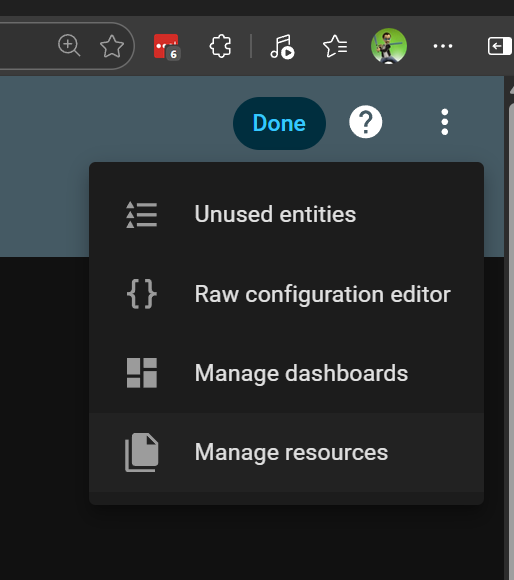
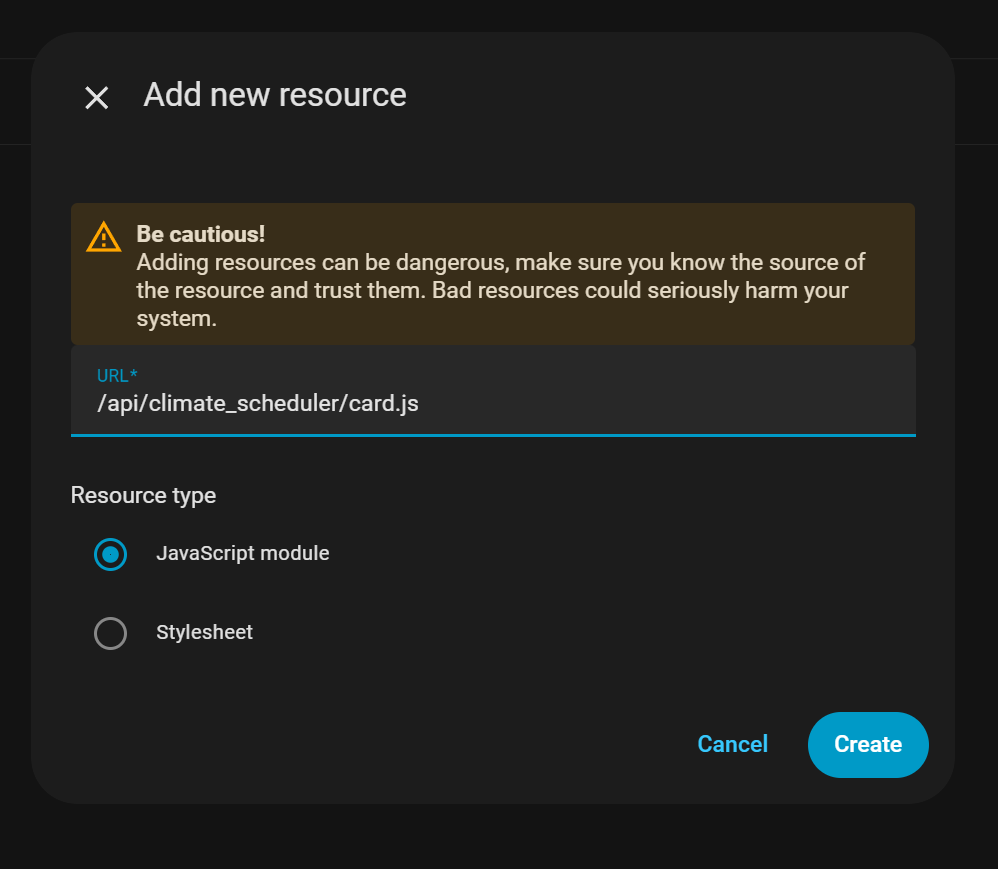
If you create an empty dashboard (or on an existing one) and then click edit, you should get an option in the menu to then manage resources.
If you enter /api/climate_scheduler/card.js as the URL and confirm the type as a module then hopefully it’ll sort it.
OK - got the card back.
As well as the problems of the schedule not getting saved (automatically or manually) when I move away from the card and come back.
Gives with one hand, takes away with the other…
Does the entity stay active at least when you move away and back again? I’ll see if I can add more debugging that’s easier to get to, there is a debug panel you can enable in the settings but I’m not sure what will be listed off the top of my head.
The debug panel doesn’t show anything other than that it’s been activated.
The HA logs shows this:
This error originated from a custom integration.

Logger: custom_components.climate_scheduler.coordinator
Source: custom_components/climate_scheduler/coordinator.py:242
integration: Climate Scheduler (documentation, issues)
First occurred: 12:03:11 (3 occurrences)
Last logged: 12:14:22

Error updating heating schedules: Provided temperature -7.777777777777778 is not valid. Accepted range is 10 to 32
This error originated from a custom integration.

Logger: custom_components.climate_scheduler.coordinator
Source: helpers/update_coordinator.py:435
integration: Climate Scheduler (documentation, issues)
First occurred: 12:03:11 (3 occurrences)
Last logged: 12:14:22

Error fetching climate_scheduler data: Error updating heating schedules: Provided temperature -7.777777777777778 is not valid. Accepted range is 10 to 32
I’m just changing the behaviour of that so that it clamps to min/max values if you try to go outside of them rather than just error out. Also adding these as user variables in the settings pane.
I’m guessing you’re not trying to set to -7 regardless of Fahrenheit or Celsius though…
Could you try clearing the schedule for that entity to reset it to the default values and see if it starts behaving please?
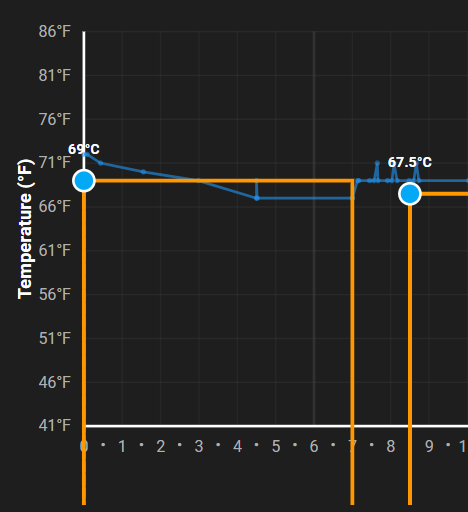
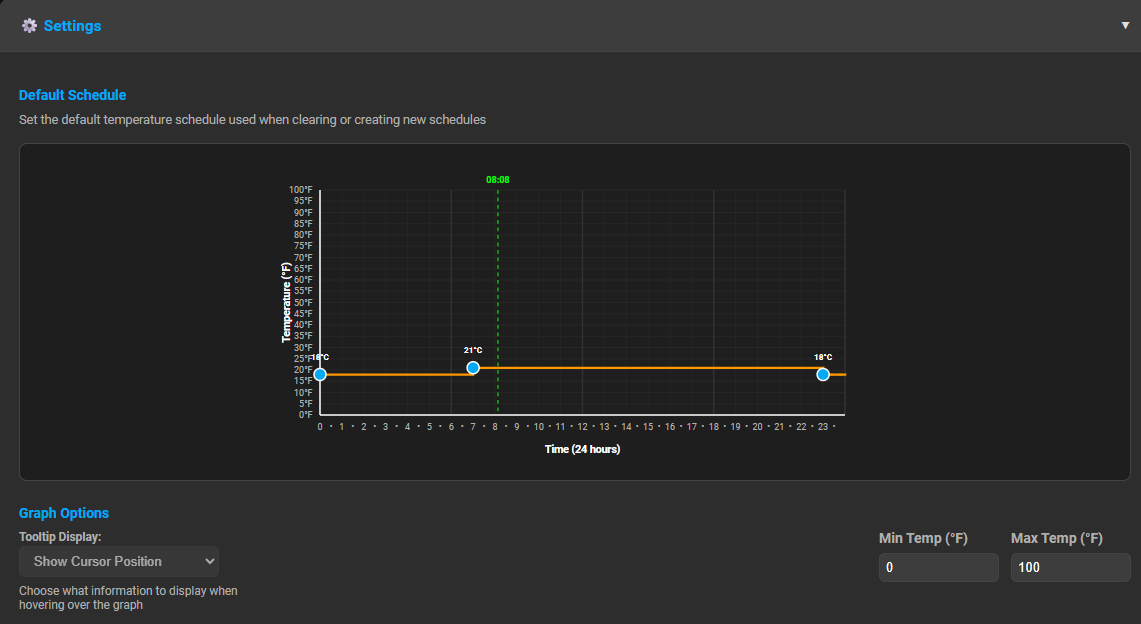
Cleared the schedule and when I added a setpoint @69F for midnight I get a very strange result.
Gets even more interesting when I add another at 8:30h.
The above is really just the result of double-clicking at each one of the two time/temperature points.
Doesn’t survive a browser refresh either
Is there a way to look at what’s stored for each climate schedule?
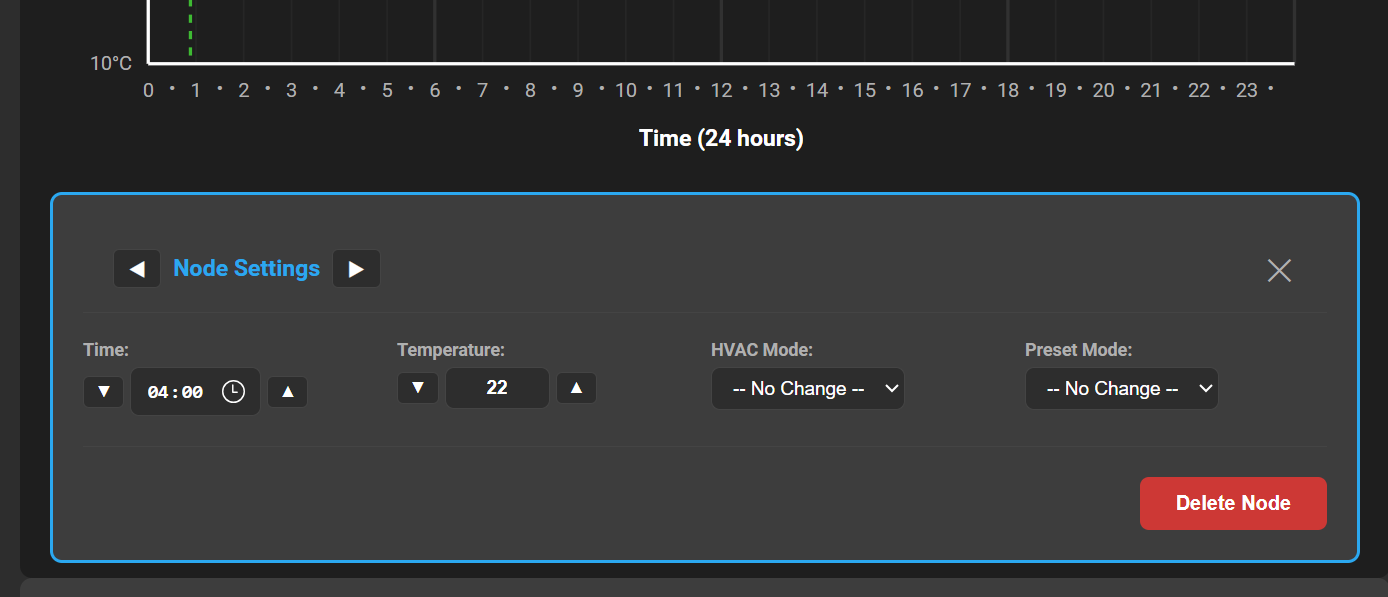
If you click on one of the nodes that’s on screen you should get this UI appear below the graph. If you click on the arrows either side of “node settings” it’ll let you access the previous or next nodes. I’ll bet the temperature value is a low number as it’s in C and confusing matters.
I’ve uploaded a bugfix version, before you install it could you also check the default schedule in the settings window please? I suspect it’s using the values for Celsius and not converting them to Fahrenheit when clearing the schedule and creating a new one.
Regarding data, it’s all stored in the following file:
/config/.storage/cllimate_scheduler_data
The default schedule is not visible - the values in the _data file look like this:
    "enabled": false,
    "schedule_mode": "all_days",
    "schedules": {
      "all_days": [
        {
          "time": "00:00",
          "temp": 18.0
        },
        {
          "time": "07:00",
          "temp": 21.0
        },
        {
          "time": "23:00",
          "temp": 18.0
        }
      ]
    }
So, I guess I don’t see the lines for 18(C?) and 21(C?) in the schedule - they’re probably there, but not visible because my chart only starts at 41(F!).
Might be a conversion problem from C to F then.
If you try using the node editor and move between the nodes off the bottom of the graph you should be able to update the errant nodes to reasonable temperatures.
At worst the new version let’s you adjust the minimum graph value so you can move the graph down to find them.
You should be able to adjust the default schedule by clicking on it and getting the same editor. You’re right though that it’s due to a conversion error. Should be an easy fix tomorrow to make sure the defaults are updated if the unit isn’t C.
I need to get an instance set to F to play around with, I can switch mine over but it seems HA stores only the numbers and not the units, changing to F meant my historic temperatures were briefly hotter than hell when I switched back…
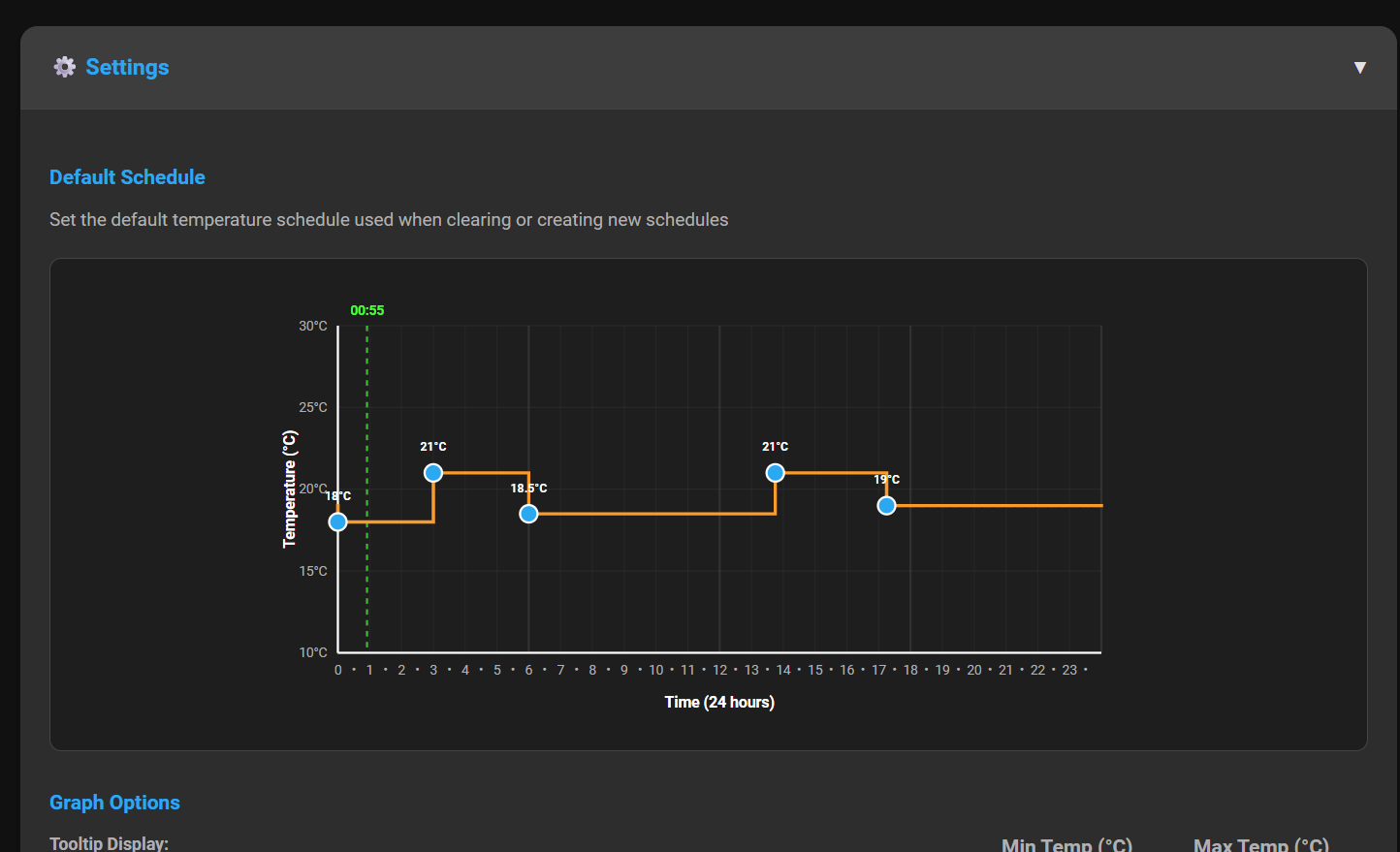
After changing the Min and Max Temps I can see the standard schedule:
It’s now easier to work my way around setting up a schedule, I’m good with that for now:
But as soon as I refresh the browser window, the climate entity moves back to the ‘Ignored’ section and the schedule I just set up and saved disappears - it doesn’t even matter if I made any changes or not, it just doesn’t stay ‘Active’.
Edit:
This is the same for both, Chrome and Edge, browsers BTW.
Someone else is reporting the same but I’ll be damned if I can figure out how to reproduce it.
I’ll keep digging and hopefully figure it out
I can reproduce it on my side, I’ll have a look this eve
Just looked at the issue on GitHub - seems like it’s the same problem.
We can continue the discussion there if you prefer.
To prevent the annoyance of the card not being found I’ve split off the UI in to a custom card which should mitigate this. It’s published but not in the HACS store yet, to install please follow these instructions:
https://github.com/kneave/climate-scheduler-card as repositoryRepo is available here: