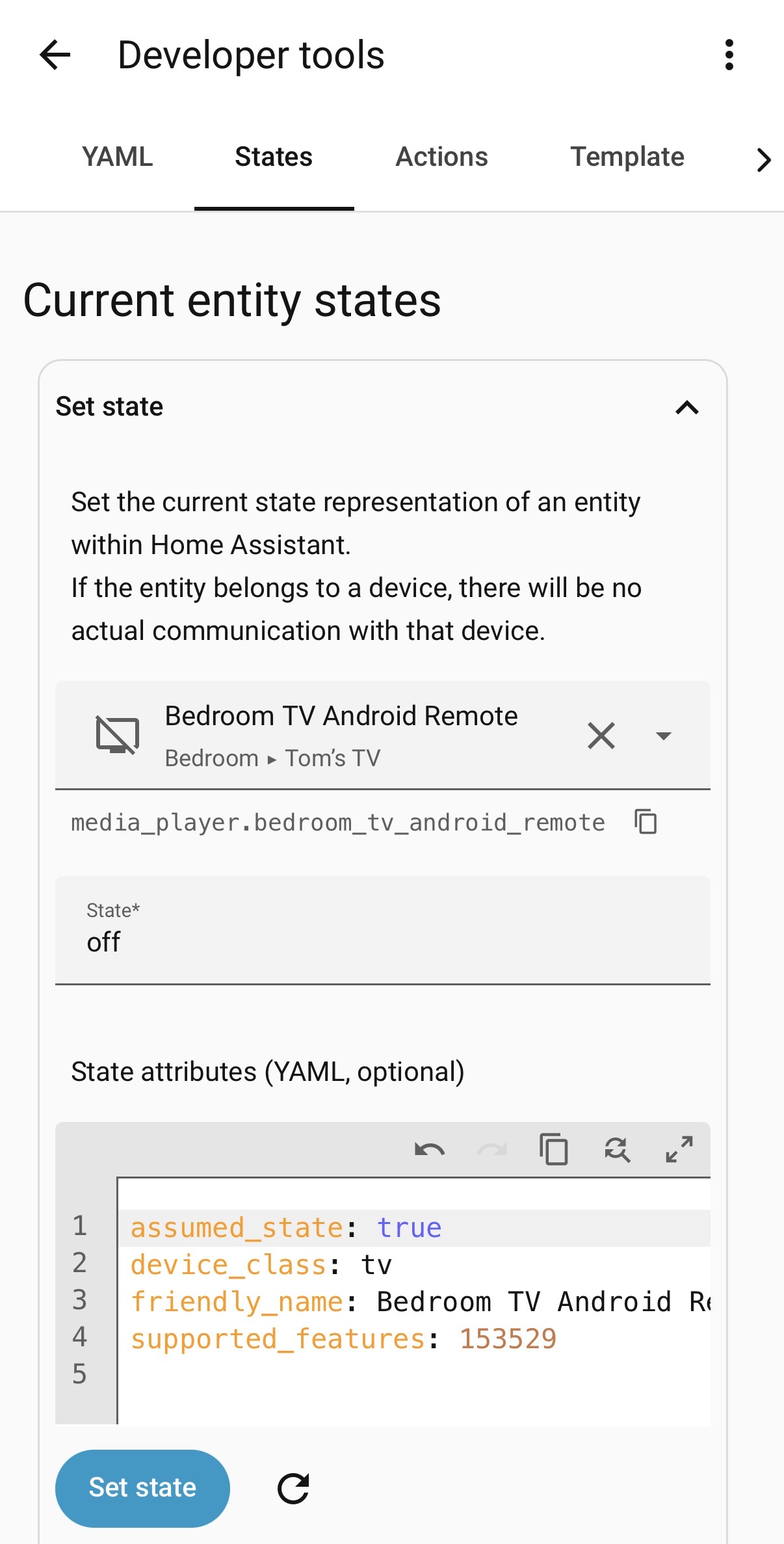
I made a simple guide that shows how to control any Android TV from your iPhone using the HomeKit Remote app.
This setup maps HomeKit button presses to Android TV commands, supporting DPAD navigation, OK, Back, Home, and Play/Pause plus full volume control - all with a single, universal automation.
Android TV or Google TV connected to Home Assistant (via the androidtv integration).
HomeKit Integration active in Home Assistant. Important: you should bridge the media_player entity to HomeKit instead of the remote entity.
The script will automatically forward non-volume commands to the device’s remote entity.
Note: Make sure the name of the remote entity matches the media_player entity name. By default, they should be identical, so this should work for most users.
Create a Central Script
Script
Create a new script and paste the following yaml:
alias: Android TV Remote Handler
description: Controlling Android TV via HomeKit Remote
mode: parallel
fields:
  remote_entity:
    description: Entity ID of the remote
    example: remote.android_tv
  key_name:
    description: Key pressed on HomeKit Remote
    example: arrow_right
sequence:
  - variables:
      remote_entity: remote.{{ remote_entity.split('.')[1] }}
      command_map:
        arrow_up: DPAD_UP
        arrow_down: DPAD_DOWN
        arrow_left: DPAD_LEFT
        arrow_right: DPAD_RIGHT
        select: DPAD_CENTER
        back: BACK
        information: HOME
  - target:
      entity_id: "{{ remote_entity }}"
    data:
      command: "{{ command_map[key_name] | default('') }}"
      num_repeats: 1
      delay_secs: 0
      hold_secs: 0
    action: remote.send_command
max: 10
What does it do?
Creates a mapping between HomeKit key_name and Android TV commands (DPAD, ENTER, BACK, etc.).
Automatically forwards commands to the correct remote entity derived from the media_player name.
Allows multiple simultaneous executions (mode: parallel) so button presses won’t block each other.
Sends the command via remote.send_command.
Create a General Automation
Create a new automation and paste the following yaml:
alias: Handle Any HomeKit Remote
description: Listen to any HomeKit remote and send the command to the correct device
mode: parallel
trigger:
  - platform: event
    event_type: homekit_tv_remote_key_pressed
action:
  - service: script.android_tv_remote_handler
    data:
      remote_entity: "{{ trigger.event.data.entity_id }}"
      key_name: "{{ trigger.event.data.key_name }}"
What does it do?
Takes the entity_id from the event → identifies which remote/TV to target.
Takes the key_name from the event → identifies which button was pressed.
Runs the script we created earlier which handles the command.
Notes:
Volume buttons work in HomeKit because the media_player entity is bridged for volume.
All other buttons (arrows, select, home, back) are sent via the remote entity derived from the media_player name.
Long-press actions are not supported. HomeKit does not expose long-press events for the TV Remote, so all commands are treated as single presses only.
This approach can be adapted to other devices (Samsung TVs, IR remotes, or any remote entity) by updating the command mapping.
This guide only has the mapping for Android TV
I’m a newbie in the Home Assistant world. Actually, it’s being a couple hours since I deployed. But I just wanted to say thank you! from not knowing wth is a script or an automation to being able to control my TCL Tv with this little guide.
Thanks for creating and sharing the scripts!
For some reason, Apple hid the home button on devices that are not Apple TV, because we map the action of each button we can set that button to navigate to the home screen.
I updated the script – now you can also control the volume!
What was the problem?
To control the arrows, the select button, the home button, and the back button, you need to use the device’s remote entity.
But HomeKit Bridge does not allow sending volume commands through the remote.
If you use the media_player entity, volume buttons, play/pause, and power on/off work, but the rest (home, back, select, arrows) do not.
What’s the solution?
Connect the media_player entity instead of the remote to HomeKit Bridge.
When pressing one of the buttons, the script sends the command to the device’s remote entity.
How does it work?
Extract the entity name, for example:
media_player.living_room_tv
Take the last part (living_room_tv) and append it to the remote entity:
remote.living_room_tv
Note:
Make sure the name of the device’s remote entity matches the media_player entity name. It should be identical by default, so this should work for most users.
What to do now:
Remove the remote entity from the HomeKit Bridge.
Connect the media_player instead.
Update the script.
And here’s the new script:
(The guide above has also been updated)
alias: Android TV Remote Handler
description: Controlling Android TV via HomeKit Remote
mode: parallel
fields:
  remote_entity:
    description: Entity ID of the remote
    example: remote.android_tv
  key_name:
    description: Key pressed on HomeKit Remote
    example: arrow_right
sequence:
  - variables:
      remote_entity: remote.{{ remote_entity.split('.')[1] }}
      command_map:
        arrow_up: DPAD_UP
        arrow_down: DPAD_DOWN
        arrow_left: DPAD_LEFT
        arrow_right: DPAD_RIGHT
        select: DPAD_CENTER
        back: BACK
        information: HOME
  - target:
      entity_id: "{{ remote_entity }}"
    data:
      command: "{{ command_map[key_name] | default('') }}"
      num_repeats: 1
      delay_secs: 0
      hold_secs: 0
    action: remote.send_command
max: 10
I wonder whether someone had an issue of not seeing the TV in the remote app, although it is seen in the home app.
Did someone had such an issue and managed to solve it?
I’m too dumb, could anybody please explain this a little further?
Whenever i unput anything, i’ll end up having this error message “Fehler beim Parsen von YAML: bad indentation of a mapping entry (Zeile: 6, Spalte: 16)”
Sure.
I have an Android TV.
When I set up the Android remote integration and expose it via the Homekit bridge to Apple home, I can see only the power on/off function in the Home app (I can turn the TV on and off).
But, in the remote app, I do not see the TV, it does not show it.
What did i miss?
Unfortunately, the same behavior on all iPhones/iPads I have.
Tried to re-add the android tv integration, create a new accessory bridge (via UI and manually via yaml), there is no change.
 Prerequisites
 Create a Central Script
 What does it do?
 Create a General Automation