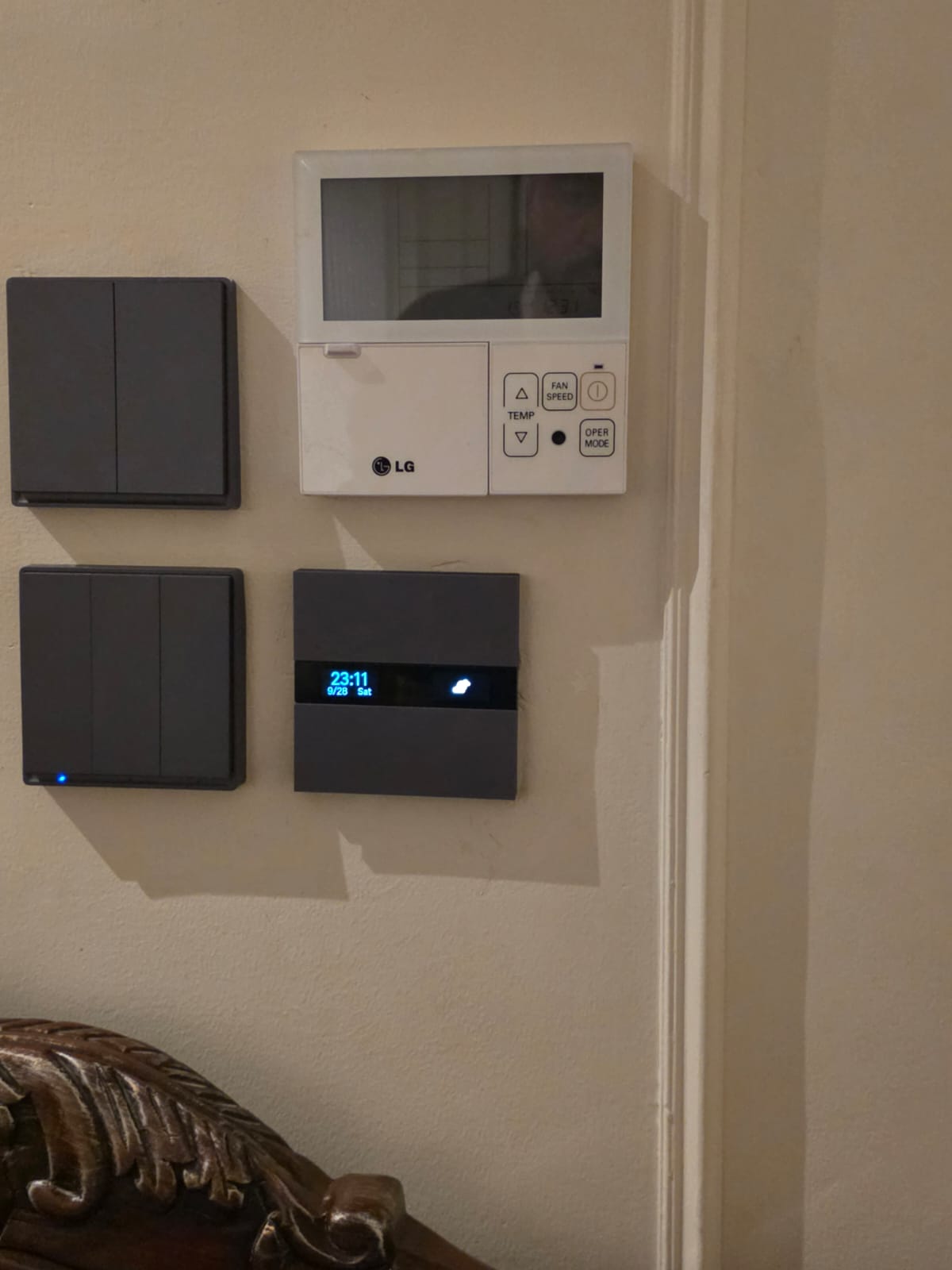
I recently purchased a Tuya 4-gang wall switch with a built-in LCD screen, and getting it fully functional in Zigbee2MQTT required some heavy troubleshooting. Out of the box, it pairs as unsupported, the physical relays won’t fire, the screen gets stuck on “01/01 Thursday” (Unix Time Zero), and the physical scene buttons don’t register.
Here is the complete guide and external converter to get the relays, scene buttons, and LCD clock working perfectly.
Device Details
-
Manufacturer:
_TZE284_tgvhmtzc -
Model:
TS0601 -
Type: Tuya MCU 4-gang switch with LCD display
The Underlying Issues (Why the standard Tuya extensions fail)
- The Time/Weather Bootloop: Tuya LCD switches will intentionally lock their internal microcontrollers (disabling the physical relays) until the screen receives a valid time sync and weather update over the network.
- Year 2000 Epoch: The standard Z2M
mcu_sync_timefunction fails because this specific Tuya firmware calculates time using an epoch starting Jan 1, 2000, rather than the standard 1970 Unix epoch. Feeding it standard time causes it to wrap around to “Time Zero.” - Non-Standard Datapoints: The switch uses DPs 24-27 for the relays and DPs 9-12 for the on-screen scene buttons.
The Solution: Custom External Converter
We built a custom fromZigbee interceptor that catches the device’s time/weather requests, suppresses the Z2M errors, calculates the exact year-2000 UTC/Local hexadecimal time payload, and injects it back to the screen to unlock the MCU.
1. Create the Converter File In your Zigbee2MQTT data folder (where your configuration.yaml is located), create a new file named tuya_lcd_4gang.js and paste the following code:
const exposes = require('zigbee-herdsman-converters/lib/exposes');
const tuya = require('zigbee-herdsman-converters/lib/tuya');
const e = exposes.presets;
const ea = exposes.access;

// Custom fromZigbee converter to catch and absorb the time/weather requests
const fz_lcd_sync = {
    cluster: 'manuSpecificTuya',
    type: ['commandMcuSyncTime', 'commandTuyaWeatherRequest'],
    convert: (model, msg, publish, options, meta) => {
        if (msg.type === 'commandMcuSyncTime') {
            const date = new Date();
            // Tuya MCUs calculate time from Jan 1, 2000, not 1970
            const time = Math.round((date.getTime() - 946684800000) / 1000);
            const localTime = time - (date.getTimezoneOffset() * 60);

            const payload = [
                (time >> 24) & 0xFF, (time >> 16) & 0xFF, (time >> 8) & 0xFF, time & 0xFF,
                (localTime >> 24) & 0xFF, (localTime >> 16) & 0xFF, (localTime >> 8) & 0xFF, localTime & 0xFF,
            ];
            msg.endpoint.command('manuSpecificTuya', 'mcuSyncTime', {payloadSize: 8, payload: payload}, {}).catch(() => {});
        }

        // Return an empty object to clear the Z2M error and trigger a standard ZCL Acknowledgment
        return {};
    },
};

const definition = {
    fingerprint: [{modelID: 'TS0601', manufacturerName: '_TZE284_tgvhmtzc'}],
    model: 'TS0601_LCD_Switch',
    vendor: 'Tuya',
    description: 'Smart 4-gang switch with LCD and Scenes',
    fromZigbee: [tuya.fz.datapoints, fz_lcd_sync],
    toZigbee: [tuya.tz.datapoints],
    configure: tuya.configureMagicPacket,
    exposes: [
        e.switch().withEndpoint('l1'),
        e.switch().withEndpoint('l2'),
        e.switch().withEndpoint('l3'),
        e.switch().withEndpoint('l4'),
        e.action(['scene_1', 'scene_2', 'scene_3', 'scene_4']),
        e.enum('time_format', ea.STATE_SET, ['24h', '12h']).withDescription('Time format'),
    ],
    meta: {
        multiEndpoint: true,
        tuyaDatapoints: [
            // Relays
            [24, 'state_l1', tuya.valueConverter.onOff],
            [25, 'state_l2', tuya.valueConverter.onOff],
            [26, 'state_l3', tuya.valueConverter.onOff],
            [27, 'state_l4', tuya.valueConverter.onOff],
            // LCD Scene Buttons
            [9, 'action', tuya.valueConverterBasic.lookup({'scene_1': 0})],
            [10, 'action', tuya.valueConverterBasic.lookup({'scene_2': 0})],
            [11, 'action', tuya.valueConverterBasic.lookup({'scene_3': 0})],
            [12, 'action', tuya.valueConverterBasic.lookup({'scene_4': 0})],
            // Clock format toggle
            [17, 'time_format', tuya.valueConverterBasic.lookup({'24h': false, '12h': true})],
        ],
    },
    endpoint: (device) => {
        return {l1: 1, l2: 1, l3: 1, l4: 1};
    },
};

module.exports = definition;
2. Update Configuration
external_converters:
- tuya_lcd_4gang.js
Restart Zigbee2MQTT. To ensure the switch goes through a clean boot sequence and receives the Magic Packet and correct time payload, completely delete the switch from Z2M, pop the physical LCD faceplate off the wall for 10 seconds, snap it back on, and re-pair the device.
Known Firmware Limitations
-
Weather: Z2M does not pull cloud weather data, so the weather graphic on the LCD will remain blank.
-
12h/24h Clock: Even though the converter exposes the 12h/24h toggle (and sends the correct Boolean instruction), many of these white-label screens have a 24-hour clock hardcoded directly into the visual UI firmware. The command is received, but the screen physically cannot draw a 12-hour AM/PM format.
Hopefully, this saves someone else a few hours of digging through Zigbee debug logs!