AI Code Task
Hi everyone,
I’m excited to share my latest project. It’s still a work in progress, but I believe it’s a “must-have” for Home Assistant. It’s called AI Code Task.
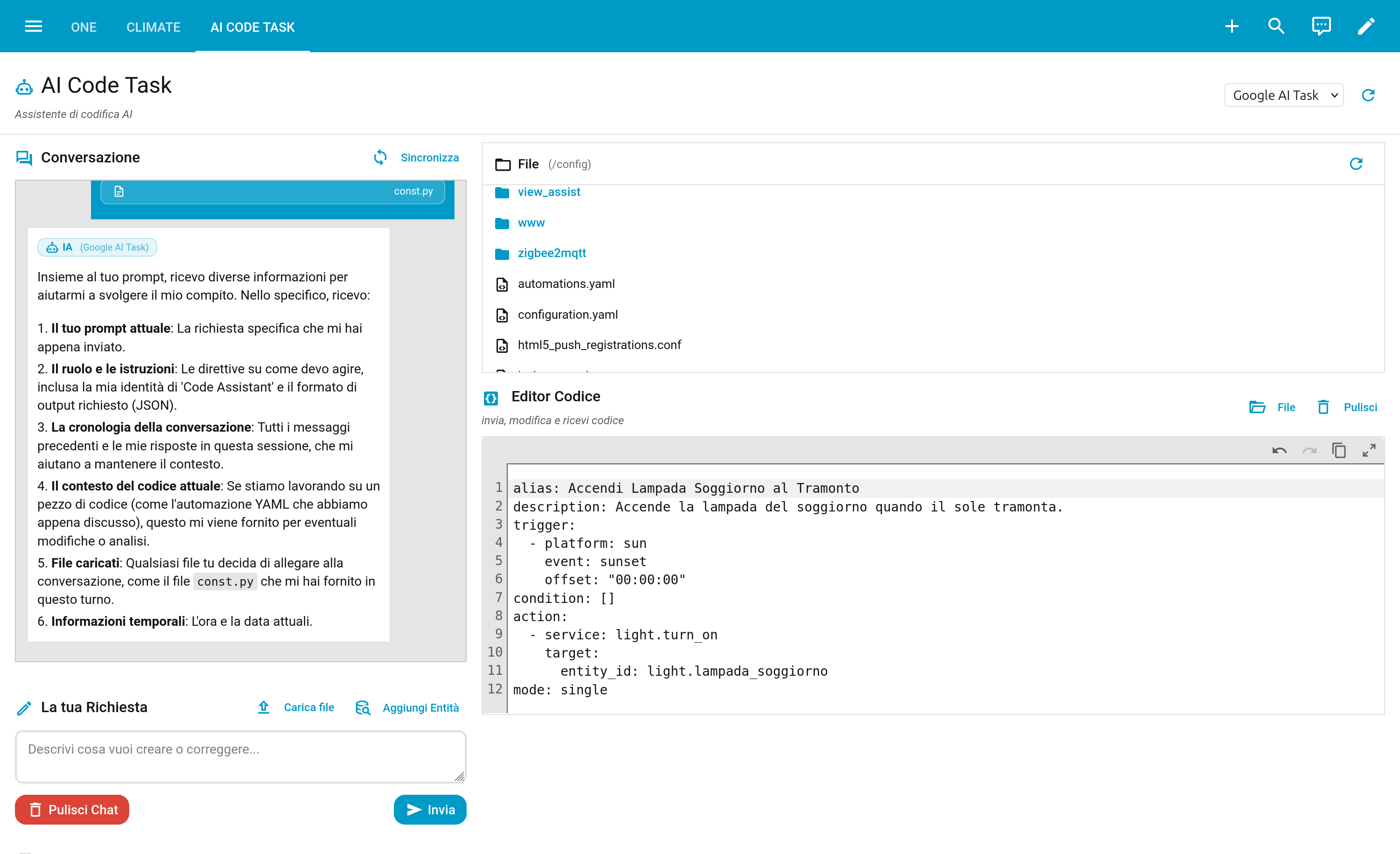
What is it, exactly?
It is a Lovelace card (backed by a small integration) that combines three tools into one cohesive interface:
- Chat Interface: To talk to your LLM.
- Code Editor: To modify configurations.
- File Explorer: To navigate the
/configdirectory.
Why use this instead of ChatGPT/Claude/Gemini/Grok via their web or IDE frontends?
The big difference is real context:
-
Stop hallucinations: The interface lets you select your actual entities (e.g.,
light.living_room) to use in your automations or scripts and pass them to the AI. The AI receives their current state and real attributes, enabling it to generate working code immediately. -
File Analysis: You can “upload” your configuration files (e.g.,
automations.yaml) into the chat context and ask the AI: “Why isn’t this automation triggering?”. -
Fast Workflow: The AI generates code directly into the editor. You can evaluate it, tweak it, resend it if needed, or save it—all without leaving your dashboard.
-
Switch on the fly: Don’t like the answer from your chosen AI service? Switch provider instantly! For example, switch from Google to Grok and ask: “Grok, Gemini gave me this solution, but I’m not convinced. What do you think?”
-
Plus: Switching devices (pc desktop/laptop)? No problem: just click the “Sync” button and resume your session work.
Compatibility:
It is an agnostic IDE: it relies on Home Assistant’s AI Task platform, so it works with whatever you are already using: Grok, OpenAI, Gemini, Anthropic, or local models via Ollama, provided they are correctly configured with the AI Task platform.
Installation
It is available via HACS (Custom Repository for now).

Here is the link to the repo: AI CODE TASK
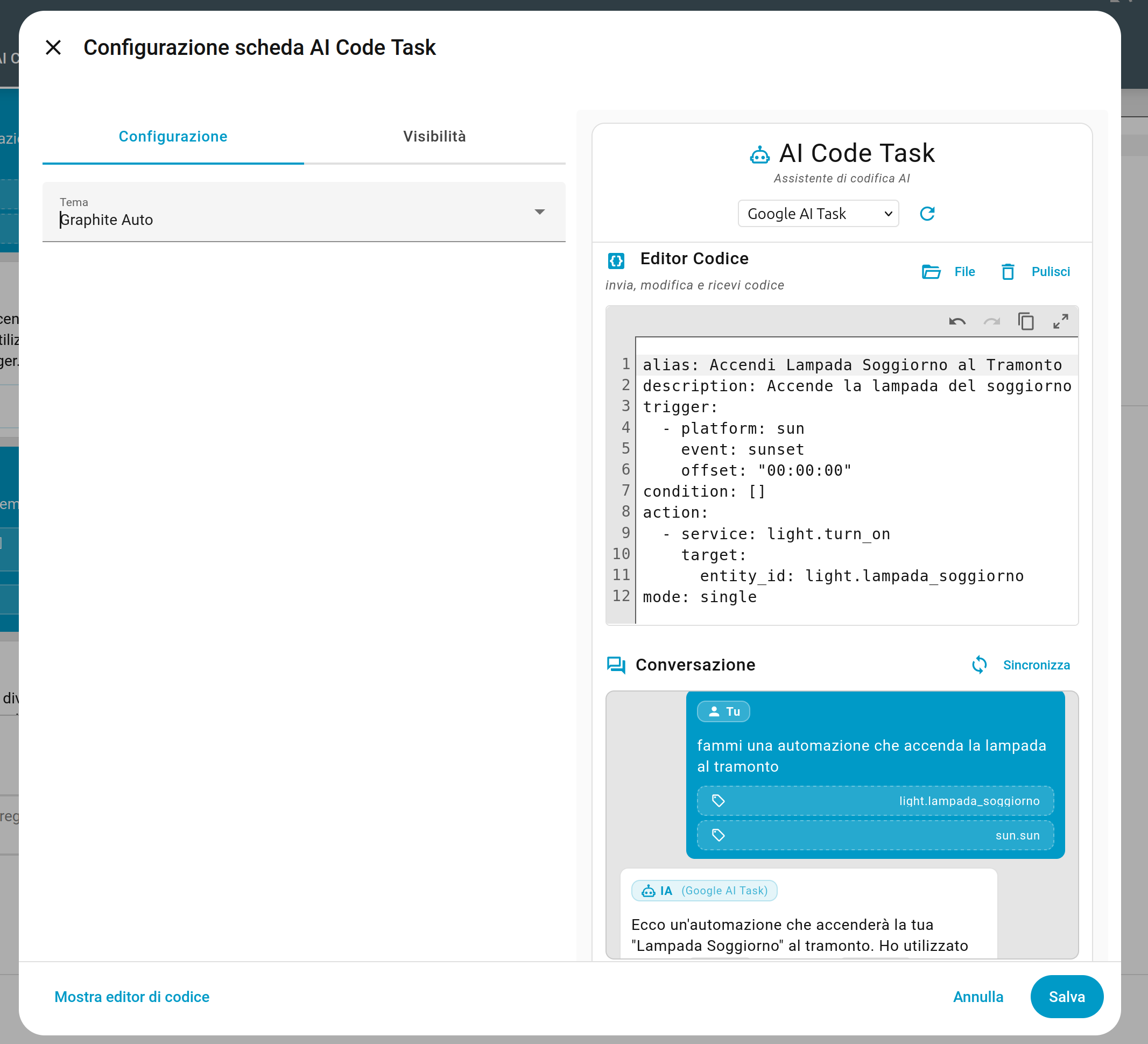
I recommend using it in a dashboard in “Panel” mode (full screen) to optimize the split view between chat and editor, but it works in all dashboard modes and on all device types.
IMPORTANT:
If you don’t see the card after the update, try refreshing your browser cache! On PC, press Ctrl + F5 (or Cmd + Shift + R on Mac). If you’re using the Home Assistant app, try closing and reopening it.
- type: panel
    path: code
    title: AI CODE TASK
    cards:
      - type: custom:ai-code-task-card
        theme: <your theme>
Let me know what you think if you give it a try, and please report any bugs or suggestions!