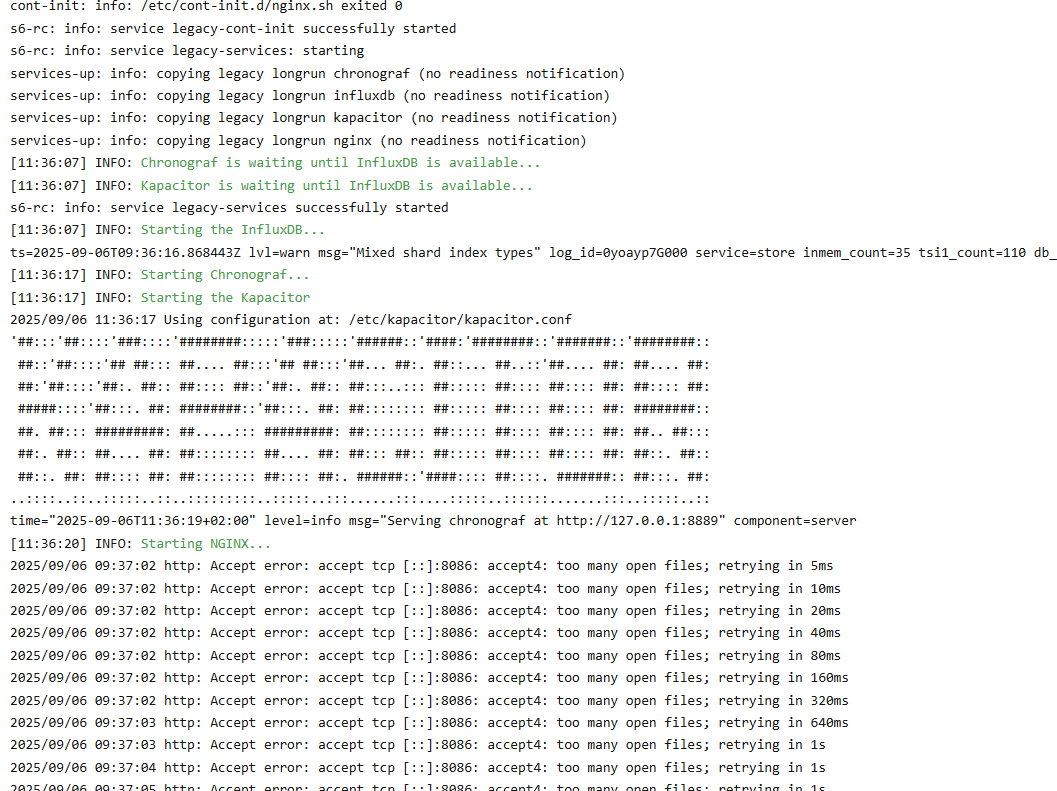
Error InfluxDB Accept error: accept tcp [::]:8086: accept4: too many open files; retrying in 1s

Hey

I just wanted to check something in Grafana and by that found out that my influxdb addon (addon in HA) is not working anymore.

No real clue when this started … .but at least a few weeks back it was working fine

Error says: Accept error: accept tcp [::]:8086: accept4: too many open files; retrying in 1s
2025/09/06 09:39:03 http: Accept error: accept tcp [::]:8086: accept4: too many open files; retrying in 1s

any tip what I could try is much appreciated

Thanks

Oh I found this is an open issue for the infludb addon
I hope @frenck will see this :slight_smile:

i have the same issue, and I think there are dozen more, they just do not check the influx data reguraly… it is a pittty that no solution is yet provided for it…

#!/bin/sh

IMAGE="ghcr.io/hassio-addons/influxdb/amd64:5.0.2"
ADDON="a0d7b954_influxdb"

echo "== Pull clean original image =="
docker pull "$IMAGE"

echo "== Create Dockerfile patch =="
rm -rf /mnt/data/influxdb-image-patch
mkdir -p /mnt/data/influxdb-image-patch

cat > /mnt/data/influxdb-image-patch/Dockerfile <<'DOCKER'
FROM ghcr.io/hassio-addons/influxdb/amd64:5.0.2

RUN if [ -f /etc/services.d/influxdb/run ]; then \
      sed -i '/ulimit -S -n 65536/d' /etc/services.d/influxdb/run && \
      sed -i '/ulimit -Sn 65536/d' /etc/services.d/influxdb/run && \
      sed -i '/exec influxd/i ulimit -S -n 65536' /etc/services.d/influxdb/run && \
      grep -n 'ulimit\|exec influxd' /etc/services.d/influxdb/run; \
    else \
      echo "ERROR: /etc/services.d/influxdb/run not found" && exit 1; \
    fi
DOCKER

echo "== Build patched image using same local tag =="
docker build -t "$IMAGE" /mnt/data/influxdb-image-patch

echo "== Restart InfluxDB add-on =="
ha addons restart "$ADDON"

echo "== Wait =="
sleep 25

echo "== Verify =="
docker exec "addon_$ADDON" sh -c '
  pid=$(pidof influxd || true)
  if [ -z "$pid" ]; then
    echo "ERROR: influxd not running"
    exit 1
  fi

  echo "PID=$pid"
  cat /proc/$pid/limits | grep "open files"
  echo FD_COUNT
  ls /proc/$pid/fd | wc -l
'

echo "== Done =="

I temporary fixed it by running this quick and dirty hotfix script (provided by chatgpt...) under Home Assistant Operating System 17.3 to be able to run newest kernel with fix for copy fail exploit.
Maybe it help you until real fix for the addon is there :slight_smile:
Make backup. Use on your own rist :wink:

I had the same problem and used Claude to get me out of the mess. It took a lot of iterations back and forth, but in the end I succeeded. Here’s Claude’s final procedure:

Fix: InfluxDB "Too Many Open Files" on Home Assistant

Symptoms

InfluxDB add-on fails to start and the log shows repeated errors like:

Cannot read corrupt tsm file, renaming ... error="init: read tombstones: too many open files"
http: Accept error: accept tcp 0.0.0.0:8086: accept4: too many open files; retrying in 5ms

Root Cause

Starting with Home Assistant OS 16, the default file descriptor (open files) limit for
add-on containers was lowered to 1024. This is too low for InfluxDB, which needs to open
many files simultaneously on startup — one for each TSM data file, WAL file, and shard.

Over time, InfluxDB's internal monitoring database (_internal) accumulates hundreds of
shard folders, each containing multiple files. Combined with the lowered HAOS 16 limit,
InfluxDB can no longer open all required files on startup and fails.

Note: PR #395 on the hassio-addons/addon-influxdb GitHub repository proposes a proper
fix by making the file handler limit user-configurable. As of add-on version 5.0.2 this
fix has not yet been released.

The workaround in this guide deletes the _internal database, which only stores
InfluxDB's own internal metrics and has no value for Home Assistant users. This reduces
the number of files InfluxDB needs to open on startup back below the 1024 limit.


Requirements

  • Home Assistant OS
  • InfluxDB installed as an add-on
  • Advanced Mode enabled on your HA user profile
  • Advanced SSH & Web Terminal add-on installed (only visible in the store when Advanced Mode is on)

Step 0 — Enable Advanced Mode

  1. Click your username in the bottom left of the HA sidebar
  2. Scroll down to find Advanced Mode
  3. Toggle it on

This unlocks additional add-ons in the store, including the Advanced SSH & Web Terminal
add-on needed for this procedure.


Step 1 — Install Advanced SSH & Web Terminal

If not already installed:

  1. Go to Settings → Add-ons → Add-on Store
  2. Search for Advanced SSH & Web Terminal
  3. Install it and start it
  4. Enable Show in sidebar

Step 2 — Disable protection mode

This is required to get Docker access:

  1. Go to Settings → Add-ons → Advanced SSH & Web Terminal
  2. Click the Info tab
  3. Turn off Protection mode
  4. Restart the add-on

:warning: Remember to turn protection mode back on after you're done.


Step 3 — Start InfluxDB

InfluxDB needs to be running for the next step. Even though it's broken, the container
still starts:

  1. Go to Settings → Add-ons → InfluxDB → Start

Step 4 — Open the Advanced SSH terminal

Click Advanced SSH in the HA sidebar. You'll see a terminal with a prompt like:

➜ ~

Step 5 — Verify Docker access

docker ps -a | grep influx

You should see a line with addon_XXXXXXXXX_influxdb. If you see it, proceed.


Step 6 — Delete the _internal database

Run this command immediately after InfluxDB starts (before it fully loads):

docker exec addon_XXXXXXXXX_influxdb rm -rf /data/influxdb/data/_internal

Replace XXXXXXXXX with the actual add-on ID from the previous step.


Step 7 — Verify the deletion

docker exec addon_XXXXXXXXX_influxdb ls /data/influxdb/data/

You should see only your data folder (e.g. Homeassistant) and no _internal folder.


Step 8 — Restart InfluxDB cleanly

  1. Go to Settings → Add-ons → InfluxDB
  2. Click Restart

Check the log — it should now start cleanly with no too many open files errors.


Step 9 — Prevent it from happening again

Make sure the internal monitoring store is disabled:

  1. Go to Settings → Add-ons → InfluxDB → Configuration tab
  2. Find INFLUXDB_MONITOR_STORE_ENABLED and set it to false
  3. Save and restart

This prevents _internal from ever being recreated.


Step 10 — Re-enable protection mode

  1. Go to Settings → Add-ons → Advanced SSH & Web Terminal → Info tab
  2. Turn Protection mode back on
  3. Restart the add-on

Verify InfluxDB is receiving data

Direct browser access to Chronograf (port 8888) may not work. Instead, open the
InfluxDB web UI from within Home Assistant:

  1. Go to Settings → Add-ons → InfluxDB
  2. Click the Open Web UI button
  3. This opens the Chronograf interface
  4. Go to Explore in the left sidebar
  5. Select your database (e.g. Homeassistant)
  6. Check that recent timestamps are appearing — if they are, data is flowing in correctly

Notes

  • This procedure does not delete your Home Assistant sensor data in InfluxDB
  • Only the _internal folder (InfluxDB's own internal metrics) is removed
  • Your automations, dashboards and HA configuration are completely untouched
  • Tested on: Home Assistant OS 17.3, InfluxDB add-on 5.0.2, Odroid N2+

Fyi to you, Claude & anyone else reading this, advanced mode was removed as of 2026.6 release 2 days ago & is now the default.

Skip this step if you're on the latest release & always tell Claude to verify against the latest HA docs/ release notes.

For anybody, to whom the provided solution does not work (deleting the internal DB of InfluxDB):

I had the same issue, but the internal DB was not the fault, it was my own DB, as I was collecting much more data, my DB is 7,5GB big.

I have decided to spin up an LXC in Proxmox only for InfluxDB (tteck´s / community scripts) installed influxdb v1 and copied the data (the “influxdb” folder) via SFTP from HAOS under /mnt/data/supervisor/apps/data/a0d7b954_influxdb/
to the LXC under /var/lib/

Restarted InfluxDB, changed hass+glances configuration to point to new IP and done. All is working. Easier than to fiddle around with the container in hass..