Yes, thank you… It works like a charm.
Now, the problem is to get the right selector for all the elements and pages. What’s the best way to get there? How do you manage/do that in the most simplest way? It really is a struggle…
Yes, thank you… It works like a charm.
Now, the problem is to get the right selector for all the elements and pages. What’s the best way to get there? How do you manage/do that in the most simplest way? It really is a struggle…
So, to understand how to get the right selector - and form it the way global-mod can work with it - I tried the X-Path approach on the “config/divices/dashboard”, and selecting the table.
  # Target ha-data-table at: http//your.home-assistant:8123/config/devices/dashboard
  ConfigDevicesFont-path: config/devices/dashboard
  ConfigDevicesFont-selector: home-assistant-main$ha-drawer partial-panel-resolver ha-panel-config ha-config-devices ha-config-devices-dashboard$hass-tabs-subpage-data-table$hass-tabs-subpage ha-data-table$
  # X-Path:    /html/body/home-assistant//home-assistant-main//ha-drawer/partial-panel-resolver/ha-panel-config/ha-config-devices/ha-config-devices-dashboard//hass-tabs-subpage-data-table//hass-tabs-subpage/ha-data-table//div
  #            home-assistant-main$ha-drawer partial-panel-resolver ha-panel-config ha-config-devices ha-config-devices-dashboard$hass-tabs-subpage-data-table$hass-tabs-subpage ha-data-table$
  ConfigDevicesFont-style: |
    div {
      font-family: "Consolas" !important;
      font-size: 13px !important;
      font-weight: 300 !important;
      color: red !important;
    }
So, after investigiation the selector. It seems that the right thing todo is to replace ‘//’ with ’ $’ and ‘/’ with ’ '. Then remove the final element and use that as the selector in the CSS-block itself.
Fur the block above this works.
Now, I tried to do the same for the ‘config/entities’-page, by doing this:
  # Target ha-data-table at: http//your.home-assistant:8123/config/entities
  ConfigEntities-path: config/entities
  ConfigEntities-selector: home-assistant-main$ha-drawer partial-panel-resolve ha-panel-config ha-config-entities$hass-tabs-subpage-data-table$hass-tabs-subpage ha-data-table$
  # X-Path:    /html/body/home-assistant//home-assistant-main//ha-drawer/partial-panel-resolver/ha-panel-config/ha-config-entities//hass-tabs-subpage-data-table//hass-tabs-subpage/ha-data-table//div
  #            home-assistant-main$ha-drawer partial-panel-resolve ha-panel-config ha-config-entities$hass-tabs-subpage-data-table$hass-tabs-subpage ha-data-table$
  ConfigEntities-style: |
    div {
      font-family: "Consolas" !important;
      font-size: 13px !important;
      font-weight: 300 !important;
      color: green !important;
    }
Allthough, I think I did it the correct way. It isn’t working and I’m not really sure why not. Any idea’s, tips or thoughts to pinpoint me to the wrong approach and explain to me where this is going into the wrong direction?
partial-panel-resolver not partial-panel-resolve …
Jeeeeeezzzzzz… Thanks a bunch! How could I haven’t seen that mistake?
look at your x-path 
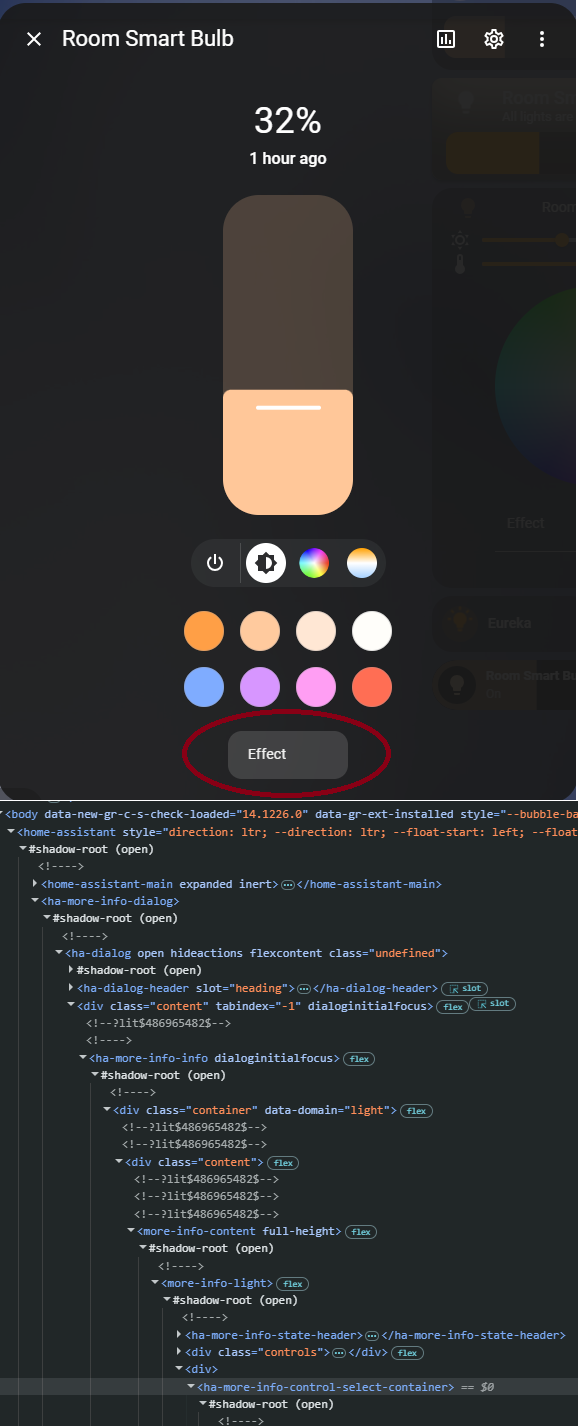
Hi, newbie here and need help. I want to hide the Effects button
<ha-more-info-control-select-container>
and I want to add display: none; in CSS.
how can I select the element to add the CSS?
thank you
hi @alex3305 any idea on my issue?
Thanks for the nudge @hassuser95. I don’t think it’s possible because of how dynamically this UI element is built up. I tried it with:
  theme-effect-button-path: "/lovelace/"
  theme-effect-button-selector: home-assistant-main$ha-dialog .content ha-more-info-info$more-info-content$more-info-light$
  theme-effect-button-style: |
    ha-more-info-control-select-container {
      background: red!important;
    }
but that didn’t work.
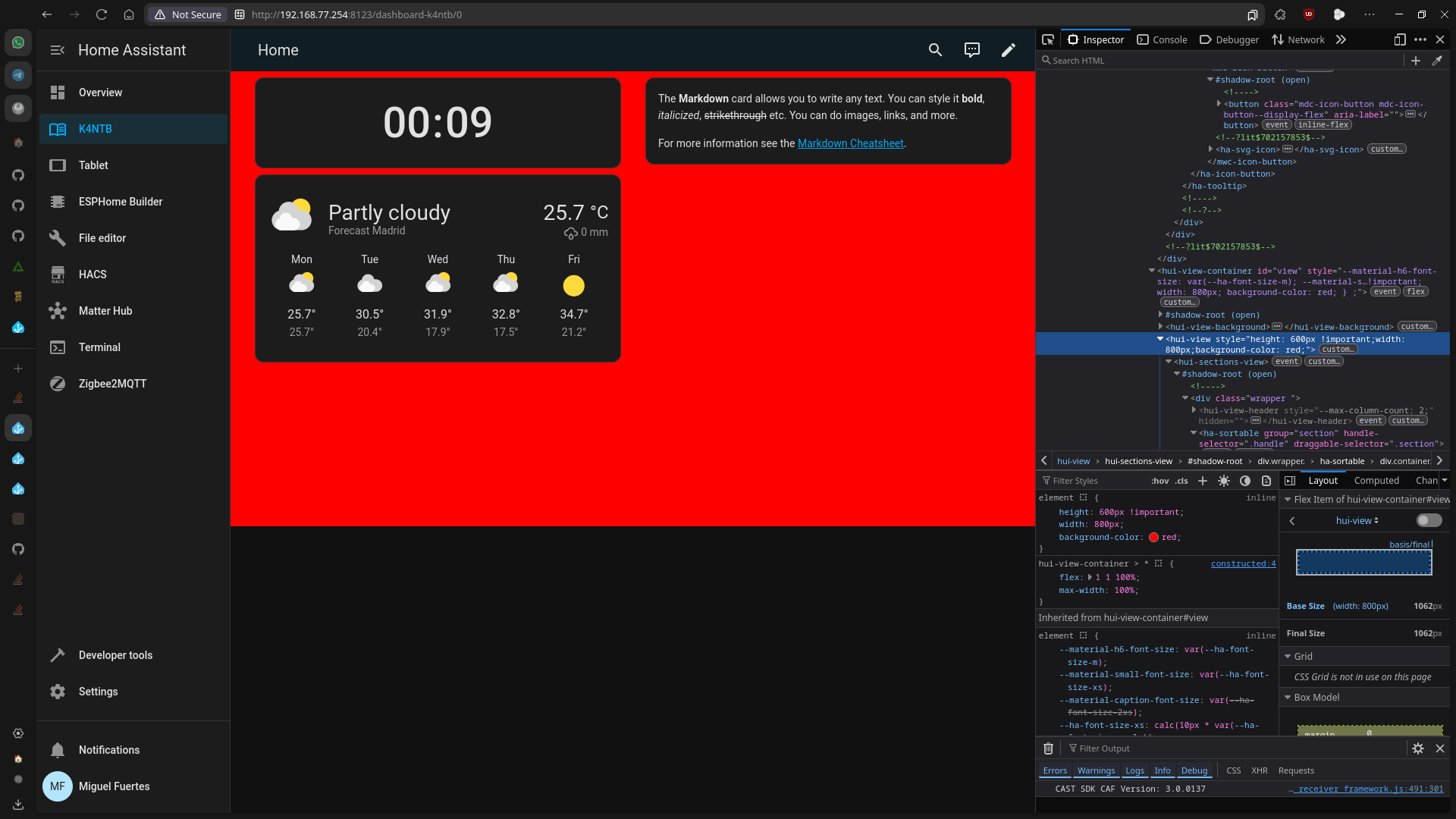
Just found out your plugin and its great… but I’m not achieving what I want… Can you help me? I want to somehow limit the canvas/panel to a size, so that I can precisely position widget so that I could take a snapshot to upload to an eink display. My display is 800px to 600px so It would be great if I could add a size restriction (and a background) to see if I’m drawing inside my eink visible space.
This is what I want to achieve (done manually in Zen)
(This is what I want to achieve)
Based on your github, the theme should be:
# themes/test.yaml
---
test:
  small-layout-path: "/lovelace/"
  small-layout-selector: home-assistant-main$ha-drawer partial-panel-resolver ha-panel-lovelace$hui-root$
  small-layout-style: |
    hui-view {
        height: 600px !important;
        width: 800px;
        background-color: red;
    }
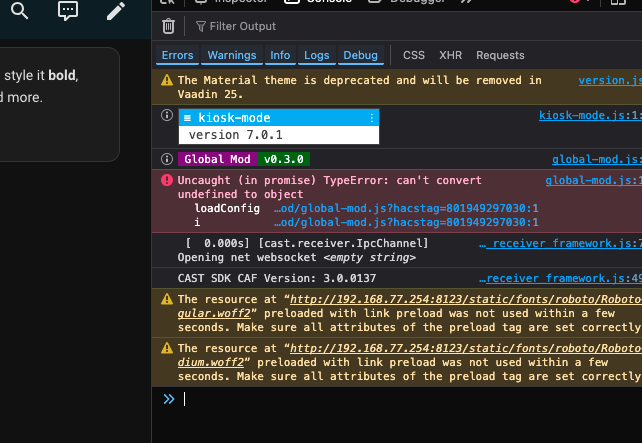
For some reason it is not failing now (before it was saying something about null), but is doing nothing… What am I doing wrong?
Thank you!!!
You were almost there. Home Assistant can be a CSS beast .
  small-layout-path: "/dashboard-small/"
  small-layout-selector: home-assistant-main$ha-drawer partial-panel-resolver ha-panel-lovelace$hui-root$
  small-layout-style: |
    div:first-of-type {
      --view-width: 800px;
      --view-height: 600px;

      /** Hide any overflow items exceeding set height.
          This can break or hide cards that want to overflow! */
      overflow: hidden;
    }

    #view {
        width: var(--view-width);
        min-height: var(--view-height);
        height: var(--view-height);
        background: red;
    }
The height should be defined within the view container. If you want an alternative width without resizing the navbar you can use the hui-view element if you want to.
I recommend against using the overflow property. But I’ve included it for completeness
Oh! thank you!, let me try it… in the end I only need the panel itself to be in the constraint size, as I will be using kiosk mode to take the snapshot.
Thank you!!!
Hi, thank you for this add-on. But I can’t get it to work.
default-global-mod:
  deviceColumns-path: "config/devices/device/"
  deviceColumns-selector: "home-assistant-main$ha-drawer partial-panel-resolver ha-panel-config ha-config-devices ha-config-device-page$hass-subpage"
  deviceColumns-style: |
    .container {
      max-width: 90% !important;
    }
I’ve tried this and:
default-global-mod:
  deviceColumns-path: "config/devices/device/"
  deviceColumns-selector: "home-assistant-main$partial-panel-resolver ha-panel-config ha-config-devices ha-config-device-page$hass-subpage"
  deviceColumns-style: |
    .container {
      max-width: 90% !important;
    }
But both don’t work. I’ve installed it through HACS and set:
frontend:
  themes: !include_dir_merge_named ../themes
Made a default.yaml file in that folder and reloaded everything. But nothing happens.
Hello and thank you @alex3305 for your nice mod! 
I am trying to use Global Mod to solve a specific contrast issue in my theme.
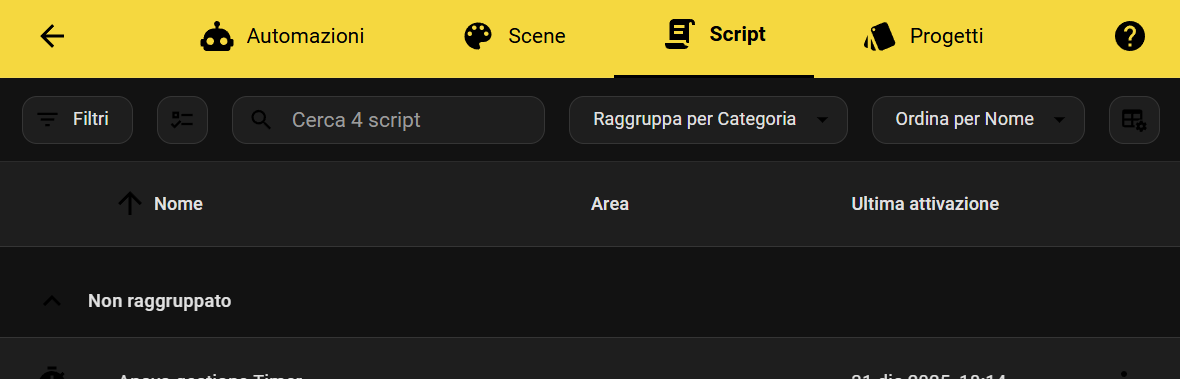
The context: My theme uses a dark background, so the default text color (and primary-color) is white. However, I have styled the top header/toolbar to be Yellow. This creates a problem where the active tabs (ha-tab) inherit the white primary-color, making them unreadable against the yellow background.
I want to force the active tabs to be black.
I managed to get this working for the Scripts page using a somewhat “brute force” selector to reach the toolbar inside the shadow DOM:
# My "quick and dirty" fix for the Scripts page
  script-tabs-selector: 'home-assistant-main$ha-script-picker$hass-tabs-subpage-data-table$hass-tabs-subpage$.toolbar'
  script-tabs-style: |
    /* This successfully changes the active tab color */
    ha-tab[active], :host([active]) {
      font-weight: bold !important;
      --primary-color: #000000 !important;
      color: var(--primary-color) !important;
    }
The problem: This approach is not scalable because the DOM structure changes slightly depending on which configuration page I am viewing. The container element changes name, breaking the path.
For example:
...$ha-script-picker$......$ha-scene-dashboard$...Here are the specific selectors I found via inspection:
# Script Page path
script-selector: 'home-assistant-main$ha-script-picker$hass-tabs-subpage-data-table$hass-tabs-subpage$.toolbar'

# Scene Page path (same structure, different container tag)
config-selector: 'home-assistant-main$ha-scene-dashboard$hass-tabs-subpage-data-table$hass-tabs-subpage$.toolbar'
Here’s two screenshots showing my actual outcome:
Script Page (working):
Scenes Page (white text):
My Question: Is there a smarter way to target the hass-tabs-subpage or the toolbar without having to manually define a selector for every single configuration page (Scripts, Automations, Scenes, Helpers, etc.)?
I was wondering if Global Mod supports some form of wildcard traversing (like > * >) or a fuzzy selector to skip the specific container name, as the end goal is just a simple link color change on the toolbar which exists in the same relative position on all these pages.
Thanks in advance for any tips!