How to define a sensor result for a date range

Hi,

I am trying to condition my automations to NOT work when on vacation.

I defined 2 helpers input_date_time.vacation_first_date and input_date_time.vacation_last_date which show up in lovelace.

I want to be able to add a condition to automations that would look something like this:

     OnVacation: no

How do I write a sensor to give results of yes/no when the current date is between my 2 helpers inclusively? Please give a complete example of sensor definition.

Thanks,
Rich

There’s no device_class that can make a binary_sensor display its states in the UI as yes/no so you’ll have to settle for on/off. If that’s unacceptable, then it will have to be defined as sensor because it can display whatever you want.

I’ll post examples for both. Personally, I would choose a binary_sensor but it’s your choice.

This is the template for a binary_sensor. You can test it by pasting it into the Template Editor.

{{ state_attr('input_datetime.vacation_first_date', 'timestamp') <= now().timestamp() <= state_attr('input_datetime.vacation_last_date', 'timestamp') }}

Here are two ways to define a Template Binary Sensor in Home Assistant. The first one is the new way and the second is the traditional way (now called “legacy”).

click to reveal
template:
  binary_sensor:
  - name: On Vacation
    state: >
      {{ state_attr('input_datetime.vacation_first_date', 'timestamp') <= now().timestamp() <= state_attr('input_datetime.vacation_last_date', 'timestamp') }}
binary_sensor:
- platform: template
  sensors:
    on_vacation:
      friendly_name: On Vacation
      value_template: >
        {{ state_attr('input_datetime.vacation_first_date', 'timestamp') <= now().timestamp() <= state_attr('input_datetime.vacation_last_date', 'timestamp') }}

This is the template for a sensor. You can test it by pasting it into the Template Editor.

{{ 'yes' if state_attr('input_datetime.vacation_first_date', 'timestamp') <= now().timestamp() <= state_attr('input_datetime.vacation_last_date', 'timestamp') else 'no' }}

Here are two ways to define a Template Sensor in Home Assistant. The first one is the new way and the second is the traditional way.

click to reveal
template:
  sensor:
  - name: On Vacation
    state: >
      {{ 'yes' if state_attr('input_datetime.vacation_first_date', 'timestamp') <= now().timestamp() <= state_attr('input_datetime.vacation_last_date', 'timestamp') else 'no' }}
sensor:
- platform: template
  sensors:
    on_vacation:
      friendly_name: On Vacation
      value_template: >
        {{ 'yes' if state_attr('input_datetime.vacation_first_date', 'timestamp') <= now().timestamp() <= state_attr('input_datetime.vacation_last_date', 'timestamp') else 'no' }}

EDIT

Correction. Removed unnecessary hyphens.
Hi Taras,

I tried this in Template editor:

{{ 'yes' if state_attr('input_datetime.vacation_first_date', 'timestamp') <= now().timestamp() <= state_attr('input_datetime.vacation_last_date', 'timestamp') else 'no' }}

got this error:


TypeError: ‘<=’ not supported between instances of ‘NoneType’ and ‘float’

Never mind, it worked. I changed my helper name.

Where do I enter it in HA?

I used this version:

{{ 'yes' if state_attr('input_datetime.vacation_first_date', 'timestamp') <= now().timestamp() <= state_attr('input_datetime.vacation_last_date', 'timestamp') else 'no' }}

I mean how. I know to create a sensor.yaml file but not the syntax within it.

I suspect you may have overlooked the “click to reveal” links in my first post. If you click the second one, it will reveal the configuration for sensor.on_vacation. In fact, it will show two ways to create the same sensor, using the new way with the template integration or the traditional way using the template platform. Just copy-paste whichever one of the two you prefer to use in your system. Don’t forget to update the entity names because I used the original ones you posted.


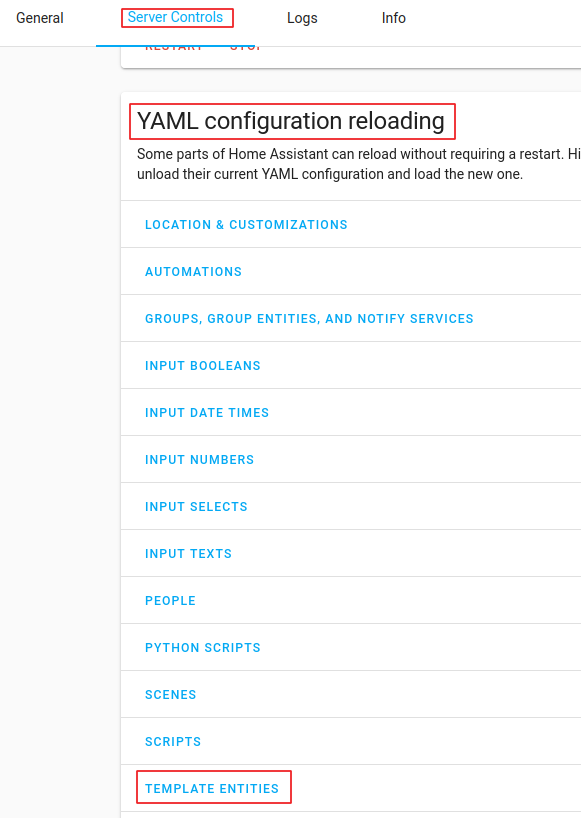
After you have done that (and executed Configuration > Server Controls > Reload Template Entities) the sensor should appear in Developer Tools > States. Now you can add a condition to your automation that checks if the state value of sensor.on_vacation is yes (or no).

You can use a State Condition:

condition:
- condition: state
  entity_id: sensor.on_vacation
  state: 'yes'

or a Template Condition (this version is in shorthand notation):

condition: "{{ is_state('sensor.on_vacation', 'yes') }}"

Taras,

I did see the reveal and only the 2nd (traditional) did not error out so I used it.

Next, after checking the configuration, restarting HA, then opening an existing automation, I tried to add a STATE condition but do not see OnVacation or something similarly named.

I could not find a “Reload Template Entities” and I have core-2021.7.4 along and supervisor-2021.06.8 installed.

Then I just found that … I had a sensor.yaml file but did not have an ‘include’ line in my configuration.yaml file. So I moved sensor definition into configuration.yaml and now I can see OnVacation in the Automations gui. Yeah!

Seems to be working good

Thank you again

Glad to hear it. Please consider marking my post (above) with the Solution tag. It’s customary in this community to assign the Solution tag to the first (or most complete) post that explains the cause of the problem and how to fix it. When other users jump to the Solution post, they expect to find an answer to the original question.

My mistake; there was a superfluous hyphen in front of sensor: and I have corrected the example.

Because, as you discovered, you put the sensor’s configuration where Home Assistant couldn’t find it.

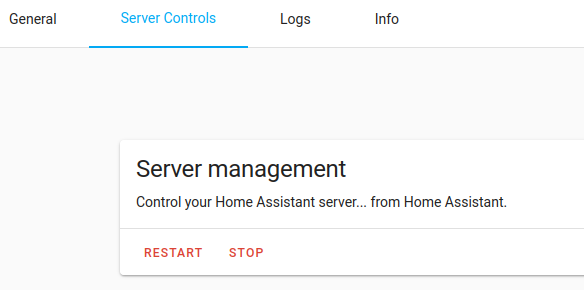
If you don’t have Advanced Mode enabled for your user account, all you will see in Configuration > Server Controls is this:

Screenshot from 2021-07-29 16-41-33

When the option is enabled, you will see also see this:

This is just the kind binary_sensor I’m looking for, though I only need it to work for time, not date.

I need it to come on at the start of work day and go off at the end.

What would need to change?

EDIT: Turns out that there’s now a helper that does just that.