This configuration is specific to French radiators and their pilot wires, but it could easily be adapted for other uses.
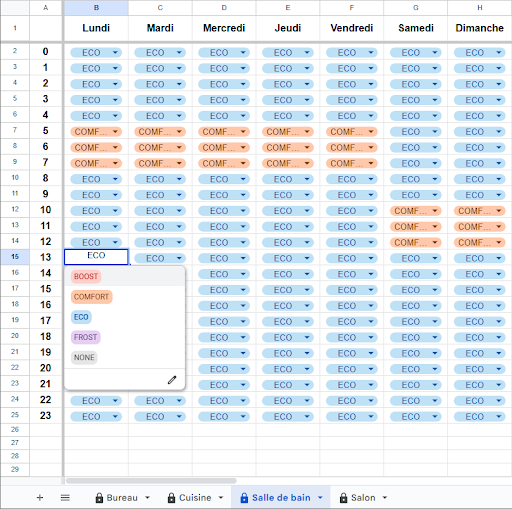
1/ Create a spreadsheet in Google Sheets
- 1 sheet per room
- Important: The names of the rooms must match the names of your Versatile Thermostat and Radiator entities
- 1 column per weekday
- 1 row per hour of the day
- The first row and the first column are frozen
- Easier to navigate on a smartphone
- Data validation rules
2/ Create an Apps Script
This Apps Script generates a JSON file based on the content of the Google Sheets document:
{
  "datetime": "2026-01-17T19:59:29+01:00",
  "schedules": {
    "bureau": {
      "0": {
        "0": "eco",
        "1": "eco",
        "2": "eco",
        "3": "eco",
        "4": "eco",
        "5": "eco",
        "6": "eco",
        "7": "comfort",
        "8": "comfort",
        "9": "comfort",
        "10": "comfort",
        "11": "comfort",
        "12": "comfort",
        "13": "comfort",
        "14": "comfort",
        "15": "comfort",
        "16": "comfort",
        "17": "comfort",
        "18": "eco",
        "19": "eco",
        "20": "eco",
        "21": "eco",
        "22": "eco",
        "23": "eco"
      },
      "1": {
        "0": "eco",
        "1": "eco",
        "2": "eco",
<…>
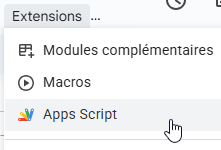
In the Google Sheets document, click on ‘Apps Script’ in the ‘Extensions’ menu:
Paste and adapt the following script.
Deploy the script as a Web Application and set it to be accessible to all.
I don’t like that security parameter, so if you have another solution I’m really interested!
You can check the result by entering the URL into your browser.
// GET Function
function doGet() {
  try {
    // Get the active spreadsheet and all its sheets
    const spreadsheet = SpreadsheetApp.getActiveSpreadsheet();
    const sheets = spreadsheet.getSheets();

    // Object that will store all schedules by sheet
    const schedules = {};

    // List of sheet names that must be ignored
    const IGNORED_SHEETS = ["Config", "Example"];

    // Mapping of French weekday names to numeric values (0 = Monday, 6 = Sunday)
    const dayToNumber = {
      "lundi": 0,
      "mardi": 1,
      "mercredi": 2,
      "jeudi": 3,
      "vendredi": 4,
      "samedi": 5,
      "dimanche": 6
    };

    // Iterate over each sheet in the spreadsheet
    sheets.forEach(sheet => {
      const sheetName = sheet.getName();

      // Skip sheets that are in the ignored list
      if (IGNORED_SHEETS.includes(sheetName)) {
        Logger.log(`Sheet ignored: ${sheetName}`);
        return;
      }

      // Normalize the sheet name:
      // - Replace non-breaking spaces with regular spaces
      // - Trim leading and trailing spaces
      // - Replace any whitespace sequence with underscores
      // - Convert to lowercase
      let sheetNameNormalized = sheetName
        .replace(/\u00A0/g, " ")
        .trim()
        .replace(/\s+/g, "_")
        .toLowerCase();

      // Retrieve all data from the sheet
      const data = sheet.getDataRange().getValues();

      // Ignore sheets with no data rows
      if (data.length < 2) return;

      // Extract weekday headers (excluding the first column)
      const headers = data[0].slice(1);

      // Initialize the schedule object for this sheet
      schedules[sheetNameNormalized] = {};

      // Loop through each weekday column
      for (let col = 1; col <= headers.length; col++) {
        const day = String(headers[col - 1]).toLowerCase().trim();
        const dayNum = dayToNumber[day];

        // Skip columns that do not match a known weekday
        if (dayNum === undefined) continue;

        // Create the day object if it does not exist yet
        if (!schedules[sheetNameNormalized][dayNum]) {
          schedules[sheetNameNormalized][dayNum] = {};
        }

        // Loop through each row to read time slots
        for (let row = 1; row < data.length; row++) {
          const hour = data[row][0];

          // Skip rows without a valid hour
          if (hour === "" || hour == null) continue;

          const value = String(data[row][col]).toLowerCase().trim();

          // Skip empty cells
          if (value === "") continue; // Ignore cellules vides

          // Store the value for the given day and hour
          schedules[sheetNameNormalized][dayNum][hour] = value;
        }
      }
    });

    // Generate an ISO 8601 timestamp using the spreadsheet's timezone
    const now = new Date();
    const timezone = Intl.DateTimeFormat().resolvedOptions().timeZone;
    const isoDatetime = Utilities.formatDate(now, timezone, "yyyy-MM-dd'T'HH:mm:ssXXX");

    // Final JSON structure
    const jsonOutput = {
      datetime: isoDatetime,
      schedules: schedules
    };

    // Return formatted JSON response
    return ContentService.createTextOutput(JSON.stringify(jsonOutput, null, 2))
      .setMimeType(ContentService.MimeType.JSON);

  } catch (error) {
    // Return error details in JSON format
    return ContentService.createTextOutput(
      JSON.stringify({ error: error.message })
    ).setMimeType(ContentService.MimeType.JSON);
  }
}
3/ Create HA sensors to collect schedule data
Paste the following code into your “configuration.yaml” file.
Replace “https://script.google.com/macros/s/************/exec” with your own URL.
command_line:
  - sensor:
      name: "Weekly heating schedule CMD"
      unique_id: 60d10b0a-ecd3-4c9f-8459-e2c630bea7ca
      icon: mdi:home-clock
      scan_interval: 300
      command_timeout: 15
      command: >
        echo $(
        curl
        --silent
        --location
        --max-time 10
        'https://script.google.com/macros/s/************/exec'
        )
      value_template: >
        "{{ value_json.datetime }}"
      availability: "{{ value_json is defined and value_json is mapping }}"
      json_attributes:
        - schedules
In ‘Developer Tools’, click on the tab ‘YAML’, then ‘All YAML Configuration’.
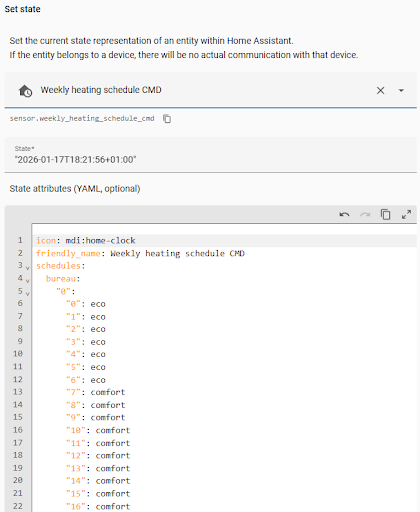
In ‘Developer Tools’, click on the tab ‘States’, then search for ‘Weekly heating schedule CMD’.
You should get the following result:
Paste the following code into your “configuration.yaml” file.
We will use this second sensor to maintain the schedule data available in HA, even when Google services are unavailable.
template:
  - trigger:
    - trigger : state
      entity_id: sensor.weekly_heating_schedule_cmd
      not_to:
      - unknown
      - unavailable
      - none
    sensor:
      - name: "Weekly heating schedule BKP"
        unique_id: 4fd20051-5e70-4843-8090-fb5eb3236dad
        icon: mdi:home-clock
        state: "{{ states('sensor.weekly_heating_schedule_cmd') }}"
        attributes:
          schedules: "{{ state_attr('sensor.weekly_heating_schedule_cmd', 'schedules') }}"
In ‘Developer Tools’, click on the tab ‘YAML’, then ‘All YAML Configuration’.
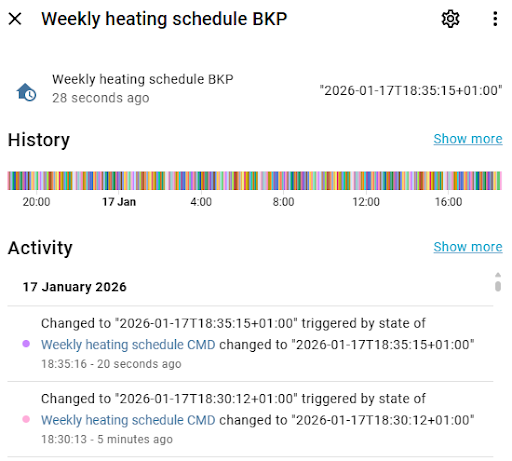
In ‘Developer Tools’, click on the tab ‘States’, then search for ‘Weekly heating schedule BKP’.
You should get the following result:
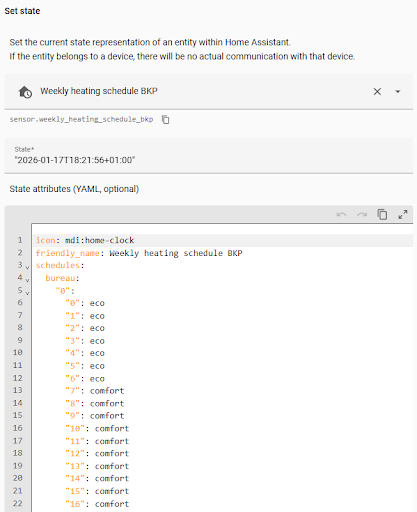
In the ‘Weekly heating schedule BKP’ entity, we can see that the schedule data is copied from the ‘Weekly heating schedule CMD’ entity when the latter changes state.
4/ Create a HA script to set the climate parameter of a VTherm entity
Paste the following code into your “scripts.yaml” file.
In ‘Developer Tools’, click on the tab ‘YAML’, then ‘All YAML Configuration’.
Note for next step: This script requires the ‘target_name’ parameter to specify the name of the room.
set_climate_from_gsheet:
  alias: Set climate from gsheet
  description: "Set climate from gsheet"
  variables:
    preset_mode: >
      {% set weekday = now().weekday()|string %}
      {% set hour = now().hour|string %}
      {{ state_attr('sensor.weekly_heating_schedule_bkp', 'schedules')[target_name][weekday][hour] }}
    entity_id: "{{ 'climate.'~target_name }}"
  sequence:
    - action: climate.set_preset_mode
      data:
        preset_mode: "{{ preset_mode }}"
      target:
        entity_id: "{{ entity_id }}"
    - delay: # wait a bit, otherwise the next service call may fail
        seconds: 1
  mode: parallel
  icon: mdi:thermostat-auto
5/ Create a HA automation to execute the script
You can configure a HA automation for each room via the UI.
Don’t forget to use the ‘target_name’ parameter to specify the name of the room.
Below is the result from the ‘automations.yaml’ file, which is easier to copy than taking many screenshots.
- id: '1768673026598'
  alias: Set climate from gsheet - Salon
  description: ''
  triggers:
  - trigger: time_pattern
    seconds: /5
  conditions: []
  actions:
  - action: script.set_climate_from_gsheet
    metadata: {}
    data:
      target_name: salon
  mode: single
Any questions, comments, or recommendations are welcome 