Ikea Bilresa scroll wheel blueprint

I have created a blueprint for my Ikea Bilresa scroll wheel remote.

Button supports:

  • click
  • double-click
  • long-click
  • on-hold

Scroll wheel supports:

  • for lights:
    – dimming
    – color temperature change
    – color hue change
  • for media player:
    – volume control

You need two additional helper scripts for color control, these can also be used stand-alone (e.g. as action for double-click or on-hold), see below.

Update: 2025-01-01

  • use automation mode single instead of restart (useful for some edge cases)
  • fix issue if entity names of buttons are suffixed with _2 (e.g. for second Bilresa device with same device name)

previous changes

  • add sections to blueprint
  • :exclamation: breaking change:
    – to support future enhancements I renamed “lights_target” → “scroll_wheel_target”, you have to reconfigure this once, sorry
  • add volume control for media player
  • fix: check if old_state is ‘unavailable’
  • add “on-hold” action

Description
A typical example for a light may look like this:

  • toggle light “Globe” on click
  • use scroll-wheel to dim up/down light “Globe” (you can change dim step size and min brightness as well)
  • long-click turns light “Globe” on
  • on-hold calls repeatedly helper script “light_color_hs_helper” to change color of light “Globe”

A typical example for a media player may look like this:

  • start/pause player on click
  • double-click jumps to next title
  • use scroll-wheel to volume up/down (you can change volume step size and max volume as well)
Get the blueprint blueprint Ikea_bilresa_scroll_wheel.yaml here:

Open your Home Assistant instance and show the blueprint import dialog with a specific blueprint pre-filled.

Or copy from github: Home Assistent Blueprint "Ikea_bilresa_scroll_wheel" · GitHub

First helper script
light_color_hs_helper (change color hue in steps):
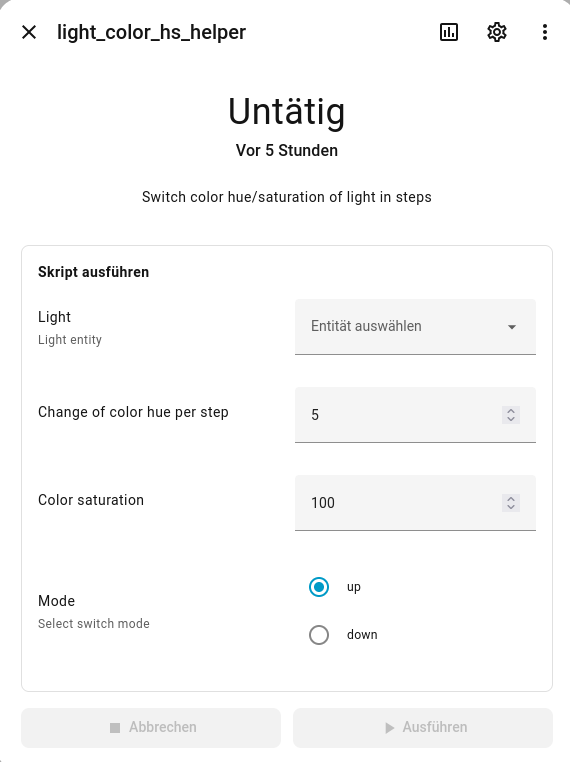
sequence:
  - action: light.turn_on
    target:
      entity_id: "{{ target_light }}"
    data:
      hs_color: >-
        {% set new_value = (state_attr(target_light, 'hs_color')[0] + iif(mode
        == "down", -1, +1) * color_hue_step)  %} {{ [iif(new_value > 360, 
            new_value - 360,
            iif(new_value < 0, 
                new_value + 360, 
                new_value), 
            new_value), 
          color_saturation - 1 ] }} 
alias: light_color_hs_helper
fields:
  target_light:
    name: Light
    description: Light entity
    selector:
      entity:
        filter:
          domain: light
    required: true
  color_hue_step:
    name: Change of color hue per step
    default: 5
    selector:
      number:
        mode: box
    required: true
  color_saturation:
    name: Color saturation
    default: 100
    selector:
      number:
        mode: box
    required: true
  mode:
    selector:
      select:
        options:
          - up
          - down
    required: true
    default: up
    name: Mode
    description: Select switch mode
description: Switch color hue/saturation of light in steps

Second helper script
light_color_temp_helper (change color temp in steps):
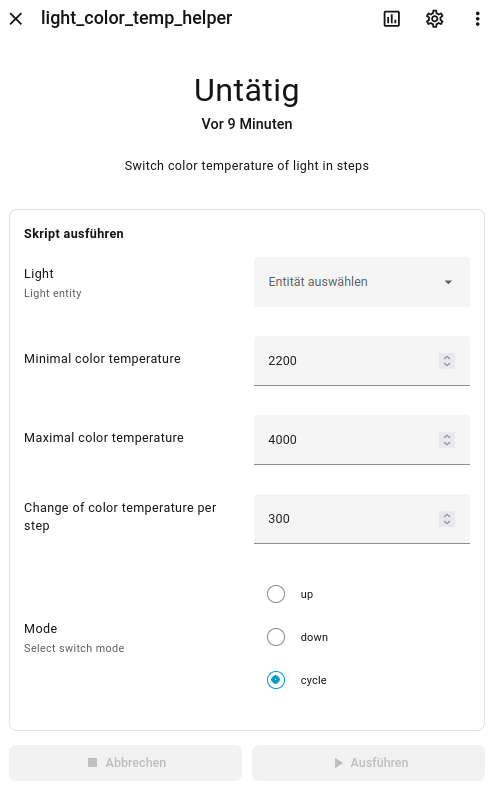
sequence:
  - action: light.turn_on
    target:
      entity_id: "{{ target_light }}"
    data:
      color_temp_kelvin: |-
        {% if state_attr(target_light, 'color_temp_kelvin') is none %} 
          {{ max_color_temp }} 
        {% else %}  
          {% if mode == "cycle" and state_attr(target_light, 'color_temp_kelvin')
          == max_color_temp %}
            {{min_color_temp}}
          {% else %}  
            {% set new_value = state_attr(target_light, 'color_temp_kelvin')+iif(mode == "down", -1, +1) * color_temp_step %}
            {{ [([new_value, max_color_temp] | min), min_color_temp] | max}} 
          {% endif %} 
        {% endif %} 
alias: light_color_temp_helper
fields:
  target_light:
    name: Light
    description: Light entity
    selector:
      entity:
        filter:
          domain: light
    required: true
  min_color_temp:
    name: Minimal color temperature
    default: 2200
    selector:
      number:
        mode: box
    required: true
  max_color_temp:
    name: Maximal color temperature
    default: 4000
    selector:
      number:
        mode: box
    required: true
  color_temp_step:
    name: Change of color temperature per step
    default: 300
    selector:
      number:
        mode: box
    required: true
  mode:
    selector:
      select:
        options:
          - up
          - down
          - cycle
    required: true
    default: cycle
    name: Mode
    description: Select switch mode
description: Switch color temperature of light in steps
2 Likes

Hello jhol-byte,

Thanks for contributing to the community with a new Blueprint.
I have a suggestion for you. Many people who are not familiar with directory structures will have problems installing this without the Home Assistant MY tools.
Adding a MY link for this Blueprint to your top post would help them a lot.
Here is the link to make that.
Create a link – My Home Assistant
In your case the original is in the forums here. It has to be in the top post in the topic and has to be the only code block there or the link will not work. That means moving the blueprint actual code to a Gist or a GIT repo, or adding a second post for the 2 helper sequences.

This is very quick. Thanks to brilliant people like this for contributing. Could you add some instructions for this, as I am trying to follow help files on creating a blueprint and failing. Many thanks for your skills.

Hi @tonypreece2384,

I am not exactly sure what you are asking for. Do you need help/instructions for how to use this specific blueprint or are you asking in general how blueprints work?

To use this blueprint you have to:

  • in your HA go to Settings/Scripts and click “Create new script”, use the 3-dot menu to switch to YAML and paste code of first helper script and name it like I did
  • do the same steps for the second helper script
  • in the top post click “Import blueprint to MY”, this should copy the blueprint in the right folder in your HA instance
  • go to Settings/Automations and create a new automation for your Bilresa remote
  • your done :grinning:
1 Like

@Sir_Goodenough, thanks for the hint, I didn’t know that it would be that easy.

1 Like

Just down loaded and set-up. Works well thanks a lot. Only thing I noticed is to move the scroll wheel fairly slowly to dim and brighten the lights. But otherwise its great!!

Thanks for the feedback. You can change the “Dimmer step percentage” to smaller values though. The scroll wheel will send between 1 to 8 “clicks” and I multiply by the step size which gives the amount of change.

the helper seem to be hard coded? who can I then Add more remotes with this blueprint and I also like naming my own Helpers. Is it possible to make the helpers selectable?

[Edit]
Directly connected to a thread network (not Dirigera) doesn’t work for me. The remote does not switch the lights selected. But also when I create the automation my self. Maybe someone else is facing the same?
[/Edit]

Hi, Thanks for this very good blueprint! Would you consider adding scroll-wheel and click support for covers (blinds)?

To answer both questions above:

  • the blueprint only works for Bilresa coupled via Matter/Thread to HA directly
  • per remote you use an own automation based on the blueprint
  • the (one and only) button can be freely configured with any action you like, you can configure click, double-click, long press, and on-hold actions
  • the scroll wheel is a bit different: the current Matter implementation translates one scroll event into 1 to 8 “scroll wheel clicks” (left or right). I use the number of “clicks” for some hard coded action (see scroll wheel mode in the blueprint)

So, yes the helpers are hard coded and needed as is for the hard coded scroll wheel modes. In principle could the scroll wheel be used for covers as well, but I doubt you can achieve a useful user experience: you have to scroll a bit, this translates to a number of clicks, and then I could start the cover to move for some percentage in one or the other direction with a large latency. Then you have to scroll again, etc.

If you have more specific use cases than lights or volume control you may better take a copy of the blueprint and add whatever functionality you need.

(To manually control a cover I would use a two-button remote and the on-hold action)

I have it connected directly to HA with thread and obtr. The button it self in the matter integration recognizes button clicks. The blueprint staies dead no trace when the remote is connected. I have no clue why

In my blueprint I assume that the single buttons have the following name pattern “event.*_1”.

Did you rename your buttons to a different pattern?

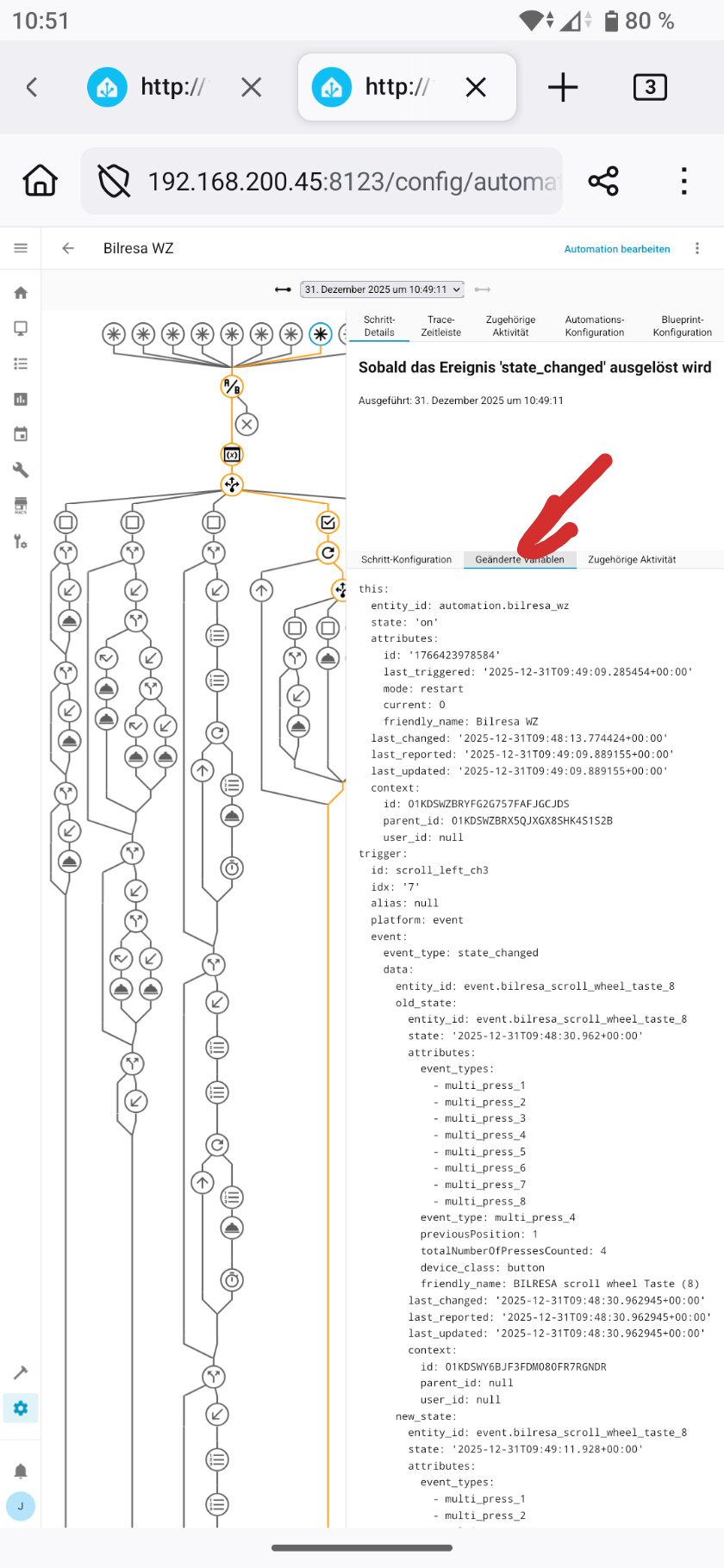
Can you show the automation trace, especially the “changed variables” output?

Yes, I was thinking that for a cover, the step % would be perhaps 10-20%, so a low number of turns would then map to a larger movement of the blind in each direction.

Wow, what a great Blueprint. Click works just fine, very responsive and fast. Love it. The Dimming with the click wheel does not work vor me. Do I need to configure it in all 9 channels oder just for channel one? do I need any helpers for just dimming the lights? Thanks for a pointing in the right direction.

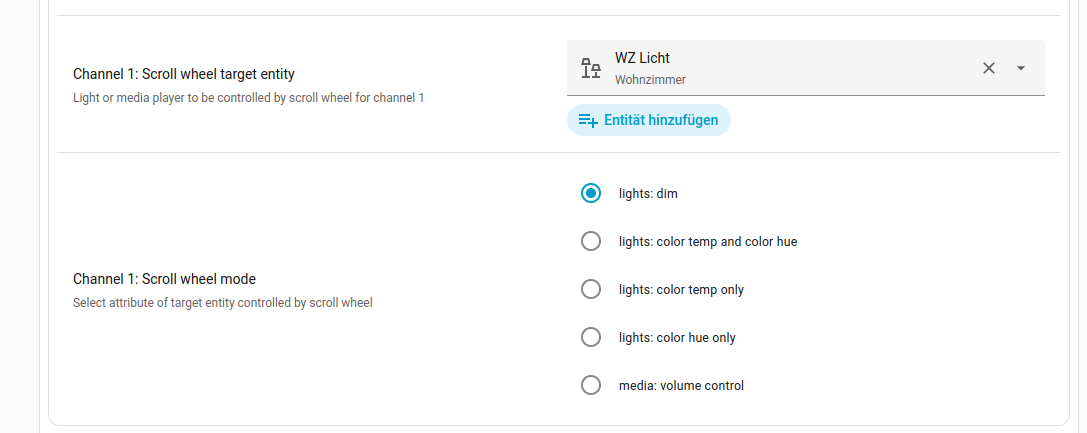
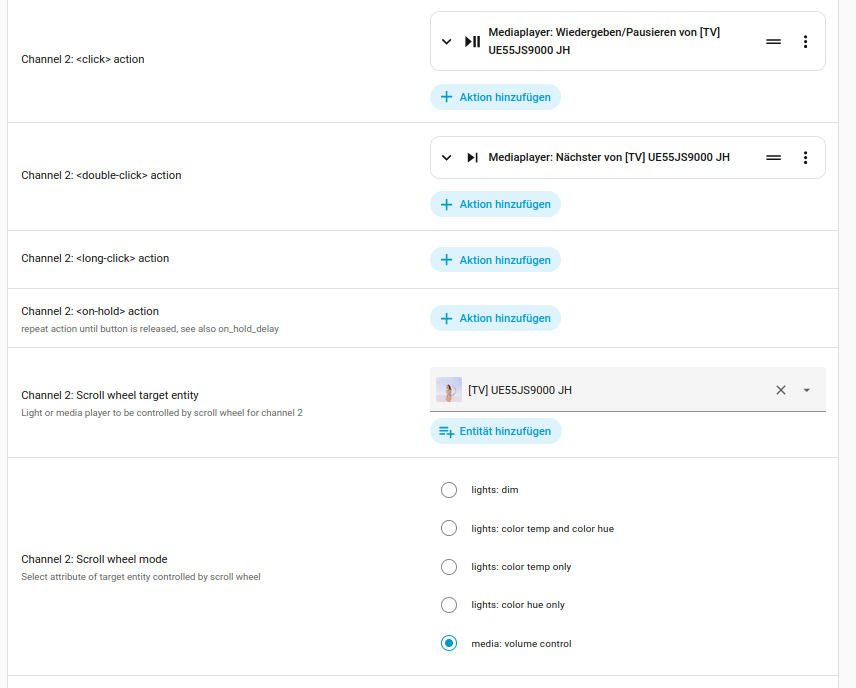
There are only 3 channels, and yes, per channel you can define what should happen while using the scroll wheel, should look like this

For dimming you don’t need the helpers but I would recommend to add them nevertheless for later use.

(BTW: I just updated the blueprint and added sections for easier configuration)

It is ok for one remote mais the second I bought yesterday after 3 hours past I could’nt make them work instead they are recognised by matter in HA. Any idea?

see below

I haven’t renamed anything expect of the name of the devi e

Ok, I see the issue (I stumbled myself here):

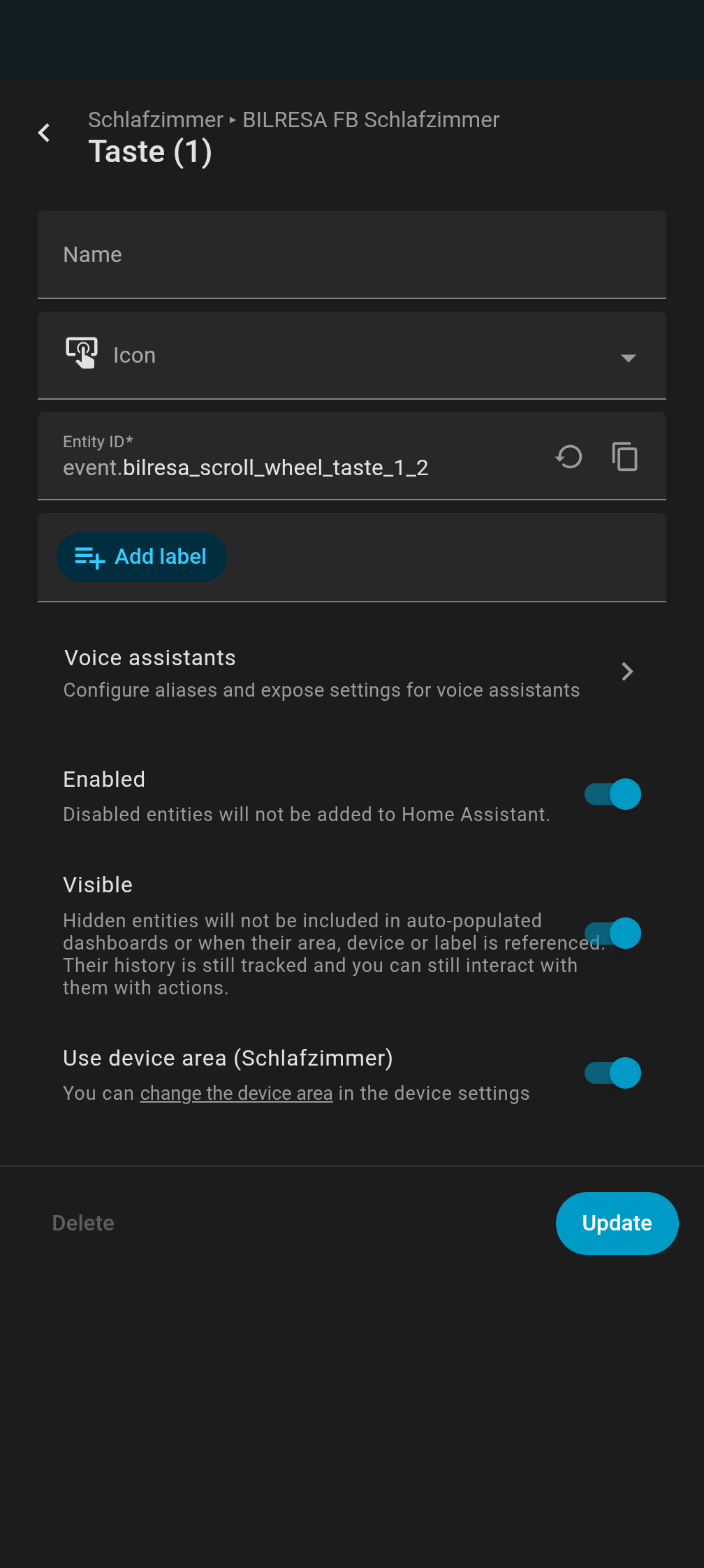
When you add a second Bilresa device it will get same device name and therefore the button entities for the second device will get a suffix like “_2”.

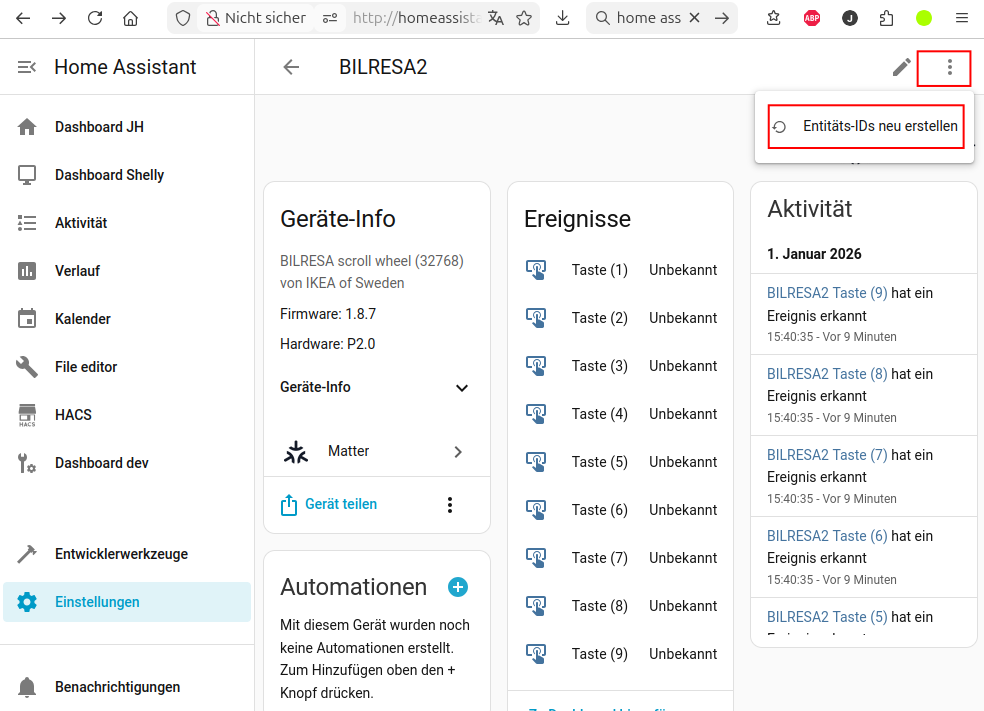
To fix this issue start with giving each Bilresa device a unique name:

and then fix the entity names:

Then you should see entity names like this:
event.bilresa2_taste_1, event.bilresa2_taste_2, …

Unfortunately you have to make a copy of the existing automation after renaming then and delete the old one.

Thanks so much!!