Thanks a million for this, just wanted to say i am a fan. Using just stuff i had in the bits box i have a nice kiosk running now, no real issues with the touchio - just a nube HA in general.
2 Likes
Very nice, works perfectly - thank you
1 Like
How dim does the pi screen 2 go? I’v been looking for something for a bedside display for some time now and have been leaning towards an OLED phone so I can keep a clock on overnight but without the glaring LED backlight panel. I tried with an old Amazon Fire tablet but at the lowest setting the backlight was just too bright so I’m wondering if that would be the same problem with this.
Very low but of course that’s personal, but you can also use darkmode.
Dark mode will only help so far with an LED panel as you still get the brightness from the backlight bleed, even if you use a perfectly black background which is the problem I had with the Fire tablet.
Perhaps worth a try with a returnable Amazon one in that case!
Hi! Thanks for this great project!
I installed this on my RPi4 4GB with the Touch Display 2. Got everything working but I’m missing the brightness options in my MQTT broker. I installed TouchKio on a fresh install of 64-bit Raspberry Pi OS. I think the install script makes sure that I am using labwc(?). Thanks for your help!
The “Display” is a light entity control. You need to add it to some dashboard and enable brightness control or click on the entity: See Brightness control not showing up in Home Assistant · Issue #75 · leukipp/touchkio · GitHub
If it’s not working for you please create a new issue on Github and attach the logs.
1 Like
Thank you for linking me this issue! I didn’t realise that it is the same entity as well… Sorry for that.
Finally installed this on my Pi500 running a Vertical Monitor Computer Portrait Mode Rotate Screen | UPERFECT all MQTT functions are available except for screen brightness.
A very easy install with intuitive guidance throughout.
The only unfortunate thing is I can’t seem to get the touch screen functionality of the screen working on my Pi500 when it worked perfectly on my Pi400.
This is not the end of the world, it is more a display of information but I have placed a touch pad next to it for the odd occasion I may need to interact.
Does anyone have any thing further I can try, I think I have exhausted all options. I was running X11 on my Pi400 and a lite version of Pi OS. The Pi500 I went GUI version of PiOS with Wayland.
- On the Pi 500:
- Verified kernel and boot args; added power/quirk flags to
/proc/cmdline:usbcore.autosuspend=-1usbhid.quirks=0x0416:0xc168:0x40
- Probed hardware:
dmesg | grep -i touchlsusb(saw0416:c168“MTouch” behind hub1a40:0101when it stayed up)- Noted recurring
xhci-hcd.*: HC died; cleaning upon bus 1 when the touch enumerates.
- Input tools:
- Tried
lsinput(not found). - Installed/ran
evtest(no MTouch device listed). - Ran
libinput list-devices(no touch device shown).
- Tried
- HID drivers:
- Loaded
hid-multitouch(modprobe hid-multitouch); attempted to reloadusbhidwith quirks (can’t—usbhidis built-in).
- Loaded
- Wayland output/rotation:
- Used
wlr-randr(since X11xrandrisn’t relevant on Wayland):- Discovered correct connector name
HDMI-A-2. - Set
wlr-randr --output HDMI-A-2 --mode 1920x1080 --transform 270(works; screen orientation + resolution good).
- Discovered correct connector name
- Asked for and received autostart/systemd examples for applying
wlr-randron login/boot.
- Used
- USB power management hardening:
- Created
/usr/local/sbin/usb-nosuspend.shto forcepower/control=on, disable autosuspend/wakeup for the device path. - (Udev rule template provided earlier to apply nosuspend to
0416:c168and hub1a40:0101.)
- Created
- Observations so far:
- Touchscreen enumerates then the entire xHCI controller on bus 1 crashes, causing disconnects; therefore no
/dev/input/event*for MTouch, henceevtest/libinputdon’t see it. - Display rotation is correct; touch still inop pending stable USB enumeration and driver binding.
BTW: Happy Cake Day! 
Just some random AI suggestions:
1) Kernel Boot Parameters Fix:
- Add to
/boot/firmware/cmdline.txt:usbhid.quirks=0x0416:0xc168:0x40 usbcore.autosuspend=-1 xhci_hcd.quirks=0x20000000 - The
xhci_hcd.quirks=0x20000000specifically addresses xHCI controller crashes
2) Force USB 2.0 Mode:
- Add to
/boot/firmware/cmdline.txt:usb-storage.quirks=0x0416:0xc168:u - This forces the device to use USB 2.0 instead of 3.0, reducing xHCI load
3) Kernel Module Loading Order:
- Create
/etc/modprobe.d/touchscreen.conf:
blacklist xhci_pci
blacklist xhci_hcd
options usb-storage quirks=0x0416:0xc168:u
- Then:
sudo modprobe -r xhci_hcd xhci_pci && sudo modprobe xhci_hcd xhci_pci
The core issue is Pi500’s xHCI controller instability with certain USB devices. The kernel quirk 0x20000000 is the most promising fix.
1 Like
Thanks mate I will try that. A powered USB hub is another potential fix but I will try what you have suggested above…
EDIT: Looks like it is a EEPROM bootloader issue.
@leukipp just a minor one the slider for the page zoom level is near impossible to get to 100% manually. It would be much better as a number box with buttons.
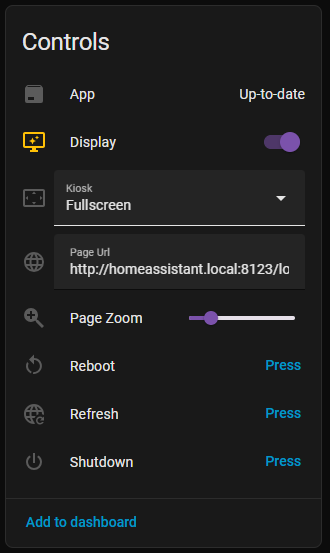
minor diff below js/integration.js
const initPageZoom = () => {
  const root = `${INTEGRATION.root}/page_zoom`;
  const config = {
    name: "Page Zoom",
    unique_id: `${INTEGRATION.node}_page_zoom`,
    command_topic: `${root}/set`,
    state_topic: `${root}/state`,
    value_template: "{{ value | int }}",
-   mode: "slider",
+   mode: "box",
    min: 25,
    max: 400,
    unit_of_measurement: "%",
    icon: "mdi:magnify-plus",
    device: INTEGRATION.device,
  };
  publishConfig("number", config)
  ...
};
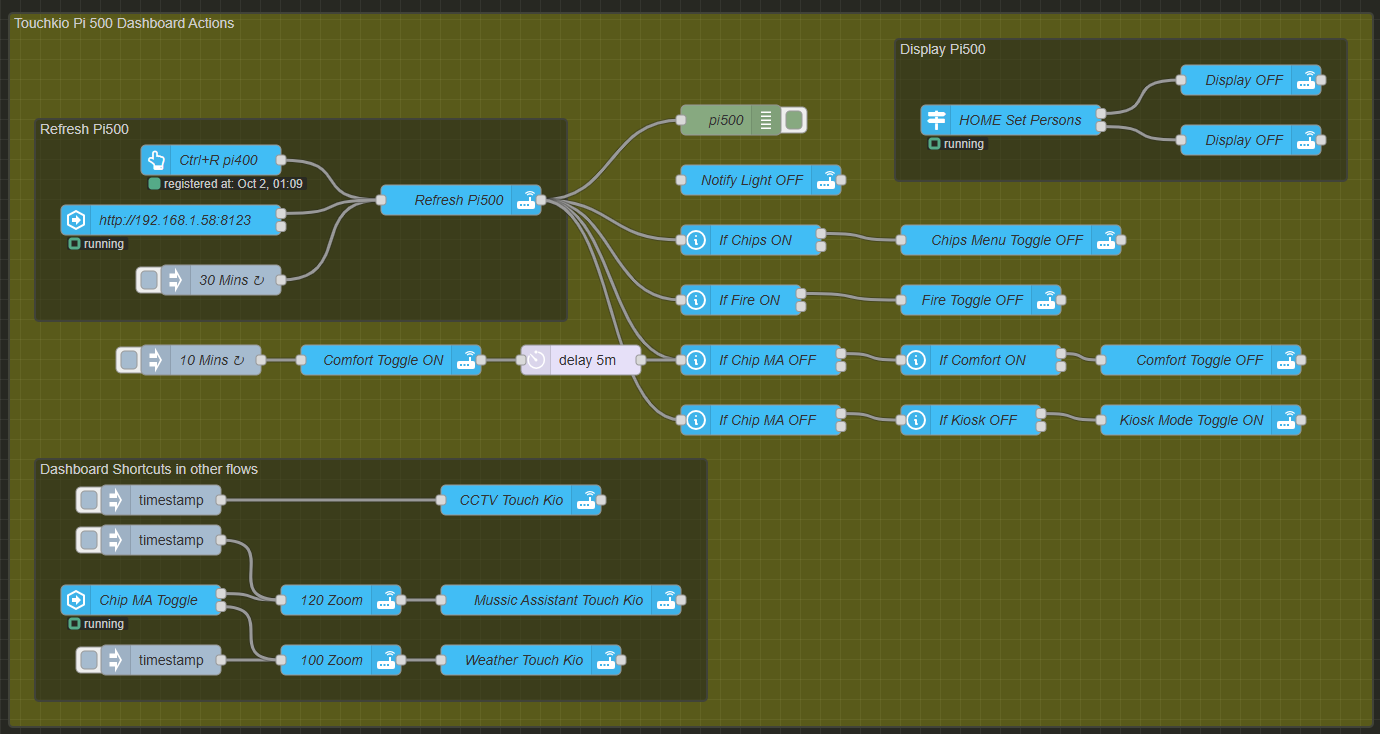
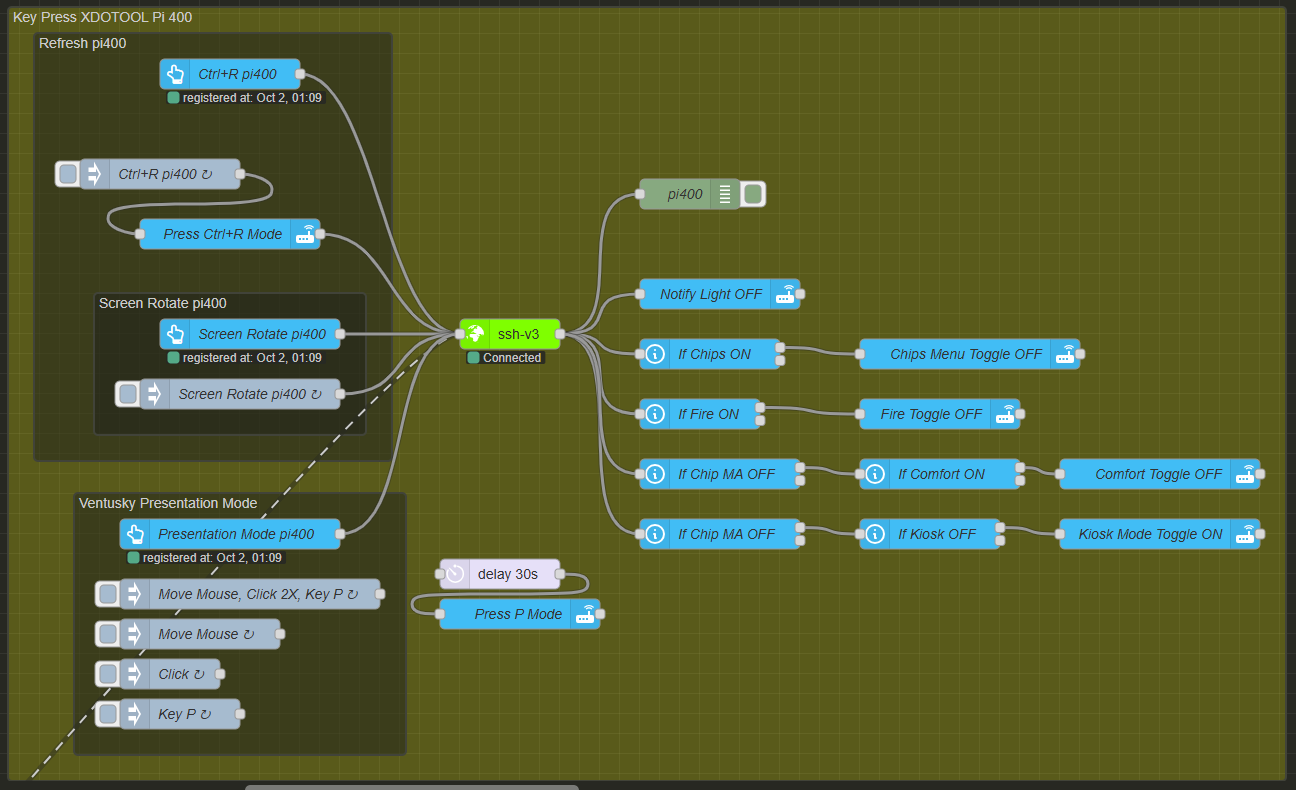
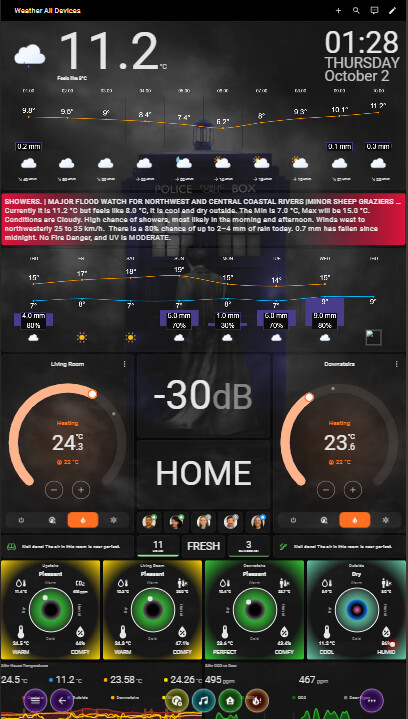
Upgraded my old Pi400 flow which used SSH calls to perform actions on Mark Watt Tach kiosk. TouchKio makes it a lot easier
Thought I would share my NodeRED dashboard flow.
- Direct activation of pages via link
- You can input anything, does not have to be listed in the TouchKio JSON
- Refresh every 30 mins
- Screen OFF when no-one home
- CCTV page on when motion detected on cameras
- Music Assistant with 120% zoom when activated by dashboard toggle or moes smart knob in various locations
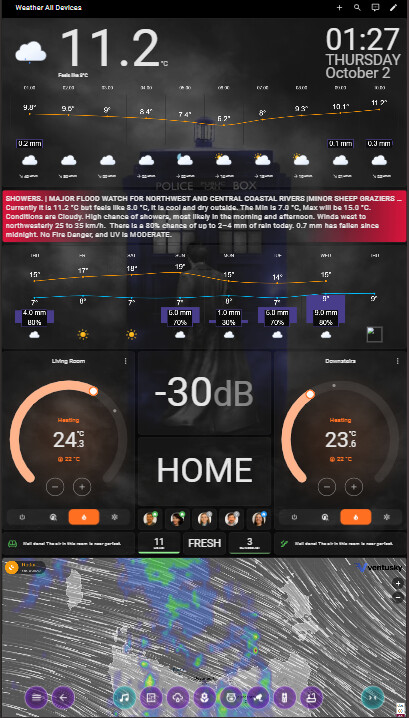
- Weather Page default
- Chips, Fire and Comfort are all toggle helpers to change conditional dynamic cards on dashboards
New Pi500 TouchKio
Old Pi400 XDOTOOL X11 & SSH Calls
Comfort Toggle OFF
Comfort Toggle ON
I have just installed it on my Pi 4B with Touch Display 2 and am getting random white screens. I can see that it has been a problem for others in the past but not sure what I am doing wrong.
My Node Red flow above detects the URL when the white screen is showing, then resend a fresh URL.
Launch directly from terminal and observe the output. There where issues reported on RAM limit hits when showing heavy loaded HA Dashboards. (see GitHub · Where software is built)
I was getting this when I only had one web url set in the setup phase.
--web-url=http://192.168.1.42:8123
you could try setting it to an actual dashboard if you have not already
--web-url=http://192.168.1.42:8123/dashboard-path/dashboard-url
Hi, I’m new to this forum and hope someone can help. First thanks to leukipp for this great project. I’ve a problem with the setup. The connection to HA an MQTT works great, but there is this problem with the Raspberry Pi Touch Scree (v1) and the official case. When you put it together, you have to rotate the picture of the screen 180°, because in the official case it is screwed in upside down. When I do that in desktop settings, TouchKio renders only fragments of the website while everything else is normal. When I rotate it by adding “video=DSI-1:800x480@60,rotate=180” to the cmdline.txt, the desktop is rotated correctly, ToucKio too (without fragments), but mouse and touch is not affected by that value. The mouse even is displayed upside down. Other browsers working fine with all the settings. I’m only using a Raspberry Pi 3. It is enough to display a simple site for me.
Rotating the screen via “Preferences > Screen Configuration > Right Click > Orientation” should just work fine. You may need to restart the system/touchkio afterwards. See also #102 if the window scale appears weird.
If you rotate like that you also need to rotate the touch screen. Depending on what backend you have.
Option 1 – Apply touchscreen coordinate transform (recommended)
Add a udev hwdb rule to flip the coordinates:
- Create a new hwdb file:
sudo nano /etc/udev/hwdb.d/90-libinput-screen-rotation.hwdb
- Add this content:
touchscreen:usb:v0EEFp0005*
 LIBINPUT_CALIBRATION_MATRIX= -1 0 1  0 -1 1
(The vendor/device ID 0EEF:0005 matches the official RPi touchscreen.
If yours differs, check with sudo libinput list-devices | grep -i name.)
3. Rebuild the hwdb and reload:
sudo systemd-hwdb update
sudo udevadm trigger /dev/input/event*
- Reboot.
This tells libinput to invert both axes, matching the 180° rotation.
Option 2 – X11 layer transform (if you’re running LXDE desktop)
If TouchKio is launched inside X, add this to /etc/xdg/lxsession/LXDE-pi/autostart before starting TouchKio:
@xinput set-prop 'FT5406 memory based driver' 'Coordinate Transformation Matrix' -1 0 1 0 -1 1 0 0 1
Then reboot or relogin.
Option 3 – Don’t rotate with cmdline, use Xrandr
Remove the video=DSI-1:...,rotate=180 from /boot/cmdline.txt and instead put in /etc/xdg/autostart/rotate.desktop:
[Desktop Entry]
Type=Application
Name=Rotate display 180°
Exec=xrandr --output DSI-1 --rotate inverted
This rotates both display and input at the X11 level — TouchKio may render correctly if it’s running inside the desktop, but not if it’s started from tty console fullscreen.
Practical advice for TouchKio kiosk setups
- For Raspberry Pi 3 with the official display, Option 1 (hwdb rule) is the most robust; it fixes all apps consistently.
- Don’t mix both
video=...rotate=andxrandr— pick one. - Always test by running:
sudo libinput debug-events --device /dev/input/event0
and verify that touches in the upper-left and lower-right corners produce (0, 0) → (800, 480).
Once this is in place, TouchKio should display and touch correctly oriented, just like Chromium.