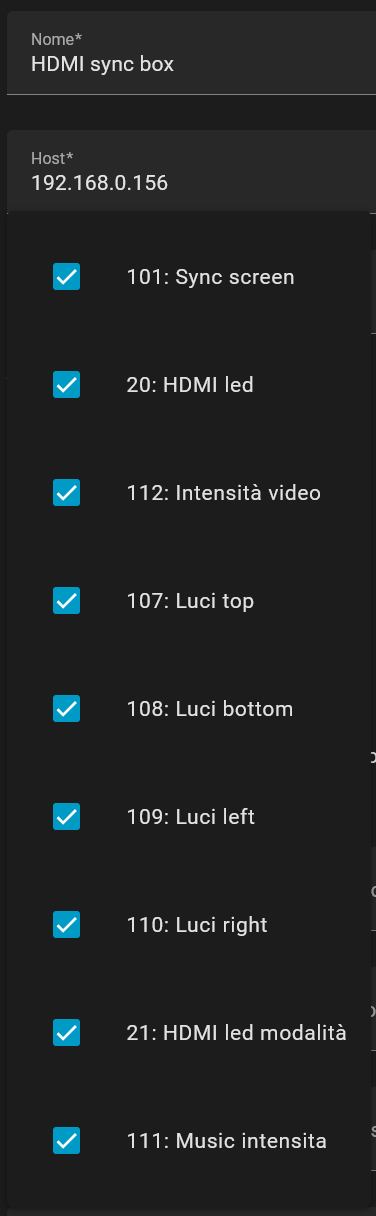
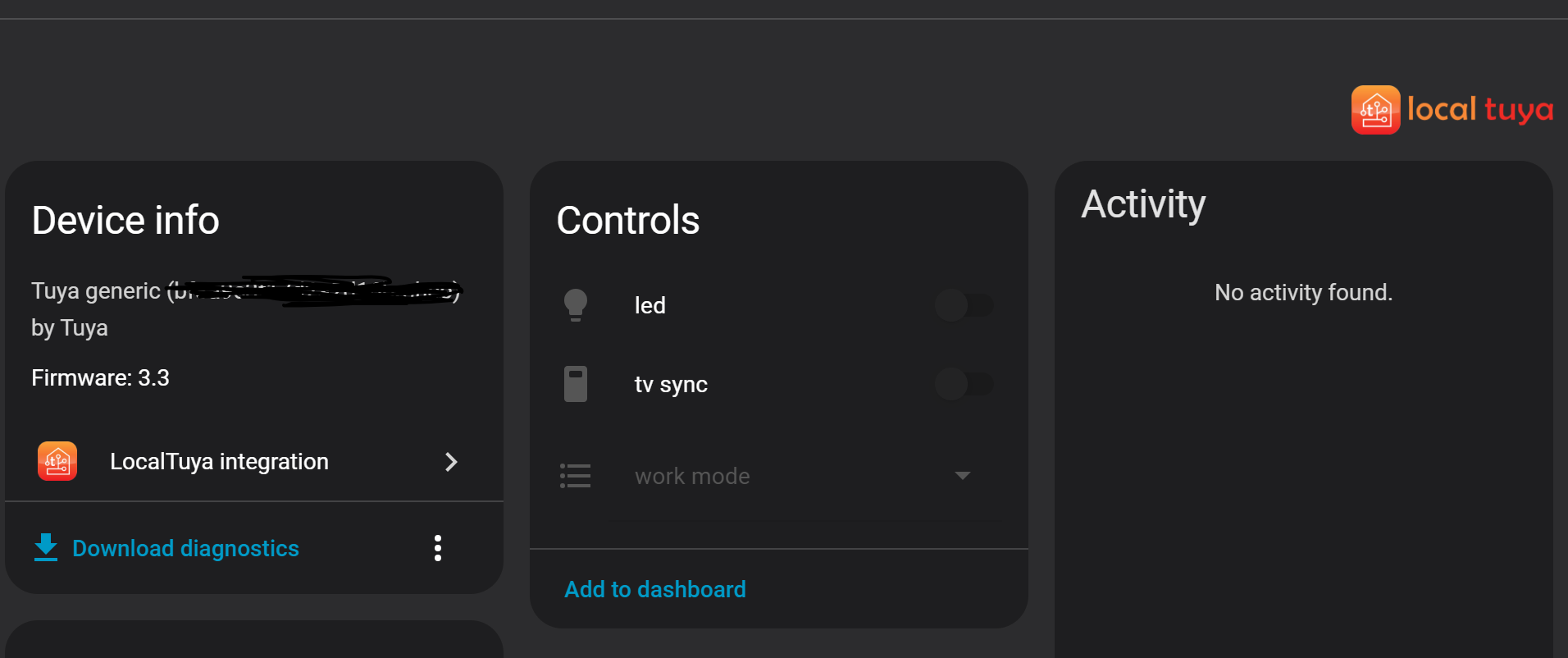
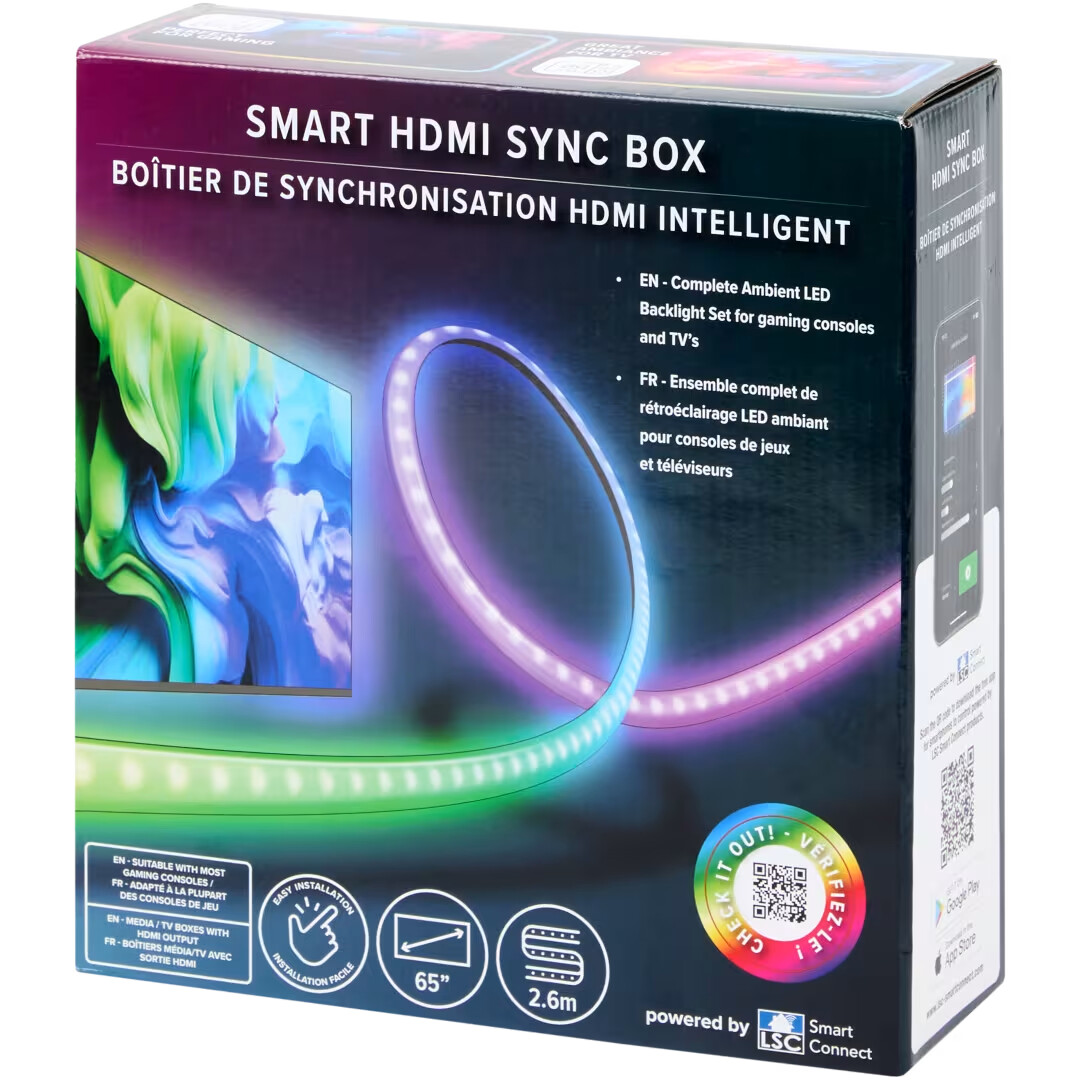
I have seen some post about LSC products, but I got a little confused and couldn’t find the proper setup for this HDMI syncbox. The built in Tuya recognises it as a simple light, but can’t control other features, particularly the main one (sync light to HDMI signal)
Here’s the procedure I used to find DPID of the functions (I’ve seen many guides and tutorials, but to me the screens looked a little different, maybe this could help someone else too):
First on the console at https://iot.tuya.com/ I click on the left sidebar menu Cloud>API Explorer. A new tab pops open, where on top left I select “IoT Core” (it should be already set by default):

Then in the left sidebar under the menu Device Control > Query properties and in the right textbox I insert my device_id (plenty of guides on how to get that, if you set up local-Tuya on HA you already should know this):

Click the blue "Submit button on the bottom under the textbox, and the right part should populate with the properties of the device where each function has its dp_id, like this:
{
  "result": {
    "properties": [
      {
        "code": "switch_led",
        "custom_name": "",
        "dp_id": 20,
        "time": 1757626994504,
        "type": "bool",
        "value": false
      },
      {
        "code": "work_mode",
        "custom_name": "",
        "dp_id": 21,
        "time": 1757594694601,
        "type": "enum",
        "value": "colour"
      },
These are the dp_ids you should use in HA to set the entities that will control the device.
This is what I was looking for:
      {
        "code": "sync_on_screen",
        "custom_name": "",
        "dp_id": 101,
        "time": 1757619771823,
        "type": "bool",
        "value": false
      },
So to control sync on screen I setup in HA local-tuya a switch linked to dp_id 101.
You can configure other parameters like the power button (dp_ip 20, see previous Json I pasted).

Final note: some of the properties are a list (like the dp_ip 21, work_mode), they are showed as “type”: “enum”.
To find the possible values of the list, that must be explicited during HA consifuration, I went to top menu again, and this time selected “Industry Basic Service”:
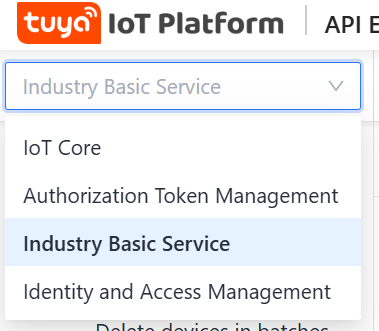
Then on the left sidebar “Industry Devices Management”>Get device attributes
again your device_id in the box and click blue submit button:
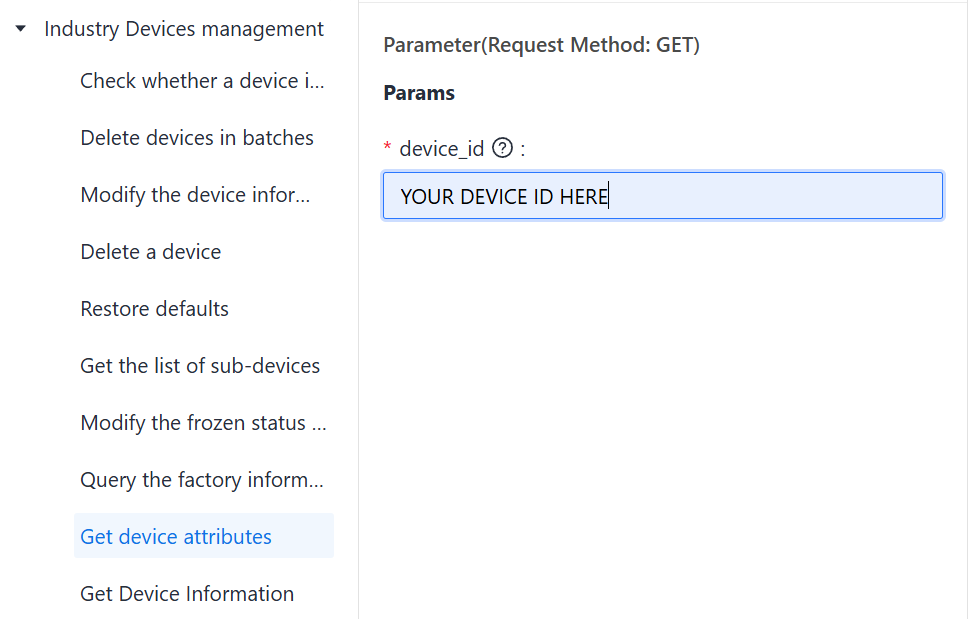
The box on the right again populates, this time with the attributes and their possible values:
 {
        "code": "work_mode",
        "lang_config": {
          "colour": "Color",
          "music": "Local Music",
          "scene": "Scene"
        },
        "name": "Mode",
        "type": "Enum",
        "values": "{\"range\":[\"colour\",\"scene\",\"music\"]}"
So now we know that the dp_id 21 work_mode that we found before can assume the values: range, colour, scene, music
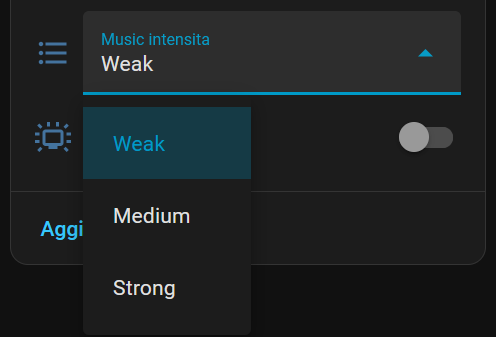
I’m still scratching my head because some of the dp_ids are not in the list (like the weak/strong light for HDMI sync I used in my example, I went by guessing reporting the same text I see in app, I will update the post if I find out how to get these other properties list.