IKEA Bilresa Media Control
Home Assistant Blueprint
Hi,
I've converted my Z2M IKEA Symfonisk Gen2 Blueprint to the Bilresa Scrollwheel device. It's hosted on my Github but you can import using the button below. Here's the details:
This is a blueprint to support controlling a media player with an Ikea Bilresa scrollwheel remote. It's designed to use the device's native Matter connection.
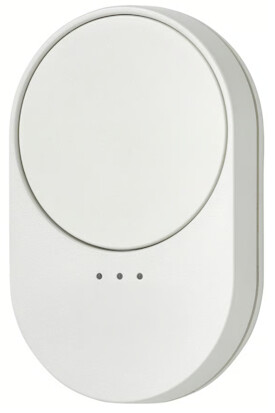
Despite being an event driven integration for this device, you are able to select only the device in an automation and the Blueprint will infer the rest rather than having to select 9 separate event entities.
There are two caveats to that:
 POTENTIAL ONE-TIME SETUP REQUIRED:
The 9 event entities on the BILRESA device might be disabled.
Go to Settings → Devices & Services → Matter → [your device] and
enable all 9 event entities before use. Once enabled,
the blueprint auto-discovers them from the device — no manual entity
selection needed.
Do not rename the BILRESA event entities. Channel and action are
identified by the sorted order of entity IDs, which matches the default
naming (button_1 through button_9). Within each channel the order is:
clockwise scroll, anti-clockwise scroll, button press.
Blueprint

Manual Import URL
If the button above doesn't work, you can copy the URL below and paste it into the "Import Blueprint" dialog in Home Assistant:
https://github.com/shawsky/HA-Blueprints/blob/main/IKEA/Matter/ikea-bilresa-scrollwheel/ikea-bilresa-scrollwheel-media-control.yaml
Basic Configuration
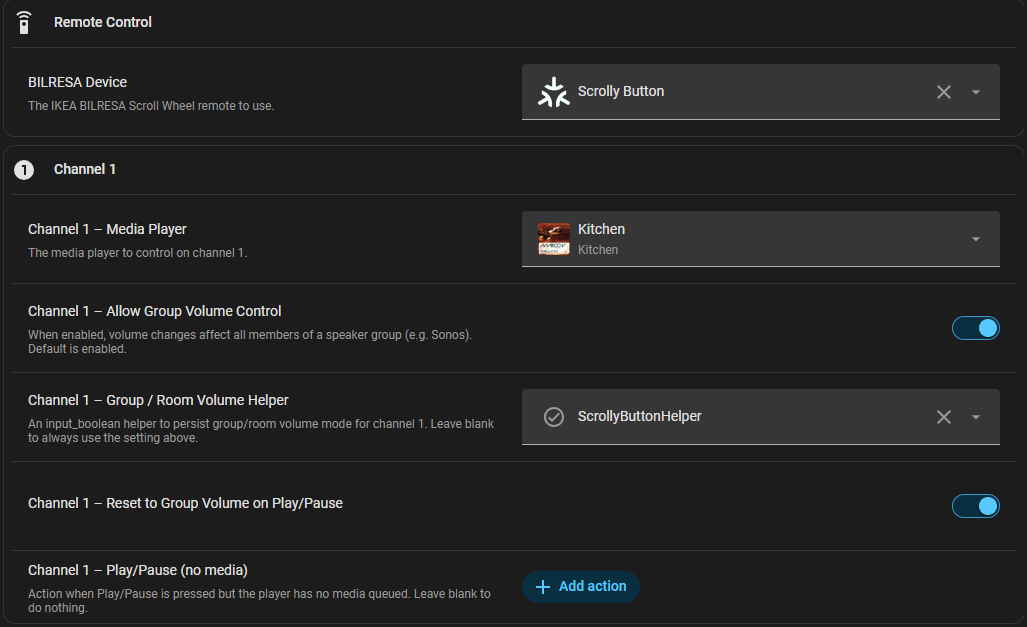
Select your Bilresa Scrollwheel device, then you have three channels which can be applied to different media players, each with their own configuration. All of options below apply per channel.
Media Player
Choose a channel media player to control (or a media player that will act as the main device in a scenario where other players are grouped with it).
Dynamic Volume Control (Group vs. Room)
You can choose to disable group volume control by using the Allow Group Volume Control option, it is enabled by default. If you want to use the option to dynamically switch between controlling the group volume and just
the room volume, you must select an Input Helper (Boolean) to store the state. If you have multiple Bilresa Scrollwheel devices and use this Blueprint with multipe automations you will need an input helper per channel per device.
By default volume control will revert to group when Play/Pause is pressed, if you want to prevent this behaviour, turn off the Reset to Group Volume Control when Play/Pause pressed setting.
Hold and Release the scroll wheel button to switch between Group and room control.
Note
If you're not sure how to create an Input Helper: In Home Assistant, navigate to Settings > Devices & Services > Helpers. Click the + Create Helper button in the bottom right, select Toggle, give it a recognisable name (e.g., "Living Room Volume Mode"), and click Create. Finally, select this new helper in the blueprint config.
Play/Pause Action
You can configure an action to run when the Play/Pause button is pressed but no media is playing and the playlist is empty.
Example Showing Channel 1 Configuration
General Configuration
These configuration options apply across all channels.
Volume Steps
You can set the amount the volume will increase or decrease for each click of the scroll wheel. You may wish to experiment with this to find the best number for your setup. Single and multi wheel clicks are supported
(the remote sends a maximum of 8 clicks if you flick the scroll wheel).
Volume Ducking
You can enable and configure volume ducking, which briefly lowers the volume in the room the channel is controlling to provide audio feedback when you successfully toggle between group and room volume control.
The slider allows you to choose how long the volume is ducked for.
Volume Control Toggle Action
This option can be used to fire an action when switching between Group and Room volume control. This is useful if you have dashboards, indicators or other physical items you use to indicate state from your Home Assistant setup.
Usage
The scroll wheel button provides:
-
Single press → Play/Pause (or fire an action)
-
Double press → Next Track
-
Triple press → Previous Track
-
Hold & Release → Toggle volume mode (group ↔ single room)
To change channel, press the seconday button on the remote (the bottom half where the LEDs are). This is local to the remote only and no data is passed to Home Assistant at this point.
Updates
2026-06-10 v1.0: First release
