Note: AI tools were used as assistance during development and documentation.
Hey everyone!
I’m sharing a custom integration I’ve been working on to bring Microsoft Family Safety into Home Assistant. If you use Family Safety to manage your kids’ screen time on Windows, Xbox or Mobile, this lets you monitor and control everything from your HA dashboard.
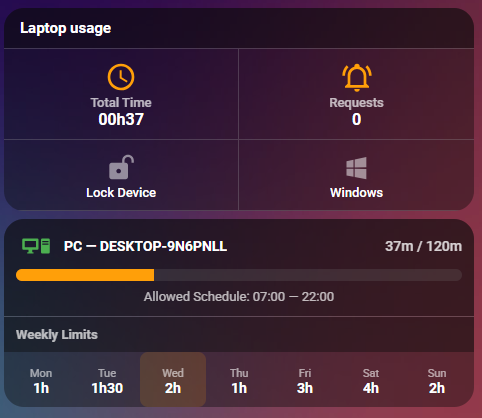
Monitor screen time - total usage per child, per device, per day
Adjust daily limits - change the allowed screen time for each day of the week directly from the UI
Set allowed time windows - control when the computer can be used (e.g. 07:00–20:30)
Lock/unlock accounts - one switch to instantly block all screen time (saves current settings, restores them on unlock)
App management - block/unblock apps, set per-app time limits
Web filtering - block/allow websites, toggle content filtering, set age ratings
Approve/deny requests - handle screen time extension requests from HA
Optimistic updates - UI reflects changes immediately, no waiting for the next poll cycle
Why it needs an addon
Microsoft doesn’t provide a public API for Family Safety. There are two internal APIs:
A mobile API (mobileaggregator.family.microsoft.com) that handles basic reads and app management via OAuth tokens
A web API (account.microsoft.com/family/api/) that handles screen time schedules - but requires a full browser session with cookies and a CSRF token
The mobile API used to support schedule modifications, but Microsoft broke that. Screen time reads and writes now only work through the web API, which needs an actual browser context.
So the integration ships with a companion add-on that runs a headless Chromium browser. It maintains an authenticated session with Microsoft and proxies API calls through it - exactly like a real browser would. The addon handles the OAuth silent flow, cookie management, and CSRF tokens transparently.
TL;DR: Add-on = browser session for Microsoft auth. Integration = HA entities, services, dashboard. Both are required for full functionality.
Entity overview
Type
What you get
Sensors
Screen time (total + per device), account info, apps, pending requests, web filter, screen time policy
Could you please take a look at the authorization process noiwid?
There are a couple of questions on your github. But the issue has been closed even though no conclusion has been given?
Xbox time limits are already included.
The integration supports Windows, Xbox, and Mobile platforms equally. You should already see:
Screen time limits per day (number entities for each day of the week)
Allowed time windows (start/end time entities)
Lock/unlock platform (switch entity + lock_platform / unlock_platform services with Xbox as platform option)
App-level time limits via services (set_app_time_limit)
Make sure Xbox is selected in the “Monitored platforms” option during setup (it is by default). If you don’t see Xbox devices, the child account needs to have an Xbox associated in Microsoft Family Safety first.
Hi,
Thanks for the reply a couple of queries / anomalies.
For each user there is a Windows & Xbox element, each with their own time limits and schedules, which element does the start, end and time limits refer to?
These elements populated when I first loaded it now it is empty, I tried entering a value to see if transfered but no success so unable to check.
The time limit is a bonus as I am hoping to change it based on other sensors.
Which element does sensor.xxxxx_screen_time belong to, I ask as I had one user on the xbox and another on the pc but both have the same sensor name.
Windows & Xbox elements / Start, End, Time Limits:
Each child account can have multiple devices (Windows PC, Xbox, Mobile). The sensor.xxxxx_screen_time at the account level shows aggregate screen time across all devices for that child. There are also device-level sensors (sensor.device_name_screen_time) that show usage per individual device. The device_class attribute on device sensors tells you which platform it belongs to (Windows, Xbox, or Mobile).
Sensors showing empty after initial load:
This is likely due to the authentication session expiring. The screen time data is fetched either via the Playwright addon (browser session) or the web API, and if the cookies expire, the data can’t be refreshed. Check your logs for 401 errors. Re-authenticating through the addon should fix this.
sensor.xxxxx_screen_time with same name on Xbox and PC:
The account-level screen time sensor aggregates usage from all devices. If you need per-device breakdown, look at the device-level sensors — they include attributes like device_name, device_class (Windows/Xbox), and os_name to distinguish between platforms.
sensor.xxxxx_screen_time_policy:
This sensor shows whether screen time limits are enabled or disabled for that child account. Its attributes include the daily allowance for each day of the week (e.g., monday_allowance: "02:00:00" for 2 hours), plus the raw policy data. This is the sensor you’d want to monitor or use in automations to adjust time limits based on other sensors.
The rest of the integration works great, I may be expecting more that it was designed for, to explain
For example:
Child 1 has 15min allowance on Windows & 60min on Xbox for Monday = 75min total screen time.
Should there be a single number.kxx_cxx_family_safety_kxx_monday_limit that shows the total of the two (75) or should there be two number.xxxxx sensors, one for Windows and one for Xbox?
I am only seeing the windows duration and times, not Xbox.
The two sensors for the totals of Windows & Xbox work as expected, the list of apps and games is listed complete, the two sensors for the totals of Windows & Xbox work.
Like I say, the rest works great and being able to change the time sensor would be very useful.