I had an old Raspberry Pi and a touchscreen sitting around, so I 3D-printed a case and stand for them and turned them into a screen for our kitchen. We call it Bosun. It’s a Home Assistant dashboard running full screen in Chromium on the Pi, and the whole family uses it every day.
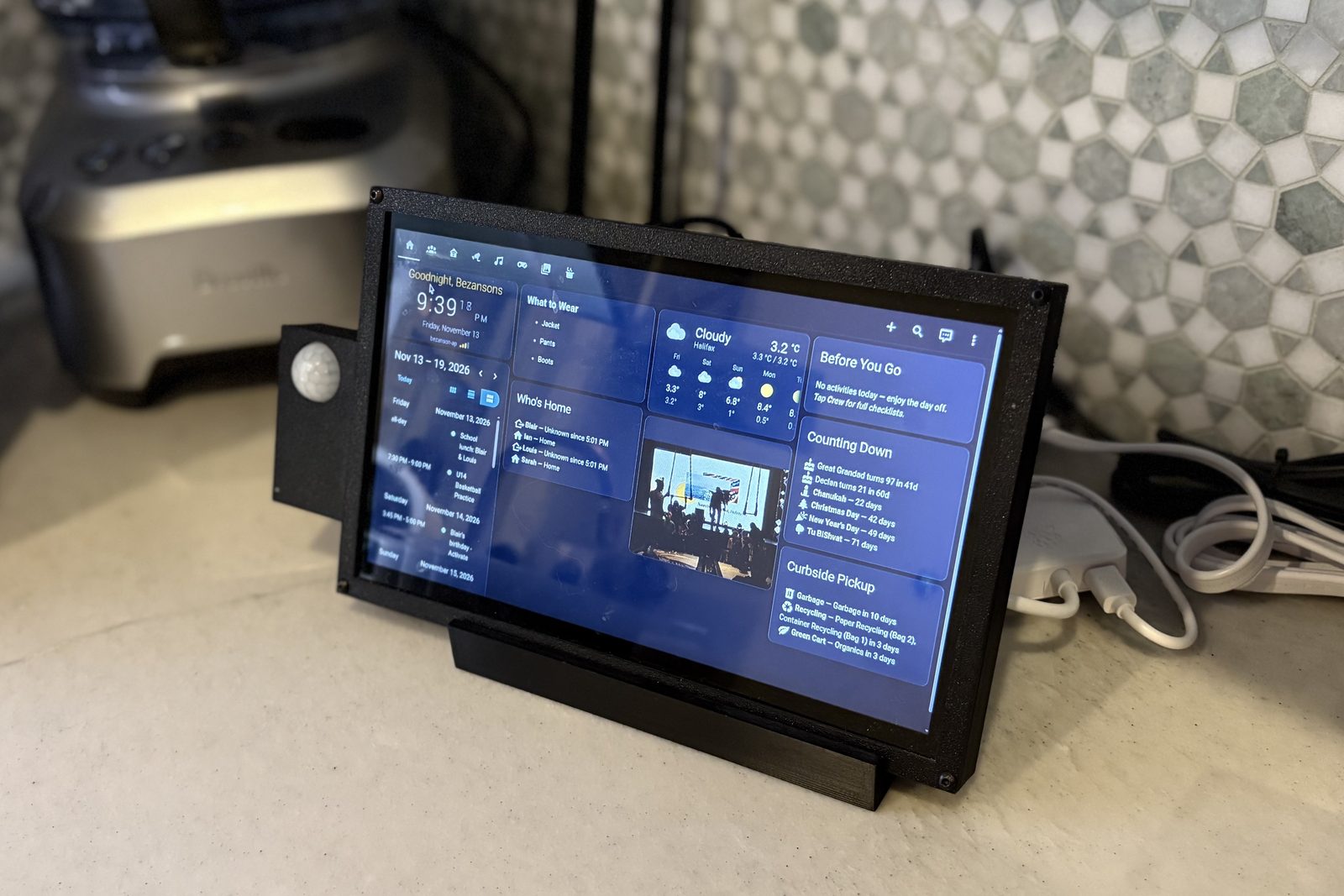
What’s on it:
- the time, the weather, our calendar and family photos
- a morning checklist for each of the boys, built from their calendars every five minutes (basketball day means jersey, shorts and a water bottle)
- Who’s Home, so we know where the kids are
- 158 recipes imported from Paprika
- the lights and thermostats
- an arcade of 24 small games
- a camera popup and a Sonos announcement when either doorbell rings
- a motion sensor that turns the screen off when nobody’s around
AI wrote most of the code, first in Cursor and then in Claude Code. I’ve built software for 20 years, so I could read what it wrote and tell it what was wrong, but I typed very little of it myself. Most of the real work was living with it for a week at a time, writing down what bugged us, and getting that fixed.
A few things we ran into that might save someone some time:
The touchscreen reports itself as a mouse. Scrolling the recipe list didn’t work for months, because dragging a finger highlighted text instead. When we finally put a test page on the screen and counted the events, it logged 473 mouse movements and not a single touch. Under labwc, our panel gets handed to Chromium as a mouse, so every touch-scrolling fix we’d tried was listening for touch events that never fired. The version that works uses pointer events, which fire for mouse, touch and pen. Two more problems came with it. The momentum had its sign backwards, so a fast flick threw the list back to the top, and grabbing the pointer on pointerdown meant a tap highlighted a recipe instead of opening it. It now waits until the finger moves before treating it as a scroll.

The Pi could boot to a bare desktop. The startup script waited for Home Assistant to answer before it launched Chromium, so if the Pi rebooted overnight while the server was down, I’d come down in the morning to a bare desktop. Now Chromium opens straight away on a local “waiting for the server” page that checks every three seconds and switches to the dashboard once Home Assistant answers. One catch: a page loaded from file:// can’t use fetch() to reach Home Assistant, because Chromium blocks it. Our first version would have sat on “waiting” forever with the server up, and it only got caught because we tested it on the Pi before it went live. Loading an image from Home Assistant (we use its favicon) works instead.
Doorbell announcements over music. The first version saved whatever the Sonos speakers were playing, made the announcement and then put the music back, and when music was on, those steps tripped over each other. Using Sonos’s own announcement feature (announce: true on media_player.play_media) plays it over the music instead. We wait two seconds so it doesn’t land on top of the chime, and we skip the speakers in the boys’ bedrooms. The screen covers whatever’s showing with that door’s camera and a big X, and closes it on its own after two minutes.
Wi-Fi and power. The Pi 4’s built-in Wi-Fi was too weak in the kitchen (around -72 dBm), so it runs on a USB Wi-Fi 6 adapter now. The screen flickered until I swapped an old iPhone charger for the official Raspberry Pi power supply.
The hardware, if anyone’s curious:
- Raspberry Pi 4 (4 GB), Debian 12 Bookworm, labwc
- ARZOPA 15.6" portable touch monitor, run at 1280x720 for sharper text
- BrosTrend USB Wi-Fi 6 adapter (Realtek RTL8832BU; its driver had to be built by hand)
- the official Raspberry Pi 15W power supply and a powered USB 3 hub
- Chromium in kiosk mode, restarted automatically if it ever closes
It’s a custom build for our house rather than a card I can package up, but I’m happy to share pieces of it if they’d help anyone.
I wrote up the whole story, including what broke along the way, here: AI Built Our Kitchen Screen. Living With It Made It Work. | Ian Bezanson