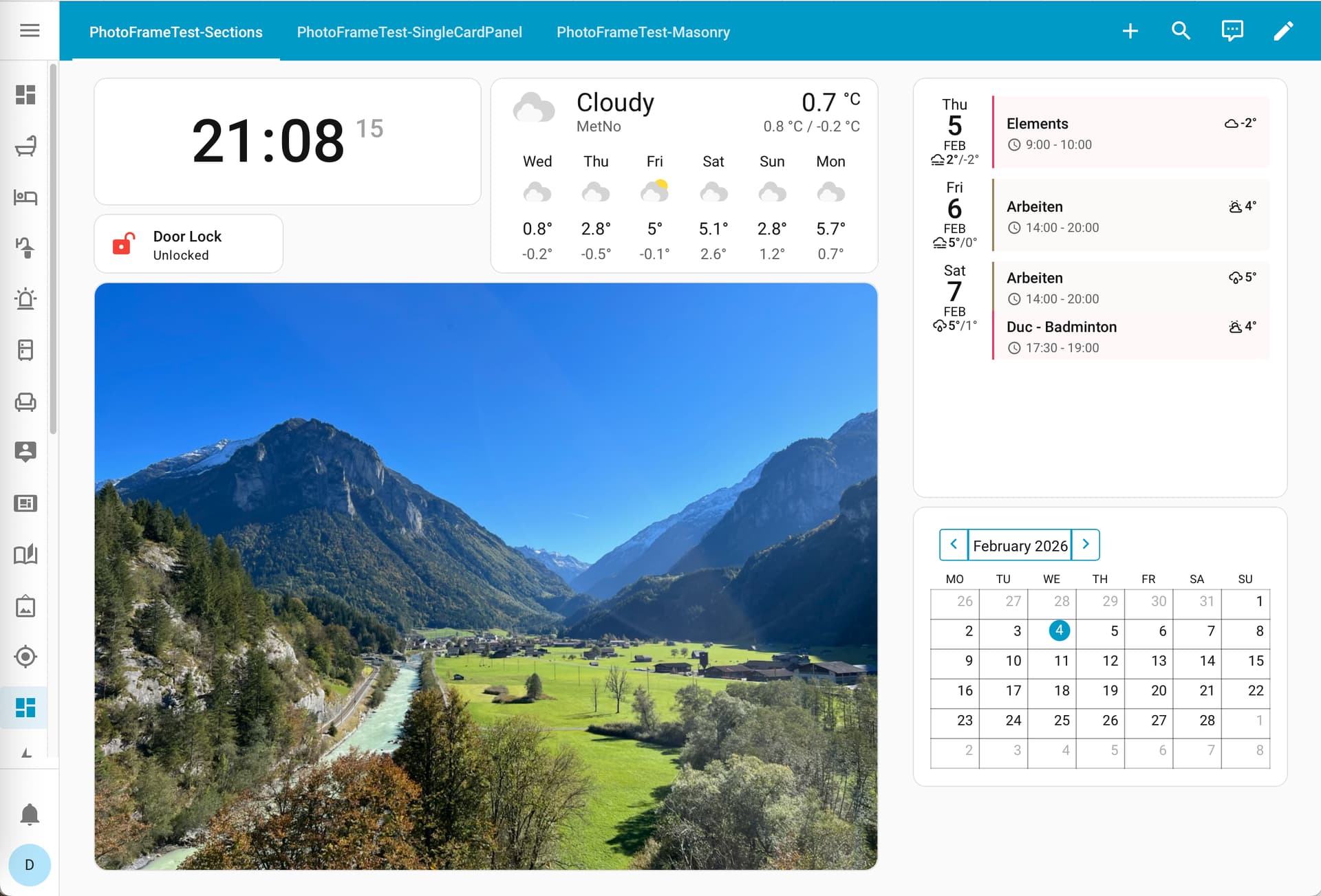
My motivation behind this project was that our Echo Show 15 device is nowadays showing an unbearable amount of ads, so I wanted to use an old tablet + Home Assistant to get a better alternative for what we had been using that device for.
The PhotoFrame card uses the folder and media source integration to access the image files and any registered Home Assistant user can easily upload new photos via Media Browser.
You can find the project on GitHub with installation instructions. I am probably lacking advanced UI skills to fulfill any complex feature request, but I’d still love to hear your thoughts, feedback and suggestions for improvements.
@ImYAHA just a week later, but I’ve added a crossfade transition effect now You should be able to update the card through HACS - I’m still fairly new to this, so let me know if you run into issues.
Either upload images to your NAS folder the way you like, or open Home Assistant’s Media Browser panel, then go to “My Media → Fileserver_Photoframe” and upload your images there
In the custom card configuration, under “Images Sensor Entity”, select the “Fileserver_Photoframe” sensor
I tried this. I can access the folder Onedrive in my my_media folder in media, but using the path /media/Onedrive doesnt work. To be fair though, its a multi folder setup with years and the sub folders for each months. Can it read into folders or just the top mounted one?
Is it possible to use a dlna server link? It has a all pictures feature that i can point to
Apparently, the folder sensor that I am using is not able to list files recursively. So in your case, even if you’d configure the sensor to point to your NAS folder, it will only provide top-level items to the custom card.
I am looking into building a custom integration but I feel like there must be some easier way
Stupid question. I placed folder in /media directory. Next to the config directory. When I go to media browser it shows in the my_media folder. Nothing is showing though in the frame. C&Pd the configuration.yaml info. Not sure what I am doing wrong.
I have a great use for the photo-frame card so thanks for this!. I’m wondering what calendar card you’re using to see the whole month. I’ve been looking for an alternative to the native one and have had no luck.
Can we extend the picture visibility to the full card size, and not only “inside”?
See question 2, the borders is the limit of the picture, and the background colored is the size of the card.
Hi @LordeXf, thank you for the feedback and suggestions!
To 1.: I have changed the wording now, it was a bit unclear. That custom integration is only needed if you have an existing photo collection (e.g. mounted from a NAS) which contains subfolders - the Home Assistant Folder sensor does not list files from subfolders.
To 2.: I was not able to figure out how to remove the thin lines of the image container - or at least with my limited knowledge about HTML/CSS/Lovelace, I did not find any of the solutions suggested by my favourite LLM slot machine Cursor to be acceptable
To 3.: But I have now added a “borderless” option which extends the picture to the full card size. And maybe the thin line at first load disturbs you a bit less now!
Love this card. Been looking for something like this for some time for pretty much the same reasons.
It works great.
Just wanted to add my suggestion for a feature.
Would be nice to have a tap action the would navigate to another view. I have a view setup with all my information and a view with just this photo card full screen would be nice to just be able to tap the picture and move between the 2 views.
Hey, thank you for the suggestion. I've finally found some time to look into this. The card now supports the usual Home Assistant dashboard actions (tap, hold and double-tap), so you can set up an action to navigate to another view as you described.
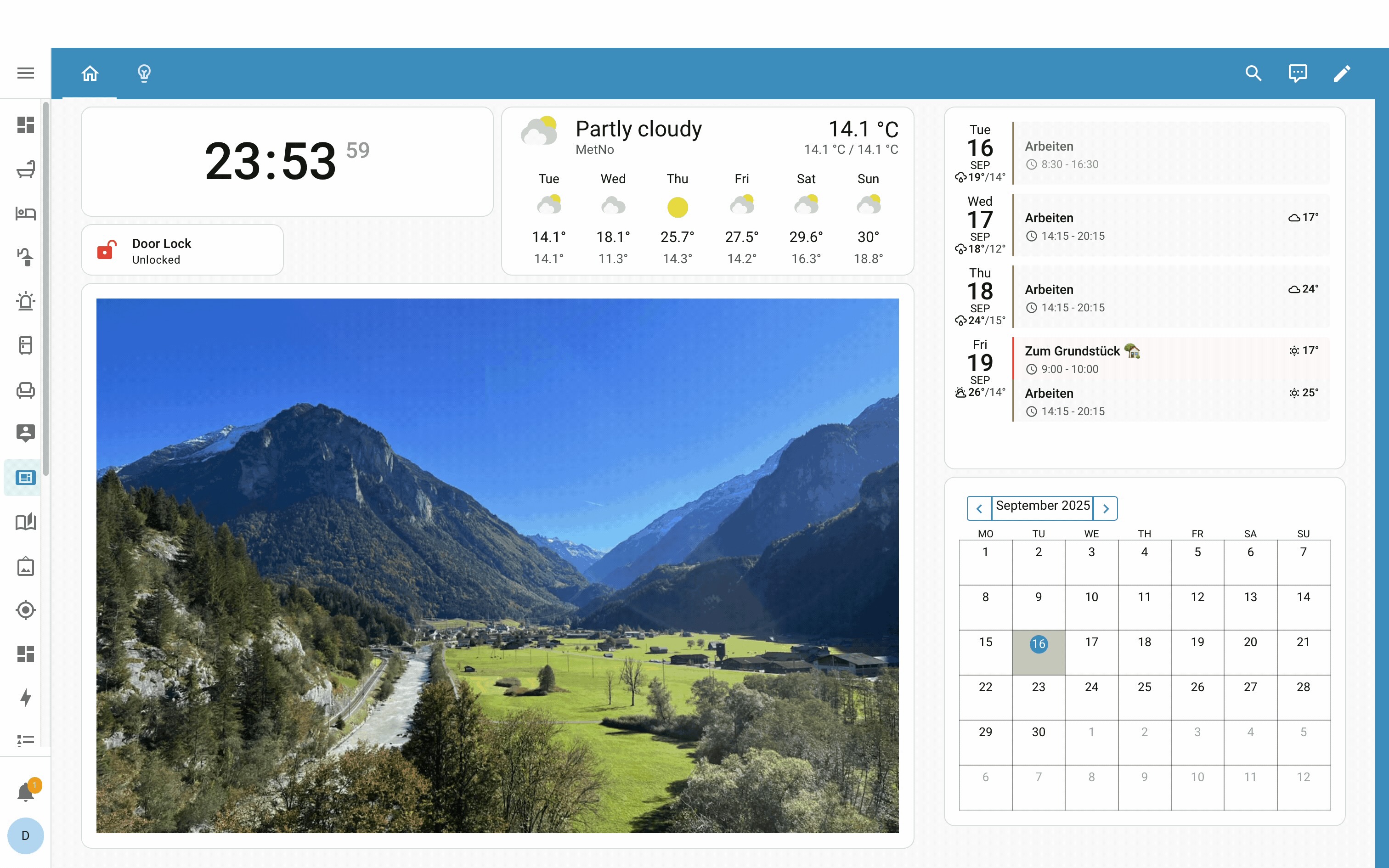


 You should be able to update the card through HACS - I’m still fairly new to this, so let me know if you run into issues.