Hi everyone,
My name is Kris, and this is my first post in the community.  Earlier this year, I switched from ioBroker to Home Assistant and have been gradually migrating all my automations over. I’m running Home Assistant OS as a virtual machine on my NAS and have been very impressed with its capabilities so far.
However, I’ve hit a bit of a roadblock with one of my automations: in the past, whenever someone rang the doorbell, my camera would take a photo, crop it, and send it to my phone via Telegram. I achieved this in ioBroker using a JavaScript.
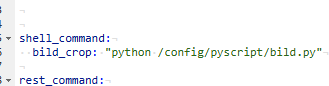
Now, I want to replicate this functionality in Home Assistant. Unfortunately, I haven’t found a way to crop an image using the built-in tools. I tried implementing it using a Python script, but I keep running into errors when executing the script. I’ve also tried various tools like “Python Scripts Pro,” but none of them have worked for me so far.
pyScript:
from PIL import Image

def main():
    try:
        # Bilddatei laden
        input_file = "tuer.jpg"
        output_file = "Result.jpg"

        # Bild öffnen
        image = Image.open(input_file)

        # Bildgröße auslesen
        width, height = image.size

        # Beschnitt-Bereich definieren (Beispiel: zentrierter Ausschnitt)
        left = width * 0.1  # 10% vom linken Rand
        top = height * 0.1  # 10% vom oberen Rand
        right = width * 0.9  # 90% vom linken Rand
        bottom = height * 0.9  # 90% vom oberen Rand

        cropped_image = image.crop((left, top, right, bottom))

        # Ergebnis speichern
        cropped_image.save(output_file)

        print(f"Bild wurde erfolgreich beschnitten und als '{output_file}' gespeichert.")

    except FileNotFoundError:
        print(f"Die Datei '{input_file}' wurde nicht gefunden. Stellen Sie sicher, dass sie im gleichen Verzeichnis wie dieses Skript liegt.")
    except Exception as e:
        print(f"Ein Fehler ist aufgetreten: {e}")

if __name__ == "__main__":
    main()
Error Message:

So, here are my questions for you:
- Can you help me fix my Python script so that it works and achieves the desired result?
- Are there any other Home Assistant solutions or tools that can crop an image and send it via Telegram?
Oh, and here’s an additional detail: when I use the Advanced SSH feature in the WebTerminal add-on and run the PyScript from the console, it works perfectly. Just thought I’d mention that as it might help pinpoint the issue.
I’d appreciate any advice or tips on how to get this automation up and running!
Thanks in advance for your help!
Best regards,
Kris