Radar Map Manager (RMM)
Radar Map Manager (RMM) is a millimeter-wave radar visualization and data fusion integration built specifically for Home Assistant.
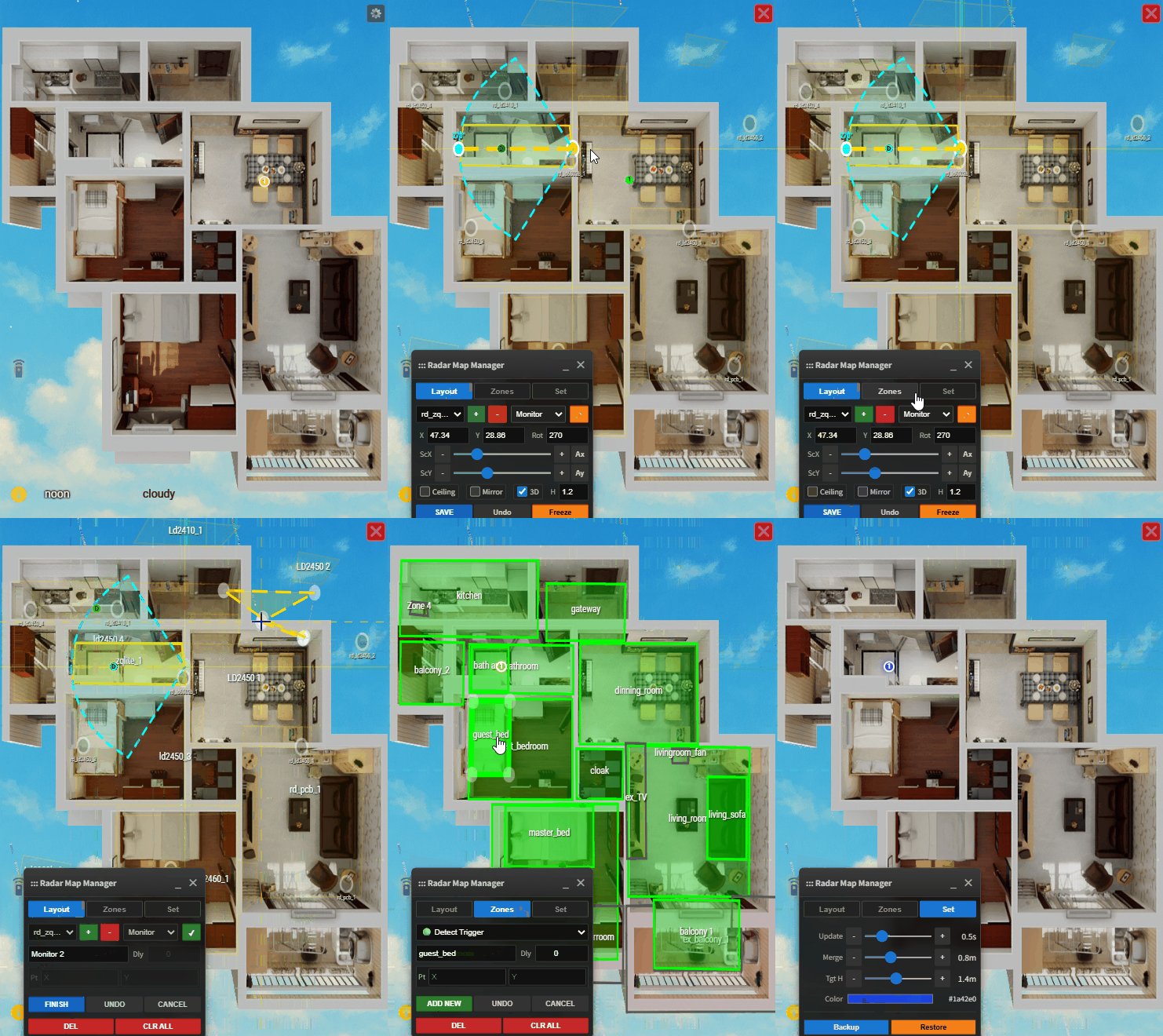
It is not just a floor plan card, but a spatial perception engine. RMM maps data from multiple scattered millimeter-wave radars in your home onto one or more floor plans, enabling whole-house human tracking, trajectory visualization, and precise coordinate-based automation.
V1.0 Officially Released! Supports multiple floor plans, ceiling and side mounting modes, three zone management types (
Monitor,Detect Trigger, andDetect Exclude), multi-radar target fusion, and a much smoother editor experience.
 Core Features
1.  WYSIWYG Visual Editor
Ditch the tedious YAML coordinate calculations! RMM provides an interactive frontend editor:
- Config/View Modes: Supports Config Mode and Read-Only Mode, allowing for both easy setup and clean display.
- Multi-Map/Multi-Floor Support: Manage multiple floors and locations easily with
map_group, creating independent views for your home or office. - Flexible Radar Configuration: Drag and drop radar positions directly on the floor plan. Supports rotation, scaling, and mirroring for one-stop management.
- Automatic Positioning & Scaling: With the Freeze function, you can visually locate a radar target relative to the floor plan to easily adjust the radar scaling—goodbye to blind guessing.
- Mounting Styles: Perfectly supports both Side Mount and Ceiling Mount radars.
2.  Multi-Radar Sensor Fusion
RMM’s target fusion engine unifies target points from multiple radars into a single coordinate system:
- Auto-Clustering: Merges data when multiple radars detect the same person to prevent “ghost targets.” Supports custom fusion ranges.
- Blind Spot Compensation: Eliminates detection dead zones in rooms by overlapping multiple radars.
3.  Flexible Zone Management
Supports arbitrary polygons with flexible editing, making zone management easy:
- Radar Monitor Zones: Set individual monitor zones for each radar. Targets are only fused and displayed if they enter this zone; otherwise, global fusion is used by default.
- Global Detect Zones: Automation Powerhouse! Freely set detection zones on the floor plan. When a fused target enters these zones, HA entities (automatically generated) are triggered. You can also customize trigger delays to avoid false alarms.
- Global Exclude Zones: The False Alarm Killer! Draw zones around fans, curtains, or plants. The engine automatically filters out all interference signals within these areas.
- Automation Entities: Each Global Detect Zone automatically generates a Presence entity (
binary_sensor) and a Count entity (sensor), letting you know if someone is there and how many people are present. Easily implement automations like “Person on sofa turns on TV” or “Person enters bathroom area adjusts lights.”
4.  3D Spatial Correction
For side-mounted radars, RMM features a built-in 3D geometric correction algorithm. It automatically converts Slant Range to Ground Distance based on installation height and target height, significantly improving positioning accuracy.
 Supported Hardware
RMM is compatible with any millimeter-wave radar integrated into Home Assistant (including 1D, 2D, and 3D radars), as long as they provide DISTANCE or X/Y coordinate data, , such as HLK-LD2450 LD2460 LD6001 LD6002b LD6004
-
Connection Methods:
- ESPHome
- MQTT
- Zigbee (Must support coordinate reporting)
-
Entity Naming Convention
-
 IMPORTANT To ensure the system correctly identifies radar data, please follow these naming formats:
 -
1D Radar:
sensor.[radar_name]_distance- Example:
sensor.rd_ld2410_distance
- Example:
-
2D/3D Radar:
sensor.[radar_name]_target_?_x- Must include:
_x,_y,_zcoordinates - Example:
sensor.rd_ld6004_target_1_x
- Must include:
-
Radar Target Count [Optional]:
sensor.[radar_name]_presence_target_count- Example:
sensor.rd_ld2450_presence_target_count
- Example:
-
 Installation
Method 1: HACS Automatic Installation (Recommended)
- Open HACS in your Home Assistant.
- Go to Integrations and click the Explore & Download Repositories button at the bottom right.
- Search for “Radar Map Manager” and click Download.
- Restart your Home Assistant.
Method 2: Manual Installation
- Download the
custom_components/radar_map_managerfolder from this repository. - Copy it to your Home Assistant’s
custom_components/directory. - Restart Home Assistant.
 Configuration Guide
Step 1: Add Integration
- Go to Settings → Devices & Services → Add Integration.
- Search for Radar Map Manager and add it.
Step 2: Add Card
- On your dashboard, click “Edit Dashboard” → “Add Card”.
- Search for the Radar Map Manager card.
- Or use the following YAML configuration:
Standalone Use (Manual Card):
type: custom:radar-map-card
map_group: default                   # Optional, floor plan/map group name, default: default
read_only: false                     # Optional, true for view mode, false for edit mode, default: false
bg_image: /local/floorplan/house.png # Required in edit mode, path to floor plan image
target_radius: 5                     # Optional, size of the fused target dot
show_labels: true                    # Optional, show zone names
handle_radius: 1.5                   # Optional, size of edit handles
handle_stroke: 0.2                   # Optional, border size of active handles
zone_stroke: 0.5                     # Optional, zone line width
label_size: 2                        # Optional, font size for zone names
target_colors:                       # Optional, custom colors for raw radar targets
  - yellow
  - "#00FFFF"
  - "#FF00FF"
Use inside a Picture-Elements Card:
type: picture-elements
image: /local/floorplan/3dplan/blank_floor.png
elements:
  - type: custom:radar-map-card
    target_radius: 5
    read_only: true
    style:
      top: 50%
      left: 50%
      width: 100%
      height: 100%
      transform: translate(-50%, -50%)
      pointer-events: none
 Editor Mode Guide
Click the icon in the top right corner of the card to enter Edit Mode.
A.  Radar Layout (Layout)
Click Layout in the panel to enter radar layout mode. Targets displayed here are raw radar coordinates.
1. Add/Delete Radar
-
Add: Click
+, enter the radar name as defined in HA. For example, if the coordinate entity issensor.rd_ld2450_target_1_x, enter:rd_ld2450 -
Delete: Select an added radar and click
-to delete it. Operate with caution.
2. Radar Settings
-
Positioning: Drag the radar to its actual physical location on the map. Drag the radar handle to adjust the angle. Position and rotation can be fine-tuned using the
X/Y/Rotinputs in the panel. -
Scale Adjustment: Stand within the radar’s detection range (preferably away from the center line and try multiple positions). Use a combination of these methods to match radar targets with the floor plan:
-
1(Recommended). Click the
Freezebutton. This locks the first target detected by the radar. Manually drag this target to your actual standing position on the floor plan, and the system will automatically calculate the scale. -
- Adjust
ScXandScYsliders to change theX/Ycoordinate scaling.
- Adjust
-
- Click
Ax/Ayto automatically adjust based on the background image aspect ratio (reference only).
- Click
-
-
Mounting Mode: Check
Ceilingat the bottom of the panel to switch between “Side Mount” and “Ceiling Mount”. -
Mirror Mode: Check
Mirrorto invert the radar’s X-axis. -
3D Correction: Check
3Dand input the radar installationheight(in meters) to enable 3D geometric correction. If the radar height is within standard ranges, this may not be necessary. -
UNDO: Undo the last operation.
3. Radar Monitor Zones
-
Select a radar via the panel or the map, then click the
Monitorbutton to edit its monitor zones. -
Add Zone: Click
ADD NEW, define the shape by clicking polygon points on the map, name the zone, and clickFINISHto save. -
Adjust Zone: Select a zone and drag points to adjust the shape. Double-click a point to delete it.
-
Delete Zone: Select a zone and click
DELto remove it; clickCLR ALLto remove all monitor zones for that radar (Caution!). -
Click
DONEto exit Monitor zone editing.
B. Zone Management (Zones)
Click Zones in the panel to enter global zone management. Note: Zones here are global and relate only to fused targets, not specific radars. Targets displayed here are fused coordinates (default gold color).
1. Detect Trigger Zones
-
Editing operations are the same as Monitor zones.
-
Delay: Supports setting a target entry delay. Enter the delay time (in seconds) in the
Dlybox to prevent false alarms caused by transient anomalies. -
Automation: Once set, this automatically creates “Occupancy” and “Count” entities for automation.
2. Detect Exclude Zones
-
Editing operations are the same as Monitor zones.
-
Fused targets falling into this zone will not be displayed or triggered. Use this to mask interference from fans, air conditioners, etc.
C. Settings (Set)
Click Set in the panel for global parameters.
-
Update: Radar target refresh interval. -
Merge: Radar target fusion distance. Targets from different radars within this distance will be merged. -
Tgt_H: Target centroid height, used for 3D correction. -
Color: Custom color for fused targets. -
Backup: Backup current configuration and export to a file. -
Restore: Import a file to restore configuration.
If you find this project helpful, please give it a  Star!
Star!