Remote access using tailscale and custom domain with NginxProxyManager running on unraid server on different VLAN

Hi,

i’m not a network expert and require help to setup remote acces to home assistant yellow via NginxProxyManager running in docker on an unraid server located in a different VLAN.

i have set up remote access to my unraid server, located on my main VLAN (VLAN60), over https using

  • the tailscale plugin
  • and NginxProxyManager (docker) app
  • with a custom (sub)domain server.mydomain.com

following this tutorial from spaceinvader one: 3 Different Ways to Connect to Unraid over HTTPS .

Now i want to achieve the same for my home assistance instance, located on the IOT VLAN (VLAN40),

Following this guide, I installed the tailscale addon and conencted to the webgui;
so next is to generate a SSL certificate and configure NGINX.

As my Home Assistant Yellow is located on the IOT VLAN (VLAN40), while my unraid server is located on my main VLAN (VLAN60), i guess from this point on i cannot follow the guide anymore.

Or do i still need to install LetsEncrypt on HomeAssistant as addon and create a certificate there?
I assumed that i cannot run NGINX Home Assistant SSL proxy on home assistant and NginxProxyManager on unraid as i would need to forward port 80 and 443 to NGINX Home Assistant SSL proxy on VLAN40 while i am already forwarding port 80 and 443 to NginxProxyManager on VLAN60.

So what should i do instead?
My assumption is that instead of installing LetsEncrypt in home assistant as addon, in the webgui of the NginxProxyManager app running in docker on my unraid server, i need to create a host and SSL certificate for ha.mydomain.com pointing to my home assistant yellow IP? Also to which port should I point? And what do i need to configure further to make this work?

Key here is that NPM can reach your HA, whether directly or through the tailscale address.

Indeed. In NPM, you would point to HA (whether with local or tailscale IP) in http on port 8123.

If your HA is not exposed to the outside world, you don’t (really) need to enable SSL on that side, too (you already do on NPM)

1 Like

Thanks for the reply and trying to help me!
Pointing NPM to 192.168.40.35:8123 unfortunately does not work.

I wondered if maybe if i configured my A record in Top Level Domain’s DNS settings wrong; should this point to my home assistant’s tailscsale IP or to my server’s tailscale’s IP (on which NPM is running)? I tried both now, but neither is working…

As you’re playing with vlan, does your NPM has a route to your HA?
Try doing a curl http://192.168.40.35:8123 from your NPM machine.

That’s assuming you didn’t install a certificate on HA, ofc, and still use plain http. Otherwise, replace the url by whatever works for you.

Isn’t a VLAN (by design) supposed to isolate you, something that you may have succeeded in just a little too well? You need to create a path to ‘leak’ packets from one VLAN to the other to allow needed traffic to pass through that. You need to configure that, and it is part of your planning process, and detailed understanding of your network traffic and configuration. Only what you want to pass through, no more, no less.

Are you sure you want to have such complicated network challenges so early in your path to enlightenment?

i get this response:

<!DOCTYPE html><html><head><title>Home Assistant</title><meta charset="utf-8"><link rel="manifest" href="/manifest.json" crossorigin="use-credentials"><link rel="icon" href="/static/icons/favicon.ico"><link rel="modulepreload" href="/frontend_latest/core.7f2afef49a3817b9.js" crossorigin="use-credentials"><link rel="modulepreload" href="/frontend_latest/app.fbbdf6702592824b.js" crossorigin="use-credentials"><link rel="mask-icon" href="/static/icons/mask-icon.svg" color="#18bcf2"><link rel="apple-touch-icon" href="/static/icons/favicon-apple-180x180.png"><meta name="apple-itunes-app" content="app-id=1099568401"><meta name="apple-mobile-web-app-capable" content="yes"><meta name="apple-mobile-web-app-status-bar-style" content="default"><meta name="apple-mobile-web-app-title" content="Home Assistant"><meta name="msapplication-config" content="/static/icons/browserconfig.xml"><meta name="mobile-web-app-capable" content="yes"><meta name="application-name" content="Home Assistant"><meta name="referrer" content="same-origin"><meta name="theme-color" content="#2980b9"><meta name="color-scheme" content="dark light"><meta name="viewport" content="width=device-width,user-scalable=no,viewport-fit=cover,initial-scale=1"><style>body{font-family:Roboto,Noto,sans-serif;-moz-osx-font-smoothing:grayscale;-webkit-font-smoothing:antialiased;font-weight:400;margin:0;padding:0;height:100%}</style><style>@keyframes fade-out{from{opacity:1}to{opacity:0}}::view-transition-group(launch-screen){animation-duration:var(--ha-animation-base-duration, 350ms);animation-timing-function:ease-out}::view-transition-old(launch-screen){animation:fade-out var(--ha-animation-base-duration,350ms) ease-out}html{background-color:var(--primary-background-color,#fafafa);color:var(--primary-text-color,#212121);height:100vh}#ha-launch-screen{position:fixed;top:0;left:0;right:0;bottom:0;width:100%;height:100%;display:flex;flex-direction:column;justify-content:center;align-items:center;view-transition-name:launch-screen;background-color:var(--primary-background-color,#fafafa);z-index:100}#ha-launch-screen.removing{opacity:0}#ha-launch-screen svg{width:112px;flex-shrink:0}#ha-launch-screen .ha-launch-screen-spacer-top{flex:1;margin-top:calc(2 * max(var(--safe-area-inset-top,0px),48px) + 46px);padding-top:48px}#ha-launch-screen .ha-launch-screen-spacer-bottom{flex:1;padding-top:48px}.ohf-logo{margin:max(var(--safe-area-inset-bottom,0px),48px) 0;display:flex;flex-direction:column;align-items:center;opacity:.66}@media (prefers-color-scheme:dark){html{background-color:var(--primary-background-color,#111);color:var(--primary-text-color,#e1e1e1)}body #ha-launch-screen{background-color:var(--primary-background-color,#111)}.ohf-logo{filter:invert(1)}}</style></head><body><div id="ha-launch-screen"><div class="ha-launch-screen-spacer-top"></div><svg xmlns="http://www.w3.org/2000/svg" viewBox="0 0 240 240"><path fill="#18BCF2" d="M240 224.762a15 15 0 0 1-15 15H15a15 15 0 0 1-15-15v-90c0-8.25 4.77-19.769 10.61-25.609l98.78-98.7805c5.83-5.83 15.38-5.83 21.21 0l98.79 98.7895c5.83 5.83 10.61 17.36 10.61 25.61v90-.01Z"/><path fill="#F2F4F9" d="m107.27 239.762-40.63-40.63c-2.09.72-4.32 1.13-6.64 1.13-11.3 0-20.5-9.2-20.5-20.5s9.2-20.5 20.5-20.5 20.5 9.2 20.5 20.5c0 2.33-.41 4.56-1.13 6.65l31.63 31.63v-115.88c-6.8-3.3395-11.5-10.3195-11.5-18.3895 0-11.3 9.2-20.5 20.5-20.5s20.5 9.2 20.5 20.5c0 8.07-4.7 15.05-11.5 18.3895v81.27l31.46-31.46c-.62-1.96-.96-4.04-.96-6.2 0-11.3 9.2-20.5 20.5-20.5s20.5 9.2 20.5 20.5-9.2 20.5-20.5 20.5c-2.5 0-4.88-.47-7.09-1.29L129 208.892v30.88z"/></svg><div id="ha-launch-screen-info-box" class="ha-launch-screen-spacer-bottom"></div><div class="ohf-logo"><img src="/static/images/ohf-badge.svg" alt="Home Assistant is a project by the Open Home Foundation" height="46"></div></div><home-assistant></home-assistant><script>function _ls(d,e){var i=document.createElement("script");return e&&(i.crossOrigin="use-credentials"),i.src=d,document.head.appendChild(i)}"attachShadow"in Element.prototype||(_ls("/static/polyfills/webcomponents-bundle.js",!0),_ls("/static/polyfills/lit-polyfill-support.js",!0));var isModern=/Edge?\/(13[2-9]|1[4-9]\d|[2-9]\d{2}|\d{4,})\.\d+(\.\d+|)|Firefox\/(13[4-9]|1[4-9]\d|[2-9]\d{2}|\d{4,})\.\d+(\.\d+|)|Chrom(ium|e)\/(109|1[1-9]\d|[2-9]\d{2}|\d{4,})\.\d+(\.\d+|)|(Maci|X1{2}).+ Version\/(18\.([3-9]|\d{2,})|(19|[2-9]\d|\d{3,})\.\d+)([,.]\d+|)( \(\w+\)|)( Mobile\/\w+|) Safari\/|Chrome.+OPR\/(1{2}[6-9]|1[2-9]\d|[2-9]\d{2}|\d{4,})\.\d+\.\d+|(CPU[ +]OS|iPhone[ +]OS|CPU[ +]iPhone|CPU IPhone OS|CPU iPad OS)[ +]+(18[._]([3-9]|\d{2,})|(19|[2-9]\d|\d{3,})[._]\d+)([._]\d+|)|Android:?[ /-](13[2-9]|1[4-9]\d|[2-9]\d{2}|\d{4,})(\.\d+|)(\.\d+|)|Mobile Safari.+OPR\/([89]\d|\d{3,})\.\d+\.\d+|Android.+Firefox\/(13[4-9]|1[4-9]\d|[2-9]\d{2}|\d{4,})\.\d+(\.\d+|)|Android.+Chrom(ium|e)\/(13[2-9]|1[4-9]\d|[2-9]\d{2}|\d{4,})\.\d+(\.\d+|)|SamsungBrowser\/(2[89]|[3-9]\d|\d{3,})\.\d+|Home As{2}istant\/[\d.]+ \(.+; macOS (1[3-9]|[2-9]\d|\d{3,})\.\d+(\.\d+)?\)/.test(navigator.userAgent)&&"findLast"in Array.prototype</script><script>if(-1===navigator.userAgent.indexOf("Android")){function _pf(o,t){var n=document.createElement("link");n.rel="preload",n.as="font",n.type="font/woff2",n.href=o,n.crossOrigin="anonymous",document.head.appendChild(n)}_pf("/static/fonts/roboto/Roboto-Regular.woff2"),_pf("/static/fonts/roboto/Roboto-Medium.woff2")}</script><script crossorigin="use-credentials">isModern&&(import("/frontend_latest/core.7f2afef49a3817b9.js"),import("/frontend_latest/app.fbbdf6702592824b.js"),window.customPanelJS="/frontend_latest/custom-panel.3e4324927bc4d3ea.js",window.latestJS=!0)</script><script>import("/hacsfiles/iconset.js");</script><script>window.latestJS||(window.customPanelJS="/frontend_es5/custom-panel.f665bf0683eefd70.js",_ls("/frontend_es5/core.1270328c5c45f05e.js",!0),_ls("/frontend_es5/app.1ae016809a1c26aa.js",!0))</script><script>if (!window.latestJS) {}</script></body></html>

I need to also say that before i installed my unread server and purchased a custom domain, i had remote access setup and working using duckDNS and NGINX Home Assistant SSL proxy. I stopped both Duck DNS addon and NGINX addon in home assistant, but maybe i should do something more to avoid any conflicts?

Then it should work through NPM as well.
What are the actual symptoms behind “not working”?

connection refused when i try to browse to my custom domain ha.mydomain.com:

Is your domain advertising to the internet from the host? Mantra: DNS - it’s always DNS!

Downdetector or some of the other ‘is it down or up’ sites will be able to check for you.

Can you connect via the direct IP address, without using DNS naming?

Are you attempting to connect via the standard default :80 web browser port, or the specific HomeAssistant port, and is that allowed in your network filtering and configuration?

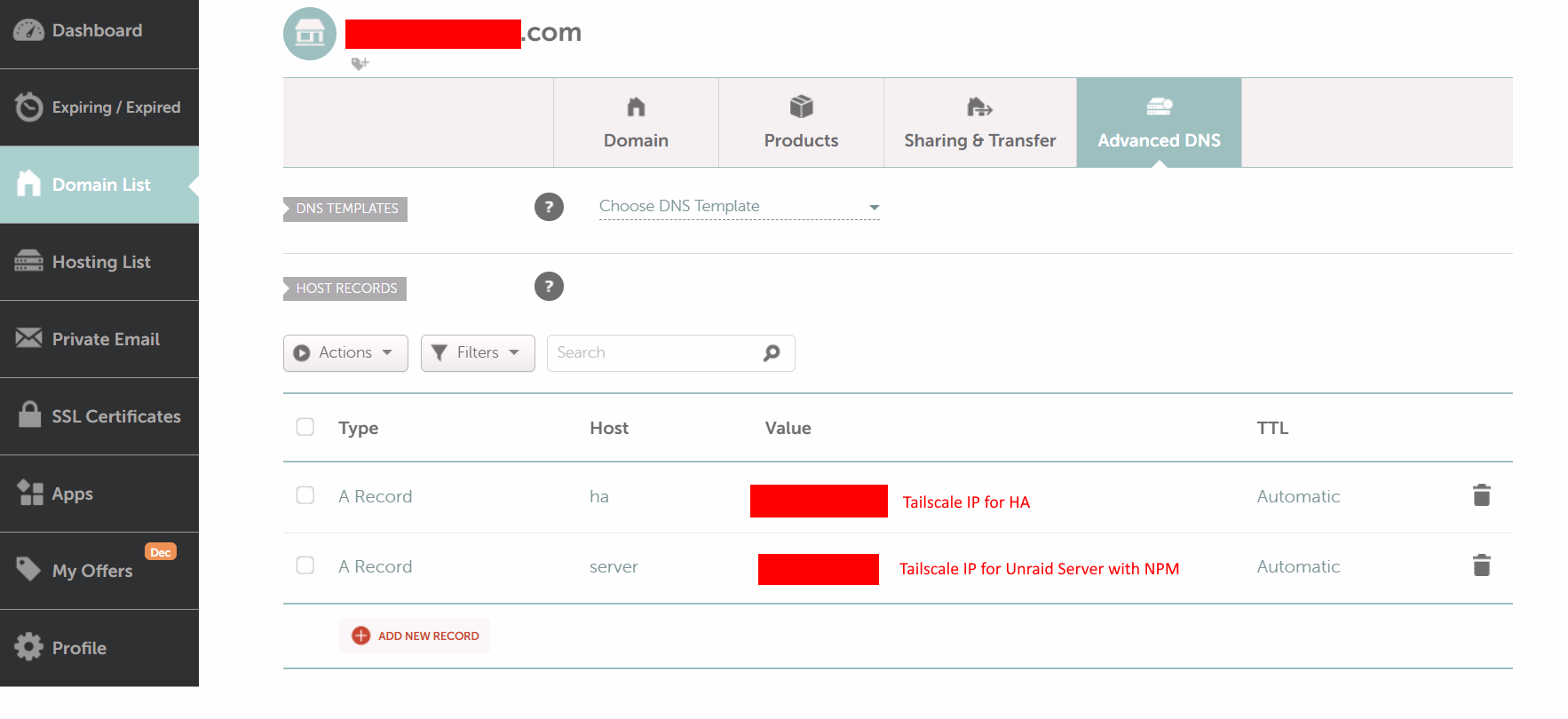
I.e. did you add “ha” to the dns of “mydomain.com”, pointing to your NPM?
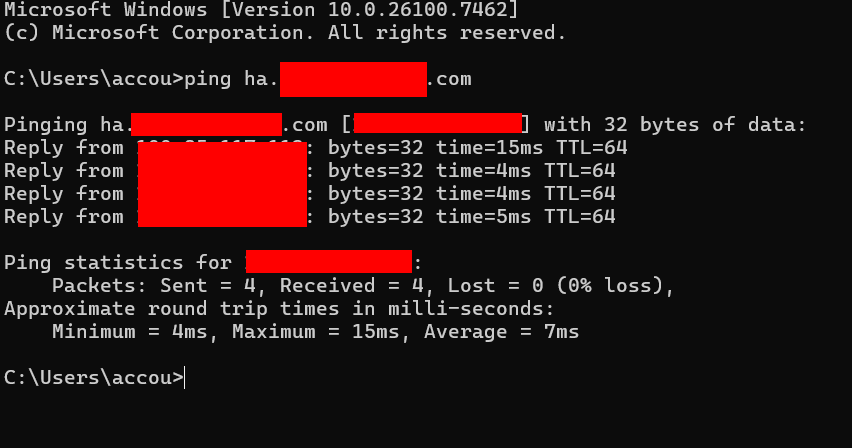
Does a “ping ha.mydomain.com” point to your NPM?

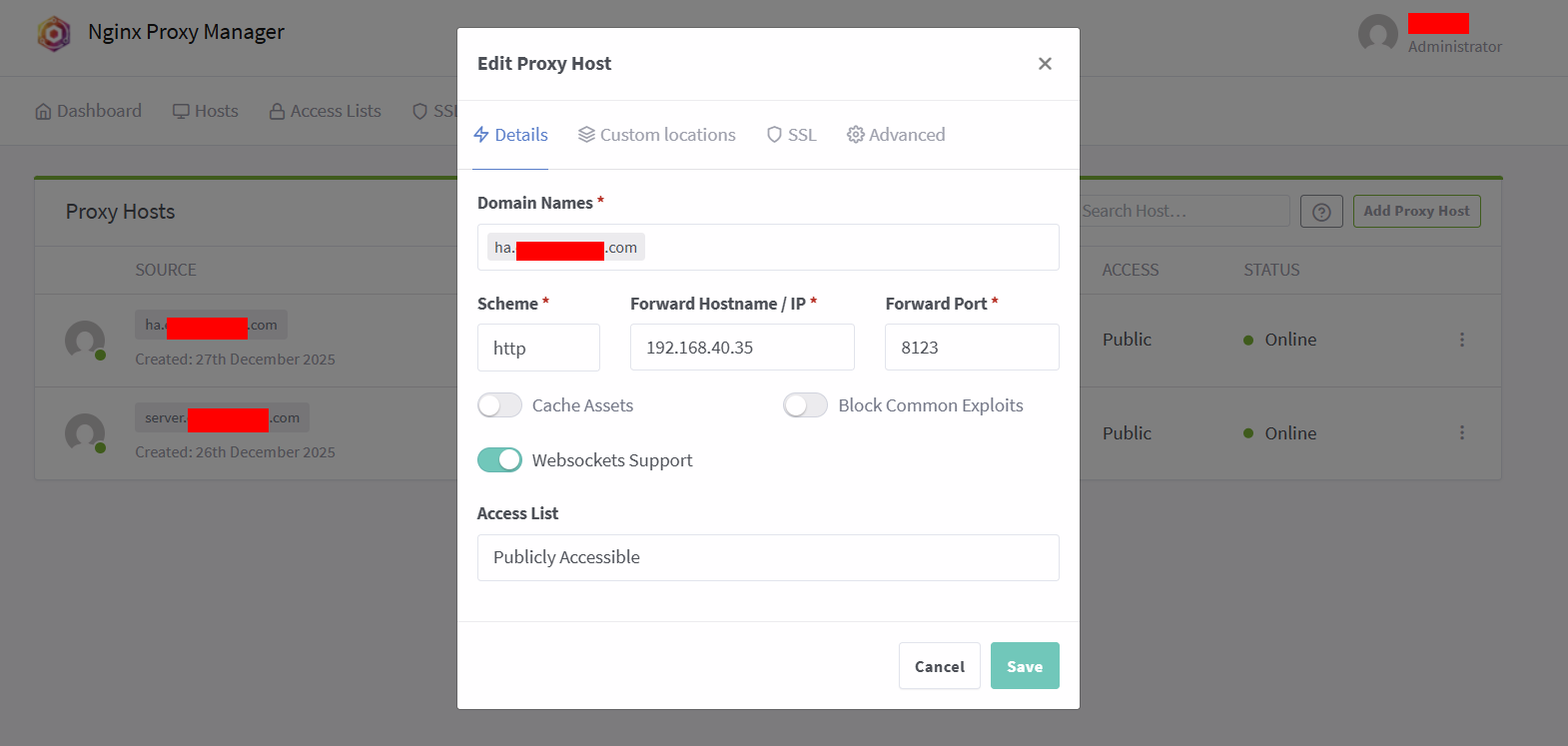
Please screenshot your NPM configuration for ha.

www.isitdownrightnow.com reports it as down. But my A Record for ha.mydomain.com points currently to the tailscale IP of my home assistant instance. this should maybe be the tailscale IP of my server instead?

I am able to connect locally directly using http://192.168.40.35:8123/ (when on the same VLAN)

Pinging:

DNS config:

NPM config:

Ping worked, so not a network connectivity issue, but a configuration issue.

In your DNS, it should be the tailscale IP of NPM, not the one of HA, i.e. the same as the one of unraid.
NPM will redirect based upon the hostname used.

And you don’t actually need the tailscale addon on HA in this configuration.

1 Like

thanks for the help so far, i’m alsmost there i think (or hope)!

By putting the Tailscale IP of the server in the DNS A Record for ha.mydomain.com, i am now landing on the Unraid login page of my server instead of Home Assistant. (Just like when I am surfing to server.mydomain.com)

In NPM, the destination is set to http, the IP address of my home assistant yellow, and port 8123, so the question now is, why am I not directed there?

After rebooting my unraid server i get this error when trying to go to ha.mydomain.com:

after googling the error, and reading this 400: Bad Request error behind Nginx Proxy Manager and Cloudflare - Unraid, i made sure to have in my HA configuration.yaml again the following entry which i previously commented out after disabling the DuckDNS and Nginx HA addons:

http:
  use_x_forwarded_for: true
  trusted_proxies:
    - 172.30.33.0/24

this didn’t solve the error however

I got it working! after also reading this Home assistant (400 Bad Request) Docker + Proxy - Solution i figured i should be putting my unraid server IP address as trusted proxy. So i edited the configuration yaml as follows:

http:
  use_x_forwarded_for: true
  trusted_proxies:
    - 192.168.60.40 #----> my Unraid Server IP address

and now it works!

thank you all so much for supporting me to the end!

Summary for people wanting to achieve the same as me:
assuming you have already the Tailscale plugin and NginxProxyManager (NPM) up and running on your unraid server and have done the port forwarding, as needed, for port 80 and/or 443 in your router as requested by the NPM container.

Then on home assistant in the configuration yaml add the following:

http:
  use_x_forwarded_for: true
  trusted_proxies:
    - [your servers IP address ]

restart HA.

On the website of your top level domain (TLD) registrat, make in the DNS settings, a A record pointing to the Tailscale IP address of your unraid server.

Then finally on your unraid server:
in NginxProxyManager (NPM):

  • make proxy host entry pointing to http [your home assistant instances IP address] port 8123
  • make SSL certificate (select force SSL, websocket, DNS challenge)
    Restart NPM container.

Done!