@morreale & @wgumaa
I presume you both have HACS installed.
So, on HACS search and install this:
Lovelace Vacuum Map card
Once you have it installed go to any of your Dashboard and add a New Card.
Search for Custom: Vacuum Map Card
github reference: GitHub - PiotrMachowski/lovelace-xiaomi-vacuum-map-card: This card provides a user-friendly way to fully control map-based vacuums in Home Assistant. Supported brands include Xiaomi (Roborock/Viomi/Dreame/Roidmi/Valetudo/Valetudo RE), Neato, Wyze, Roomba, Ecovacs (and probably more).

On the field “Vaccum entity” add your roborock ententy name (like per picture)

Now click on “SHOW CODE EDITOR”
You should see the default config, like this:
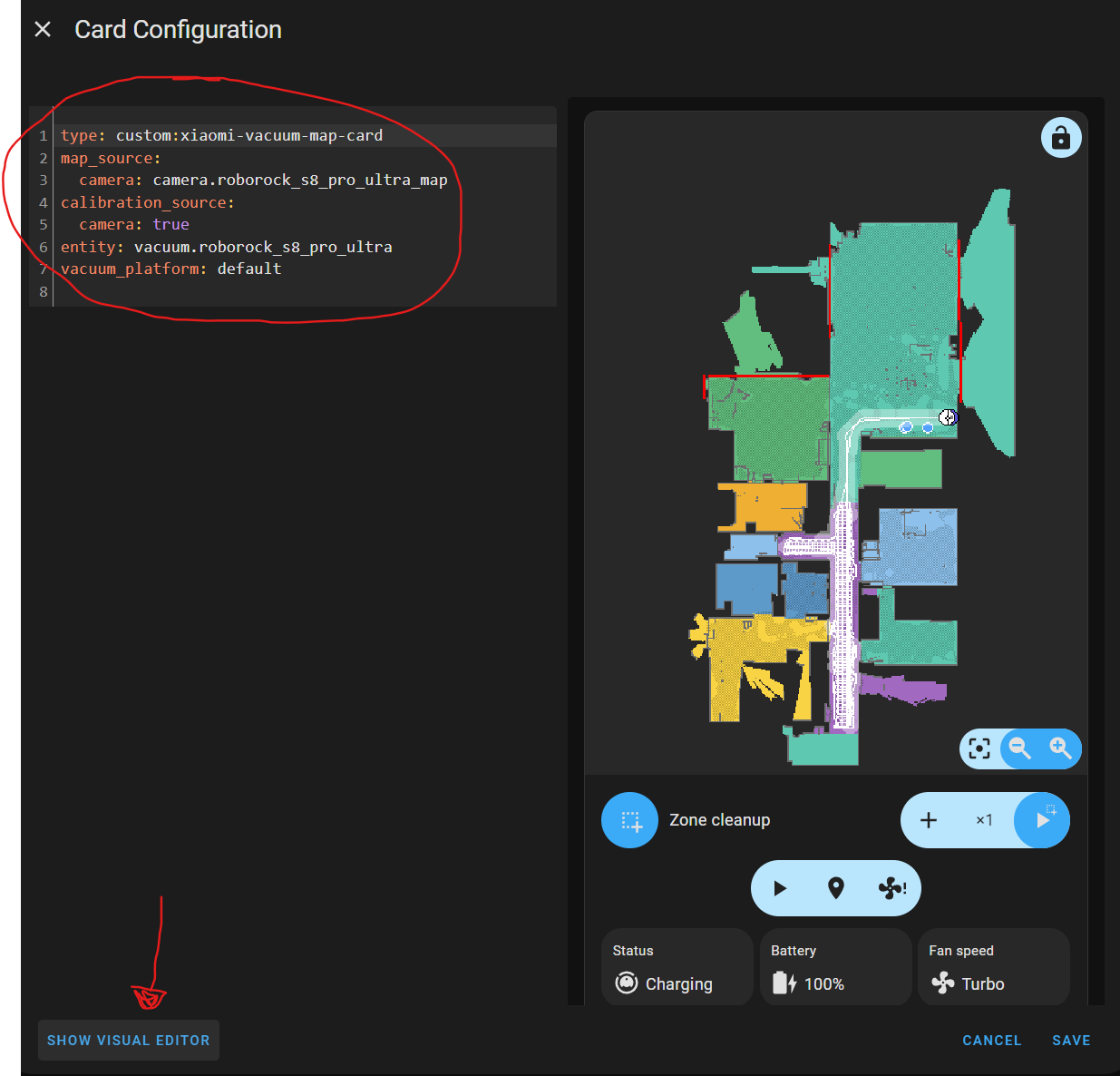
Go back by clicking on “SHOW VISUAL EDITOR”
now click on “GENERATE ROOMS CONFIG”

once again click on Show Code Editor and you should see something like this:
Where ID 16 is a room and you just need to send your roboot there to find where it is
You can also edit it where it says “text: Room 16” and change to the room’s name.

For last, don’t forget to SAVE 
I hope it helps.