@morreale & @wgumaa
I presume you both have HACS installed.
So, on HACS search and install this:
Lovelace Vacuum Map card
Once you have it installed go to any of your Dashboard and add a New Card.
Search for Custom: Vacuum Map Card
github reference: GitHub - PiotrMachowski/lovelace-xiaomi-vacuum-map-card: This card provides a user-friendly way to fully control map-based vacuums in Home Assistant. Supported brands include Xiaomi (Roborock/Viomi/Dreame/Roidmi/Valetudo/Valetudo RE), Neato, Wyze, Roomba, Ecovacs (and probably more). · GitHub

On the field "Vaccum entity" add your roborock ententy name (like per picture)

Now click on "SHOW CODE EDITOR"
You should see the default config, like this:
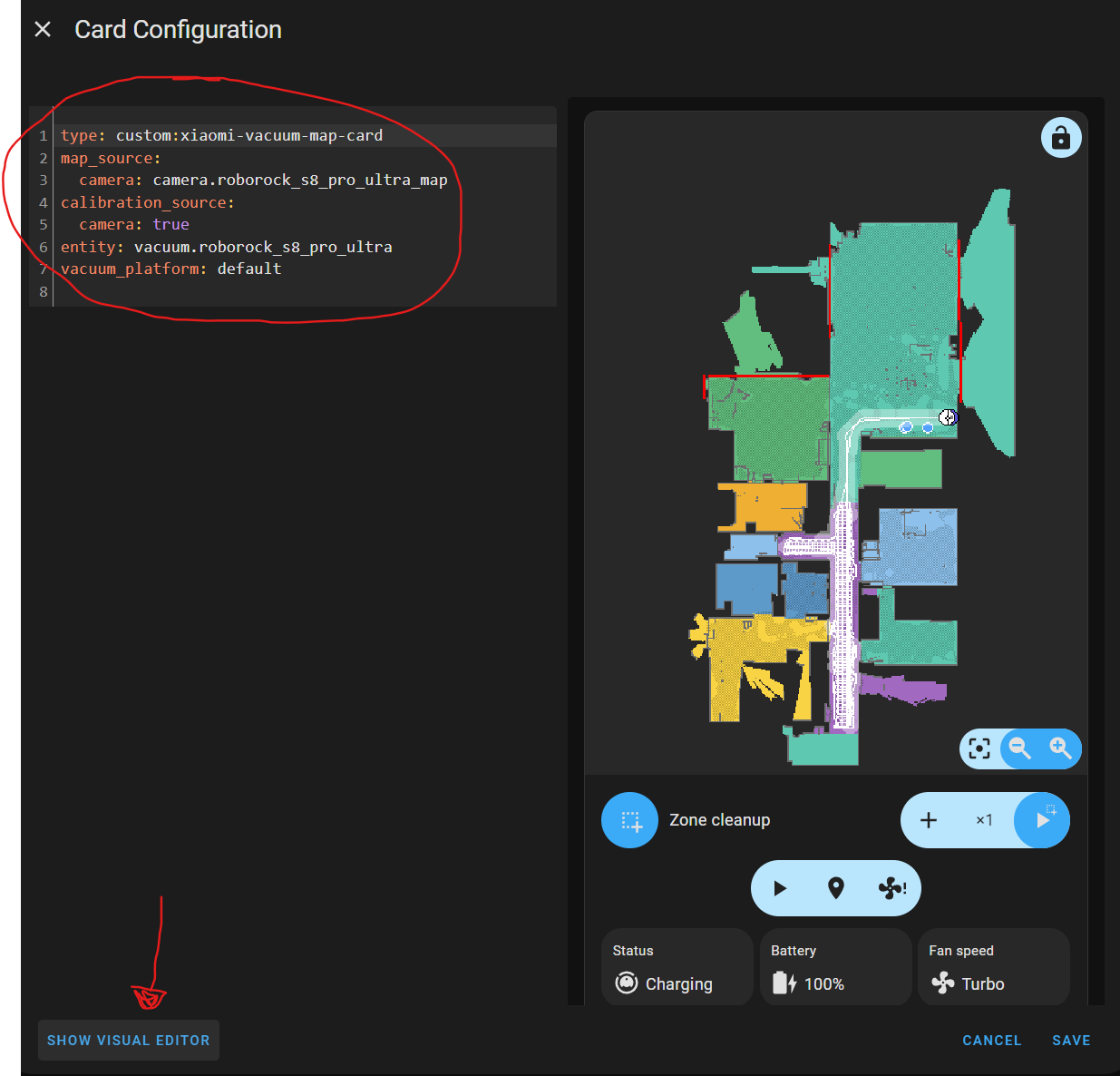
Go back by clicking on "SHOW VISUAL EDITOR"
now click on "GENERATE ROOMS CONFIG"

once again click on Show Code Editor and you should see something like this:
Where ID 16 is a room and you just need to send your roboot there to find where it is
You can also edit it where it says "text: Room 16" and change to the room's name.

For last, don't forget to SAVE 
I hope it helps.