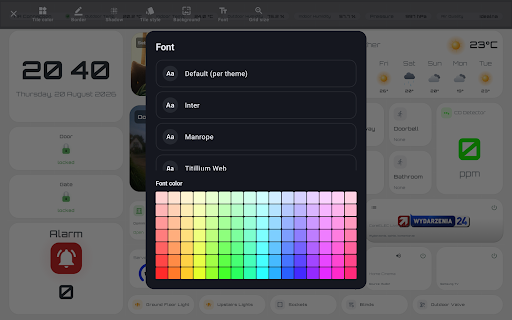
**This is an early access version. The app is under active development — some things may still change, new features will be added, and you may run into the occasional bug. Bug reports and suggestions are very welcome — every bit of feedback helps make it better.
What it actually is
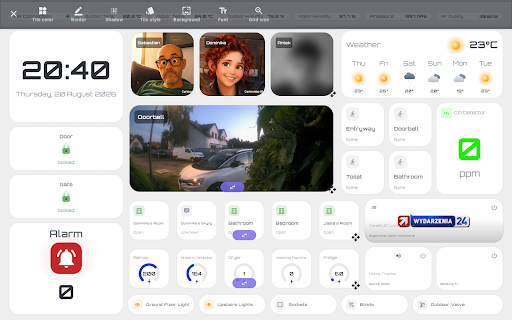
This is a wall panel for smart home control — a tablet mounted on the wall (or standing on a countertop) becomes a permanent, always-on screen for controlling your home. It connects to Home Assistant and displays everything you already manage there, laid out as tiles on a grid: lights, outlets, sensors, thermostats, cameras, media players. It is not a separate smart home system — it’s an overlay and interface for what you’ve already configured in Home Assistant.
It runs in kiosk mode: system bars hidden, screen never sleeps, the Back button does nothing, and it can be set as the tablet’s default home screen. The goal is for it to look and behave like a dedicated appliance, not a phone running an app.
1. Dashboard and Tiles
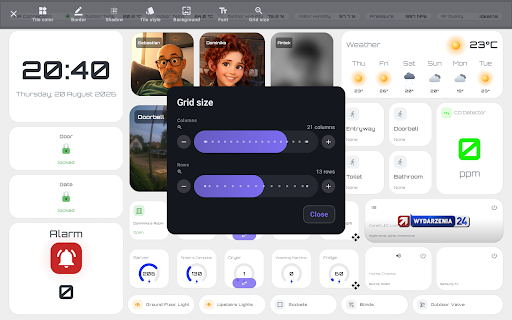
A grid on which you arrange tiles — drag them, resize them, add new ones with a long press on empty space. The number of columns and rows is adjustable via a slider, so the grid scales to fit both a large 12" tablet and a smaller one. Every tile can be given its own name and icon (a full Material Design icon library is available, with search).
A tile most commonly corresponds to a single Home Assistant entity — a light, an outlet, a sensor, an air conditioner, whatever it may be. State and icon update live. For sensors, you can override the label shown for each individual state (for example, showing “Open” instead of the raw “on”) and assign a custom icon to each.
Beyond regular tiles, there are also:
- Group — several tiles enclosed within a single framed area, for grouping related items visually (e.g., everything belonging to the living room).
- Swipe Group — a carousel of same-sized tiles, swiped through horizontally — useful when you have more similar items than space on the grid.
- Folder — a tile that opens into its own smaller grid — a mini dashboard tucked behind a single tile.
- Separator — purely visual, for organizing the layout.
- Clock, Calendar, App Widget (an actual native Android widget embedded directly on the grid), Alarm (lights up and can play a voice announcement when an alarm entity triggers), Liquid Level (an animated tank with a rippling surface and configurable alarm thresholds — for water tanks, septic tanks, and similar).
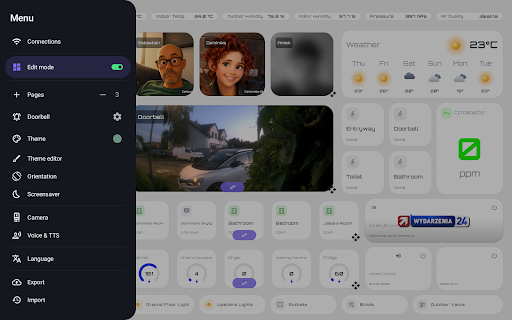
There are multiple dashboard pages — you switch between them with a swipe, and each has its own independent layout.
2. Cameras and Doorbell
Camera preview works two ways — RTSP (via VLC) or WebRTC, depending on what the camera supports. There’s a dedicated integration for the Reolink doorbell: two-way talk (tablet microphone plus camera speaker), unlocking the door via an on-screen button, a choice of custom ring sounds, and a doorbell window that can be dragged and resized, letting you arrange tiles around the camera preview however you like.
When someone rings, the doorbell view pops up on screen automatically — no tapping required.
3. Screensaver
A custom screensaver (not the system one) — clock, weather, and optionally temperature, humidity, pressure, and air quality pulled from Home Assistant sensors. Several weather icon styles are available, including a fully custom, entirely hand-animated set drawn from scratch — raindrops, snowflakes, lightning, sun rays — rather than static images. It activates after a period of inactivity, wakes on touch, or — if presence detection is enabled (front camera or proximity sensor) — wakes on its own as someone approaches the tablet.
4. Appearance
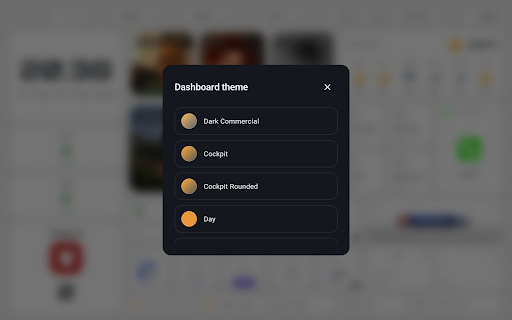
Several built-in themes (dark, a light minimalist look, terminal CRT, neon, glass) plus the ability to set custom colors, fonts (separately for the app and for the screensaver), and backgrounds — a solid color, a gradient, or your own photo from the gallery (via the system photo picker, without requesting broad storage permissions).
5. Language and First Launch
Polish and English, detected automatically from the system language on first launch, and switchable manually at any time. On first launch, a simple setup wizard walks you through connecting to Home Assistant and basic configuration.
6. Backup
The entire dashboard layout (tiles, groups, theme, settings) can be exported to a file and imported back — useful when switching tablets or simply as a routine backup. Handled through the system file picker, with no additional permissions required.
Link: https://play.google.com/store/apps/details?id=seapk.aurawall.app