For the longest time, I’ve been unable to find an Alarm card that looks like it suits my dashboard. Ive recently decided to make my own, and while its still very much a work in progress, I decided its time to share my Smart Alarm Card with the community.
Please note that alarm system integrations do vary somewhat, and I am using the InnerRange Inception integration by @sebr
Smart Alarm Card
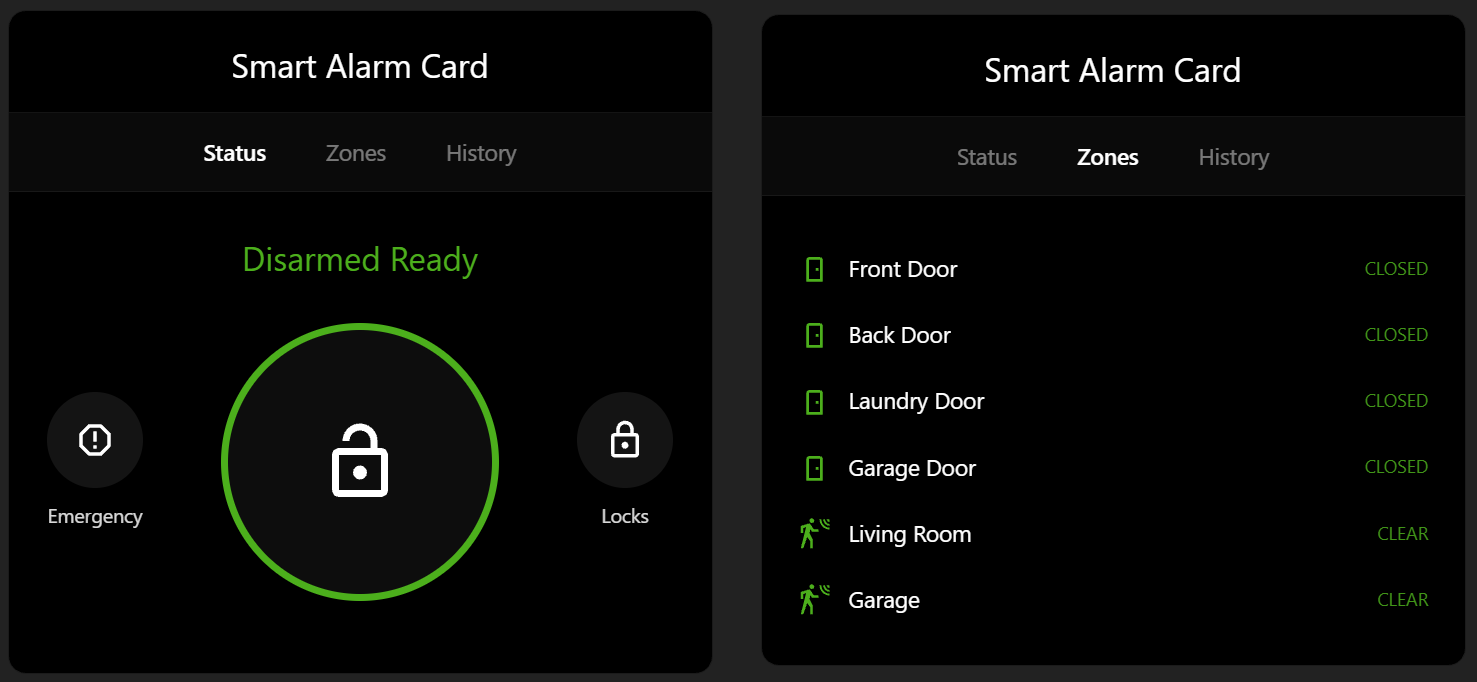
Status tab
- Large circular ring button in the center, colored by state (green = disarmed, red = armed/triggered, amber = pending/arming/disarming), with a shield icon in the middle to match the ring colour:
- Disarmed →
mdi:shield-off, Armed Home →mdi:shield-home, Armed Away →mdi:shield-lock, Armed Night →mdi:shield-moon, Armed Vacation →mdi:shield-airplane, Triggered →mdi:shield-alert, Pending/Arming/Disarming →mdi:shield-refresh
- Disarmed →
- A status line above the ring (“Disarmed Ready”, “Armed Away”, “Alarm Triggered”, etc.)
- Tapping the ring opens a picker overlay: red tiles for each configured arm mode when disarmed, or a single green “Disarm” tile when armed/triggered
- If
require_codeis set, a numeric PIN keypad follows, with pin-dot feedback and a shake/error state on a wrong code - Emergency button (left) → confirms, then calls
alarm_control_panel.alarm_trigger - Locks button (right) → opens a panel with your configured lock, showing its live locked/unlocked icon and state; tapping it opens a plain (non-red) confirmation before actually locking/unlocking
Zones tab
- Lists your configured door/window/motion sensors, each with:
- Its real icon — resolved from your
icon:override → the entity’s own icon attribute → a device-class-based default matching HA’s own icons → a type fallback - A colored state label (“Open”/“Closed” or “Motion”/“Clear”), red when active
- Tap to open HA’s more-info dialog for that entity
- Its real icon — resolved from your
- A red dot badge appears on the “Zones” tab itself whenever any zone is currently open/triggered
History tab
- Pulls the last 24 hours of logbook events for the alarm entity and all configured zones
Installation
HACS (recommended)
- In Home Assistant, go to HACS → Frontend.
- Click the ⋮ menu (top right) → Custom repositories.
- Add this repository URL
https://github.com/ndwalters/smart-alarm-cardand category Dashboard. - Find Smart Alarm Card in HACS and click Download.
- Add the resource if it isn’t added automatically:
Settings → Dashboards → Resources →/hacsfiles/smart-alarm-card/smart-alarm-card.js, type JavaScript Module.
Manual
- Copy
smart-alarm-card.jsto<config>/www/smart-alarm-card.js. - Settings → Dashboards → Resources → Add Resource:
URL/local/smart-alarm-card.js, type JavaScript Module.
Usage
type: custom:smart-alarm-card
entity: alarm_control_panel.home_alarm
name: Security System
require_code: true
code_length: 4
arm_modes:
  - away
  - home
zones:
  - entity: binary_sensor.front_door
    name: Front Door
  - entity: binary_sensor.back_door
    name: Back Door
lock:
  entity: lock.front_door
  name: Front Door Lock
Options
| Name | Type | Default | Description |
|---|---|---|---|
entity |
string | required | alarm_control_panel.* entity |
name |
string | Security System |
Title bar text |
require_code |
boolean | true |
Show the on-card PIN keypad before arming/disarming |
code_length |
number | 4 |
Number of digits in the PIN |
arm_modes |
list | [away, home] |
Arm modes offered: away, home, night, vacation, custom_bypass |
zones |
list | [] |
List of { entity, name } binary sensors shown on the Zones tab |
lock |
object | none | { entity, name } door lock shown under Functions |