I needed more control for my Sony projector (VPL-VW5000), so using Claude (Anthropic) I vibe coded this integration that gives more control than the native integration as well as visibility into various attributes (eg, status of power, input, brightness, contrast, sharpness and contrast).
Yes, 100% vibe coded.
Sony Projector ADCP Integration for Home Assistant
This custom integration allows you to control Sony projectors (specifically the VPL-XW5000 and compatible models) using the ADCP (Advanced Display Control Protocol) over your local network.
Features
Core Media Player Controls
- Power On/Off: Standard media player power control
- Input Selection: Switch between HDMI 1 and HDMI 2
- Status Monitoring: Real-time status updates every 30 seconds
Additional Controls via Services
All advanced controls are accessible through custom media player services:
- Picture Adjustments: Brightness, Contrast, Sharpness, Light Output (0-100)
- Picture Modes: Cinema Film 1/2, Reference, TV, Photo, Game, Bright Cinema/TV, User 1/2/3
- Menu Navigation: Menu, Up, Down, Left, Right, Enter, Reset
- Video Mute: Blank screen function
Important Limitations
 Volume Control Not Supported: The VPL-XW5000 does not support volume control commands via ADCP protocol. This is a hardware limitation of the projector model, not the integration.
Supported Models
This integration has been developed for the Sony VPL-XW5000 but should work with other Sony projectors that support the ADCP protocol, including:
- VPL-XW5000, VPL-XW5100
- VPL-XW6000, VPL-XW6100
- VPL-XW7000
- VPL-XW8100
- VPL-VW series (check compatibility in the protocol manual)
Installation
HACS (Recommended)
- Open HACS in Home Assistant
- Click on “Integrations”
- Click the three dots in the top right corner
- Select “Custom repositories”
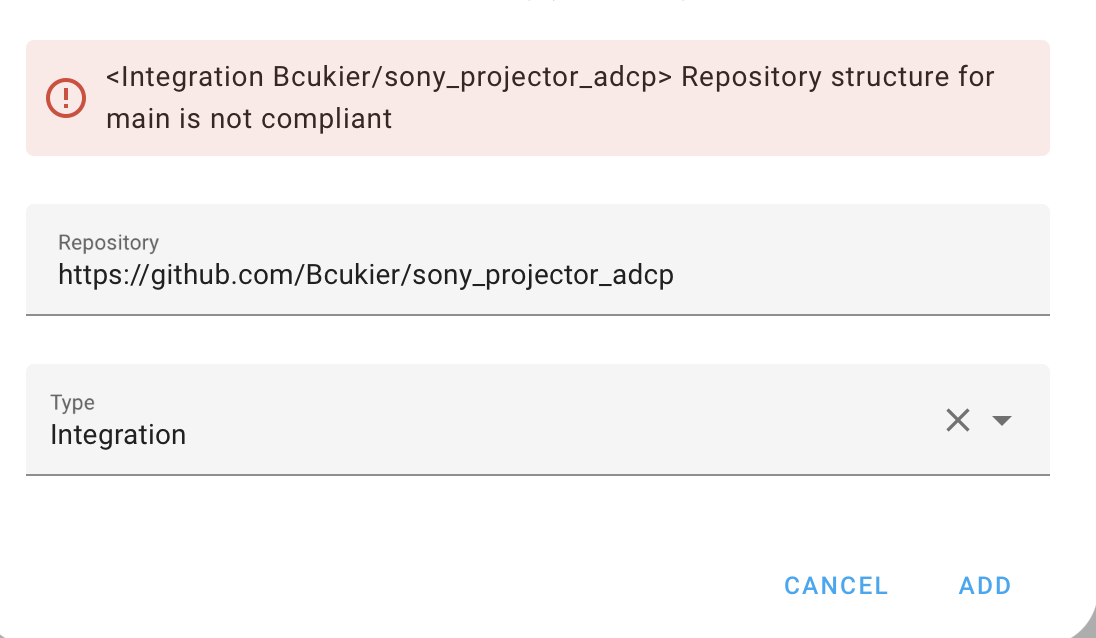
- Add this repository URL and select “Integration” as the category
- Click “Install”
- Restart Home Assistant
Manual Installation
- Copy the
custom_components/sony_projector_adcpfolder to your Home Assistant’scustom_componentsdirectory - If the
custom_componentsdirectory doesn’t exist, create it in the same location as yourconfiguration.yamlfile - Restart Home Assistant
Configuration
- Go to Settings → Devices & Services
- Click + Add Integration
- Search for “Sony Projector ADCP”
- Enter your projector’s details:
- IP Address: The IP address of your projector on your network
- Port: Default is 53595 (usually doesn’t need to be changed)
- Name: Friendly name for your projector
- Use Authentication: Whether to use password authentication (default: enabled)
- Password: Authentication password (default: “Projector”)
Network Setup on Projector
Ensure your projector is configured for network control:
- On your projector, go to the menu
- Navigate to Installation → Network Settings
- Set Network Management to ON or set Standby Mode to Standard
- Configure network settings (IP address, etc.)
- Note the Authentication Password if authentication is enabled
Usage
Media Player Entity
The integration creates a single media player entity: media_player.sony_projector
Standard Media Player Controls:
media_player.turn_on- Power on the projectormedia_player.turn_off- Power off the projectormedia_player.select_source- Switch input (HDMI 1 or HDMI 2)
Attributes:
source- Current input sourcevideo_muted- Video mute statuspicture_mode- Current picture modebrightness- Current brightness level (0-100)contrast- Current contrast level (0-100)sharpness- Current sharpness level (0-100)light_output- Current light output level (0-100)
Custom Services
All advanced controls are accessed through custom services:
Menu Navigation
service: sony_projector_adcp.send_key
target:
  entity_id: media_player.sony_projector
data:
  key: menu  # Options: menu, up, down, left, right, enter, reset, blank
Picture Mode
service: sony_projector_adcp.set_picture_mode
target:
  entity_id: media_player.sony_projector
data:
  mode: cinema_film1  # Options: cinema_film1, cinema_film2, reference, tv, photo, game, brt_cinema, brt_tv, user1, user2, user3
Picture Adjustments
service: sony_projector_adcp.set_brightness
target:
  entity_id: media_player.sony_projector
data:
  value: 75  # 0-100

service: sony_projector_adcp.set_contrast
target:
  entity_id: media_player.sony_projector
data:
  value: 80  # 0-100

service: sony_projector_adcp.set_sharpness
target:
  entity_id: media_player.sony_projector
data:
  value: 50  # 0-100

service: sony_projector_adcp.set_light_output
target:
  entity_id: media_player.sony_projector
data:
  value: 90  # 0-100
Examples
Automation - Movie Night Setup
automation:
  - alias: "Movie Time"
    trigger:
      - platform: time
        at: "20:00:00"
    action:
      - service: media_player.turn_on
        target:
          entity_id: media_player.sony_projector
      - delay:
          seconds: 30  # Wait for projector to warm up
      - service: sony_projector_adcp.set_picture_mode
        target:
          entity_id: media_player.sony_projector
        data:
          mode: cinema_film1
      - service: media_player.select_source
        target:
          entity_id: media_player.sony_projector
        data:
          source: "HDMI 1"
      - service: sony_projector_adcp.set_brightness
        target:
          entity_id: media_player.sony_projector
        data:
          value: 50
Script - Gaming Mode
script:
  projector_gaming_mode:
    alias: "Gaming Mode"
    sequence:
      - service: sony_projector_adcp.set_picture_mode
        target:
          entity_id: media_player.sony_projector
        data:
          mode: game
      - service: media_player.select_source
        target:
          entity_id: media_player.sony_projector
        data:
          source: "HDMI 2"
      - service: sony_projector_adcp.set_brightness
        target:
          entity_id: media_player.sony_projector
        data:
          value: 70
Lovelace Card
type: entities
entities:
  - entity: media_player.sony_projector
    type: custom:button-card
    tap_action:
      action: toggle
  - type: attribute
    entity: media_player.sony_projector
    attribute: picture_mode
    name: Picture Mode
  - type: attribute
    entity: media_player.sony_projector
    attribute: brightness
    name: Brightness
title: Sony Projector
Or use a media player card:
type: media-control
entity: media_player.sony_projector
Troubleshooting
Cannot Connect
- Verify the projector’s IP address is correct
- Ensure the projector is on the same network as Home Assistant
- Check that Network Management is enabled on the projector
- Verify the port (default 53595) is correct
- Check if a firewall is blocking the connection
Authentication Fails
- Verify the password matches the projector’s authentication password
- Check if authentication is enabled on both the projector and in the integration config
- Default password is “Projector” (case-sensitive)
Commands Not Working
- Ensure the projector is powered on (most commands only work when on)
- Check Home Assistant logs for error messages
- Try power cycling the projector
Values Not Updating
- The integration polls the projector every 30 seconds
- Some values may only be available when the projector is powered on
- Check network connectivity
Debug Logging
To enable debug logging, add this to your configuration.yaml:
logger:
  default: info
  logs:
    custom_components.sony_projector_adcp: debug
Contributing
Contributions are welcome! Please feel free to submit a Pull Request.
License
This project is licensed under the MIT License.
Credits
Based on Sony’s ADCP protocol documentation for professional projectors.