7wells
February 16, 2025, 8:59am
64
Maybe you can send a shell command via ssh? Untested code for your configuration.yaml:
shell_command:
  reboot_router: "ssh -o StrictHostKeyChecking=no root@<router-ip> 'gsmctl -Q'"
After saving the file, reload Home Assistant via GUI or ha core restart.
Then test the command in Developer Tools → Services, call:
Service: shell_command.reboot_router
If you want a button in your dashboard, add this to your Lovelace UI (untested):
type: button
tap_action:
  action: call-service
  service: shell_command.reboot_router
name: Reboot Router
icon: mdi:restart
Good luck!
PS - Security Considerations:
Use SSH keys instead of passwords for better security.
Restrict SSH access to trusted devices (configure firewall rules on the router).
Limit Home Assistant’s permissions if using a supervised or containerized setup.
1 Like
Not working
send_command_reboot_router: "ssh -o StrictHostKeyChecking=no [email protected] 'gsmctl -Q'"
{% set action_response = {“stdout”:“”,“stderr”:“Warning: Permanently added ‘192.168.1.1’ (ED25519) to the list of known hosts.\r\nPermission denied, please try again.\r\nPermission denied, please try again.\r\nConnection closed by 192.168.1.1 port 22”,“returncode”:255} %}
7wells
February 16, 2025, 11:29am
66
The error message suggests that the SSH connection is being denied due to authentication failure. Possible causes include:
Incorrect username or password (if using password authentication).Missing or incorrect SSH key (if using key authentication).Public key not added to the correct user’s authorized_keys on the router .Permission issues on the authorized_keys file (should be 600) or the .ssh directory (should be 700).SSH server settings on the router may restrict authentication methods (e.g., allowing only key-based authentication and no passwords).
Can you SSH into the router from another device (e.g., your PC)?
ssh -i /path/to/private_key [email protected]
If using key authentication, verify that the public key is in the correct location on the router:
cat ~/.ssh/authorized_keys
Check SSH logs on the router for more details (logread | grep ssh or /var/log/auth.log depending on the system).
Ensure Home Assistant has access
These are just some thoughts without having tested it myself.
You need to ensure that ssh connection to your router works, either with keys or with password (latter is less recommended).
I’m not very familiar with these things, I’ve never used ssh on the router. Is it possible that it’s not enabled? I’ll try to do some tests if I can
7wells
February 16, 2025, 11:59am
68
You need to enable ssh on your router:
System - Administration - Access Control - enable local SSH access (I don’t need remote access, because I connect to it via VPN).
Leave the port at 22 or change it and remember it to use the port number in the ssh command for connection.
Please consider reading about ssh somewhere else, because this would get off-topic here, I fear.
If somebody else has ideas to reboot the router from HA without SSH but by other means, that would be an alternative for you.*
How about rebooting it via SMS? Maybe you start a new thread for this.
*PS (from ChatGPT), all untested:
SSH Command: Use Home Assistant’s SSH integration or Shell Command to send reboot via SSH.
HTTP API: If the RUTX11 supports an API, send a reboot request via REST.
MQTT: If MQTT is enabled, send a reboot command via an MQTT topic.
Telnet (if enabled): Use a Telnet command to trigger a reboot.
Smart Plug (Workaround): Power-cycle the rooter using a smart plug integrated into Home Assistant.
Thanks. When I can I’ll try to enable SSH on the Router, having never used it it’s definitely not active.
MQTT, I looked to do it through Mqtt, but I didn’t find the reboot command via Mqtt.
It’s enabled
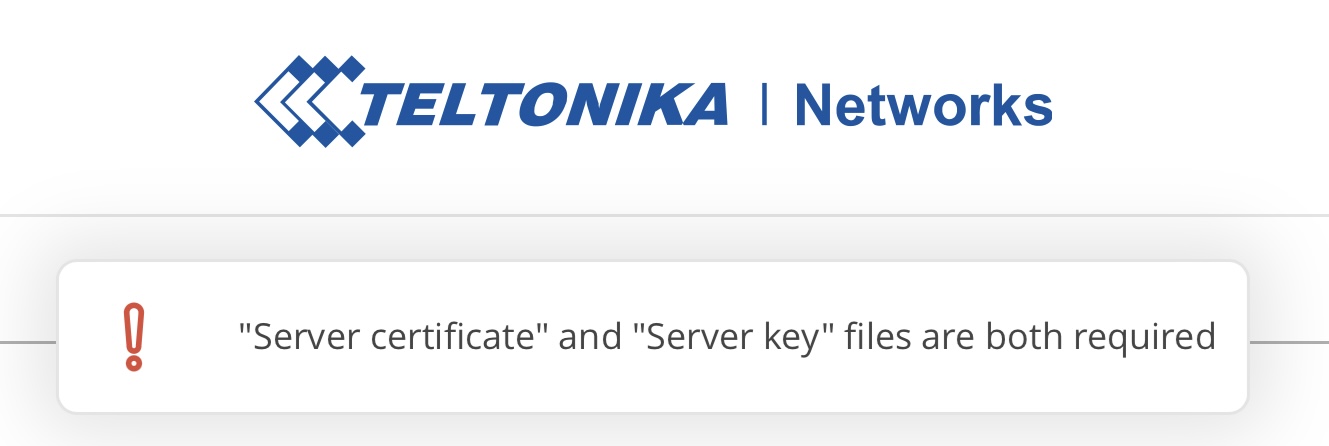
If I enable “Remote SSH access”, it gives me this warning:
Response in Home Assistant when I call service:
stdout: ""
stderr: "ssh: Could not resolve hostname 192.168.1.1:22: Name does not resolve"
returncode: 255
Router LOG (192.168.1.10 is my Home Assistant Host)
Unfortunately I can’t get the shell command to reboot the router via ssh to work.
I could make a command that automatically sends an SMS from the Router to the Router itself with the reboot command, but if there is no GSM network it would not arrive.
Do you have any advice?
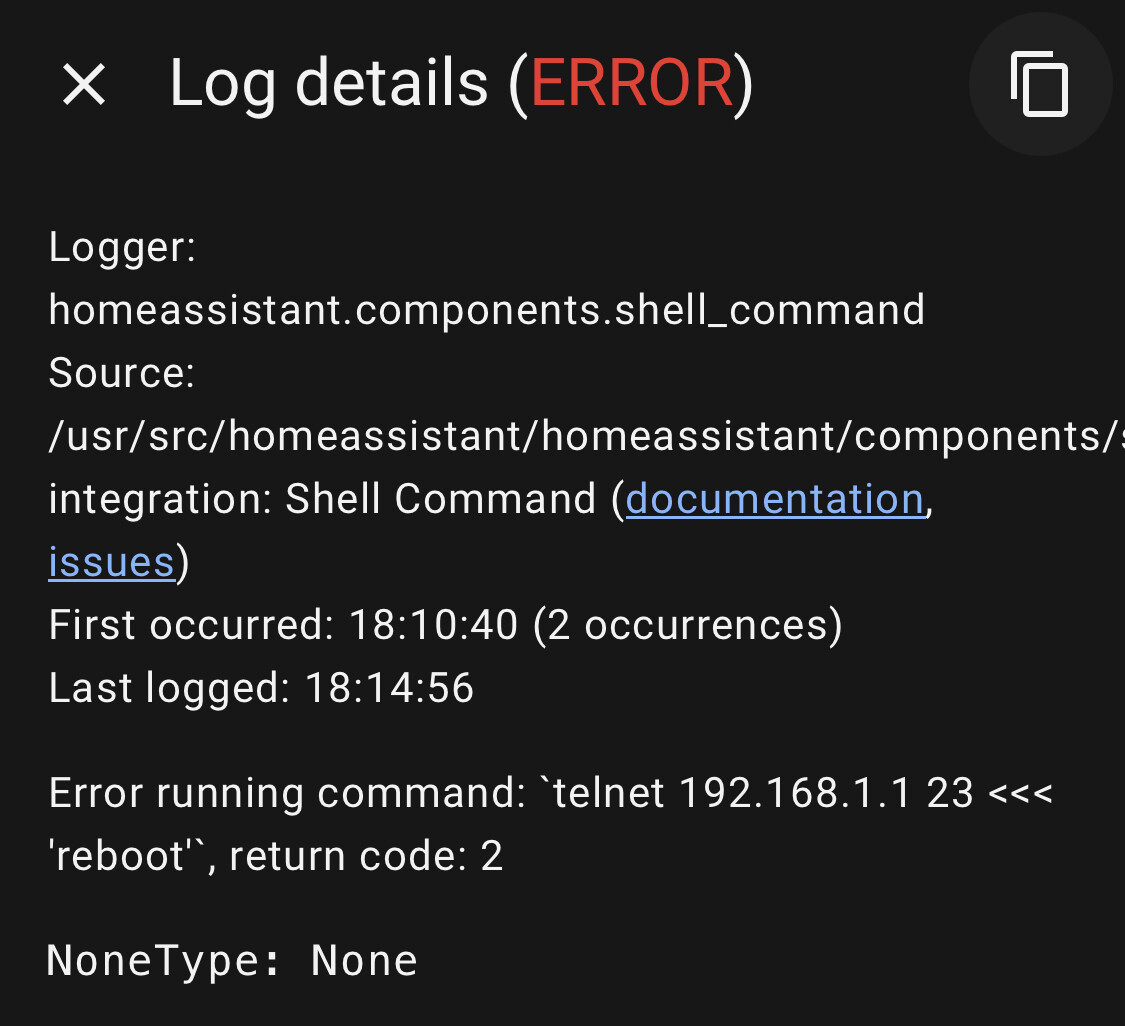
EDIT
shell_command:
  reboot_router_teltonika: "telnet 192.168.1.1 23 <<< 'reboot'"
7wells
March 3, 2025, 8:14am
73
Maybe you should first try to ssh from e.g. your mobile phone when connected to the router via WiFi.
With username “root” and password I can access the Router CLI from my iPhone via SSH.
With the “reboot” command in the CLI console from SSH client, the Router reboot regularly.
Perhaps the SSH username and password should also be included in the Home Assistant code?
EDIT
I also tried these 2 ways, but I always get errors when I run the command from Home Assistant
shell_command:
  riavvia_sshpass_router_teltonika: "sshpass -p 'SSH PASSWORD!' ssh -o StrictHostKeyChecking=no [email protected] 'reboot'"
  riavvia_router_teltonika: "ssh [email protected] 'reboot'"
7wells
March 4, 2025, 5:13pm
76
@KameDomotics
Professional networking equipment with cellular 4G and 5G LTE and Wi-Fi connectivity for challenging enterprise, IoT, M2M, and Industry 4.0 applications.
It’s a Home Assistant issue, which doesn’t handle the ssh password. It needs sshpass support, but I don’t know how to do that.
Commands from other terminals work, only from Home Assistant it doesn’t work.
7wells
March 4, 2025, 7:00pm
78
Can you use ssh keys instead of password?
I have never used ssh keys, I don’t know how to use and create them.
Can you tell me how to create shell command on Home Assistant with ssh key?