Hey all,
I’ve got a bit over 70 Zigbee devices on Zigbee2MQTT, and the built-in frontend had started to bug me. Most of the time I just want to see what’s on, what’s offline, or flip one light, and I was waiting on the page more than I was using it. So I wrote my own.
Zigbee Studio is a Home Assistant add-on that gives you a second web page for Zigbee2MQTT. It doesn’t replace anything. It connects to Z2M’s websocket the same way the built-in frontend does, as one more visitor, so both pages keep working and you can switch between them from the sidebar. Your Z2M config isn’t touched.
Why bother
Mostly speed. On my install, opening the built-in frontend pulls about 1.5 MB of JavaScript plus a ~1.2 MB snapshot of the network every single time. Studio is about 75 KB of JavaScript and roughly 180 KB of data on first open (around 100 KB after that), and from then on it only gets what changed.
In practice: all 73 devices are on screen in about 60 ms through HA ingress. The built-in frontend takes around half a second just to draw the first 20 device cards. It’s not a knock on the Z2M frontend, which does a lot more than I needed day to day. I just wanted the everyday stuff to be instant.
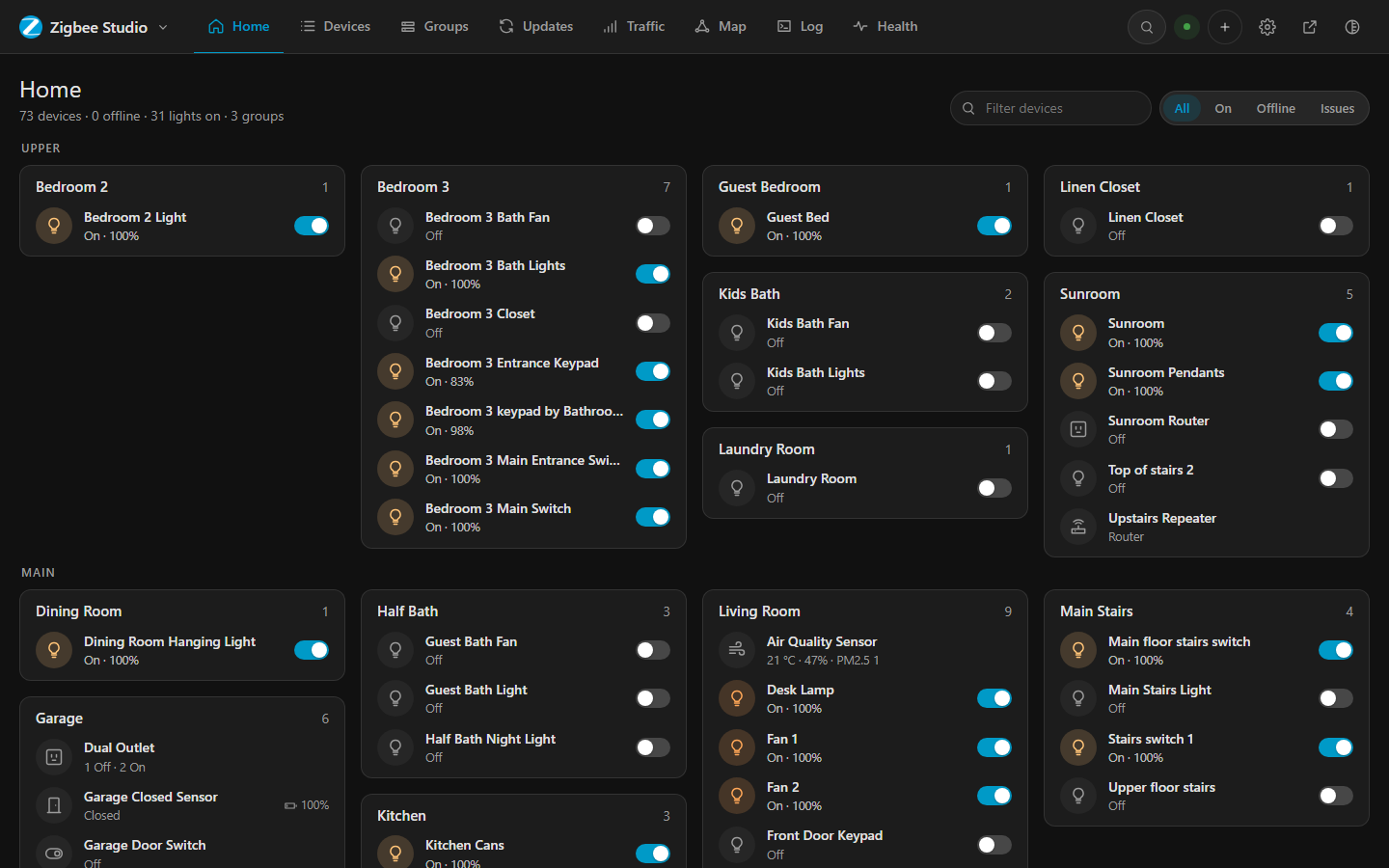
The home page lays everything out by the floors and areas you already set up in Home Assistant, so you’re not scrolling an alphabetical list of IEEE addresses.
What’s in it
It started as a “daily driver” page and kept growing until it covered most of what I used the normal frontend for:
- Home by floor and room, with working switches and sliders
- Device pages with controls, every setting, bindings, reporting, scenes, firmware updates, and a dev console for reading and writing attributes
- Groups: create them, add members, control them
- Pairing and OTA updates without leaving the page
- Health: what’s offline, what’s weak, what changed, and Z2M’s live log
- Zigbee2MQTT settings, with the dangerous ones locked (more on that below)
- Light and dark mode that follows your HA theme

It starts read-only, on purpose
When you first install it, you can look at everything but nothing changes. Switches show values, not controls. Once you’re comfortable, flip Allow control in the add-on config and restart it.
Even with control on, some Z2M settings are locked and can’t be changed from Studio at all: channel, PAN ID, network key, the serial port, the MQTT server, HA discovery, external converters and a few others. Those are the ones that can knock your whole network offline if you fat-finger them, and the built-in frontend is right there if you really need to change one. Removing a device or deleting a group makes you type its name first.
Works with the other two
I also built a Zigbee Sniffer (cheap ESP32 radios that listen to your network) and a Zigbee Bridge (your coordinator on PoE Ethernet). Neither is needed for Studio. If you have them, Studio picks them up and you get signal and traffic history on each device page, a live traffic view, the bridge’s health, and a mesh map:
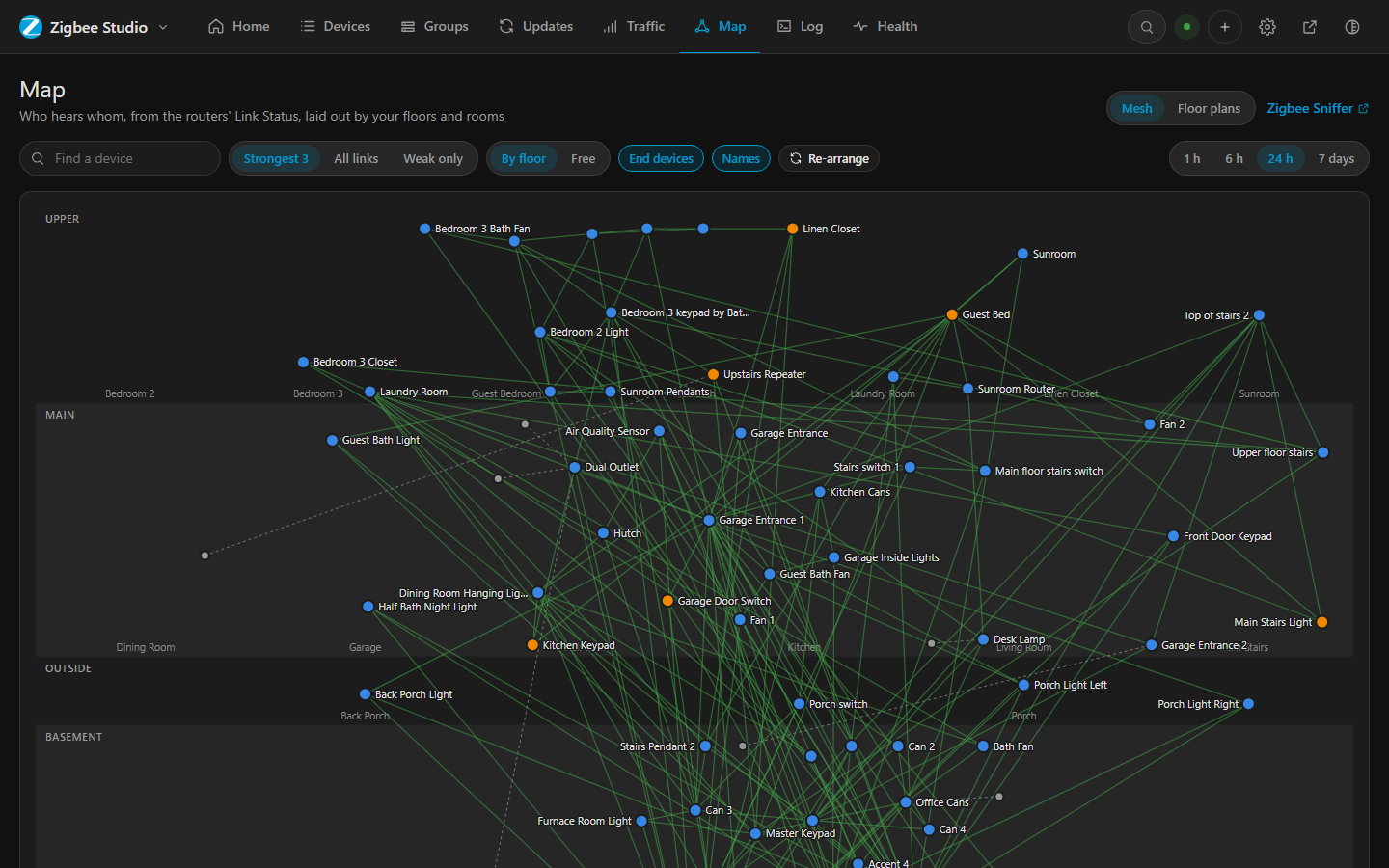
You can also upload floor plans, place devices on them, and get a rough coverage heatmap.
Install

- Click the button above, or add
https://github.com/home-controls/zigbee-studiounder Settings → Add-ons → Add-on store → ⋮ → Repositories - Install Zigbee Studio, start it, turn on Show in sidebar
- Open it. It finds Zigbee2MQTT on its own.
You need HA OS or Supervised and the Zigbee2MQTT add-on. That’s it.
Fair warning
This has been tested hard on exactly one network: mine (an MG24 stick on the Ember driver, Z2M 2.x). Everyday controls, groups, scenes, settings, the console and backups have all been through real use. Touchlink and a few rarer device types have only been tested against a simulator. If something looks wrong on your devices, please open an issue with the device model and I’ll take a look.
MIT licensed. Feedback welcome, especially “this looks weird on my setup” screenshots.
Threads for the other two: Zigbee Sniffer and Zigbee Bridge.