Frizzlife smart water monitor

I just installed a Frizzlife LP-365 smart water monitor and I saw that it used smart life. I was expected to be able to monitor things like flow, and water pressure through home assistant but am only given the option of turning the valve on and off. Any thoughts to how i can get the additional info out of the smart life app and onto home assistant?

i found this in the diag on homeassistant and i’ve tried asking deep seek to create me a custom sensor using this info, but it seems like smart life isn’t passing the data along.

“data”: {
“endpoint”: “https://apigw.tuyaus.com”,
“terminal_id”: “17337374114305gFx52”,
“mqtt_connected”: true,
“disabled_by”: null,
“disabled_polling”: false,
“id”: “ebe554136fbf5af54j1li”,
“name”: “Smart Water Monitor”,
“category”: “sfkzq”,
“product_id”: “db423wsytutyipot”,
“product_name”: “Smart Water Monitor”,
“online”: true,
“sub”: false,
“time_zone”: “-04:00”,
“active_time”: “2025-04-07T20:53:54+00:00”,
“create_time”: “2025-04-07T20:53:54+00:00”,
“update_time”: “2025-04-07T20:53:54+00:00”,
“function”: {
“switch”: {
“type”: “Boolean”,
“value”: {}
},
“temp_unit_convert”: {
“type”: “Enum”,
“value”: {
“range”: [
“c”,
“f”
]
}
}
},
“status_range”: {
“switch”: {
“type”: “Boolean”,
“value”: {}
},
“sensor_temperature”: {
“type”: “Integer”,
“value”: {
“unit”: “”,
“min”: 0,
“max”: 2120,
“scale”: 1,
“step”: 1
}
},
“pressure_value”: {
“type”: “Integer”,
“value”: {
“unit”: “Mpa”,
“min”: 0,
“max”: 99999,
“scale”: 1,
“step”: 1
}
},
“temp_unit_convert”: {
“type”: “Enum”,
“value”: {
“range”: [
“c”,
“f”
]
}
}
},

Any thoughts? Thanks

UPDATE: I setup Tuya local and was able to retreive the data i needed.

1 Like

Could you share any steps you needed to take, once Tuya local was setup?
What readings do you now get from the device?

Hi bhom920,

I am new to HA and the HA community. I am also looking into integrating Frizzlife LP365-P with home assistant. There is not a lot of info out there about people who have experience with setting this up. Before I make the purchase do you mind sharing the available sensor readings you get from the device when using Tuya local?

1 Like

Can you please provide screenshots of the readings in home assistant? Been trying to decide between this device, the modem flo, or kohler phyn. The latter two do have some sort of integration with HA already.

Hi, I recently installed this as well and was looking to get some help with integration, Can you please provide more details on how you got it to work. Much appreciated. Thanks,

Hey! Care to share how you got this working / config? Local Tuya isn’t matching the device by default - so I assume you did a custom config?

I just bought a Frizzlife LP365-P and managed to get much of it working with homeassistant, but not all figured out yet.

I created an account at tuya.com and set up a 30 day trial. You might need this to get the local ID ( see in the diagnostics below ).

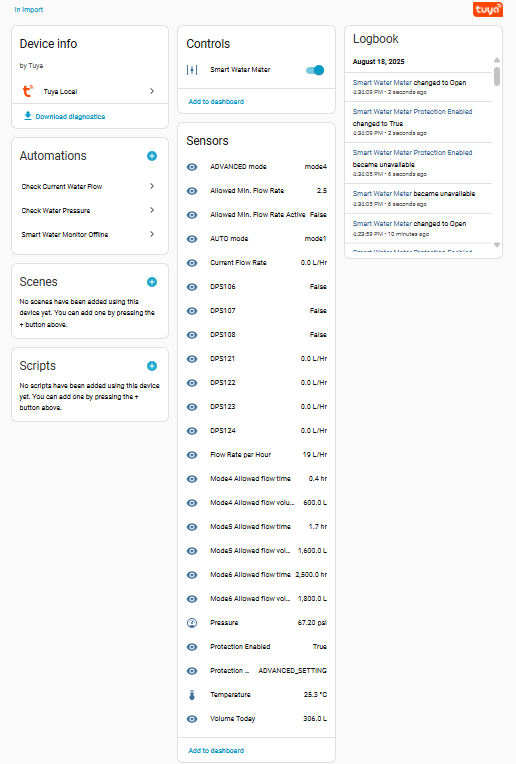
I can control the valve and can pick up most of the important sensors - I’m still playing with it as I think some of the sensors might be able to be set as input entities.

I am providing the following so maybe others can add their own experiences and provide feedback.

Note: I have no idea what these DPS IDs are for:
24,101,106,107,108,120,121,122,123,124

I created the following file in config/custom_components/tuya_local/devices:

IMPORTANT NOTE: This was set up for metric_unit (C and L)

frizzlife_lp365p_watermonitorandshutdoff.yaml and populated it with:

name: Smart Water Meter
products:
  - id: eb0a8e6c88ec94012fduxa
    manufacturer: Frizzlife
    model: LP365P
entities:
  - entity: valve
    class: water
    dps:
      - id: 1
        type: boolean
        name: valve
  - entity: sensor
    class: temperature
    dps:
      - id: 12
        type: integer
        name: sensor
        unit: C
        class: measurement
        mapping:
          - scale: 10.0
        range:
          min: 0
          max: 2120
  - entity: sensor
    class: pressure
    dps:
      - id: 15
        type: integer
        name: sensor
        unit: psi
        class: measurement
        mapping:
          - scale: 10.0
        range:
          min: 0
          max: 99999
  - entity: sensor
    name: Protection Enabled
    dps:
      - id: 101
        type: boolean
        name: sensor
  - entity: sensor
    class: volume_flow_rate
    name: Volume Today
    dps:
      - id: 103
        type: integer
        optional: true
        name: sensor
        class: measurement
        unit: L
        mapping:
          - scale: 10.0
  - entity: sensor
    class: volume_flow_rate
    name: Flow Rate per Hour
    dps:
      - id: 104
        type: integer
        optional: true
        name: sensor
        class: measurement
        unit: L/Hr
        mapping:
          - scale: 1
  - entity: sensor
    class: volume_flow_rate
    name: Current Flow Rate
    dps:
      - id: 105
        type: integer
        name: sensor
        class: measurement
        unit: L/Hr
        mapping:
          - scale: 1000.0
  - entity: sensor
    name: DPS106
    dps:
      - id: 106
        type: boolean
        name: sensor
  - entity: sensor
    name: DPS107
    dps:
      - id: 107
        type: boolean
        name: sensor
  - entity: sensor
    name: DPS108
    dps:
      - id: 108
        type: boolean
        name: sensor
  - entity: sensor
    name: AUTO mode
    friendly_name: AUTO mode
    dps:
      - id: 110
        type: string
        name: sensor
  - entity: sensor
    name: ADVANCED mode
    dps:
      - id: 111
        type: string
        name: sensor
  - entity: sensor
    name: Protection Mode
    dps:
      - id: 109
        type: string
        name: sensor
  - entity: sensor
    name: Mode4 Allowed Flow Time
    dps:
      - id: 112
        type: integer
        optional: true
        name: sensor
        unit: hr
        mapping:
          - scale: 10.0
  - entity: sensor
    name: Mode4 Allowed Flow Volume
    dps:
      - id: 115
        type: integer
        name: sensor
        unit: L
        mapping:
          - scale: 0.01
  - entity: sensor
    name: Mode5 Allowed Flow Time
    dps:
      - id: 113
        type: integer
        name: sensor
        unit: hr
        mapping:
          - scale: 10.0
  - entity: sensor
    name: Mode5 Allowed Flow Volume
    dps:
      - id: 116
        type: integer
        optional: true
        name: sensor
        unit: L
        mapping:
          - scale: 0.01
  - entity: sensor
    name: Mode6 Allowed Flow Time
    dps:
      - id: 114
        type: integer
        optional: true
        name: sensor
        unit: hr
        mapping:
          - scale: 0.01
  - entity: sensor
    name: Mode6 Allowed Flow Volume
    dps:
      - id: 117
        type: integer
        optional: true
        name: sensor
        unit: L
        mapping:
          - scale: 0.01
  - entity: sensor
    name: Allowed Min. Flow Rate Active
    dps:
      - id: 118
        type: boolean
        name: sensor
  - entity: sensor
    name: Allowed Min. Flow Rate
    class: enum
    dps:
      - id: 119
        type: integer
        name: sensor
        mapping:
          - dps_val: 0
            value: 2.5
          - dps_val: 1
            value: 5
          - dps_val: 2
            value: 7.5
          - dps_val: 3
            value: 10
          - dps_val: 4
            value: 12.5
          - dps_val: 5
            value: 15
          - dps_val: 6
            value: 17.5
          - dps_val: 7
            value: 20.0
          - dps_val: 8
            value: 22.5
          - dps_val: 9
            value: 25.0
  - entity: sensor
    name: DPS121
    class: volume_flow_rate
    dps:
      - id: 121
        type: integer
        optional: true
        name: sensor
        unit: L/Hr
        mapping:
          - scale: 1000.0
  - entity: sensor
    name: DPS122
    class: volume_flow_rate
    dps:
      - id: 122
        type: integer
        optional: true
        name: sensor
        unit: L/Hr
        mapping:
          - scale: 1000.0
  - entity: sensor
    name: DPS123
    class: volume_flow_rate
    dps:
      - id: 123
        type: integer
        optional: true
        name: sensor
        unit: L/Hr
        mapping:
          - scale: 1000.0
  - entity: sensor
    name: DPS124
    class: volume_flow_rate
    dps:
      - id: 124
        type: integer
        name: sensor
        unit: L/Hr
        mapping:
          - scale: 1000.0

And diagnostics shows the following potential IDs
“data”: {
“name”: “Smart Water Meter”,
“type”: “frizzlife_lp365p_watermonitorandshutdoff”,
“device_id”: “REDACTED”,
“device_cid”: “”,
“local_key”: “REDACTED”,
“host”: “REDACTED”,
“protocol_version”: 3.5,
“tinytuya_version”: “1.17.2”,
“api_version_set”: 3.5,
“api_version_used”: 3.5,
“api_working”: true,
“status”: {},
“cached_state”: {
“updated_at”: 1755475510.7056916,
“1”: true,
“12”: 243,
“15”: 675,
“20”: “c”,
“24”: 0,
“101”: true,
“102”: “metric_unit”,
“103”: 4300,
“104”: 58,
“105”: 0,
“106”: false,
“107”: false,
“108”: false,
“109”: “ADVANCED_SETTING”,
“110”: “mode1”,
“111”: “mode4”,
“112”: 4,
“113”: 17,
“114”: 25,
“115”: “5”,
“116”: “16”,
“117”: “18”,
“118”: false,
“119”: “0”,
“120”: false,
“121”: 0,
“122”: 0,
“123”: 0,
“124”: 0,
“125”: “test_end”,
“127”: 300
},
2 Likes

Brilliant! Thank you! Trying the same now

Ack…

Just noticed my copy paste of the file contents converted all of the “-” s to bullets. I’ll see if I can attach a file.

Sorry about that.

Edit: Fixed the original post; I found the preformat option on text to prevent the wiki formatting.

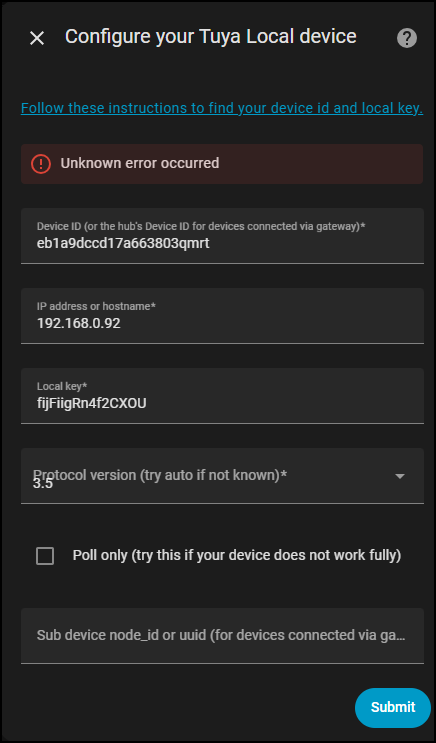
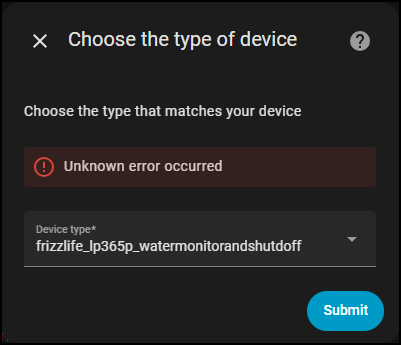
Thanks a lot for picking up on this. I added yaml to /custom_components/tuya_local/devices but I am getting following error while trying to add the device, Any idea what I might be doing wrong ?


Sorry HA Forum won’t let me add more than 3 replies since I am a new user so posting here. BTW I have just started on HA for Frizzlife valve. All my current automation and devices are at HE. I might eventually bridge HE with HA.


Thanks for your help, So I got one step ahead. I stripped the yaml to following but when I choose device type it fails to add.

products:
  - id: eb1a9dccd17a663803qmrt
    manufacturer: Frizzlife
    model: LP365
entities:
  - entity: valve
    class: water
    dps:
      - id: 1
        type: boolean
        name: valve
  - entity: sensor
    class: temperature
    dps:
      - id: 12
        type: integer
        name: sensor
        unit: C
        class: measurement
        mapping:
          - scale: 10.0
        range:
          min: 0
          max: 2120

The device shown in your image is different.

I assumed the device ID was LP365-P specific – does your device have the pressure sensor? However, if you confirm you have an LP365-P too, then the device ID must be is unit specific and you’ll need to modify the file.

Change the products: - id value in the file to match the device ID shown on your image.

And then try again.

Also, your image doesn’t show an error - can you let me know what it is?

got it, I changed the device id. My Valve is LP365 ie without pressure sensor, still getting unknown error while trying to configure :frowning:

@grimmt HA Forum won’t let add more than 3 posts in this forum, so I edited my post above and I am tagging you here, hopefully you see this :-(.

Ah, so it will definitely have a different device ID.
I hope the DPS entity values are the same for the LP365 (Device without -P pressure sensor).

You will likely need to edit the file to remove the pressure sensor DPS entity attribute as that DPS entity value won’t exist and may be causing the failure.

Take a look at /config/home-assistant.log - it will show any execution errors and maybe give a clue as to what is wrong.

And, if the error is not clear, try trimming the file down to the bare necessities - i.e. the valve , temp and the Current Flow. You can use a # in column one to disable those lines. Then try again.

Once it’s connected, you can use the download diagnostics option to view the list of available DPS entity values and compare to my listed values. If they look similar you can likely re-add the entities.

Edit:
The fact that it’s connecting to tuya.com to find your device ID and local key is good and it’s searching and finding the local IP of your device, which is also very good. I think you are close to getting it working.

1 Like

Here’s the Tuya_Local page for my LP365-P device:

1 Like

You caught an early post before an edit.

You are missing the first line:
name: Smart Water Meter

I’m having the same issue as you with the limit of 3 edits. So if you need more info, please reply to allow me to in-kind reply.

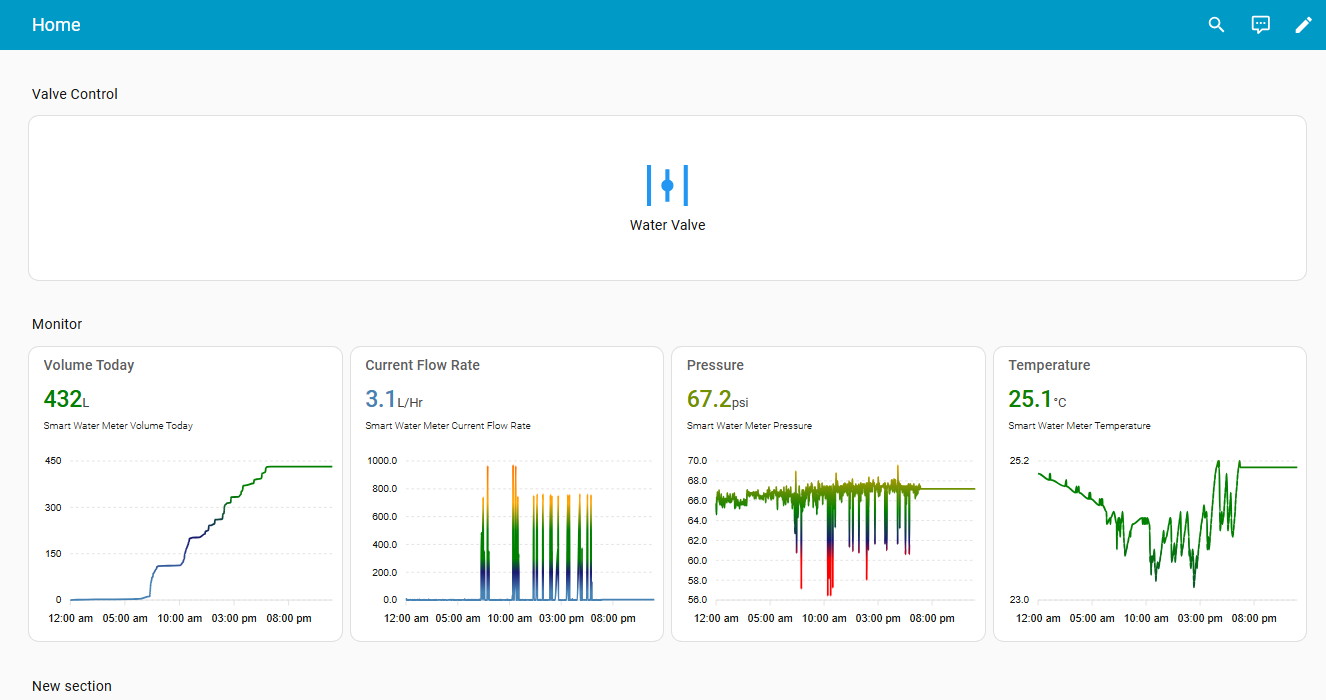
Also, taking advantage of this reply: here’s an image of my status page using HA statistics. This uses apexcharts and the experimental color_threshold:

I was finally able to edit the yaml and got water meter added to my HA. I also used chatgpt to convert units to F & gal. Do you know if I can somehow expose it to homekit so it shows up on my Homekit App. Also graph looks great. How did you do that ?
One of the issue I have it if I make protection enabled then valve shuts off automatically at the times when my water softner is recharging, trying to figure out how to exclude that and keep protection enabled. Thanks a lot for your help. Are you on discord or reddit by any chance where we can chat a little.

Glad to hear you got it going.

I haven’t tried to integrate with homekit yet; that’s in the future. I use the Homekit Bridge for exposing other devices but haven’t tried with the LP365-P yet.

I have found that Protection Enabled (101) and Allowed Min. Flow Rate Active (118) can be reconfigured as switches. Once reconfigured, you can do a Reload on the Tuyu_Local page. This will allow you to turn Protection on and off by automation. So if you know when, time wise, the water softener is being recharged, you can turn Protection off and turn it back on when you know the recharge is complete.
Note: You can also do this in the SmartLife app: in the Alarm tab: it provides a Protection option that allows you to turn Protection off and on using a schedule (Timer Setting +) but, of course, using SmartLife app is through the cloud, rather than local.

  - entity: switch
    name: Protection Enabled
    dps:
      - id: 101
        type: boolean
        name: switch

I’m now trying to see if there’s a way to add the configuration sensor entities as input. I’m learning as I’m going and stuck on this, so far.

I do have a reddit login but I’ve never used it other than to read other’s posts.

1 Like

This is great. I asked ChatGPT and it showed me how to add this to HomeKit but I am not connected to my Local LAN so unable to add for now. ChatGPT also suggested to try Eve or Home+ to be able to see graphs and do local automations, That sounds interesting, I might try that later. How did you plot the graphs shown on your post above ?
Never mind looks like for those apps aren’t as good as Homekit, so ignore my comments.
I would like to add the graphs as you did though. If you can give me some pointers that would be great. Thanks a lot for your great work.

You need to add ApexCharts Card through HACS.

Then create a new dashboard and add the following yaml code:

[Optionally you can use the visual editor to add the ApexCharts Cards.]
[You will need to remove the pressure sensor for your device and go to column_span 3 instead of 4, and you will need to adjust the thresholds for your imperial/US unit values.]

GRADIENT FIX: I just updated my version of ApexCharts and the new version of ApexCharts has a defect where the gradient does not always match the values provided. The fix is to add: “fill_raw: last” to each chart definition (i.e. just before the "color_threshold: value/color mapping).

I updated the info below to include this fix.

views:
  - title: Home
    sections:
      - type: grid
        cards:
          - type: heading
            heading: Valve Control
            heading_style: title
            grid_options:
              columns: full
              rows: 1
          - show_name: true
            show_icon: true
            type: button
            entity: valve.smart_water_meter
            tap_action:
              action: more-info
            grid_options:
              columns: 36
              rows: 2
          - type: entities
            entities:
              - entity: switch.smart_water_meter_protection_enabled
                name: Protection Mode
              - entity: switch.smart_water_meter_allowed_min_flow_rate_active
                name: Allowed Min. Flow Rate Active
        column_span: 4
      - type: grid
        cards:
          - type: heading
            heading: Monitor
            heading_style: title
          - type: custom:apexcharts-card
            experimental:
              color_threshold: true
            graph_span: 1d
            span:
              start: day
            header:
              show: true
              title: Volume Today
              show_states: true
              colorize_states: true
            series:
              - entity: sensor.smart_water_meter_volume_today
                stroke_width: 2
                curve: smooth
                show:
                  header_color_threshold: true
                fill_raw: last
                color_threshold:
                  - value: 60
                    color: steelblue
                  - value: 200
                    color: midnightblue
                  - value: 350
                    color: green
                  - value: 450
                    color: green
                  - value: 500
                    color: orange
                  - value: 550
                    color: orangered
                  - value: 600
                    color: red
          - type: custom:apexcharts-card
            experimental:
              color_threshold: true
            graph_span: 1d
            header:
              show: true
              title: Current Flow Rate
              show_states: true
              colorize_states: true
            series:
              - entity: sensor.smart_water_meter_current_flow_rate
                stroke_width: 2
                curve: smooth
                show:
                  header_color_threshold: true
                fill_raw: last
                color_threshold:
                  - value: 60
                    color: steelblue
                  - value: 200
                    color: midnightblue
                  - value: 300
                    color: green
                  - value: 500
                    color: green
                  - value: 700
                    color: orange
                  - value: 1200
                    color: orangered
                  - value: 1400
                    color: red
          - type: custom:apexcharts-card
            experimental:
              color_threshold: true
            graph_span: 1d
            header:
              show: true
              title: Pressure
              show_states: true
              colorize_states: true
            series:
              - entity: sensor.smart_water_monitor_pressure
                stroke_width: 2
                curve: smooth
                show:
                  header_color_threshold: true
                fill_raw: last
                color_threshold:
                  - value: 60
                    color: red
                  - value: 62
                    color: midnightblue
                  - value: 65
                    color: green
                  - value: 70
                    color: orange
                  - value: 75
                    color: orangered
                  - value: 80
                    color: red
          - type: custom:apexcharts-card
            experimental:
              color_threshold: true
            graph_span: 1d
            header:
              show: true
              title: Temperature
              show_states: true
              colorize_states: true
            series:
              - entity: sensor.smart_water_monitor_temperature
                stroke_width: 2
                curve: smooth
                show:
                  header_color_threshold: true
                fill_raw: last
                color_threshold:
                  - value: 0
                    color: steelblue
                  - value: 22
                    color: midnightblue
                  - value: 24
                    color: green
                  - value: 25
                    color: green
                  - value: 27
                    color: orange
                  - value: 30
                    color: orangered
                  - value: 35
                    color: red
        column_span: 4