Despite being one of the most requested features over the years (2019, 2020, 2022, 2024), HA does still not offer a way to make the “last changed” timestamps (common with the “Entities” card) persist a reboot of Home Assistant. So I wanted to share a practical and manageable workaround I came up with.
The way it works is that you put the ID of each entity for which you want to retain history into a text file. A Powershell script uses this to build a YAML file, storing everything in attributes of a template sensor. Then you reference this in the entities cards.
In this example, we have a hot tub with 2 toggle-able entities, and a binary sensor:
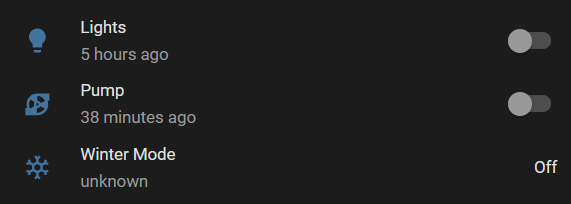
Expand for the original YAML used to make this card
type: entities
entities:
  - entity: light.hot_tub_lights
    name: Lights
    secondary_info: last-changed
  - entity: fan.hot_tub_pump
    name: Pump
    secondary_info: last-changed
  - entity: binary_sensor.hot_tub_winter_mode
    name: Winter Mode
    secondary_info: last-changed
state_color: true
show_header_toggle: false
Step 1: Create the entity list
In our example, the file will be located at /config/history-tracker/entities.txt.
The file can contain empty lines and comments beginning with #. Otherwise, each line must be a valid entity. You can add to the list at any time. Here is the file contents:
# Hot Tub
light.hot_tub_lights
fan.hot_tub_pump
binary_sensor.hot_tub_winter_mode
Step 2: Create the Powershell script
This should be located in the same folder. In our example, /config/history-tracker/build-YAML.ps1. Changing the default variable names is optional. At this point, you should see a message like this when you run the script:
“Generated last_changed_sensor.yaml for 3 entities”
Expand to see code
# Each time this is run, the YAML will be created from the entities list.
# Don't forget to reload YAML in Home Assistant after running the script.
# For details, see:
# https://community.home-assistant.io/t/how-to-make-last-changed-persist-restarting/945824

Set-Location -Path $PSScriptRoot

[string]$InputFile = "entities.txt"
[string]$OutputFile = "last_changed_sensor.yaml"
[string]$SensorName = "Last Changed History" # Name for sensor being created, which will store the attributes.
[string]$UniqueId = "sensor.last_changed_history" # ID for sensor being created, which will store the attributes.

# Read all entity IDs, remove empty lines or comments
$entities = Get-Content $InputFile | Where-Object { $_ -and ($_ -notmatch '^#') }

if (-not $entities) {
    Write-Error "No entities found in $InputFile."
    exit
}

# Start building YAML
$yaml = @()
$yaml += "trigger:"
$yaml += "  - platform: state"
$yaml += "    entity_id:"
foreach ($e in $entities) { $yaml += "      - $e" }
$yaml += "    not_to:"
$yaml += "      - unavailable"
$yaml += "      - unknown"
$yaml += "    not_from:"
$yaml += "      - unavailable"
$yaml += "      - unknown"
$yaml += "sensor:"
$yaml += "  - name: `"$SensorName`""
$yaml += "    unique_id: $UniqueId"
$yaml += "    state: `"OK`""
$yaml += "    attributes:"

foreach ($e in $entities) {
    $yaml += "      $e : `"{{ trigger.to_state.last_changed.isoformat() if trigger.entity_id == '$e' else this.attributes.get('$e') }}`""
}

# Save file
$yaml -join "`n" | Set-Content $OutputFile -Encoding UTF8
Write-Host "Generated $OutputFile for $($entities.Count) entities."
Step 3: Point Home Assistant to the file
Add an include statement inside your configuration.yaml file, under “template”, like this:
template:
  - !include history-tracker/last_changed_sensor.yaml
Step 4: Verifying everything so far
Open Developer Tools in Home Assistant and select the option to reload All YAML Configuration. Then search for the new history entity from the States tab. Note that the time stamps may not appear until there is at least one state change of the entity. So pick a tracked entity and toggle it on/off.

Step 5: Jinja Time Template
We need some Jinja code to convert the actual time stamps to something relative such as 4 minutes ago. Create a file called relative_time.jinja with the following contents.
Expand to show file contents
{% macro relative_time(ts) %}
  {% if not ts %}
    unknown
  {% else %}
    {% set dt = as_datetime(ts) %}
    {% set diff = (now() - dt).total_seconds() %}

    {% if diff < 60 %}
      {% set n = diff | int %}
      {{ n }} {{ 'second' if n == 1 else 'seconds' }} ago

    {% elif diff < 3600 %}
      {% set n = (diff / 60) | int %}
      {{ n }} {{ 'minute' if n == 1 else 'minutes' }} ago

    {% elif diff < 86400 %}
      {% set n = (diff / 3600) | int %}
      {{ n }} {{ 'hour' if n == 1 else 'hours' }} ago

    {% elif diff < 604800 %}
      {% set n = (diff / 86400) | int %}
      {{ n }} {{ 'day' if n == 1 else 'days' }} ago

    {% else %}
      {{ as_local(dt).strftime('%Y-%m-%d %H:%M') }}
    {% endif %}
  {% endif %}
{% endmacro %}
Step 6: Referencing new data from the dashboard
Home Assistant’s built in Entities card does not allow custom data to be shown in the secondary / time stamp portion of the row.
To accomplish this, we’ll add a custom module called Template Entity Row, which is available from HACS.
Expand for new YAML code
type: entities
entities:
  - entity: light.hot_tub_lights
    name: Lights
    type: custom:template-entity-row
    toggle: true
    secondary: >-
      {% from 'relative_time.jinja' import relative_time %} {{
      relative_time(state_attr('sensor.last_changed_history','light.hot_tub_lights'))
      }}

  - entity: fan.hot_tub_pump
    name: Pump
    type: custom:template-entity-row
    toggle: true
    secondary: >-
      {% from 'relative_time.jinja' import relative_time %} {{
      relative_time(state_attr('sensor.last_changed_history','fan.hot_tub_pump'))
      }}

  - entity: binary_sensor.hot_tub_winter_mode
    name: Winter Mode
    type: custom:template-entity-row
    state: >-
      {{ states('binary_sensor.hot_tub_winter_mode') | capitalize
      }}
    icon: mdi:snowflake
    secondary: >-
      {% from 'relative_time.jinja' import relative_time %} {{
      relative_time(state_attr('sensor.last_changed_history','binary_sensor.hot_tub_winter_mode'))
      }}
state_color: true
show_header_toggle: false
Note the following changes between the old YAML above and the new:
- We add type: custom:template-entity-row to each entity.
- We remove secondary_info: last-changed, replacing it with secondary, which contains a reference to the time conversion file from the last step.
- Any line that would normally have a toggle, rather than displaying the current state, should have toggle: true added.
- The binary sensor showed off instead of Off, so I use some Jinja under state to capitalize the first letter.
- The icons no longer change color based on entity state. We can fix this with Card-Mod.
Example Card Mod code to change color based on state
card_mod:
  style: |
    :host {
      {% if states(config.entity)=='on' %}
       --card-mod-icon-color: ForestGreen;
      {% else %}
       --card-mod-icon-color: FireBrick;
      {% endif %}
Conclusion
That’s all there is too it! To add more entities, just add to the text file, run the script, reload YAML in HA, and update the card. Feel free to comment if you have any recommendations/tips.