You can probably use extra_styles to add color to your SVG or maybe the entity_picture styles config.
Perfect. I used that second link you posted. I wasn’t able to get any of the custom packs to load but was able to use it to upload the icon I made to the local folder and am able to change the color as needed.
Thank you!
1 Like
I’m a little late to the conversation but I wanted to throw my two cents in regarding using SVGs. (@Mariusthvdb tagging you too because I think you might enjoy this.)
A while back (maybe a year or two ago), I was playing with custom:button-card animations and inline SVGs. The SVG code is stored within the card itself and does not rely on an actual .SVG file. I got them working for the most part but could not get the icons to change color. Because the SVG code would not “allow” variables and I subsequently gave up on it. Since then, I’ve learned about using Template literals. I saw your conversation and went back to my experiments with the animations and inline SVGs and applied a template literal into the SVG code. Surprisingly, it worked!
(This concept is kind of what @RomRider mentioned above but slightly different.)
I used a custom_field to contain the SVG’s code (inline_SVG_icon). The key to making the SVG code and template literal play nicely together is the backtick characters at the beginning and end of the string; those are not single-quotation marks. You can see the variable called SVG_color is used for the fill. Lastly, I defined a specific layout for the card to use my icon and not the usual icon: - grid-template-areas: "'inline_SVG_icon' 'n'".
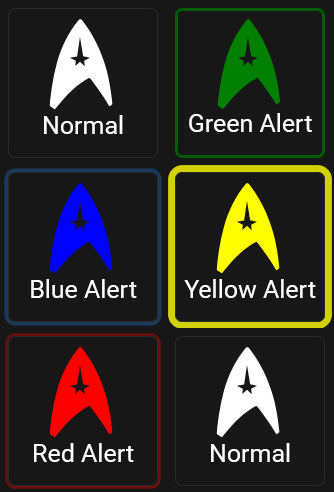
Below is the card’s complete YAML. For this example, the card is “controlled” by the manual_alert variable. It can be set to none, green, blue, yellow, or red and the card responds accordingly. (I even applied template literals to the name and animations keys to cut down on the lines used in IF/ELSE statements. (For the screenshot demonstration, I used an input_select helper to change the manual_alert variable’s color.)
Card's Full Code
type: custom:button-card
variables:
  manual_alert: none
  SVG_color: |
    [[[
      if (variables.manual_alert != 'none') return variables.manual_alert
      else return 'white'
    ]]]
extra_styles: |
  @keyframes green-alert {
    from {border: solid 3px lime;}
    to {border: solid 3px black;}
  }
  @keyframes blue-alert {
    from {box-shadow: 0 0 0 2px rgba(30, 144, 255, 0.3);}
    to {box-shadow: 0 0 0 8px rgba(30, 144, 255, 0.3); }
  }
  @keyframes yellow-alert {
    from {box-shadow: 0 0 0 2px rgba(238, 238, 0, 0.3);}
    to {box-shadow: 0 0 0 8px rgba(238, 238, 0, 1); }
  }
  @keyframes red-alert {
    from {box-shadow: 0 0 0 2px rgba(238, 0, 0, 0.3);}
    to {box-shadow: 0 0 0 8px rgba(238, 0, 0, 1) }
  }
name: |
  [[[
    if (variables.manual_alert != "none") return `${variables.manual_alert} Alert`
    else return "Normal"
  ]]]
styles:
  card:
    - background-color: transparent
    - border-radius: 5%
    - padding: 5%
    - color: gray
    - font-size: 10px
    - text-shadow: 0px 0px 0px black
    - text-transform: capitalize
    - justify-self: end
    - align-self: middle
    - width: 150px
    - height: 150px
    - animation: >
        [[[ if (variables.manual_alert != 'none') return
        `${variables.manual_alert}-alert 0.9s linear infinite alternate`
            else return "none"
        ]]]
  grid:
    - grid-template-areas: "'inline_SVG_icon' 'n'"
    - grid-template-columns: 1fr
    - grid-template-rows: 1fr min-content
  name:
    - font-size: 25px
    - align-self: middle
    - justify-self: center
    - padding-bottom: 10px
    - color: white
  custom_fields:
    icon:
      - clip-path: circle()
      - width: 75%
      - pointer-events: none
      - display: grid
      - border: none
      - margin: 5% 15% 0 0
      - justify-self: end
      - opacity: 1
custom_fields:
  icon: >
    [[[ return `<svg x="0px" y="0px" width="100" height="100"
    viewBox="0,0,256,256"> <g fill="${variables.SVG_color}" fill-rule="nonzero"
    stroke="none" stroke-width="1" stroke-linecap="butt" stroke-linejoin="miter"
    stroke-miterlimit="10" stroke-dasharray="" stroke-dashoffset="0"
    font-family="none" font-weight="none" font-size="none" text-anchor="none"
    style="mix-blend-mode: normal"><g transform="scale(5.33333,5.33333)"><path
    d="M35.257,21.14c-2.469,-7.188 -5.938,-13.636 -10.314,-19.166c-0.121,-0.209
    -0.362,-0.433 -0.837,-0.433c-0.418,0 -0.574,0.134 -0.732,0.431c-4.7,5.568
    -8.145,12.361 -10.534,20.773c-1.903,7.139 -3.106,14.851
    -3.576,22.951c0,0.479 0.43,0.814 0.814,0.814h0.209c0.444,0 0.595,-0.15
    0.713,-0.408c5.062,-6.675 9.467,-11.609
    15.738,-15.558l0.444,-0.225c0.687,-0.349 1.102,-0.56 1.394,-0.563c0.02,0.007
    0.207,0.075 0.674,0.634c0.572,0.793 1.154,1.582 1.744,2.38c2.201,2.983
    4.478,6.067 6.762,10.051c0.059,0.278 0.299,0.549 1.007,0.549c0.479,0
    0.814,-0.43 0.812,-0.863c-0.85,-8.736 -2.181,-15.326
    -4.318,-21.367zM25.992,21.445l0.272,2.627l-2.257,-2.082l-2.238,2.043l0.234,-2.549l-2.86,
    -1.459l3.483,-0.623l1.361,-9.38l1.519,9.341l3.269,0.623z"></path></g></g></svg>`
    ]]]
A couple of side notes before I post this:
I have thomasloven’s hass-custom_icons installed although I don’t think I’ve ever used it. I’m going to quote his page:
SVG files may contain SVG and Javascript and shall be considered unsafe. Home Assistant normally protects you from harmful code in SVG icons, but in order to make e.g. full color or animated icons work this protection has been removed by Custom Icons. Only use icons you trust (and preferably have inspected the code for).
I’m not sure if having this installed is what allows my card to work since he mentions that the protection has been removed by Custom Icons but it might be something to consider. He also has some suggestions on how to incorporate color changes and a little bit of understanding of the SVG code.
If you don’t trust my code (which is fine by me), I got the SVG from https://icons8.com/icons/set/star-trek. Find one you like, click it, then click the Download button. In the pop-up, select SVG Embed, select the size, and then click the Copy button in the top right corner of the code fragment box. (Note: Icons8 has some “premium” icons where you cannot get the code for free, but the one shown above wasn’t one of them.)
1 Like
Hi all,
Just beggining with this wonderful piece of UI.
I’m trying to make a button change color based on a sensor state. I can’t figure out how to use the sensor state in the template. I have the following:
show_name: true
show_icon: true
styles:
  card:
    - "--mdc-ripple-color": blue
    - "--mdc-ripple-press-opacity": 0.5
type: custom:button-card
size: 20%
color: gray
tap_action:
  action: call-service
  service: automation.trigger
  service_data:
    entity_id: automation.boost_living_room_trzvb
name: Heat
icon: mdi:radiator
state:
  - operator: template
    value: |
      [[[
        return (states['climate.trvzb_living_room'].state.system_mode != "idle" )
      ]]]
    color: rgb(255, 87, 53)
I’ve tried “printing” the state in the name by
name:
  - operator: template
    value: |
    [[[ states['climate.trvzb_living_room'] ]]]
or similar but that only printed [Object object].
Any hints on this?
This is not correct. If system_mode is an attribute then it would be states['climate.trvzb_living_room'].attributes.system_mode. However system_mode may be internal to the climate integration. Check what attributes are available in states in developer tools.
I lost access to the visual editor after i changed size of 1 button with rows and collumns in the yaml editor. I cant ger the visual editor back even if I remove the card completely. Does anyone know a fix for this?
Think I have a good use for the custom: button-card, along with using a template for consistent formatting of the buttons. The problem is where on earth do I put the templates?
I assumed at first I could put them all in one file and add ‘!include etc’ in configuration.yaml, but no, that causes an error about missing Integration.
After much searching through this thread I ascertained they must instead be added to the dashboard’s yaml in the raw editor. Although this would have to be done in every dashboard that needed to use the templates, !include …ing a separate file still means all templates kept together and only exist once.
However that also doesn’t work as unless in full YAML mode, you cannot use !include.
The full template(s) code can be added to a dashboard yaml, but that would require a copy of the templates for each dashboard that needs them which is not ideal from a maintenance point of view.
So how is one supposed to define once and use these templates in multiple dashboards not in full YAML mode?
Storage mode dashboard - you need to add all your button-card templates in raw mode for EVERY dashboard.
Yaml mode dashboard - you need to add these lines for every dashboard yaml file:
button_card_templates: !include_dir_merge_named your-templates-folder/
views: # your views
  - !include ...
  - !include ...
I.e. in both cases you need to add templates for EVERY dashboard.
A difference is that in the storage mode you will have to manually sync changes in button-card templates for every dashboard.
Yes, this is what I am finding, but I am not about to revert to YAML mode for dashboards as the GUI is so much easier for designing visual layouts.
However, in non YAML (storage) mode and having the templates in the ‘virtual’ yaml of the dashboard is a PIA as trying to switch back and forth between the card and the dashboard yaml while setting it all up is incredibly time consuming and trying to keep 2 windows open simultaneously to quickly access both sets of yaml means stuff gets lost when one is saved and the other then edited and saved, losing what had been saved in the other. Unless every time the page is reloaded and although not a huge problem to do that, it gets forgotten in the heat of the moment. So I keep losing what I jest entered and it’s getting very frustrating.
Unfortunately, it seems there is no solution unless reverting to full YAML mode. 
Well, perhaps switching to yaml mode is a proper way for you.
Myself using yaml mode, and storage mode only for tests.
That’s a pretty good solution.
And much more safe.
And much more easier to maintain since it does not have a same repeated code.
Has anybody else noticed that after the 2026.3 update, due to changes to the frontend, entities with embedded entity_pictures, like the update entities, for example, stopped showing the entity_picture. It has been described here for the Mushroom cards, but obviously it affects any custom card. Is there any possible solution for this?

hello,
is it possible to make box-shadow conditional, to appear when an entity is on and disappear when it’s off?.
Yes. I don’t remove it when off, but change the appearance. This is just an example.
state:
  - value: "on"
    styles:
      name:
        - color: gold
        - font-family: georgia
        - font-size: 14px
        - font-weight: bold
      card:
        - border: 2px solid gold
        - box-shadow: 0px 0px 9px 3px gold
    icon: mdi:floor-lamp-outline
    color: gold
  - value: "off"
    styles:
      name:
        - color: rgb(0, 84, 117)
        - font-family: georgia
        - font-size: 14px
        - font-weight: bold
      card:
        - border: 2px solid rgb(0, 84, 117)
        - box-shadow: 0px 0px 9px 3px var(--button-card-light-color)
      icon:
        - color: grey
    icon: mdi:floor-lamp
    color: rgb(0, 84, 117)
  - value: unavailable
    styles:
      name:
        - color: grey
        - font-family: georgia
        - font-size: 14px
      card:
        - border: 2px solid grey
        - box-shadow: 0px 0px 9px 3px grey
    icon: mdi:heart-broken
    color: grey
1 Like
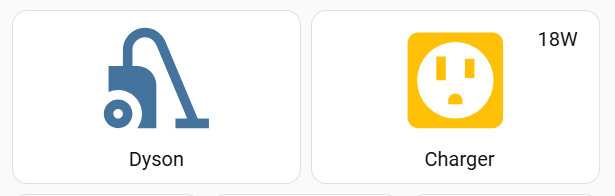
Is there a (relatively) simple way, in a button card, to display an additional entity only when the main one is in a certain state?
For example, for a smart plug, display the load when on:
@Mariusthvdb Have you switched over from card_mod to uix? (Quick Start - UI eXtension)
Apparently it’s way more rebust and the way forward - from what I read.
It was super easy to switch too!
I uninstalled card-mod and simply installed uix in Hacs. Then I went to my Raw Config Editor, copied the whole config yaml into NotePad++ and did a search and replace of card_mod: to uix: and pasted it back into the raw config editor and hit save. One card broke but within 2 mins found the fix for it on the uix github.
Keep a backup of your yaml in case you need to switch back to card-mod of course!
1 Like
Yes I have been test running it from its conception and early stages 
It is really great and very powerful.
Uix is growing day by day and just released another beta today
1 Like
Embed a second card as a custom field. In the state of that card, just output nothing (or the load) with a template depending on the state of your other entity.
1 Like
Thank you for the pointer. This is what I’ve done so far:
- type: custom:button-card
  name: Dyson
  icon: mdi:vacuum
  entity: switch.dyson_relay
  section_mode: true
  styles:
    custom_fields:
      load:
        - position: absolute
        - width: 30%
        - left: 60%
        - top: 10%
        - text-align: right
  custom_fields:
    load: |
      [[[
        if (entity.state == 'on') return `${Math.round(states['sensor.dyson_relay_power'].state)}W`
      ]]]

The outcome is perfect. But I’m not a CSS expert. Wondering if there’s a better, simpler more elegant styling to achieve the same result.
1 Like