Edit the card in Raw YAML mode
Thank you for your reply, but unfortunately I’m not an expert and don’t know how to do it. Where can I insert them into raw yaml? And where can I find the correct text to insert?
Sorry, but I’ve never done it.
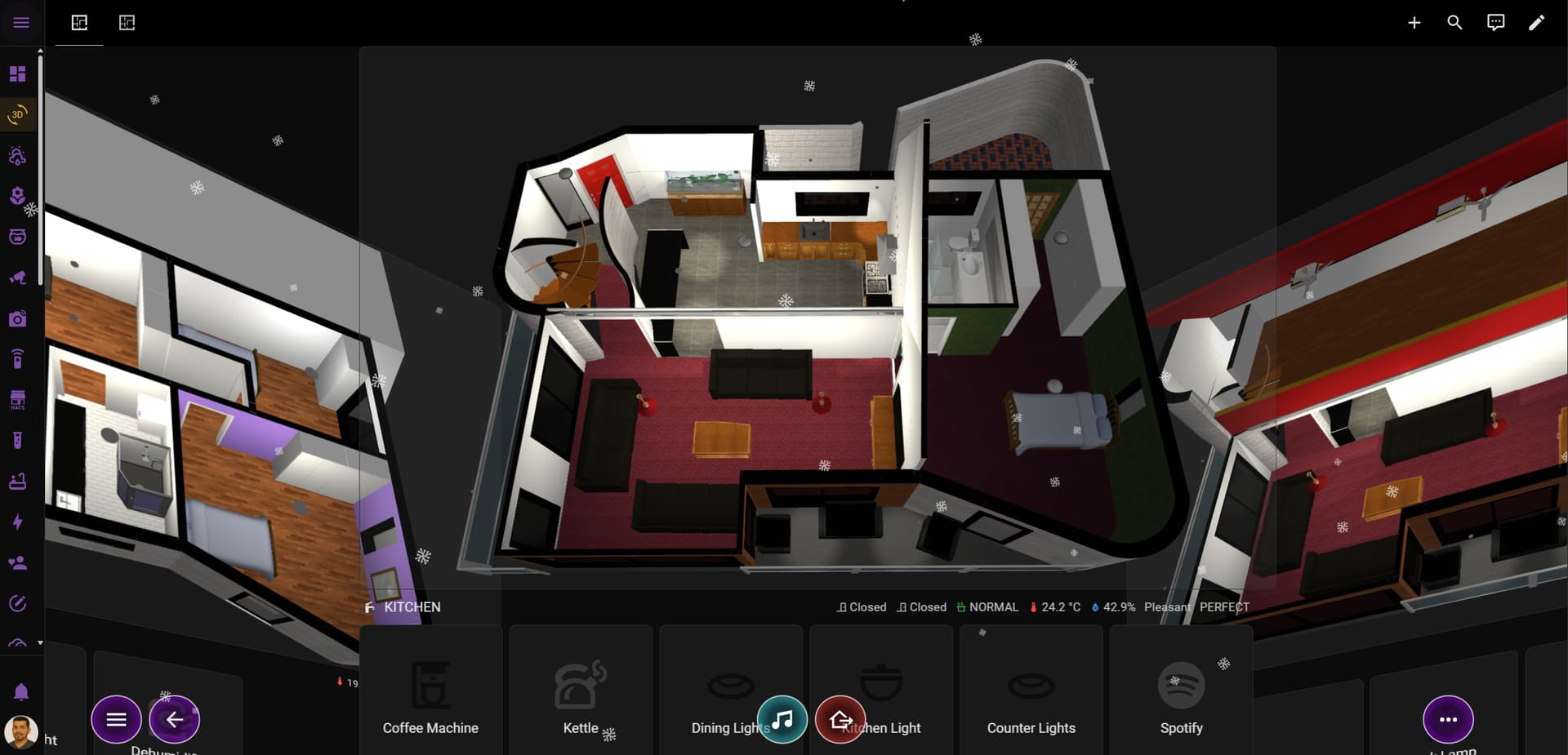
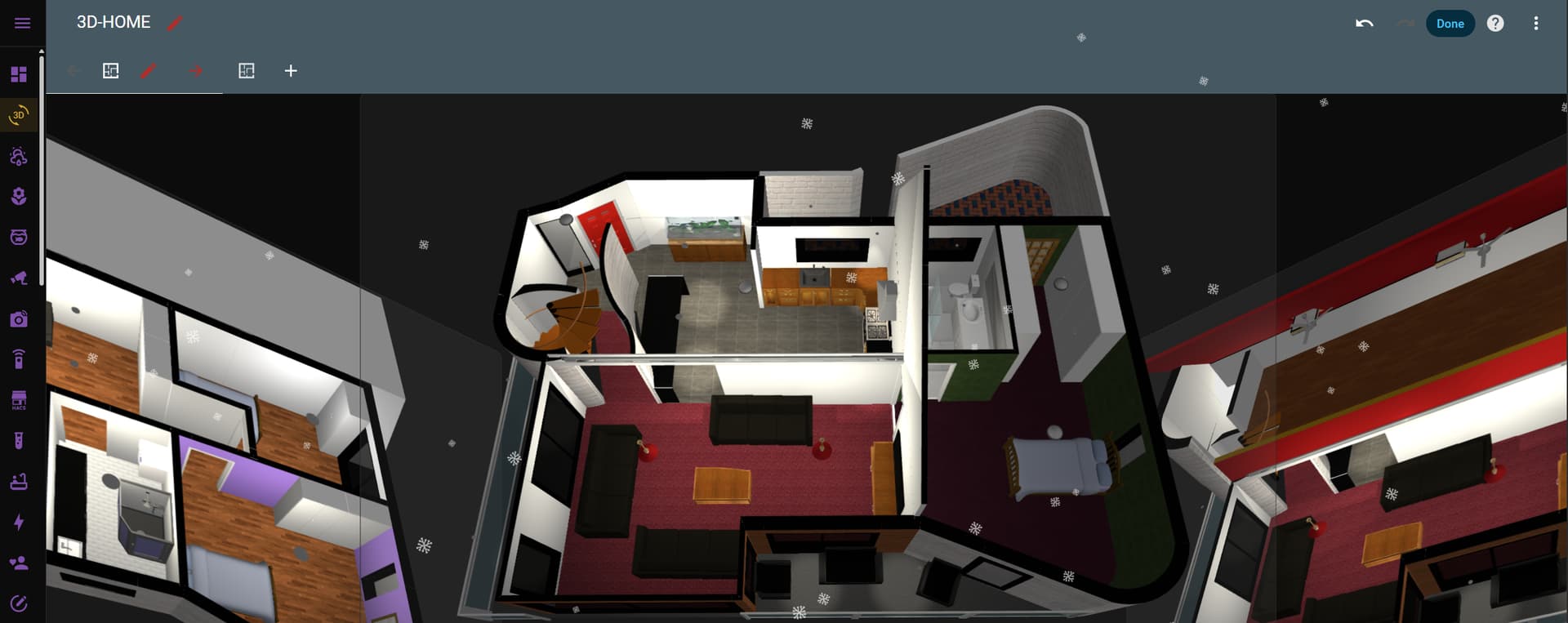
Click the pencil icon top right of your dashboard, where you added the card.
Click the vertical “3 dot” menu top right
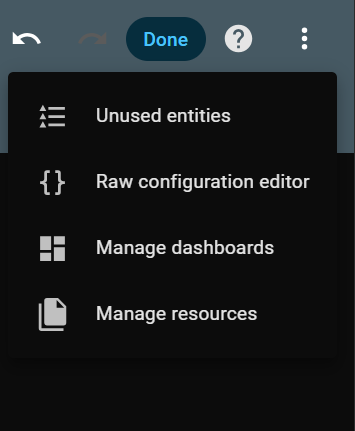
Click on Raw Configuration Editor
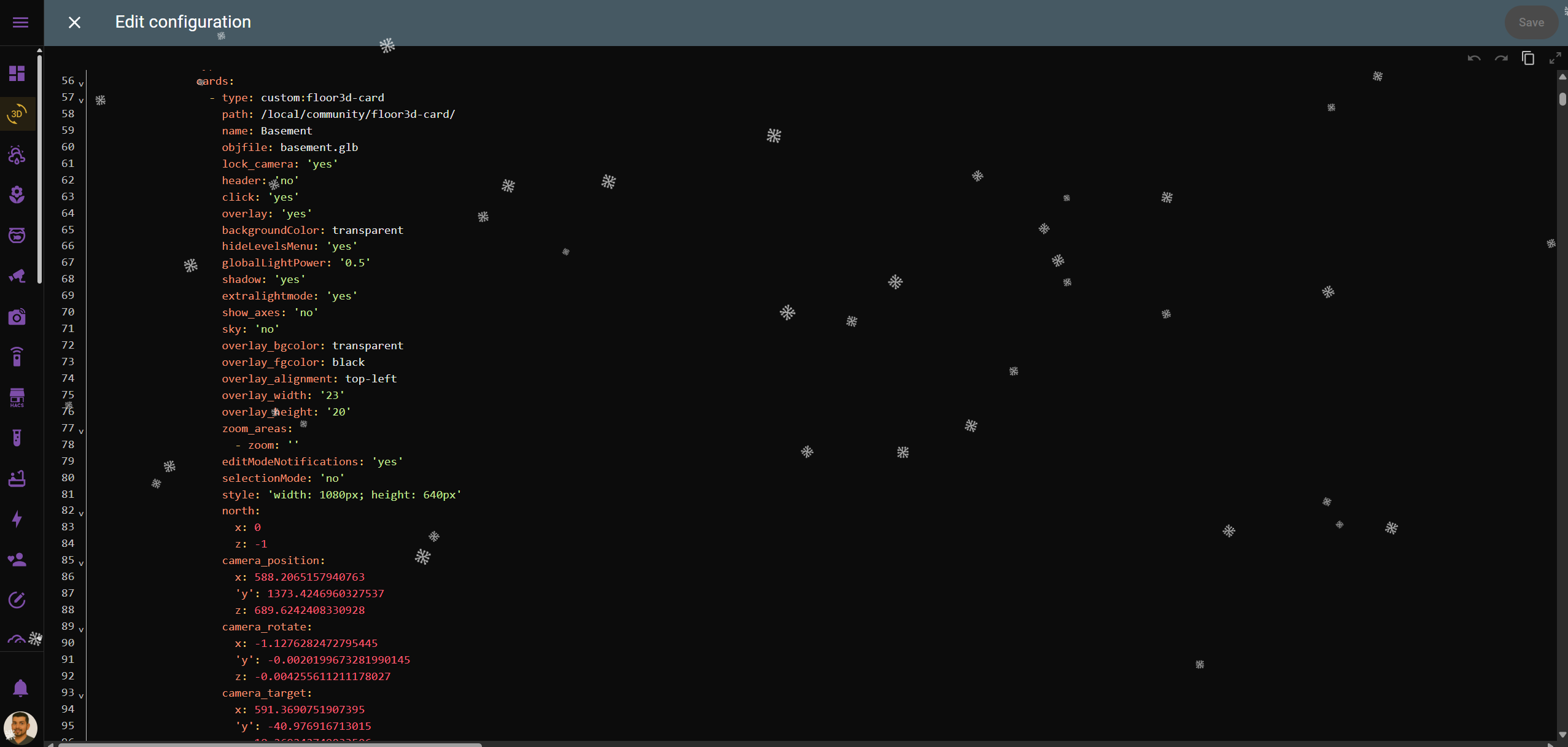
Find ‘type: custom:floor3d-card’ in your yaml and start editing.
Go to here for all instructions
Example full yaml configuration
type: custom:floor3d-card
path: /local/community/floor3d-card/
name: Middle
objfile: middle.glb
lock_camera: 'yes'
header: 'no'
click: 'yes'
overlay: 'no'
backgroundColor: transparent
hideLevelsMenu: 'yes'
globalLightPower: '0.5'
shadow: 'yes'
extralightmode: 'yes'
show_axes: 'no'
sky: 'no'
overlay_bgcolor: transparent
overlay_fgcolor: black
overlay_alignment: top-left
overlay_width: '23'
overlay_height: '20'
editModeNotifications: 'yes'
style: 'width: 1080px; height: 640px'
north:
x: 0
z: -1
camera_position:
x: 629.2652022240709
'y': 1443.0958409980142
z: 719.5770961037232
camera_rotate:
x: -1.12762824750185
'y': -0.00201996739234
z: -0.004255611348748798
camera_target:
x: 632.5942122210029
'y': -45.747962049175875
z: 12.887624767362734
object_groups:
- object_group: Pelmet Lights
objects:
- object_id: Light_Pelmet_3_2
- object_group: Side Deck Lights
objects:
- object_id: Light_Side_Deck_2_1
- object_id: Light_Side_Deck_1_1
- object_group: Front Deck Lights
objects:
- object_id: Light_Front_Deck_1_1
- object_id: Light_Front_Deck_2_1
- object_group: Court Yard Lights
objects:
- object_id: Light_Court_Yard_1_1
- object_id: Light_Court_Yard_2_1
entities:
- entity: switch.bathroom_power_board_socket_1
type3d: light
object_id: Light_Lounge_1_1
action: more-info
light:
shadow: 'no'
color: '#fdf4dc'
distance: '350'
lumens: '500'
decay: '0.9'
- entity: switch.bathroom_power_board_socket_1
type3d: light
object_id: Light_Lounge_2_1
action: more-info
light:
shadow: 'no'
color: '#fdf4dc'
lumens: '500'
decay: '0.9'
- entity: switch.bathroom_power_board_socket_1
object_id: <Pelmet Lights>
type3d: light
light:
shadow: 'yes'
lumens: '300'
decay: '0.9'
color: '#fdf4dc'
vertical_alignment: right
action: default
- entity: switch.bathroom_power_board_socket_1
object_id: <Side Deck Lights>
type3d: light
light:
shadow: 'no'
color: '#fdf4dc'
distance: '325'
lumens: '500'
decay: '0.3'
light_direction:
x: 0
'y': -5
z: 0
action: default
- entity: switch.bathroom_power_board_socket_1
object_id: <Front Deck Lights>
type3d: light
light:
shadow: 'no'
color: '#fdf4dc'
distance: '325'
lumens: '500'
decay: '0.3'
light_direction:
x: 0
'y': -5
z: 0
action: default
- entity: switch.local_bedroom_lamp
object_id: Light_Bed_Master_1_2
type3d: light
light:
shadow: 'no'
color: '#fdf4dc'
lumens: '1000'
decay: '2'
vertical_alignment: middle
action: default
- entity: switch.local_bathroom_mirror
object_id: Light_Bed_Master_2_1
type3d: light
light:
shadow: 'no'
color: '#fdf4dc'
lumens: '500'
decay: '1'
action: default
- entity: light.local_bathroom_lamp_1
object_id: Light_Bath_Master_2_1
type3d: light
light:
shadow: 'no'
color: '#fdf4dc'
distance: '325'
lumens: '500'
decay: '0.3'
light_direction:
x: 0
'y': -5
z: 0
action: default
- entity: switch.local_bathroom_mirror
object_id: Light_Bath_Master_1_1
type3d: light
light:
shadow: 'no'
color: '#fdf4dc'
distance: '325'
lumens: '500'
decay: '0.3'
light_direction:
x: 0
'y': -5
z: 0
action: default
- entity: switch.bathroom_power_board_socket_1
object_id: Light_Kitchen_Bench_2_1
type3d: light
light:
shadow: 'no'
color: '#fdf4dc'
distance: '325'
lumens: '500'
decay: '0.3'
light_direction:
x: 0
'y': -5
z: 0
action: default
- entity: switch.bathroom_power_board_socket_1
object_id: Light_Kitchen_Bench_1_1
type3d: light
light:
shadow: 'no'
color: '#fdf4dc'
distance: '325'
lumens: '500'
decay: '0.3'
light_direction:
x: 0
'y': -5
z: 0
action: default
- entity: switch.bathroom_power_board_socket_1
object_id: <Court Yard Lights>
type3d: light
light:
shadow: 'no'
color: '#fdf4dc'
distance: '325'
lumens: '500'
decay: '0.3'
light_direction:
x: 0
'y': -5
z: 0
action: default
- entity: switch.bathroom_power_board_socket_1
object_id: Light_Kitchen_Main_2
type3d: light
light:
shadow: 'no'
color: '#fdf4dc'
lumens: '800'
decay: '1.5'
action: default
- entity: switch.bathroom_power_board_socket_1
object_id: Light_Kitchen_Down_1_1
type3d: light
light:
shadow: 'no'
color: '#fdf4dc'
distance: '325'
lumens: '500'
decay: '0.3'
light_direction:
x: 0
'y': -5
z: 0
action: default
- entity: switch.bathroom_power_board_socket_1
object_id: Light_Kitchen_Down_2_1
type3d: light
light:
shadow: 'no'
color: '#fdf4dc'
distance: '325'
lumens: '500'
decay: '0.3'
light_direction:
x: 0
'y': -5
z: 0
action: default
- entity: switch.bathroom_power_board_socket_1
object_id: Light_Kitchen_Down_1_1_1
type3d: light
light:
shadow: 'no'
color: '#fdf4dc'
distance: '325'
lumens: '500'
decay: '0.3'
light_direction:
x: 0
'y': -5
z: 0
- entity: switch.fish_tank_light_group
object_id: Aquarium_Light_1_4
type3d: light
light:
shadow: 'yes'
distance: '200'
color: '#fdf4dc'
lumens: '300'
decay: '0.9'
- entity: switch.fish_tank_light_group
object_id: Aquarium_Light_2_4
type3d: light
light:
shadow: 'yes'
distance: '200'
color: '#fdf4dc'
lumens: '300'
decay: '0.9'
action: default
- entity: switch.bathroom_power_board_socket_1
object_id: Light_Middle_Entry_2
type3d: light
light:
shadow: 'no'
color: '#fdf4dc'
lumens: '500'
decay: '0.8'
action: default
zoom_areas:
- zoom: ''
Thank you very much for your help. I inserted the first line of entities by itself and it works. I add the second one and the same message appears.

You need to check the console log. Press F12 on your keyboard and see what it says in the side bar on the right. Also you are still not in RAW editor mode.
How do I get into raw editor mode? Thank you so much for your time, but I don’t want to give it up. This is the console, but I don’t understand.
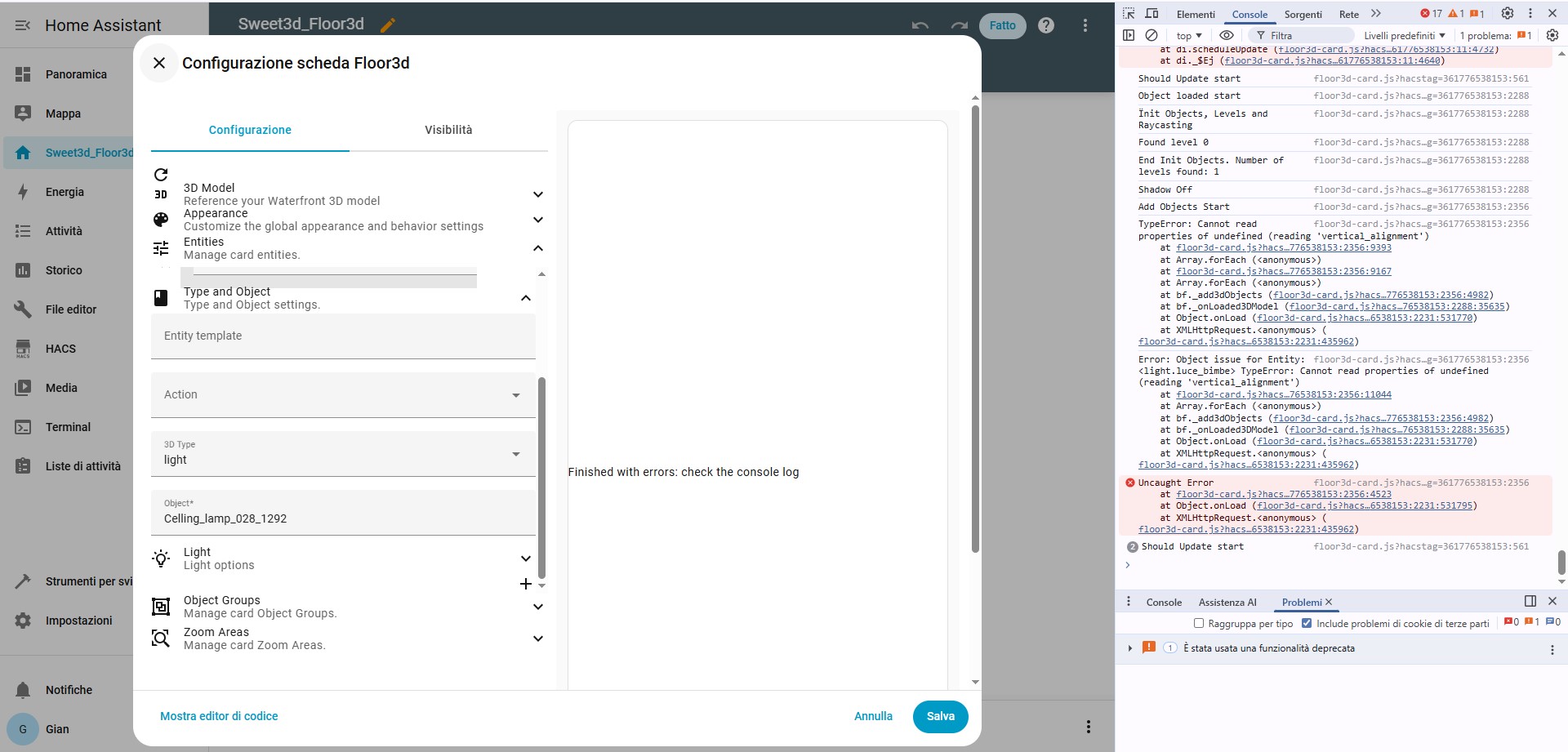
I gave you the step by step instructions above to get to RAW mode with screenshots.
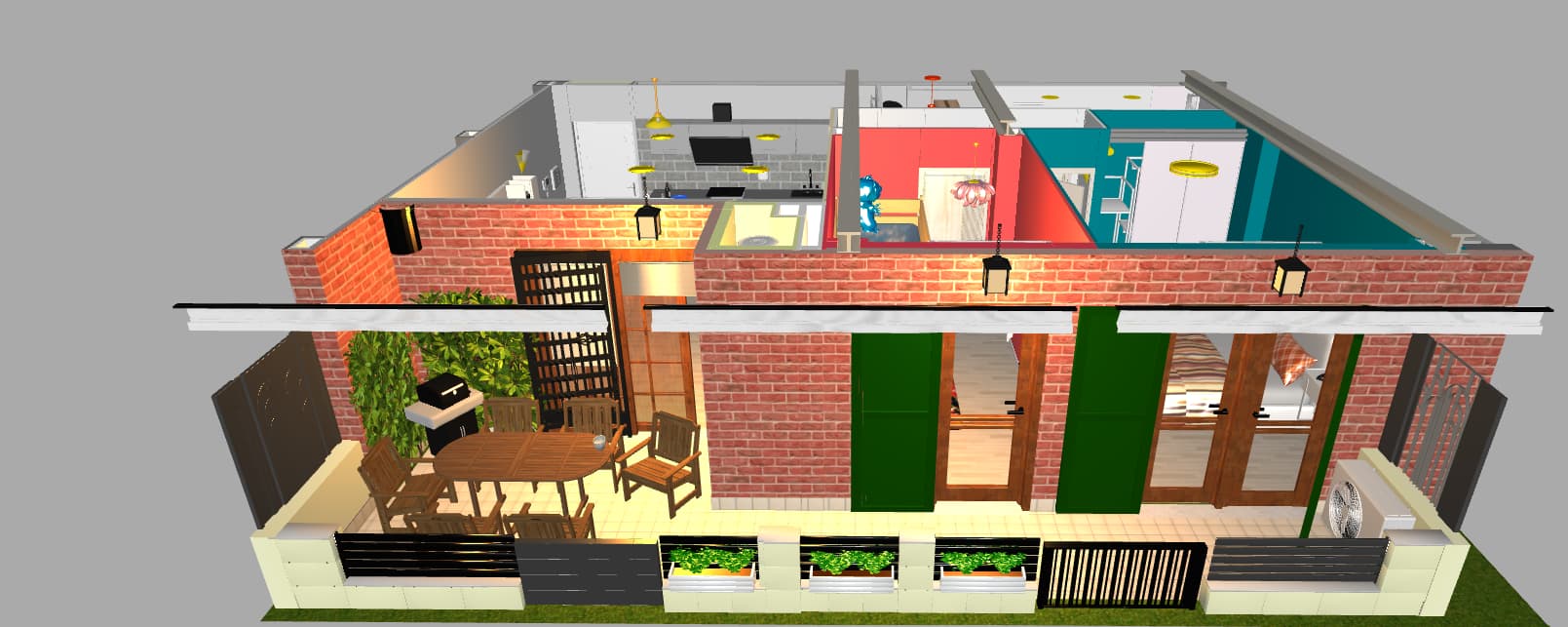
Have you created a 3D model in Sweet Home 3D and imported it into your config folder?
yes exactly I created with Sweet 3d and I exported a project in obj, I don’t understand now an entity works but if I add another one it starts again with the error, I exported and saved the obj files in the config/www/community folder
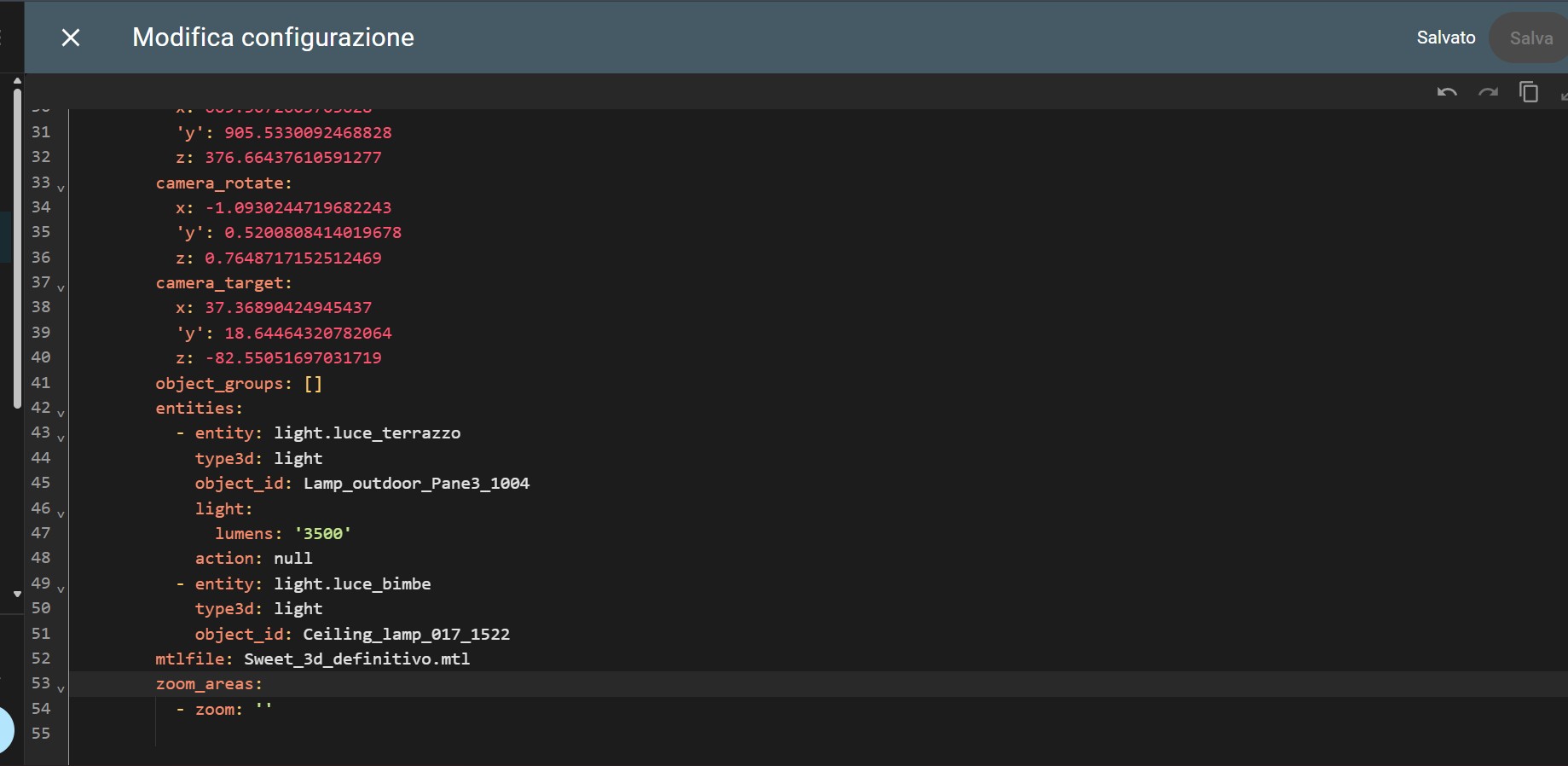
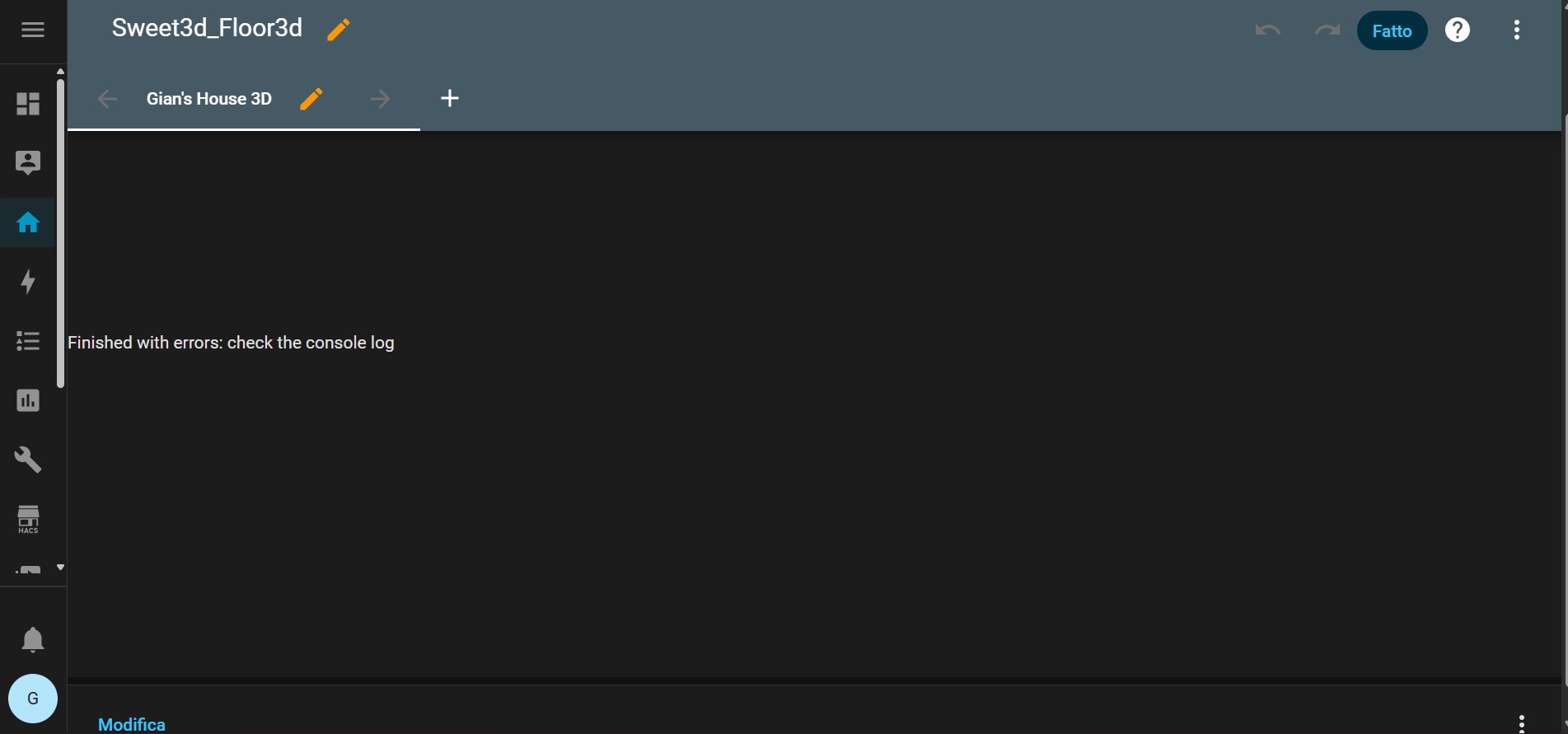

OK so you have a known light object that is working. Try a different second light and see if you can get a second light working somewhere.
Also paste your code and console errors via text with three backticks top and bottom: (```)
I had inserted a second light and it worked, then I inserted the third light and everything stopped working and the error occurred again, “Also paste your code and console errors via text with three backticks top and bottom: (```)” sorry but I didn’t understand
You need too look up markup language and pasting code block (via text) using three back-ticks at the start and three back-ticks .
Pictures are no good, paste RAW text.
You may have copied your lights within the 3D model instead of inserting a fresh object. I had trouble in my model with that.
Apply the lights to all the working ones in your model, then fix the ones that are not working by deleting and re-inserting a fresh 3d object of the light.
Ensure your naming conventions in the model are unique to each light object.
Changing this may change your model and you will have to setup from scratch again in the card.
So I’ll update you. I haven’t touched anything. I added all the entities using the file editor, and suddenly they all work, even the air conditioners. I don’t know if there’s a bug in the program or something wrong with my installation.
Anyway, thank you so much for your time. I’m very happy.
1 Like
Hello,
The lamp is on the first floor, but in a way I don’t understand, it also lights up the second floor.
- entity: switch.sonoff_mutfak_100094123c_1
type3d: light
object_id: 01MutfakYemLamba_1
action: default
light:
shadow: “no”
color: yellow
vertical_alignment: top
Light is here (first floor)
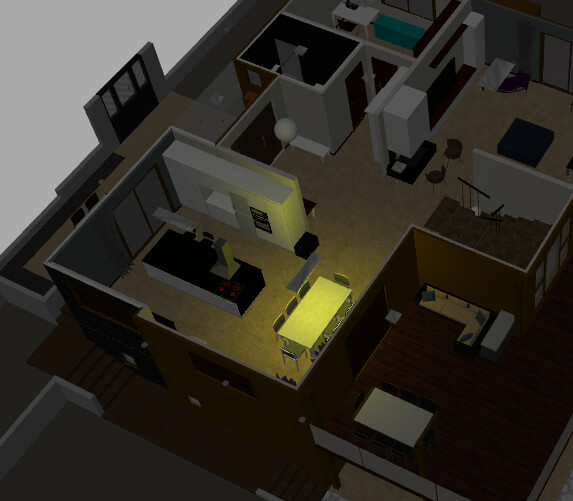
Strange lighting effect (second floor)

What is wrong. I tried “light_direction:” but nothing changed
Can someone help me?
First clear cache and install. Then add first light with visual editor (UI). Check the yaml and learn the structure. Now you can paste from yaml much more. Double check paragraphs
shadow: yes is required to stop it going through like that
1 Like
Thank you. I will try. One more question:
is it possible to write code “color red for all state on entities” ?
I have 40 lights = 40x7 code line for type3d: light and 40x7 code line for type3d: color. My twin 3D code goes to 1.100 lines. This makes it slower.
Perhaps The Best Coder @adizanni can give us hints! Also many thanks to @Chykan
Regex
 (type3d: light )
  - entity: .+
    type3d: color
    object_id: .+
    colorcondition:
      - state: "on"
        color: "#FF0000"
P.S. For your 3-floor house plan. You must use furniture’s without complex detailed shapes. Very small triangles are used to display sphere, cylinder, round shapes. It needs more power for all corners, vertex etc. (all corners have x,y,z coordinates for drawing shapes). Box or plane with picture is the best visual design. (simple and realistic)
And also, you can use rhino (my house plan), blender, SketchUp etc. with layers. It is easy for professional designer but hard for others.
Obj->Group (door)->object1(wing)+object2(frame)+obj3(handle) etc.
Layer(door)->object1(wing)+object2(frame)+obj3(handle) etc.
g lvl001wall_0_1 adizanni format
“lvl000” “lvl001” “lvl002” are the levels so layer name must be “lvl001xxx”
save as obj (convert layer names to group) then convert glb.
I have limited the amount of furniture in the house in my 3 floor plan. Also what you cannot see in my render is I have deleted walls etc in each model. I locked the view so they can try be rotated and expose the missing walls. Eg. from the top floor anything that is under the floor has been deleted.
I have minimised each of the 3 models to the lowest size I can while keeping detail.
is it possible to write code “color red for all state on entities” ?
I have 40 lights = 40x7 code line for type3d: light and 40x7 code line for type3d: color. My twin 3D code goes to 1.100 lines. This makes it slower.