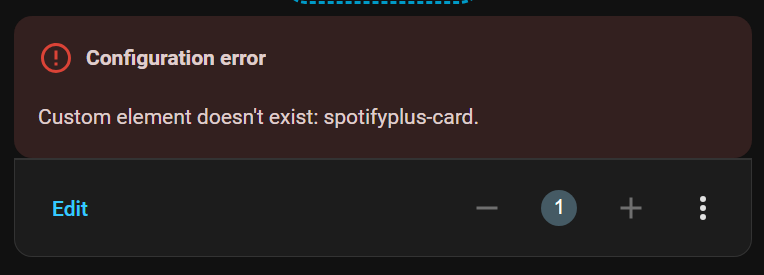
I am getting the following errors on all actions, anyone else who had the same problem?
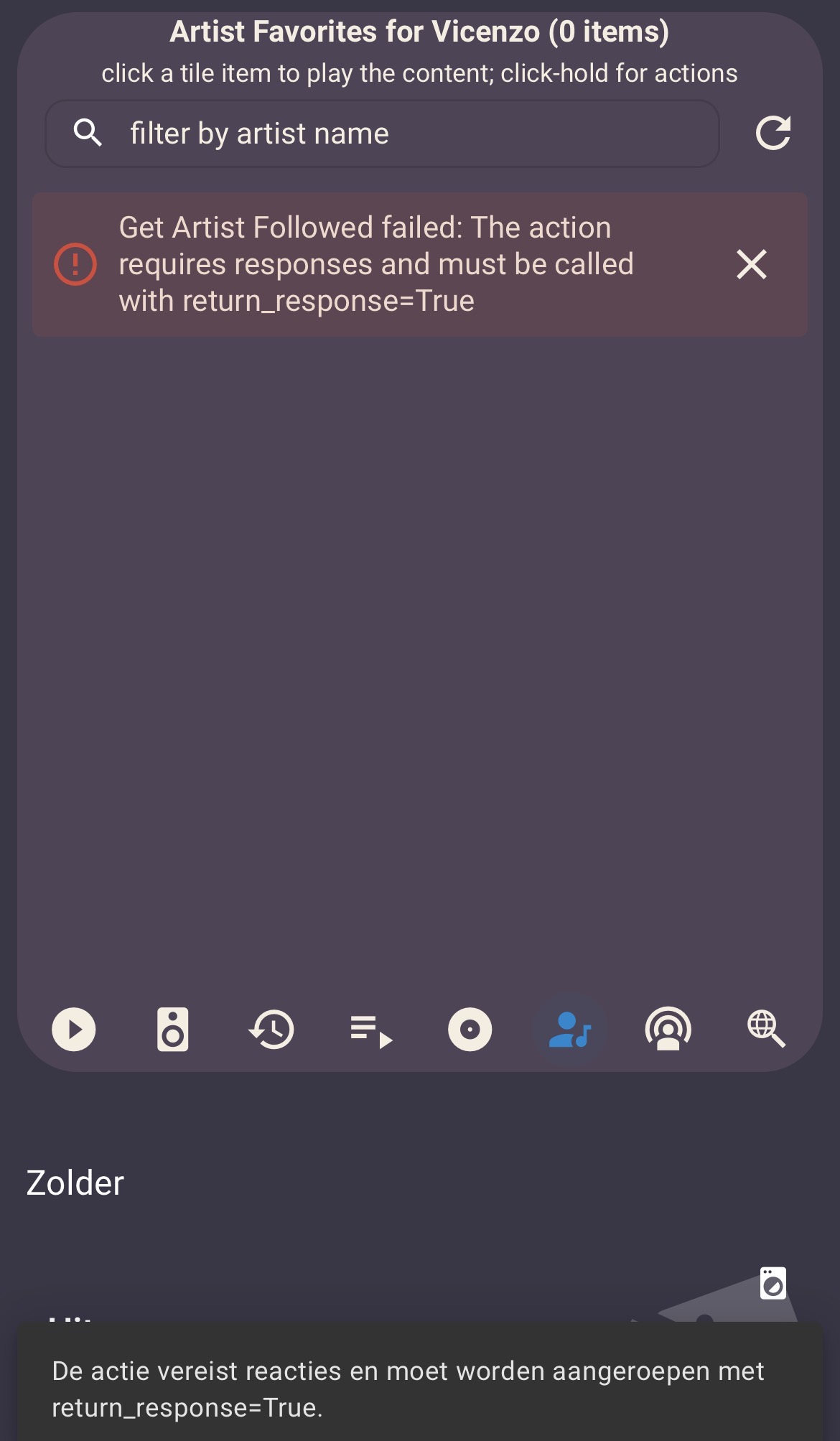
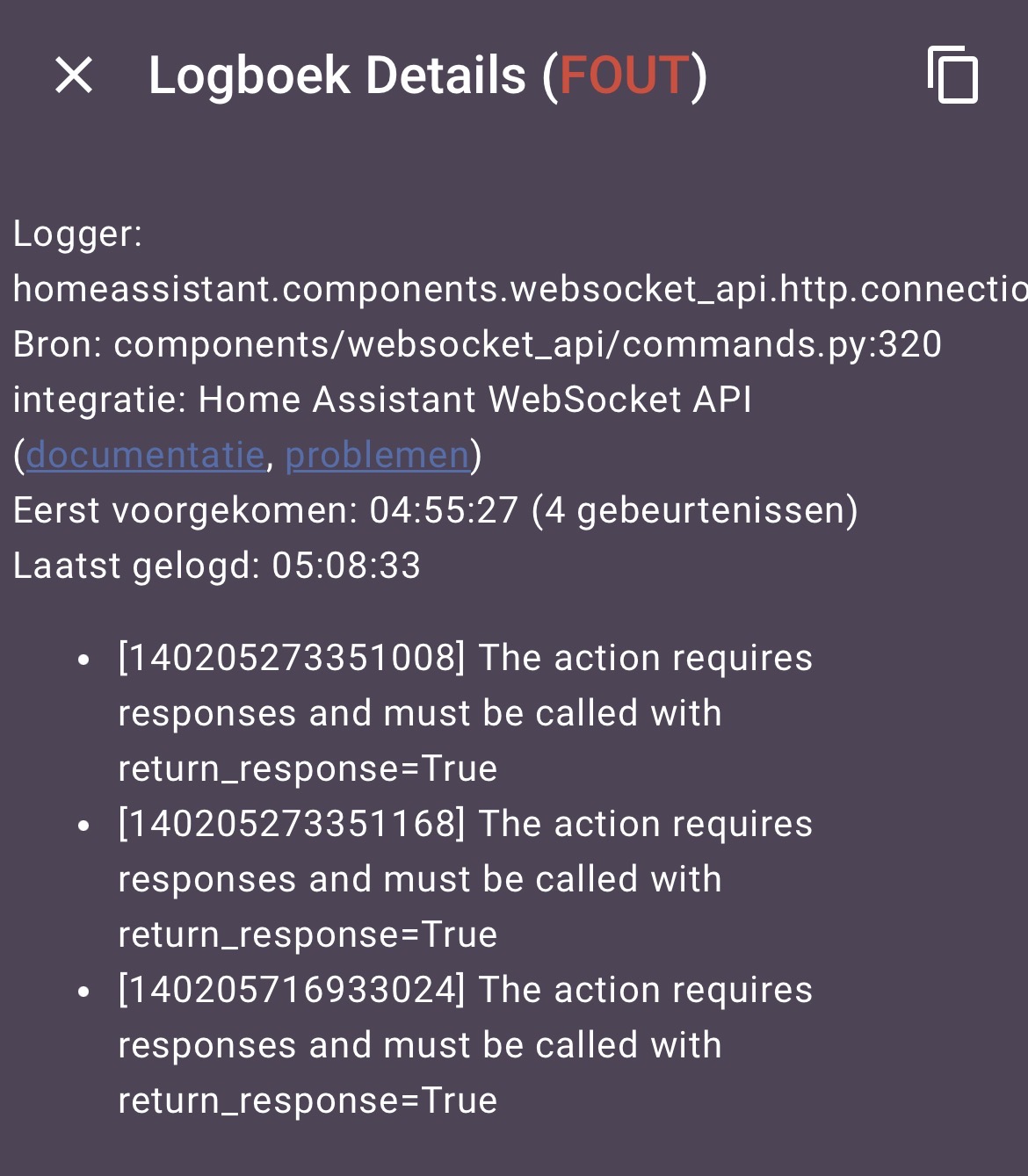
@vincentvdb
I have 2 other users that are experiencing this error. This error is being tracked in GitHub Project issue 88.
The issue is being caused by a dependency conflict between the SpotifyPlus Card and another custom module / card that is installed in your HA environment. The dependency in question is for the home-assistant-js-websocket module. A custom card that you have installed is using an older / outdated version of that module, which does not include support for websocket calls that return response data. To be clear, any references to home-assistant-js-websocket less than v9.2.0 will cause the “action requires responses” error.
The following guides can help you resolve this conflict.
Requirements and assumptions
- use a desktop browser (preferably Chrome) when accessing the HA UI instance. DO NOT use a mobile / tablet browser, and do not use the HA Companion App. You need a browser that can perform a hard refresh on the page (Ctrl-F5).
- use the local link to access your HA UI instance (e.g.
http://homeassistant.local:8123/- DO NOT use your public url instance (e.g.https://mysmarthome.cloudfare.com, etc). - you will need the ability to move files / folders around in the HA files system, specifically in the
/config/www/folder location. The following addons can be installed to do this:- SSH Terminal addon
- HA Samba share Addon
I’m a Windows guy, so Samba is much easier for me to move files and folders with.
- I would also suggest taking a backup prior to doing anything, just in case you need it.
Steps to Test HACS Cards
These steps will test modules / cards that have been installed via HACS.
-
using Samba Share or SSH terminal, move all folders (except the
spotifyplus_card) out from the HACS/config/www/communityinstallation folder to temporary folder/config/www/community/temp(you need to create thetempfolder). For this process, the folders just need to be out of the/config/www/communitybase path. -
go to your local HA instance in your desktop browser, and display the dashboard that contains the SpotifyPlus Card.
-
perform a hard refresh of the browser (Ctrl-F5).
-
in the SpotifyPlus Card, select the Devices section icon (from the card footer area) and click on the refresh icon in the upper right of the device list. This will force the card to return the latest device list.
-
if you DO NOT receive the “action requires responses” error, then move a single module / card folder from the
/config/www/community/templocation back into the/config/www/communitylocation, and repeat steps 2 thru 5 until you DO receive the “action requires responses” error.If you DO receive the “action requires responses” error, then you know the module / card folder that you just moved back into the
/config/www/communitylocation is the conflicting card. Let me know what that card is, so I can reach out to the author to have them fix their dependency. I would also test the remaining cards (after moving the offender back to thetemplocation) to ensure there is not more than 1 conflict.
Steps to Test Manually Installed Cards
These steps will test modules / cards that have been installed manually (outside of HACS).
This is a little bit more involved, in that you have to remove everything from the HA /config/www location, except for the /config/www/community/spotifyplus_card folder. Use the HA Manage Resources page to display the list of currently registered resources. It will look something like this:

- Any resource paths that start with
/local/are located directly in the/config/wwwlocation (outlined in red in the example screenshot). - Any resource paths that start with
/hacsfiles/are located directly in the/config/www/communitylocation.
The idea is the same that we did for the HACS files … remove the x.js modules from the /config/www location to the /config/www/temp location, and restore them 1-by-1 until you find the offending module.
Summary
I hope this is not too confusing, but it is the best way to determine conflicts outside of removing ALL custom installed modules and re-installing 1-by-1.
Let me know what the offending card(s) is, so I can reach out to the author to have them fix their dependency.
2 Likes
@thlucas Thank you for your response. I found out that the custom integration ‘Popup view’ caused the issue. (GitHub - krth8/HA-Popup-view: Popup View | Any view, from any dashboard as a popup)
After removing this integration the SpotifyPlus card works as expected. 
1 Like
Hello Todd (@thlucas ) .
Thank you for your great work. I hope you can help: I struggling with the
customImageUrls:
  playerIdleBackground: /local/spotifyplus/customimages/playerOffBackground.jpg
I save the files under /homeassistant/www/community/spotifyplus_card/customimages and and left the file names unchanged. But the look doen’t changes. What I doing wrong?
Also, when use the search function in the card, I get an error: Invalid or Forbidden. What can I do? (It is a Premium Family Account)? Do you need the complete code of the card?
spotifyplus/check_album_favorites konnte nicht ausgeführt werden. Validation error: Forbidden
Thanks a lot for your help and many thank in advance. I wish you a nice weekend and please stay healthy.
Update: The wrong links was my fault. I changed it to
customImageUrls:
  default: /local/community/spotifyplus_card/default.png
  X_empty preset: /local/images/spotifyplus_card_customimages/empty_preset.png
  X_Daily Mix 1: https://brands.home-assistant.io/spotifyplus/icon.png
  X_playerBackground: /local/images/spotifyplus_card_customimages/playerBackground.png
  playerIdleBackground: /local/community/spotifyplus_card/playerIdleBackground.png
  playerOffBackground: /local/community/spotifyplus_card/playerOffBackground.png
and I deleted the X_ . Now it works  . The alarms for Spotify Checks are still here. Is there a solution?
Thanks a lot and have a nice Sunday.
1 Like
@Ronny1978
Hi Ronny - Thank you for the kind words, and glad you got the image url figured out.
As for the search function, it depends on whether you are using one of the new Spotify Developer App client id’s (created on or after 2026/02/11). If it’s a newer client id, then the error is expected as I have not made changes yet for the Spotify API changes that were made in February 2026. One of the (many!) changes affects the search endpoint, so I have to make some changes to accommodate.
Note that if you are using an older client id the search endpoint should still work, until March 9, 2026 - this is the “drop dead” date for older client id functionality.
I am currently working on the changes to support the new endpoints, but am nowhere near complete as of yet. Spotify changed A LOT of functionality with this one, and (as usual) they did not inform us of the changes beforehand. Note that SpotifyPlus Integration github issue item #218 was opened for this activity.
Will keep you posted on this forum thread when I release the update.
Thanks for your patience.
1 Like
Short story: Yes  . Then I will be patiently and wait for your update.
Have a good start in this winter week here in Germany.
P.S. @thlucas I have another question: I have a Spotify Family Account. In my main developer dashboard I have created the client ID and secret. I also have created all members of my family at users.
Can I implement the other users in HA with add service/account or should have each family member thier own client ID/secret? If so, where do I need to store my own client data? Do I also need to enter this (in advance) in the OAuth data?
1 Like
@Ronny1978
You will want to have a Spotify Developer App created for each Spotify user account in the family. Doing so allows you to play content on each account at the same time (different devices of course), and also allows you to keep track of user favorites separately for each account (not shared).
After creating the Spotify Developer App client id’s / secrets for each family member account, you then add them each as SpotifyPlus service instances. You can then reference the specific family member player to play content for.
More info can be found in the SpotifyPlus Device Configuration Options - Create Spotify User Accounts section.
Thanks a lot again. I will try it again at weekend.
Update: Yesterday, I tried again. It was also my fault. I should have read the instructions more carefully. After I set the credentiales first in Oauth, it works very well. Here in Germany we have proverb: “Those who can read have a clear advantage.” 
@thlucas You do/did a great job. The search function is now working properly again.
1 Like
Hi everyone, a few days ago I added a second Spotify Premium account (for my daughter) without any problems.
Today I also followed all the instructions for using my Sonos on the second account (Spotify Desktop Player Authentication Configuration) and everything was successful.
But when I tried to test the second Spotify account on Sonos, I lost authentication on the integration.
I tried re-authenticating, deleting the service for the second account, clearing the browser cache, and trying to add it again, but it still gives me an error.
Any suggestions?
Could it be a problem with the Spotify portal, given the recent changes?
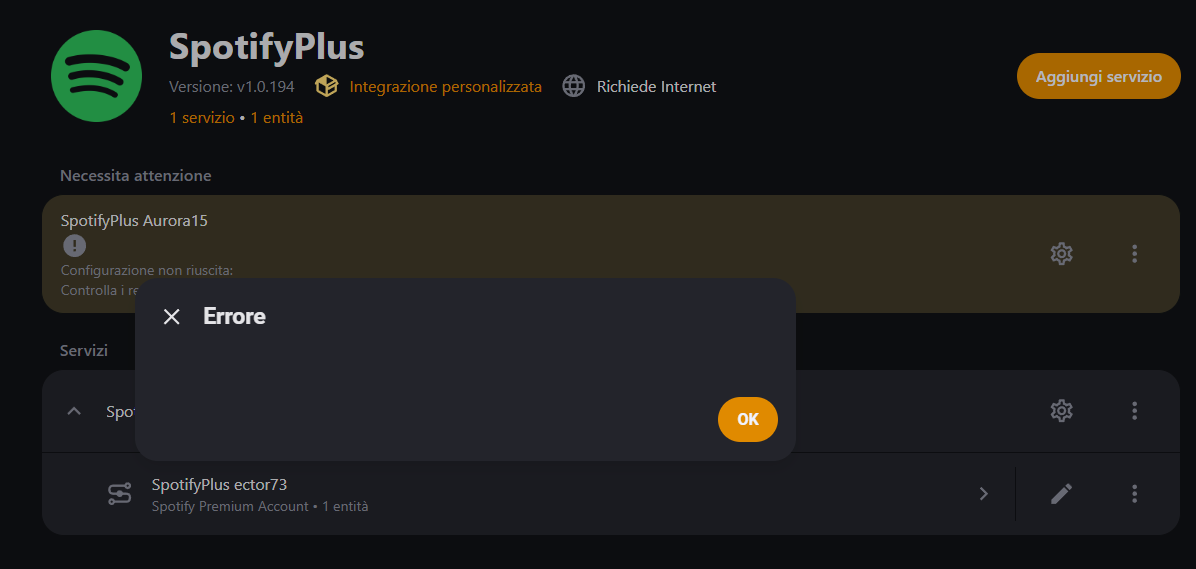
@Ector73
Probably due to Spotify changes, but not sure.
Please open a new bug report on the SpotifyPlus Integration github project so that we can track / try to resolve this.
Also look for any relevant HA system log entries related to spotify, oauth, etc.
Hi @thlucas
I solved it by deleting and recreating the app from the Spotify Developer Dashboard. However, I still can’t get the second Spotify account to work on my Sonos. I followed all the instructions to the letter, but it doesn’t work. This is the spotifyplus_tokens.json file: it works with “ector73”, but not with the other one:
{
    "SpotifyWebApiAuthCodePkce/65b708073fc0480ea92a077233ca87bd/312xx5yjwmlbppbwb4lvycnk3zte": {
        "access_token": "BQABd7H1V.....",
        "expires_at": 1771429740,
        "expires_in": 3600,
        "refresh_token": "AQBvgUpW.....",
        "scope": [
            "streaming"
        ],
        "token_type": "Bearer",
        "username": "312xx5yjwmlbppbwb4lvycnk3zte"
    },
    "SpotifyWebApiAuthCodePkce/65b708073fc0480ea92a077233ca87bd/ector73": {
        "access_token": "BQDaF3vFOkmi8S.....",
        "expires_at": 1770290838,
        "expires_in": 3600,
        "refresh_token": "AQDIbnrxKU0XV.....k",
        "scope": [
            "streaming"
        ],
        "title": "Spotify Desktop App Client (ector73)",
        "token_type": "Bearer",
        "username": "ector73"
    }
}
It seems to be compiled correctly…what could be the problem?
@Ector73
The 312xx5yjwmlbppbwb4lvycnk3zte LoginId value (e.g. 312xx5yjwmlbppbwb4lvycnk3zte) does not look right (with the xx) in the key - did you replace something with the xx maybe? That value should also match what’s in the "username" value.
The LoginId value can easily be found using the Spotify Developer Web portal, using the Get Current Users profile service. Click on the Try It button, then find the id response value. Make sure should login to the Spotify Developer using the other account credentials (e.g. not ector73).

This is the ID that appears!
Why doesn’t Aurora 15 appear as the ID?
I will try to change the username from the Spotify portal
@Ector73
The display_name and the id value can be different, but I have seen instances where they are the same. That is an internal thing Spotify, and not modifiable. You can modify the display_name I believe, but not the internal id value.
The 312xx5yjwmlbppbwb4lvycnk3zte value is the correct value to use. I just thought the xx was odd, but if that’s what the Spotify Developer Try It function reports, then it is correct.
Did you authorize the Aurora15 account with Spotify using the Sonos App? I believe you have to do that as well. Check out the Use Multiple Accounts for the same content service link for instructions on how to do that.
As stated in the link, you must add the account(s) one at a time to the Sonos app. Go to Settings > Services > Add a service. Choose Spotify, then follow the prompts and fill out the first account’s information.
Once it is added, do the exact same procedure for the other accounts, except you will be filling in their information, not yours. Then you can choose which account to use by tapping on the account name on the Now Playing screen.
Just verify that the Aurora15 account can play Spotify using their account via the Sonos App first. Once you can do that, you should be able to play via SpotifyPlus as well.
Yes…I also authorized Aurora15’s Spotify in the Sonos app and set it as the primary account.
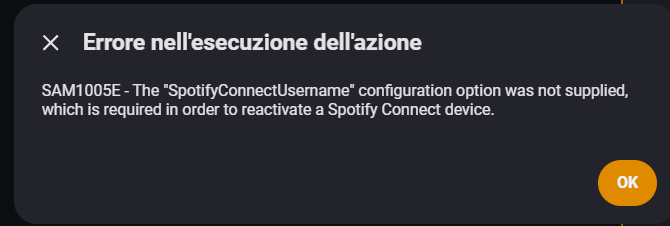
I also tried creating the “spotifyplus_tokens.json” file exclusively for Aurora15, but I still get the following error:
@Ector73
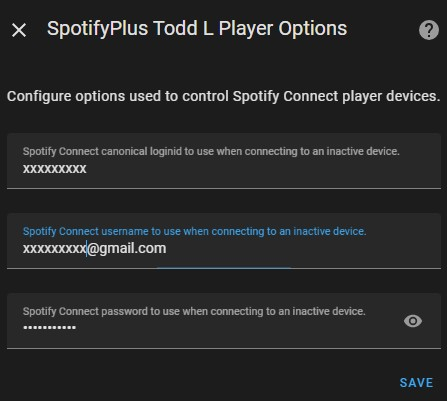
You need to specify all 3 of the SpotifyPlus Integration Player Options in Aurora’s SpotifyPlus Integration Service instance configuration options. These are required in order to transfer playback to a Sonos device:
- Spotify Connect Device LoginId =
312xx5yjwmlbppbwb4lvycnk3zte - Spotify Connect Device Username=
AURORA_SPOTIFY_LOGIN_USERNAME(usually an email address) - Spotify Connect Device Password=
AURORA_SPOTIFY_LOGIN_PASSWORD
The screen looks similar to this; note this is in the SpotifyPlus Integration settings (not the SpotifyPlus Card settings):
1 Like
Damn!!! That’s the problem! I configured it the first time, but then I deleted and redid everything again and it slipped my mind. Now everything seems to be working fine. Thanks so much for your patience.
1 Like
I made the same fault in post SpotifyPlus Card Dashboard - #290 by Ronny1978
But the instructions from @thlucas are clear on GitHub.
1 Like
I have installed this card from HACS multiple times but when I go back to the dashboard a few hours later it appears to not be installed. Any help on what I might be doing wrong?
Possibly related… I uninstalled the standard Spotify integration before installing SpotifyPlus integration. Is that correct?