The web app communicates with Zigbee2MQTT through its websocket interface. When Zigbee2MQTT is installed as an add-on, the websocket is conveniently exposed via ingress on the same domain, which avoids any CORS issues and also configures security via the ingress session cookie.
Unfortunately, I don’t have a non add-on setup available to test or troubleshoot further, wish I could help more!
Edit: Starting with version 2.3.0, Zigbee Map can connect directly to Zigbee2MQTT installations running outside Home Assistant (Docker, separate machines, etc).
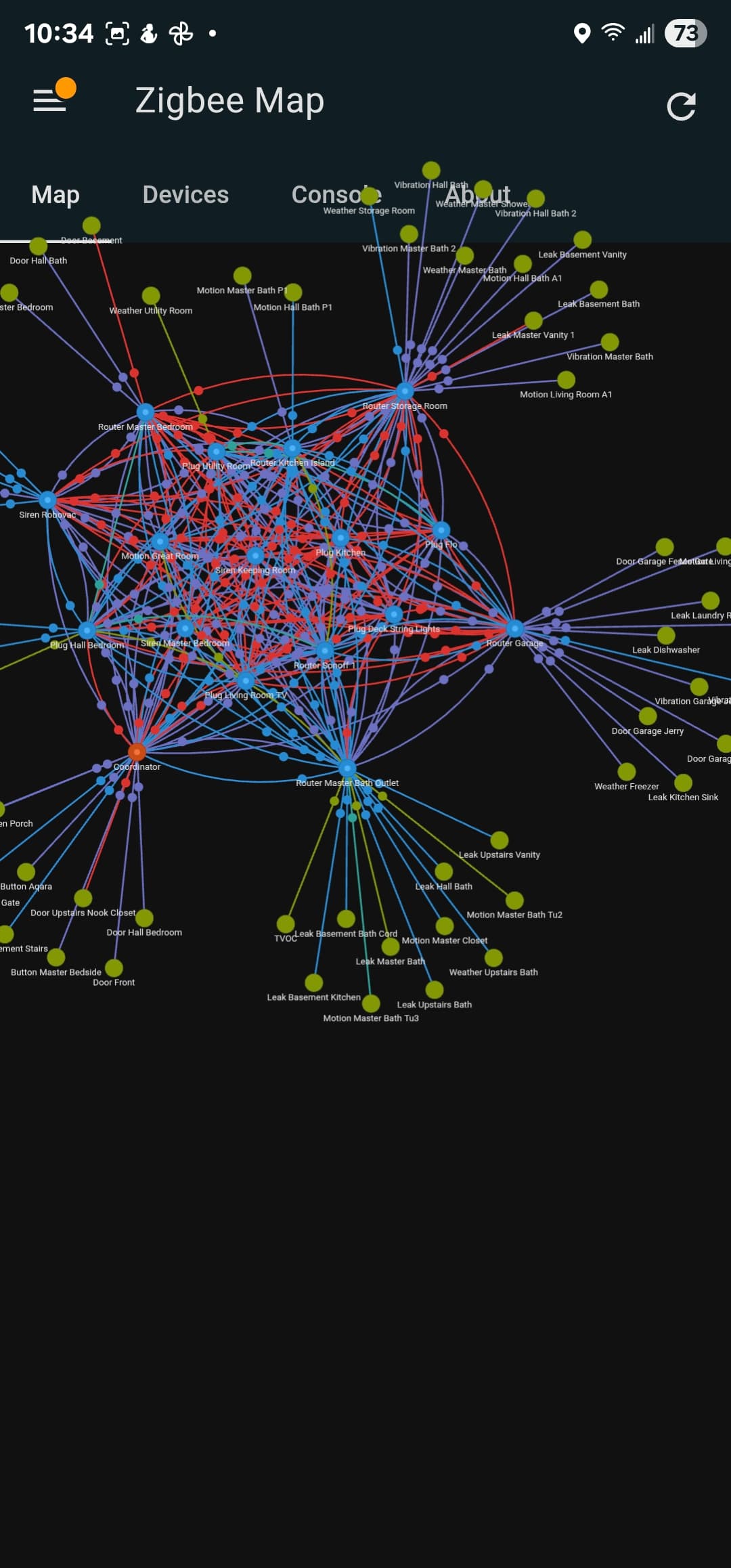
Tan into the same issue, that’s actually why I built this tool. The map interface was too confusing to be useful, and with some of my devices acting up, I needed a clearer way to identify where to place additional repeaters and which devices to remove.
Initially, I considered integrating it directly into Windfront since I have direct access to the websocket. Unfortunately, neither the old nor the new frontend supports extensions or add-ons, so I had to build it separately.
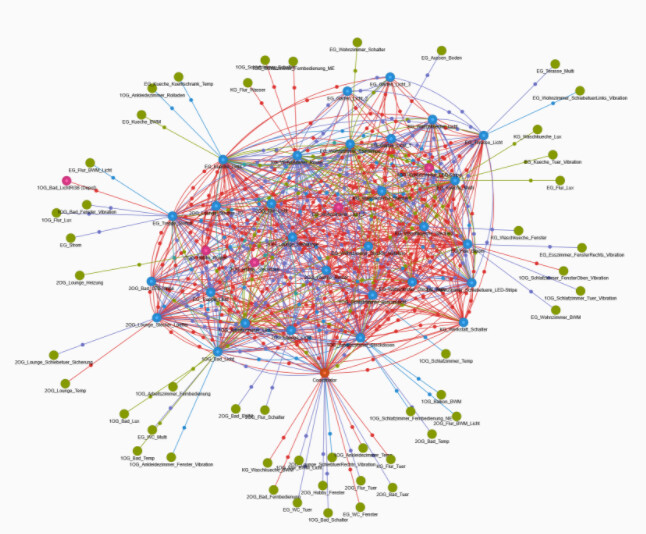
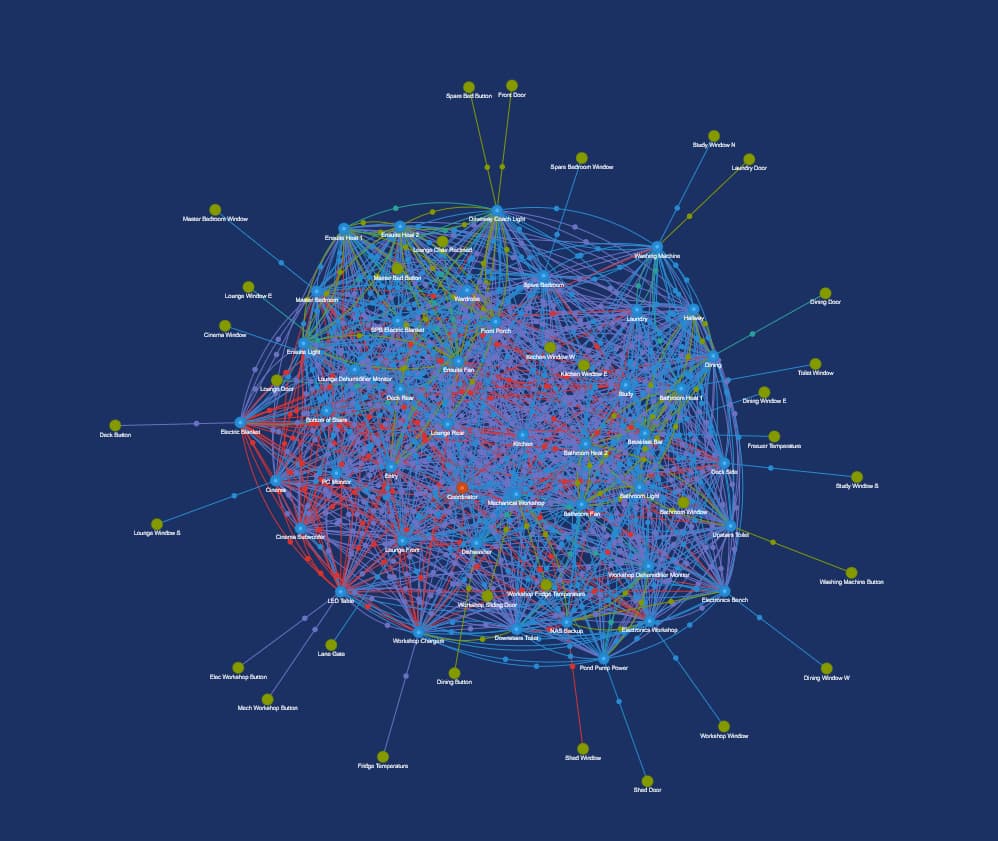
They naturally tend to go outside, but if there are a lot of nodes they might get tangled inside.
You can try to grab a repeater node (preferably one that has some children) and drag it repeatedly thru the thick mesh; it will disturb the nodes inside and maybe make way for the green ones to migrate outside.
Otherwise, you can manually drag the repeater nodes with children and place them towards the edge of the graph.
Sorry about that, the app is using the same web components that the HA front-end is using. Do you have the same problem with other tabs, for instance the tabs on the “Developer tools” page? Do you have the same problem with the mobile app? I’m thinking maybe you are using an older version of the front-end.
What you can try as workaround: click the “Map” tab (it won’t do anything, but will put the focus on that tab), then use the right arrow to navigate to the next tab (for some reason the tabs don’t use tabs for navigation).
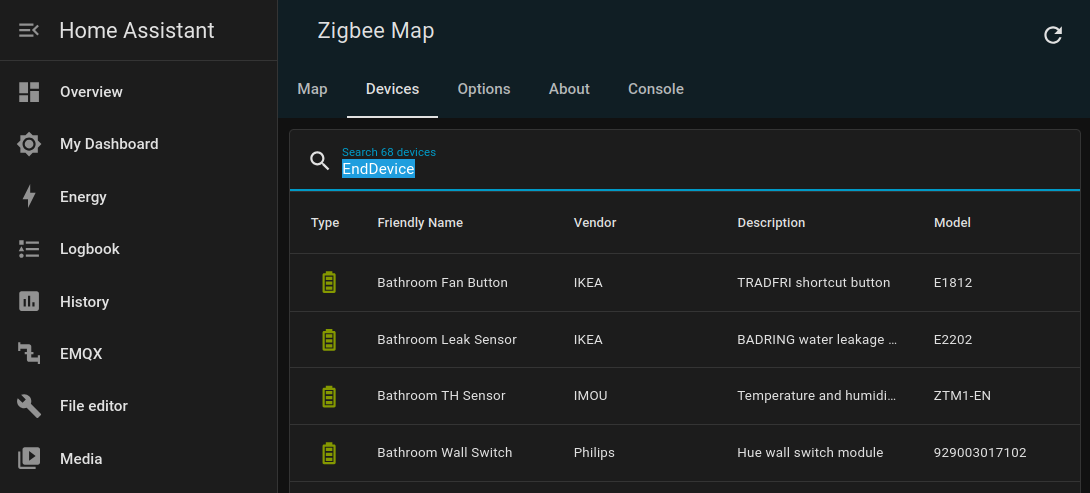
You can do this scenario by going to the “Devices” tab, search for the device you want, then click it. It should change the view to the “Map” tab and zoom-in on that specific node.
But you are right, ctrl+F is the more natural way of doing it.
All tabs on other pages are fine. On the map tabs, they are completely non-responsive, no mouseover cursor change, etc. I get the same no click/no tap behavior in the HA Android app as well.
It acts as if the map layer is on top of the links. If I double click on tab area, the map recenters/resizes just as if I was double clicking on the map area. Dragging the map around will place items on top of the tab links.
Very nice! I randomly thought to myself, how can I map my Zigbee network to visualize it on HA?, so I googled “home assistant zigbee2mqtt mesh map” and this was the first result. I wanted something on the panel so I don’t have to go into zigbee2mqtt. Crazy that you just submitted this post 2 days ago. great timing, hehe. works well and simple to set up, thank you.
This helps me very much to visualize the mesh and to detect possible problems. There should be none at the moment. Enough powered devices (39 out of 101).
I have it setup the manual way like you recommend. Is the update automatic upon a restart? Or do I need to redo the panel script step and restart? I’m assuming the latter lol.
First, you need to redo steps 1 and 2, basically just overwrite the contents of conf/www/zigbee-map-panel.js file with the new version. No restart required.
Then, you probably need to fight the aggressive caching used by the frontend:
on mobile: go to Settings → Companion app → Troubleshooting → Reset frontend cache → close and reopen app
on desktop: try Ctrl+Shift+R or clear the browser cache





 Glad it popped up right when you needed it!