Previous article: From PIR to mmWave: My Smart Lighting Automation in Home Assistant
Introduction
This tutorial guides you through building a presence-sensing light automation system using FireBeetle 2 ESP32-C6, the C4002 mmWave radar sensor, and Home Assistant. The system automatically turns on lights when someone is present and turns them off after the area is vacant.
You’ll learn ESPHome configuration, MQTT relay integration, and Home Assistant automation rules.
Software and Hardware Preparation
Software
- Home Assistant host (OS/Supervised/Container) Installation Guide
- Arduino IDE
Hardware
- FireBeetle 2 ESP32-C6 x 2
- Fermion: C4002 mmWave Sensor x 1
- Gravity: Easy Relay Module x 1
- USB LED x 1
- Jumper Wires 9" F/F x 1
- USB 3.0 to Type-C Cable x 2
- 4×AA Battery Holder x 1
- AA Batteries x 4
- DC Barrel Jack Adapter x 1
Step One: Connecting the C4002 for Human Presence Detection
Wiring Diagram
Connect ESP32-C6 and C4002 as shown below. For detailed instructions, refer to the C4002 Integration Tutorial.
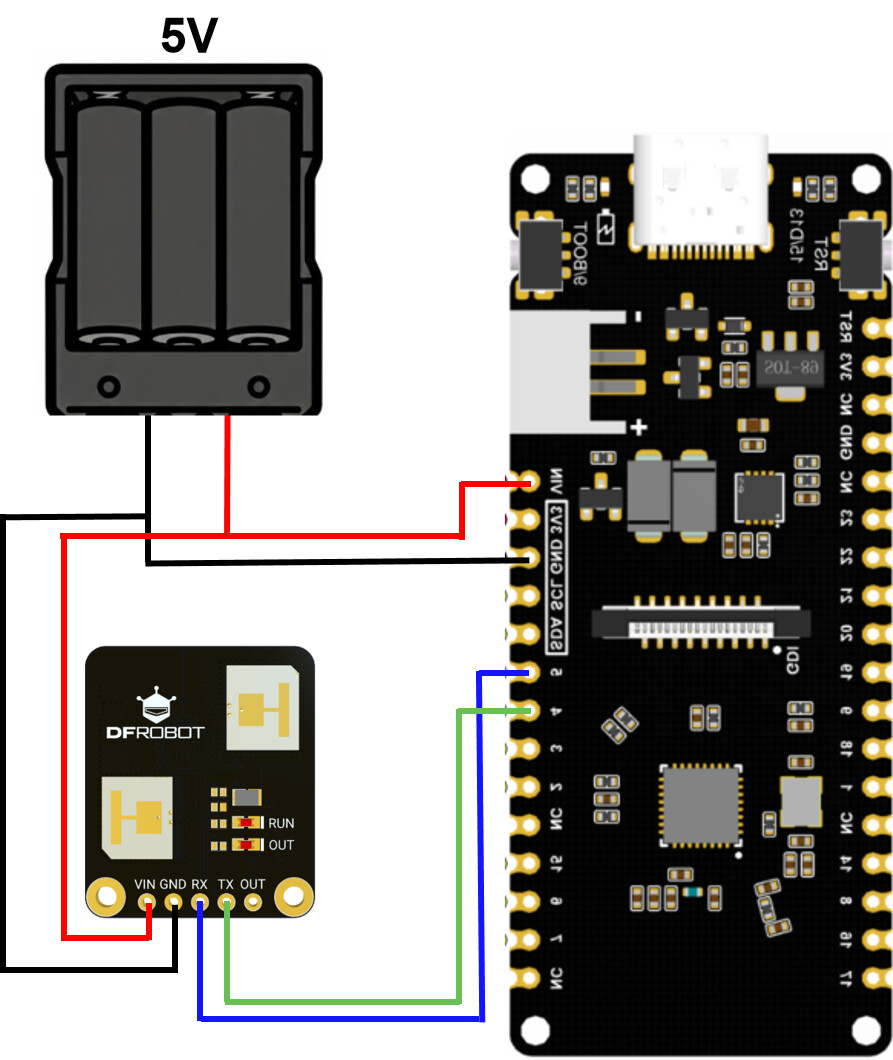
C4002 Integration with ESPHome
Log in to Home Assistant and click ‘ESPHome Builder’ in the left sidebar.
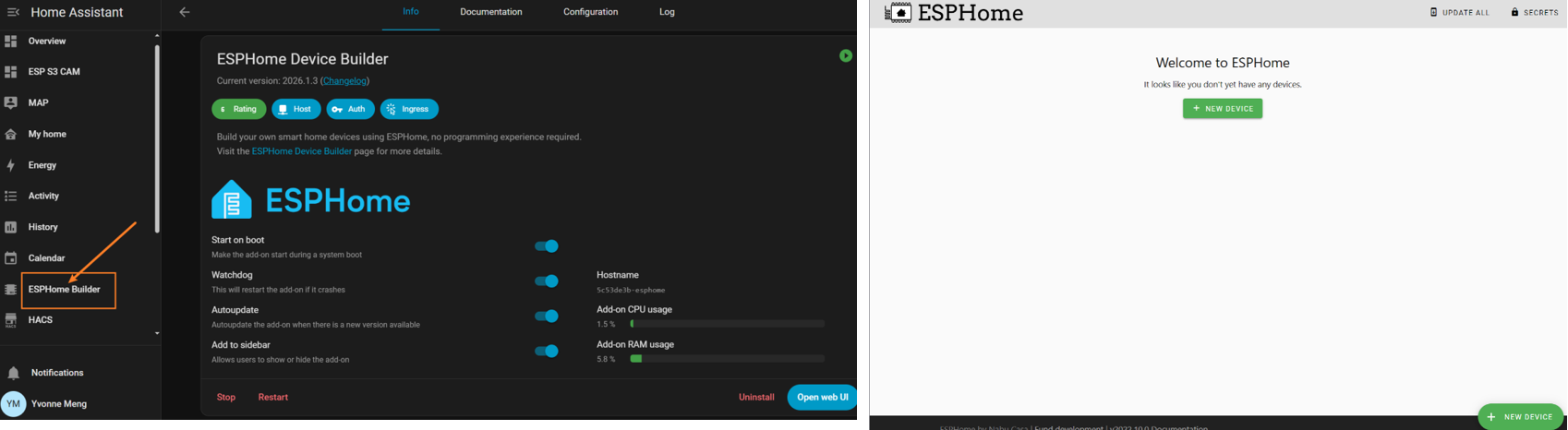
Click + NEW DEVICE.
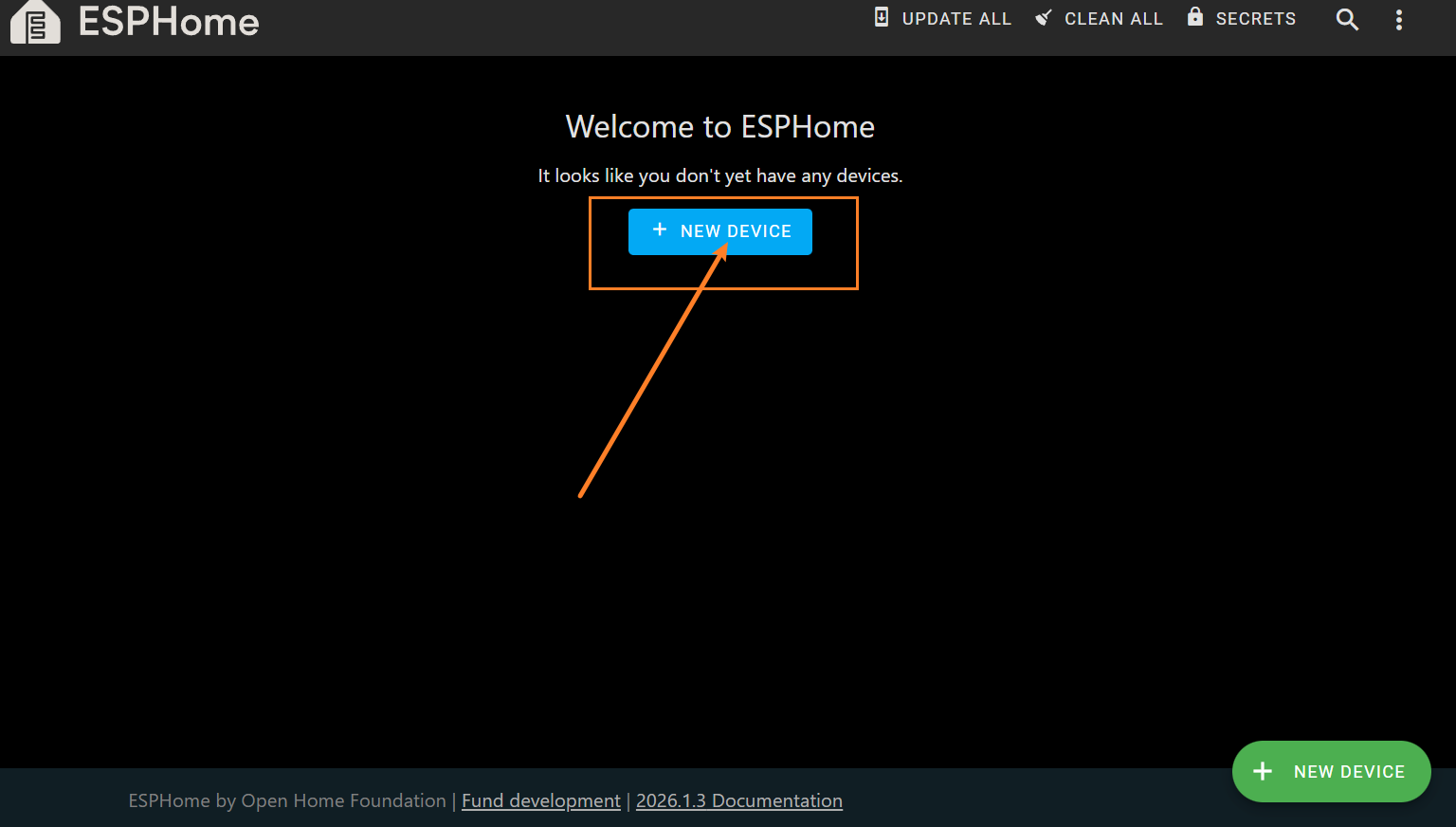
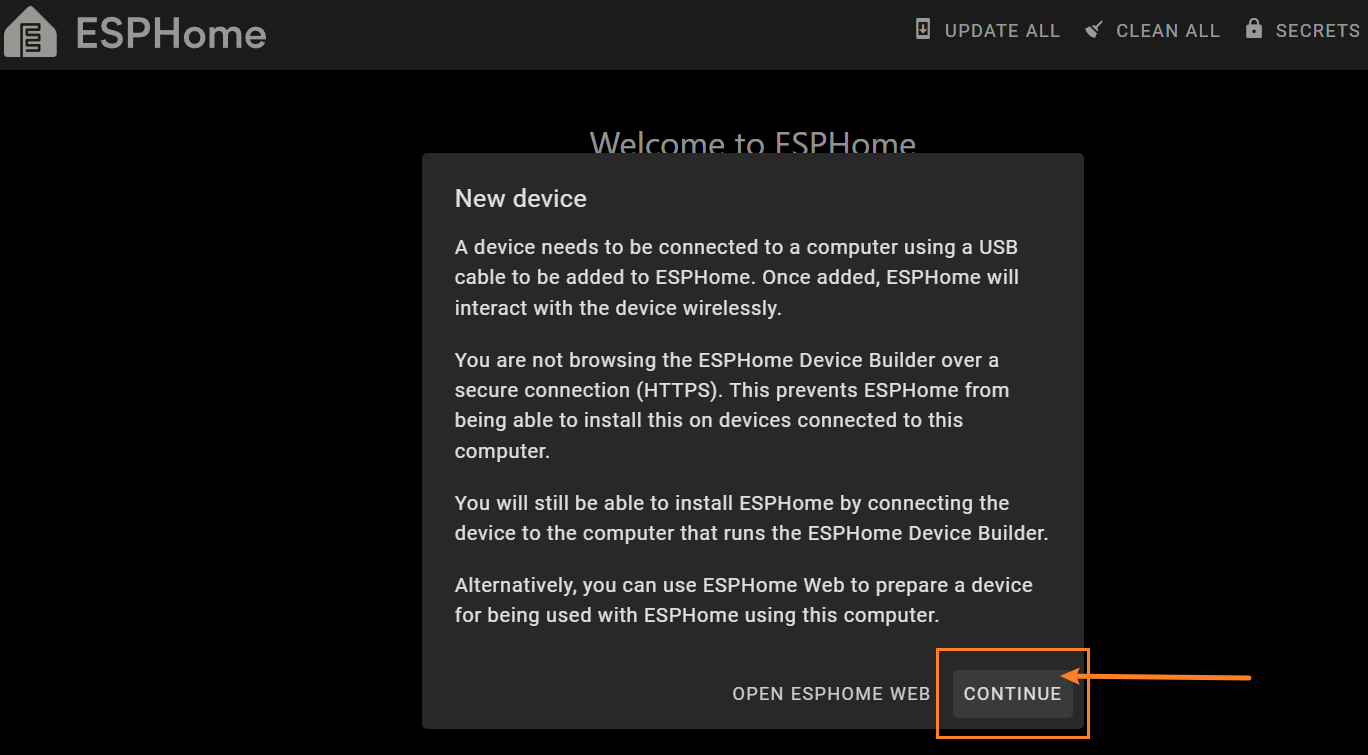
Click CONTINUE on the wizard page.
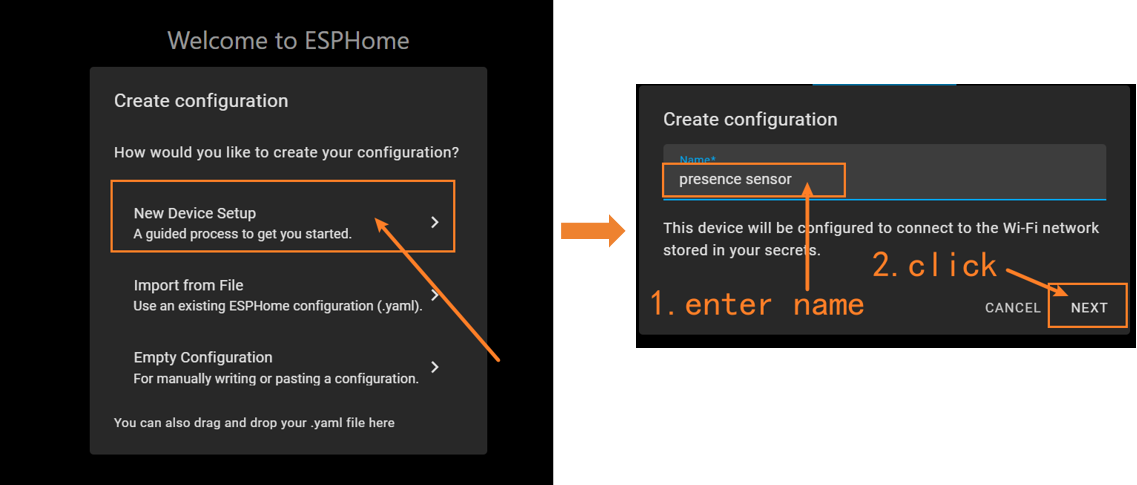
Enter a device name (e.g., Presence Sensor), then click NEXT.
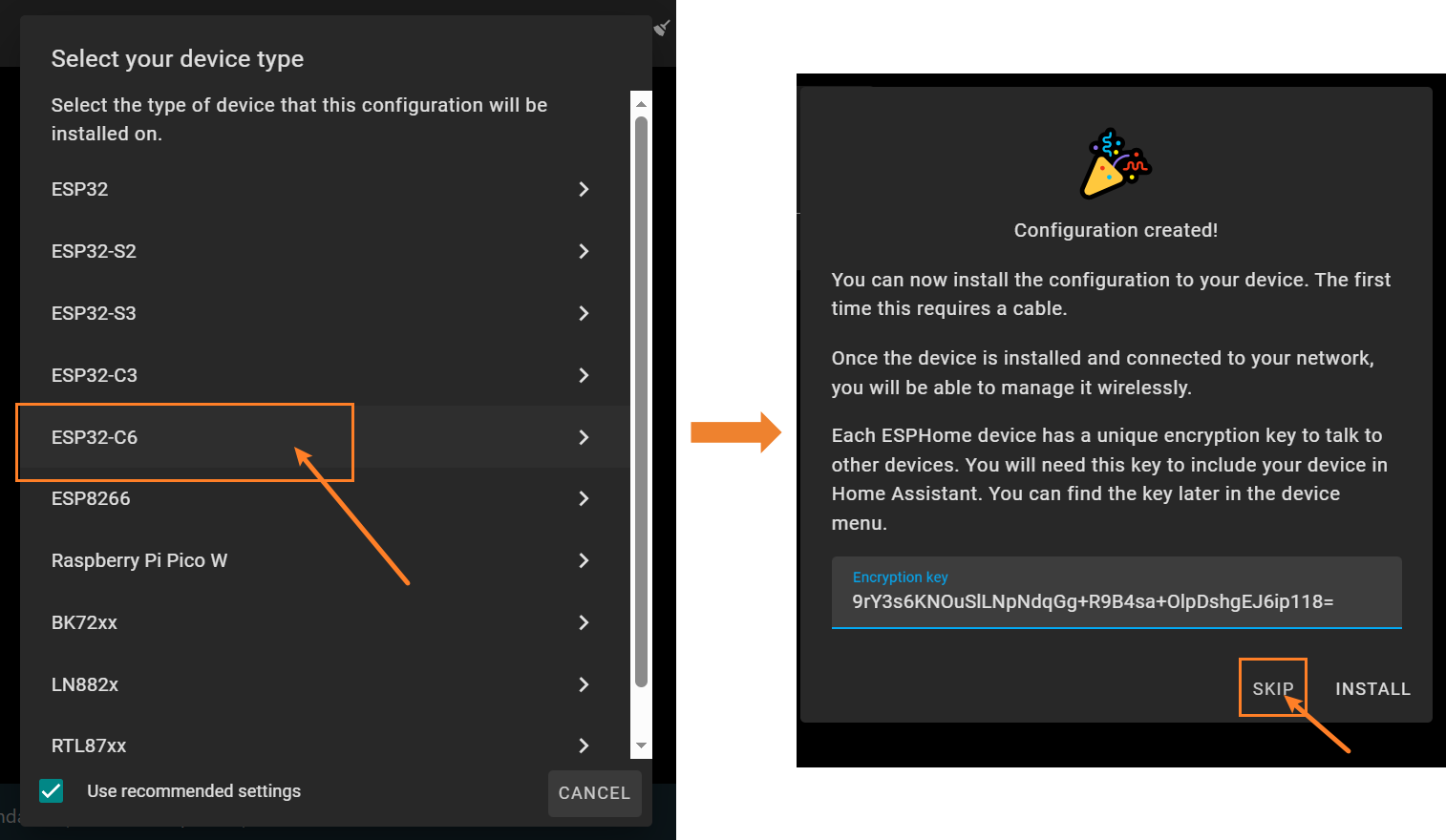
Select ESP32‑C6 as the hardware model. When Configuration created appears, click SKIP.
Locate the newly created presence-sensor device in the ESPHome device list.
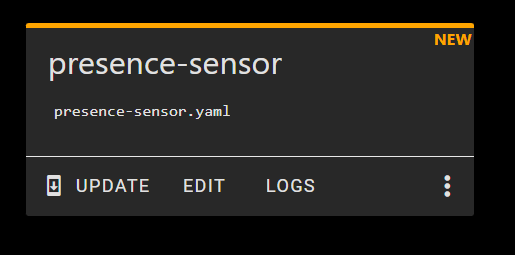
Click EDIT to open the YAML configuration file.
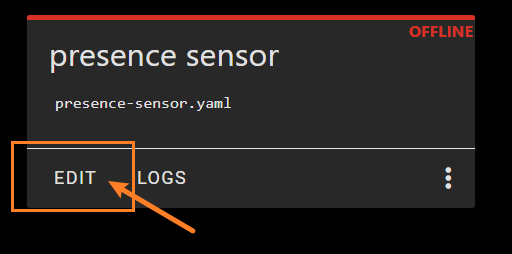
Paste the following configuration at the end of the YAML file:
# UART Configuration
uart:
  id: uart_bus
  tx_pin: GPIO5
  rx_pin: GPIO4
  baud_rate: 115200

# External components
external_components:
  - source:
      type: git
      url: https://github.com/cdjq/esphome.git
      ref: dev
    components:
      - dfrobot_c4002
    refresh: 0s

# C4002 Component Configuration
dfrobot_c4002:
  id: my_c4002
  uart_id: uart_bus

# Sensor Configuration
sensor:
  - platform: dfrobot_c4002
    c4002_id: my_c4002
    movement_distance:
      name: "Motion Distance"
      id: movement_distance_sensor
      unit_of_measurement: "m"
      accuracy_decimals: 2
      icon: "mdi:ruler"
      device_class: "distance"
      state_class: "measurement"

    existing_distance:
      name: "Presence Distance"
      id: existing_distance_sensor
      unit_of_measurement: "m"
      accuracy_decimals: 2
      icon: "mdi:account"
      device_class: "distance"
      state_class: "measurement"

    movement_speed:
      name: "Motion Speed"
      id: movement_speed_sensor
      unit_of_measurement: "m/s"
      accuracy_decimals: 2
      icon: "mdi:speedometer"
      device_class: "speed"
      state_class: "measurement"

    movement_direction:
      name: "Motion Direction"
      id: movement_direction_sensor
      icon: "mdi:compass"

    target_status:
      name: "Target Status"
      id: target_status_sensor
      icon: "mdi:target"

  # WiFi Signal Sensor
  - platform: wifi_signal
    name: "WiFi Signal Strength"
    update_interval: 30s
    unit_of_measurement: "dBm"
    accuracy_decimals: 0
    device_class: "signal_strength"
    entity_category: "diagnostic"

text_sensor:
  - platform: template
    name: "Movement Direction Text"
    id: movement_direction_text
    icon: "mdi:directions"
    lambda: |-
      if (id(movement_direction_sensor).has_state()) {
        int d = id(movement_direction_sensor).state;
        if (d == 0) return {"Approaching"};
        else if (d == 1) return {"No Direction"};
        else if (d == 2) return {"Away"};
        else return {"Unknown"};
      }
      return {"No Data"};
    update_interval: 1s

  - platform: template
    name: "Target Status Text"
    id: target_status_text
    icon: "mdi:human-greeting"
    lambda: |-
      if (id(target_status_sensor).has_state()) {
        int d = id(target_status_sensor).state;
        if (d == 0) return {"No Target"};
        else if (d == 1) return {"Static Presence"};
        else if (d == 2) return {"Motion"};
        else return {"Unknown"};
      }
      return {"No Data"};
    update_interval: 1s

  - platform: dfrobot_c4002
    c4002_id: my_c4002
    c4002_text_sensor:
      name: "C4002 Log"
      icon: "mdi:message-text-outline"

# Switch Configuration
switch:
  - platform: dfrobot_c4002
    c4002_id: my_c4002
    switch_out_led:
      name: "Out LED Switch"
      icon: "mdi:led-on"

    switch_run_led:
      name: "Run LED Switch"
      icon: "mdi:led-on"

    switch_factory_reset:
      name: "Factory Reset"
      icon: "mdi:restart"
      entity_category: "config"

    switch_environmental_calibration:
      name: "Sensor Calibration"
      icon: "mdi:calibration"
      entity_category: "config"

# Select Configuration
select:
  - platform: dfrobot_c4002
    c4002_id: my_c4002
    operating_mode:
      name: "OUT Mode"
      icon: "mdi:account"
      entity_category: "config"
      options:
        - "Mode_1"
        - "Mode_2"
        - "Mode_3"

# Number Configuration
number:
  - platform: dfrobot_c4002
    c4002_id: my_c4002
    max_range:
      name: "Max Detection Distance"
      unit_of_measurement: "m"
      icon: "mdi:ruler"
      entity_category: "config"

    min_range:
      name: "Min Detection Distance"
      unit_of_measurement: "m"
      icon: "mdi:ruler"
      entity_category: "config"

    light_threshold:
      name: "Light Threshold"
      unit_of_measurement: "lx"
      icon: "mdi:lightbulb"
      entity_category: "config"

    area1_min:
      name: "Area 1 Min"
      unit_of_measurement: "m"
      icon: "mdi:ruler"
      entity_category: "config"

    area1_max:
      name: "Area 1 Max"
      unit_of_measurement: "m"
      icon: "mdi:ruler"
      entity_category: "config"

    area2_min:
      name: "Area 2 Min"
      unit_of_measurement: "m"
      icon: "mdi:ruler"
      entity_category: "config"

    area2_max:
      name: "Area 2 Max"
      unit_of_measurement: "m"
      icon: "mdi:ruler"
      entity_category: "config"

    area3_min:
      name: "Area 3 Min"
      unit_of_measurement: "m"
      icon: "mdi:ruler"
      entity_category: "config"

    area3_max:
      name: "Area 3 Max"
      unit_of_measurement: "m"
      icon: "mdi:ruler"
      entity_category: "config"

    target_disappeard_delay_time:
      name: "Target Disappear Delay"
      unit_of_measurement: "s"
      icon: "mdi:timer"
      entity_category: "config"
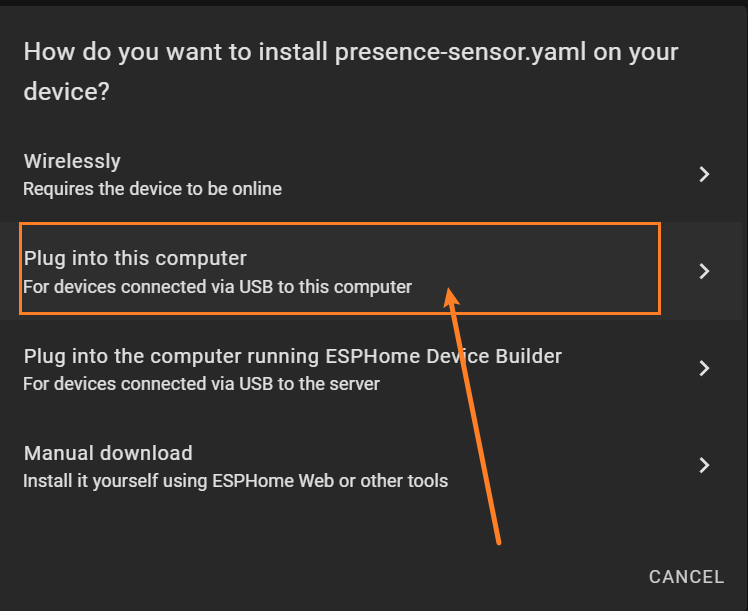
Click INSTALL to compile the firmware.

Select Plug into this computer, then click Download project.
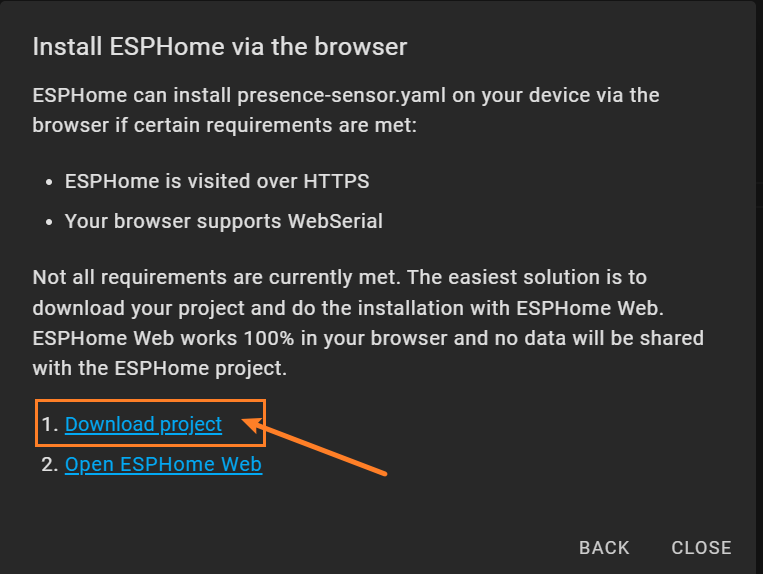
After compilation, click Download project, select Factory format, and download the firmware file (presence-sensor.factory.bin).
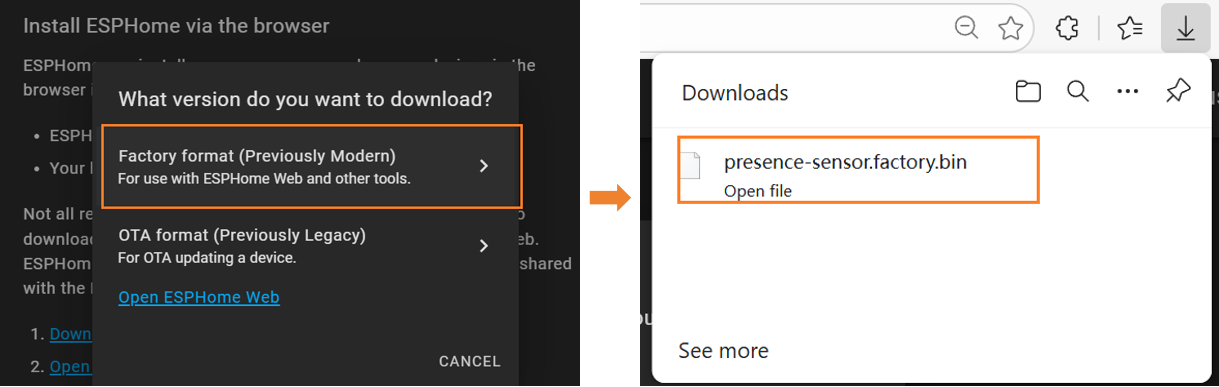
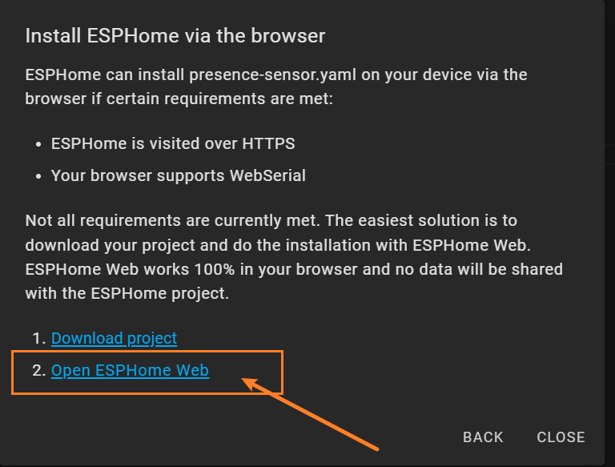
Click Open ESPHome Web.
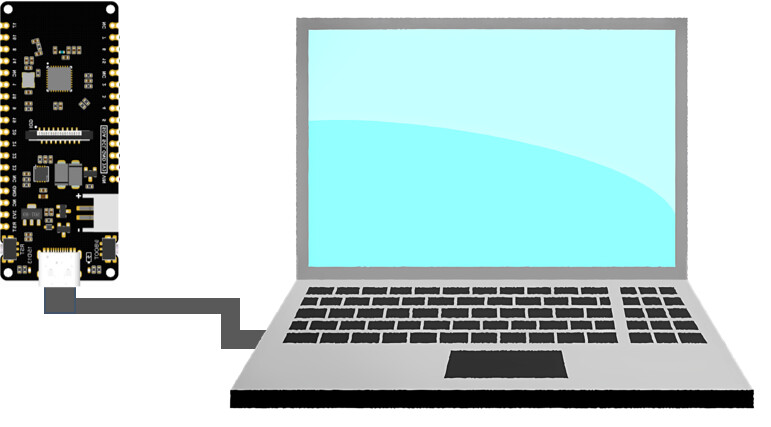
Connect the FireBeetle 2 ESP32‑C6 to your computer via USB.
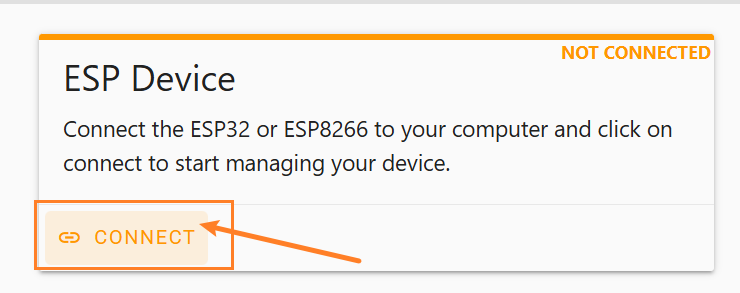
Click CONNECT on the flashing tool page.
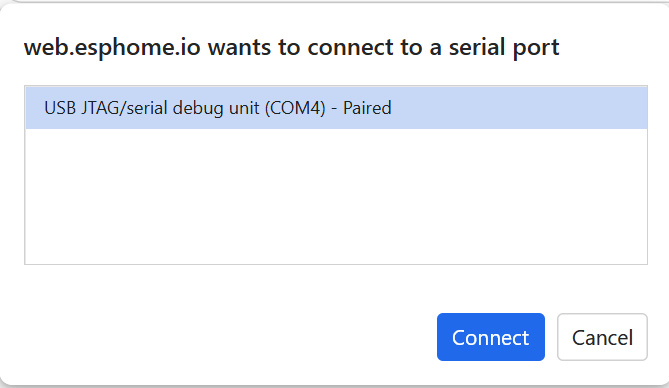
Select the ESP32‑C6 serial port, then click Connect.
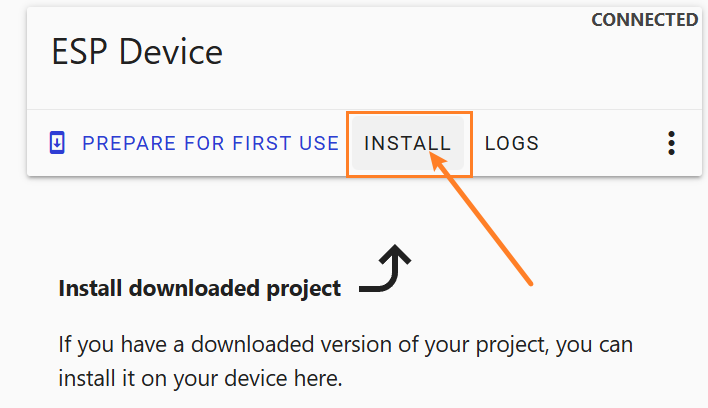
Once connected, click INSTALL.
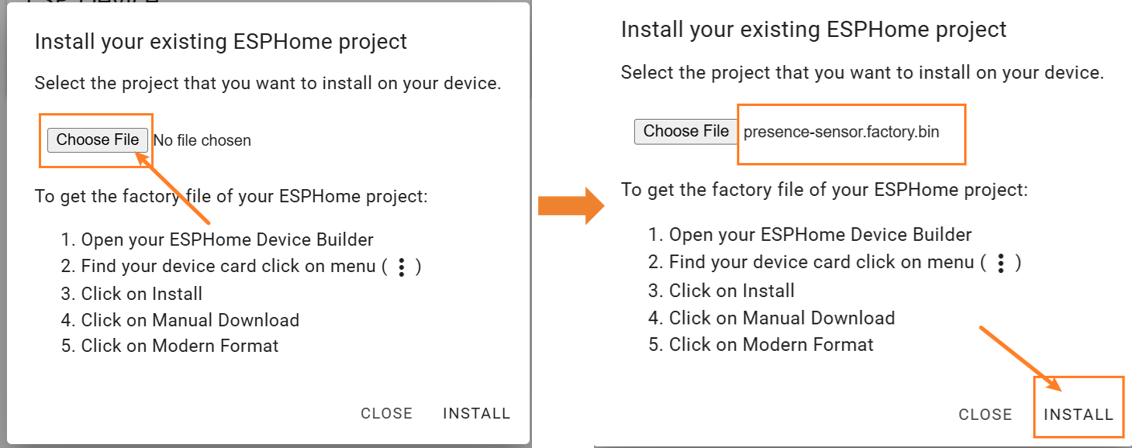
Click Choose File, select the firmware file, then click INSTALL.
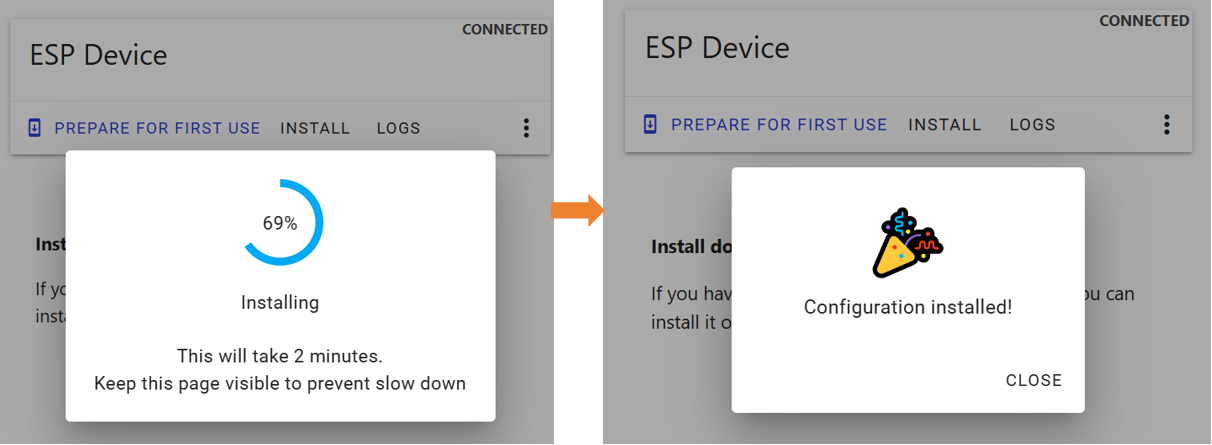
Wait for the flashing to complete.
Disconnect USB, then connect the battery pack, ESP32‑C6, and C4002 following the wiring diagram.
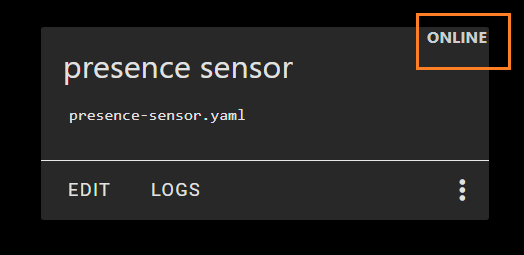
Return to Home Assistant - the presence sensor device should be online.
On the Overview page, click the three-dot icon and select Edit Dashboard.
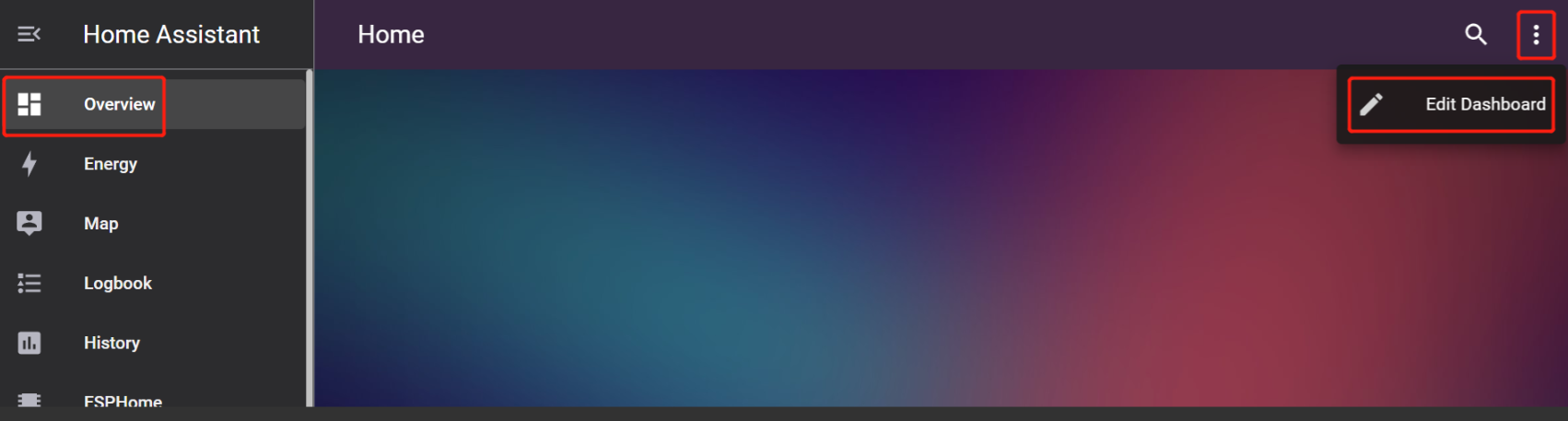
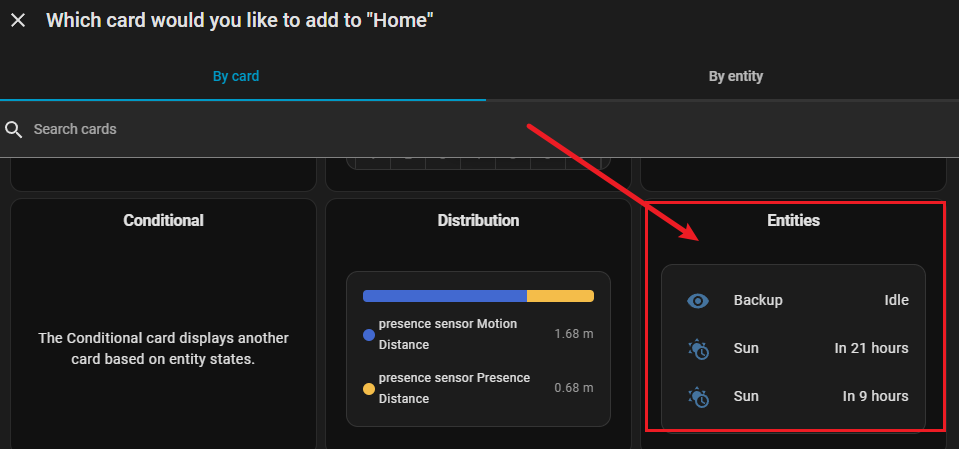
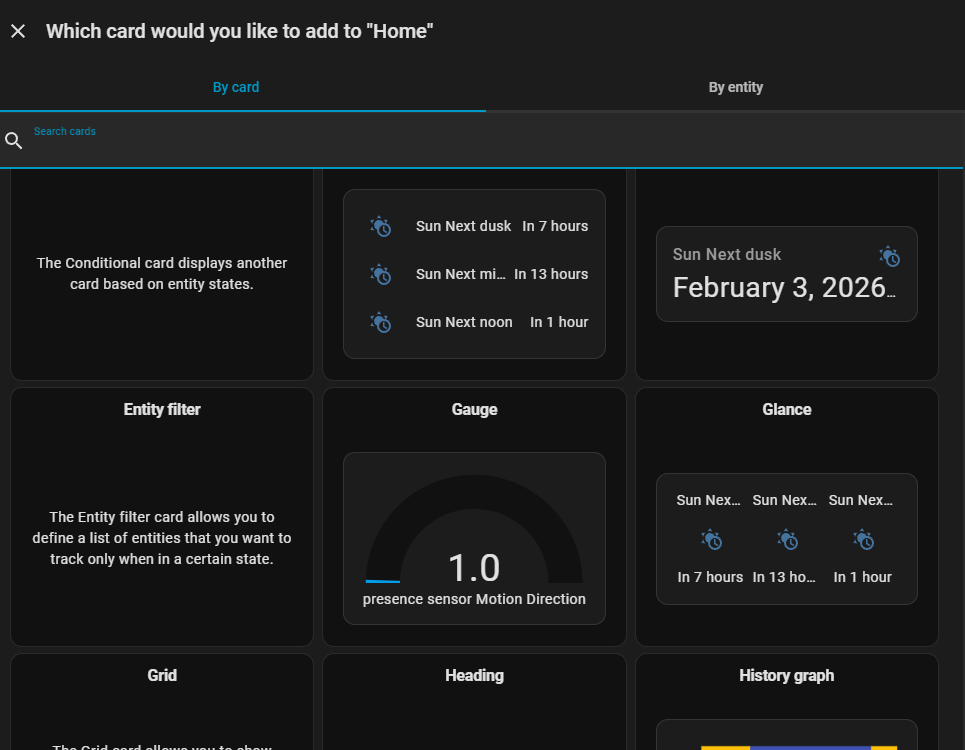
Click + ADD CARD.

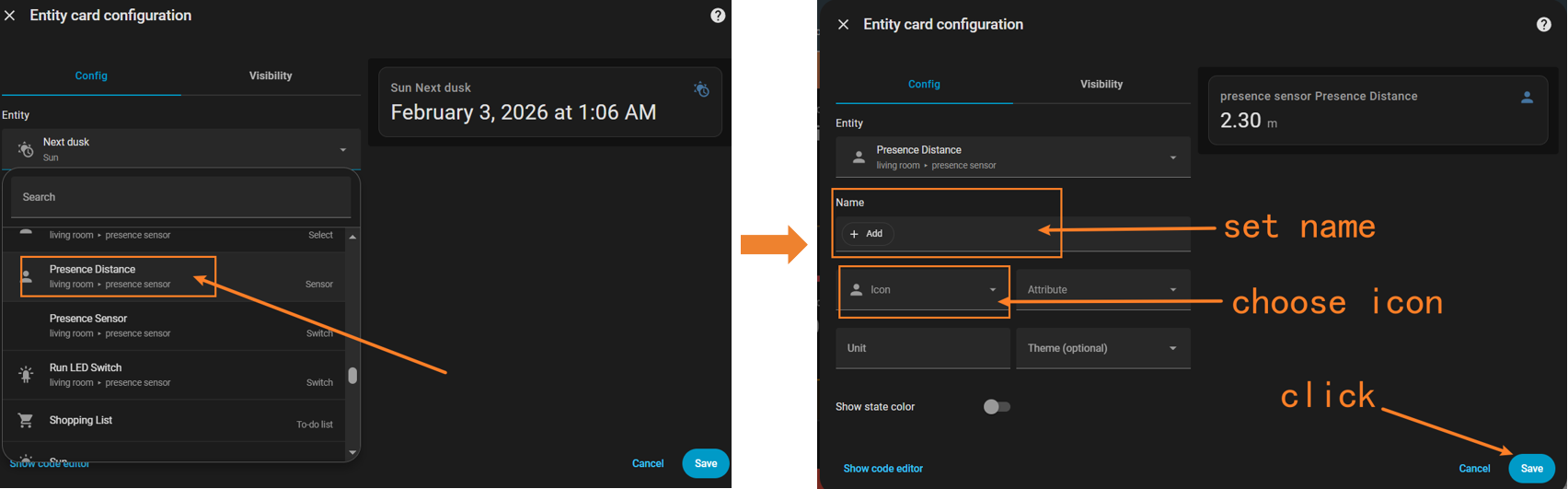
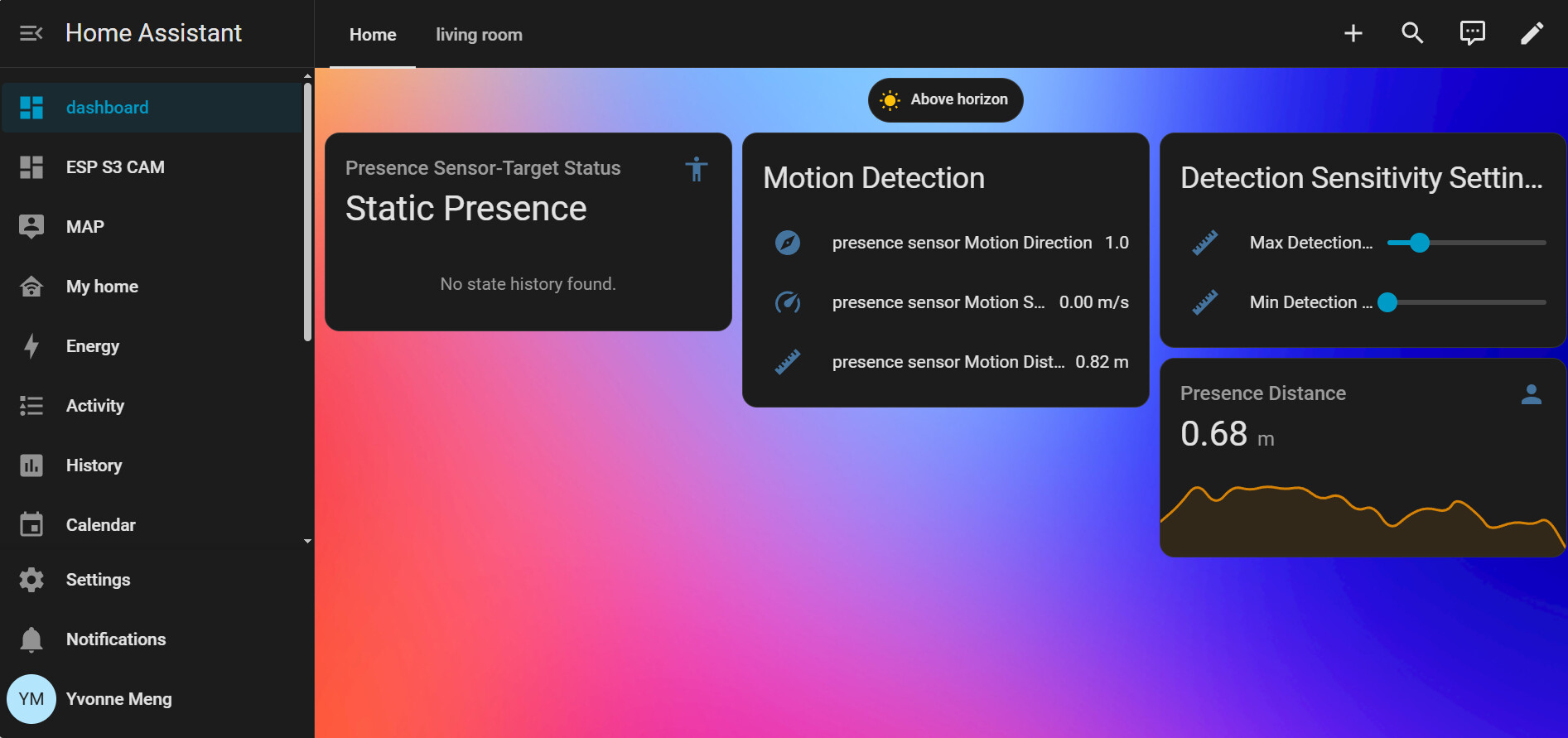
Select Entities card, then choose C4002-related entities (e.g., Motion Distance).
Customize the card name and icon, then click Save.
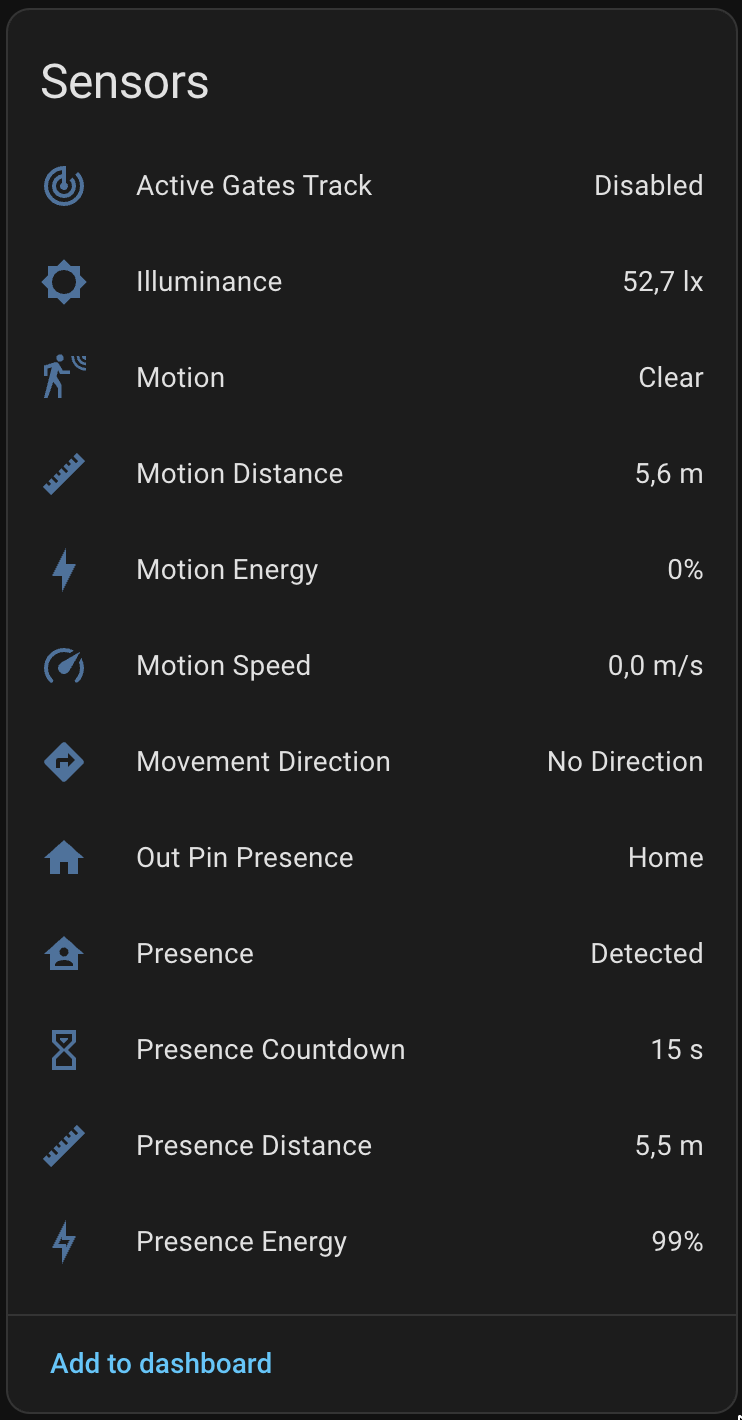
The Entities card will display real-time data from the C4002.
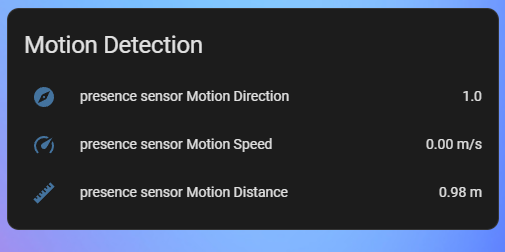
You can choose different card types for diverse visualization.
Step Two: Connecting the Relay to Control the Lights
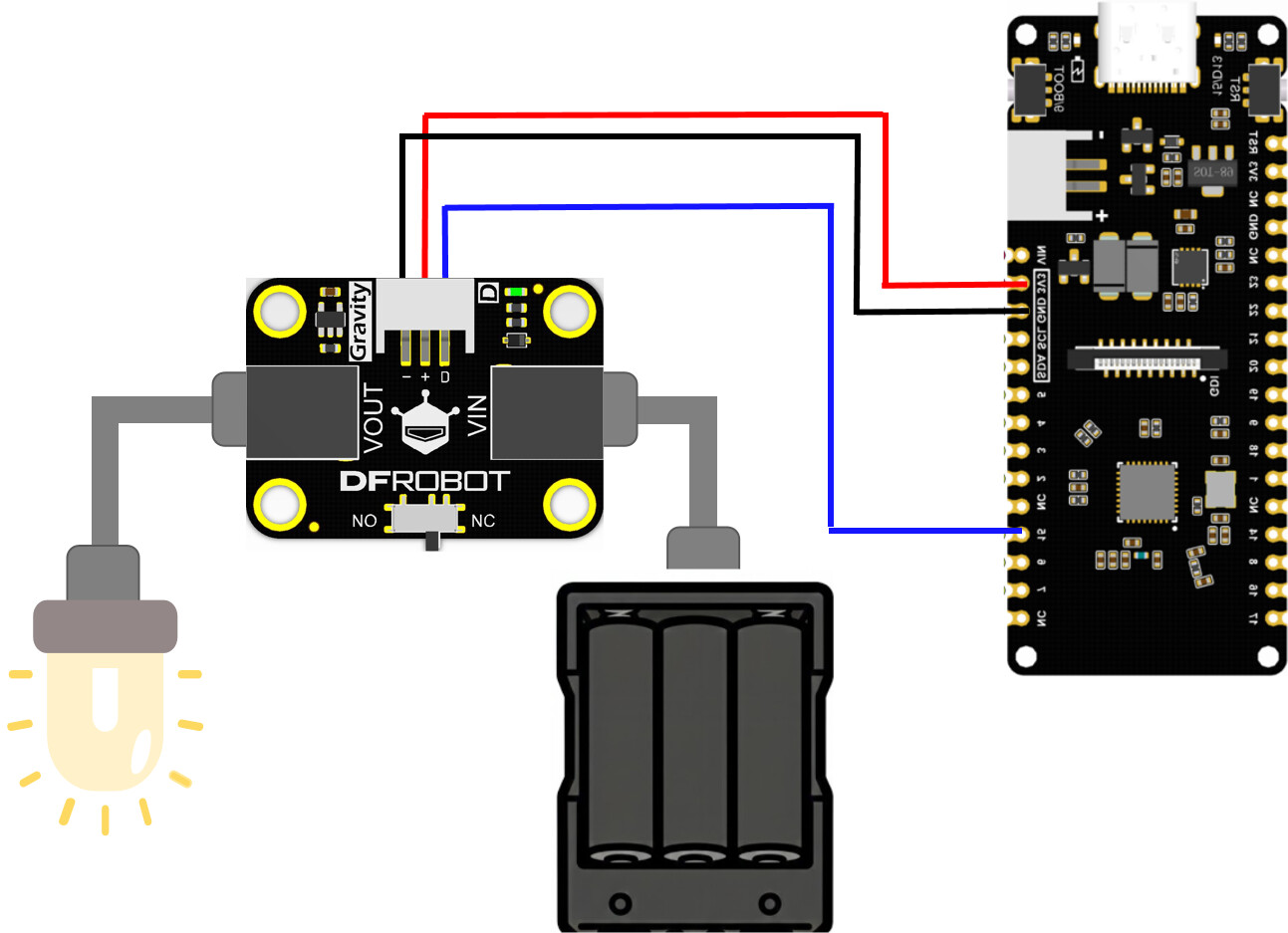
Wiring Diagram for ESP32-C6 and Relay
Complete the wiring between ESP32-C6, relay, and USB light as shown:
Relay Integration via MQTT
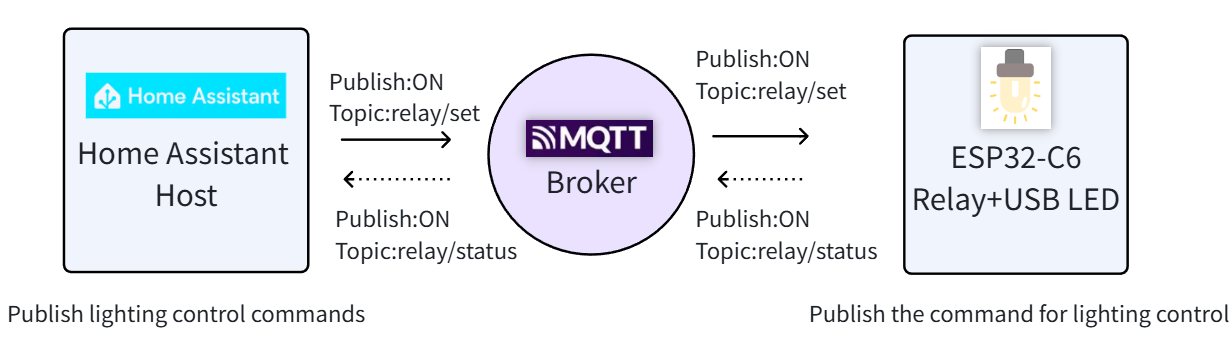
Home Assistant has built-in MQTT integration for communication with ESP32-C6.
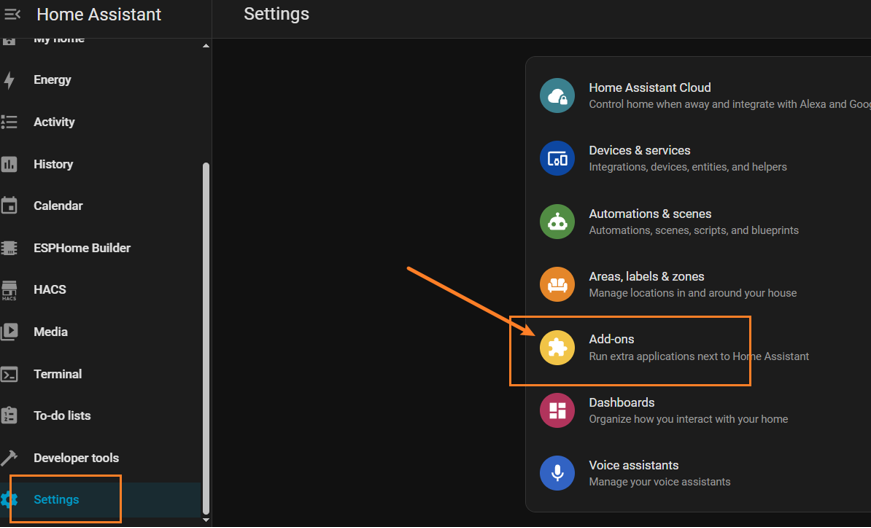
First, install the Mosquitto Broker add-on. Go to Settings → Add-ons.
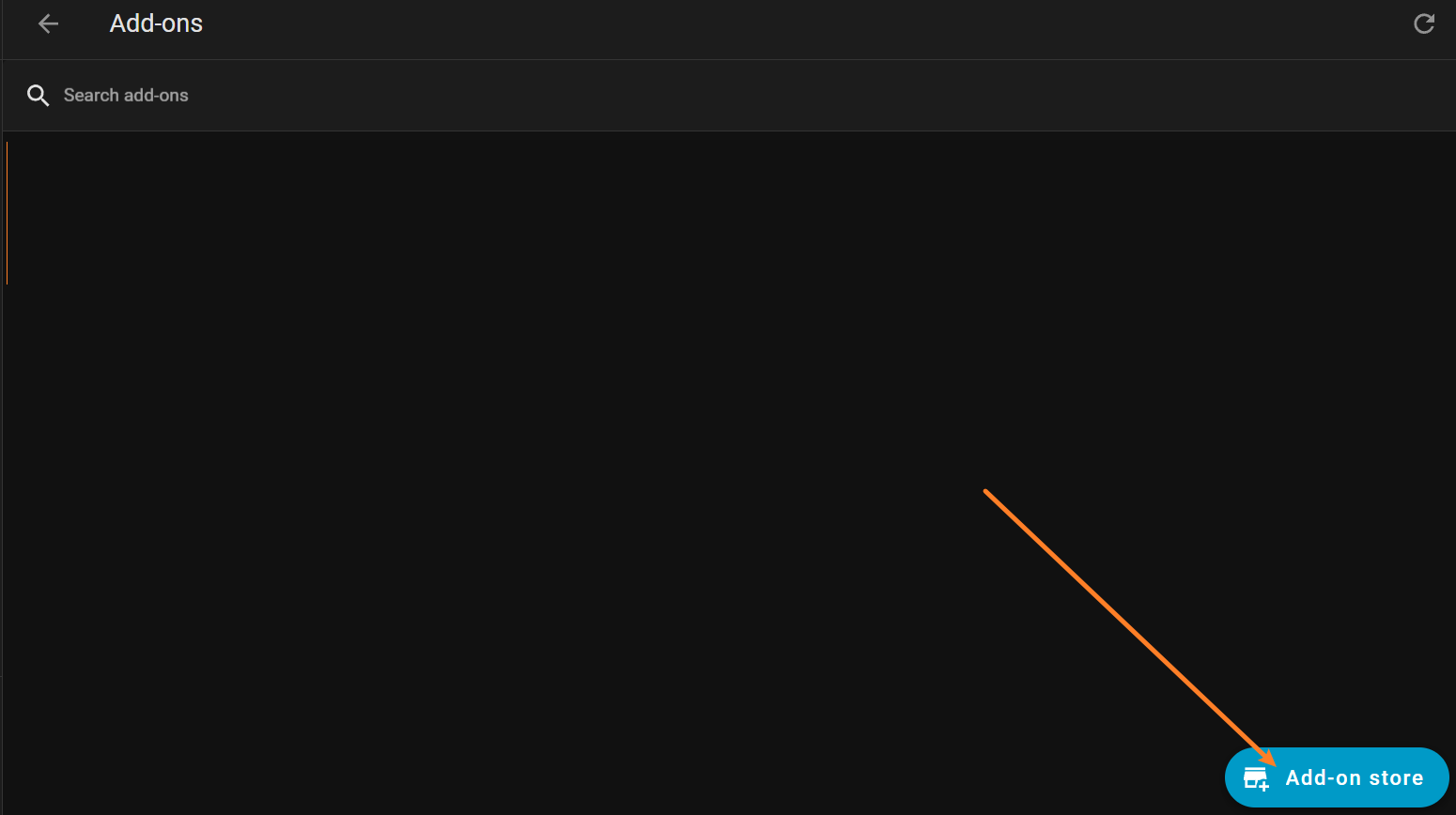
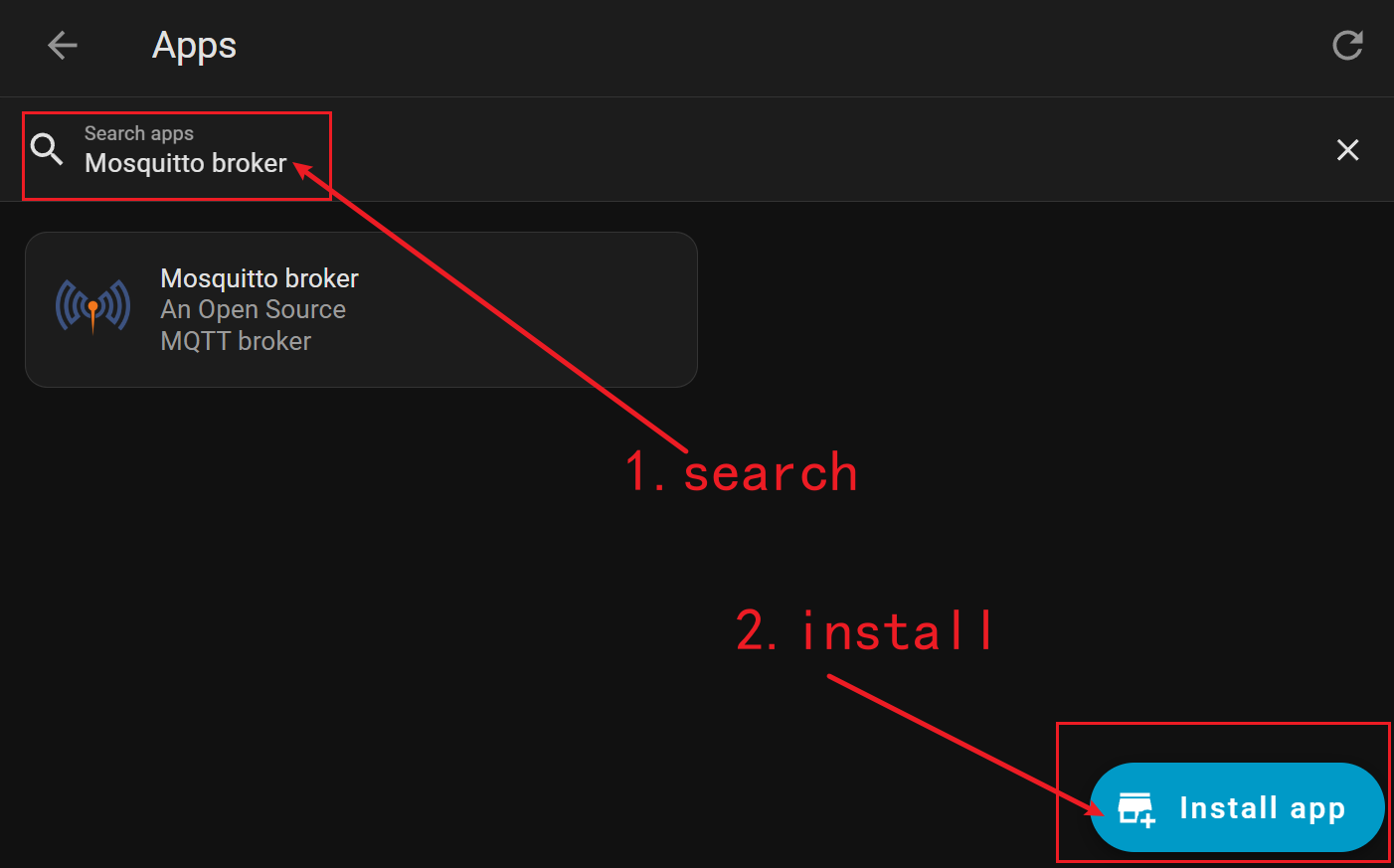
Click Add-on store, search for and install Mosquitto broker.
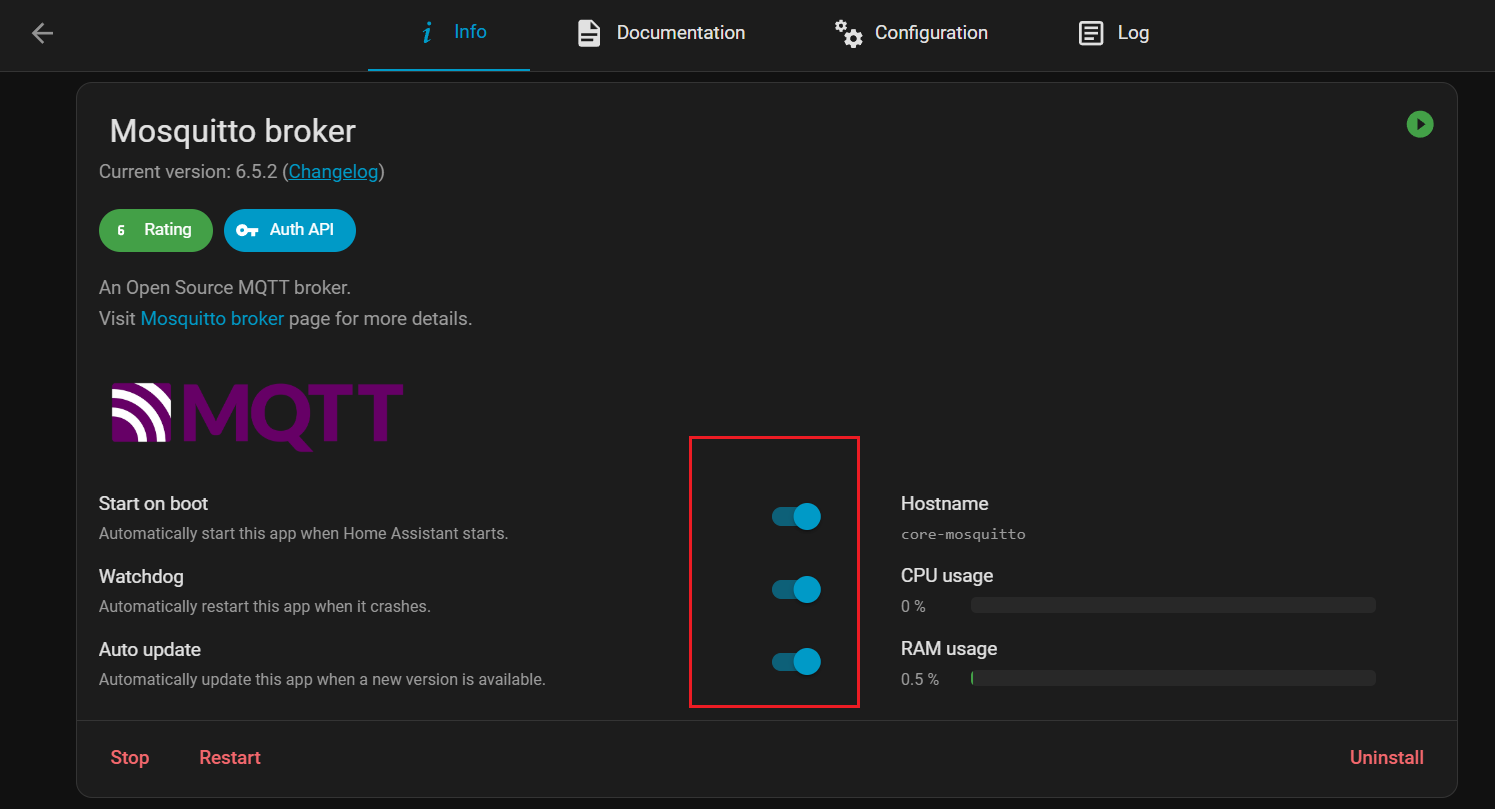
Enable Start on boot and Watchdog.
Create an MQTT login account: Go to Settings → People, add a new user. This username/password will be used in the ESP32 program.


Write MQTT client code in Arduino IDE for WiFi connection, MQTT communication, and relay control. Note: ESP32-C6 and Home Assistant must be on the same WiFi network.
Open Arduino IDE:
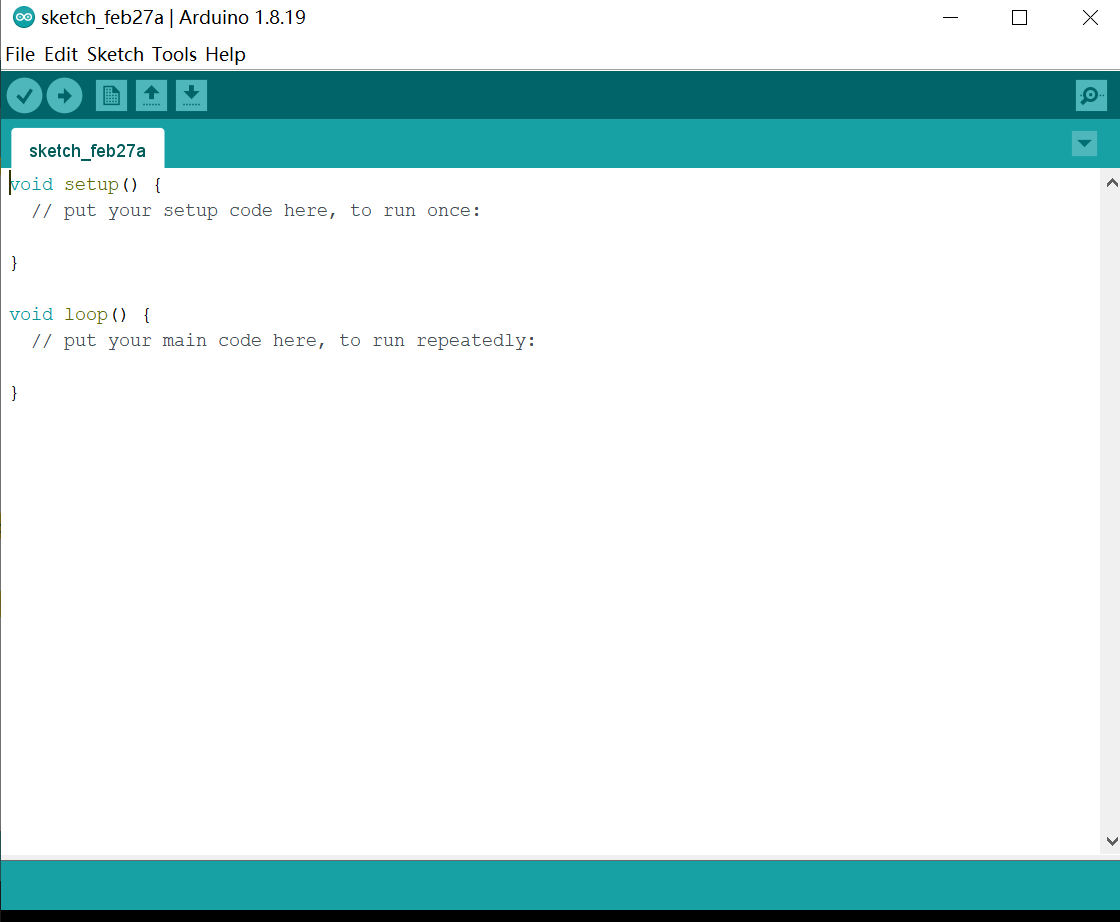
Copy and paste the following code:
#include <WiFi.h>
#include <PubSubClient.h>

/* ================== WiFi Configuration ================== */
const char* ssid     = "YOUR_WIFI_SSID";
const char* password = "YOUR_WIFI_PASSWORD";

/* ================== MQTT Configuration ================== */
const char* mqtt_server = "YOUR_MQTT_BROKER_IP";
const char* mqtt_user   = "YOUR_MQTT_USERNAME";
const char* mqtt_pass   = "YOUR_MQTT_PASSWORD";

/* ================== MQTT Topics ================== */
#define TOPIC_STATUS        "c4002/status"
#define TOPIC_RELAY_SET     "c4002/relay/set"
#define TOPIC_RELAY_STATE   "c4002/relay/state"

/* ================== Relay Configuration ================== */
#define RELAY_PIN 14
#define RELAY_ON  LOW
#define RELAY_OFF HIGH

/* ================== MQTT Client ================== */
WiFiClient espClient;
PubSubClient client(espClient);

/* =================================================
   MQTT Message Callback Function
================================================= */
void callback(char* topic, byte* payload, unsigned int length) {

  char msg[20];
  memcpy(msg, payload, length);
  msg[length] = '\0';

  Serial.print("MQTT Received: ");
  Serial.println(msg);

  if (strcmp(topic, TOPIC_RELAY_SET) == 0) {

    if (strcmp(msg, "ON") == 0) {
      digitalWrite(RELAY_PIN, RELAY_ON);
      client.publish(TOPIC_RELAY_STATE, "ON", true);
      Serial.println("Relay turned ON");
    }
    else if (strcmp(msg, "OFF") == 0) {
      digitalWrite(RELAY_PIN, RELAY_OFF);
      client.publish(TOPIC_RELAY_STATE, "OFF", true);
      Serial.println("Relay turned OFF");
    }
  }
}

/* =================================================
   Connect to WiFi Network
================================================= */
void setup_wifi() {

  Serial.print("Connecting to WiFi");
  WiFi.begin(ssid, password);

  while (WiFi.status() != WL_CONNECTED) {
    delay(500);
    Serial.print(".");
  }

  Serial.println("\nWiFi connected");
  Serial.print("IP Address: ");
  Serial.println(WiFi.localIP());
}

/* =================================================
   Reconnect to MQTT Broker
================================================= */
void reconnect() {

  while (!client.connected()) {

    Serial.print("Connecting to MQTT...");

    if (client.connect("esp32_relay_client",
                       mqtt_user,
                       mqtt_pass,
                       TOPIC_STATUS,
                       0,
                       true,
                       "offline")) {

      Serial.println("MQTT Connected");

      client.publish(TOPIC_STATUS, "online", true);
      client.subscribe(TOPIC_RELAY_SET);

      digitalWrite(RELAY_PIN, RELAY_OFF);
      client.publish(TOPIC_RELAY_STATE, "OFF", true);
    }
    else {
      Serial.println("MQTT connection failed, retrying in 2 seconds...");
      delay(2000);
    }
  }
}

/* =================================================
   Setup Function
================================================= */
void setup() {

  Serial.begin(115200);
  delay(2000);

  pinMode(RELAY_PIN, OUTPUT);
  digitalWrite(RELAY_PIN, RELAY_OFF);

  setup_wifi();

  client.setServer(mqtt_server, 1883);
  client.setCallback(callback);

  Serial.println("Relay system initialization completed");
}

/* =================================================
   Main Loop
================================================= */
void loop() {

  if (!client.connected()) {
    reconnect();
  }

  client.loop();
}
Modify these items according to your setup:
- Replace
YOUR_WIFI_SSIDandYOUR_WIFI_PASSWORDwith your WiFi credentials - Replace
YOUR_MQTT_BROKER_IPwith your Home Assistant IP (found in Settings → System → Network) - Replace
YOUR_MQTT_USERNAMEandYOUR_MQTT_PASSWORDwith the MQTT user you created
In Arduino IDE, select Tools → Board → DFRobot FireBeetle 2 ESP32-C6, then Tools → Port and select the correct serial port.
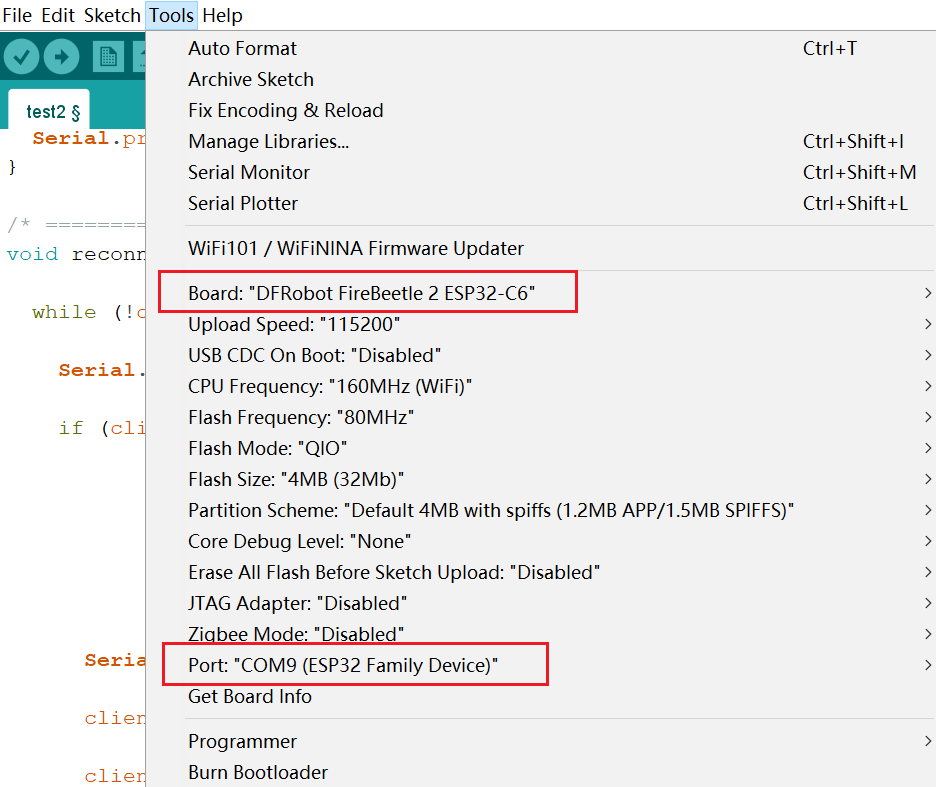
Click Upload to compile and flash. Do not disconnect USB during flashing.
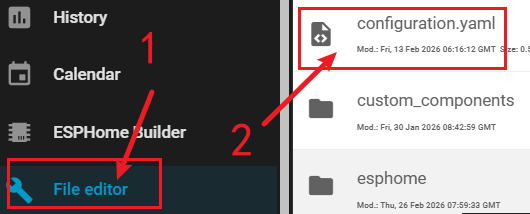
After successful upload, create an MQTT switch entity. Open configuration.yaml via File editor.
switch:
  - name: "C4002 Relay"
    unique_id: c4002_relay
    command_topic: "c4002/relay/set"
    state_topic: "c4002/relay/state"
    payload_on: "ON"
    payload_off: "OFF"
    retain: true
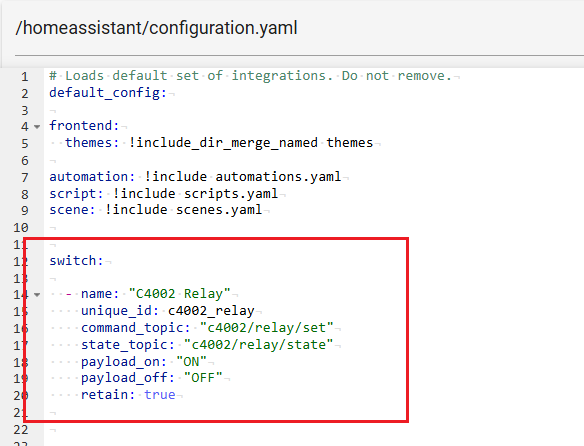
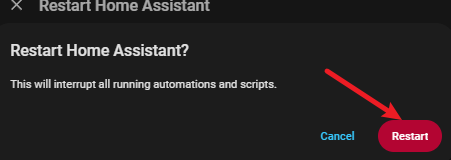
Save, then restart Home Assistant: Settings → System → Restart Home Assistant.
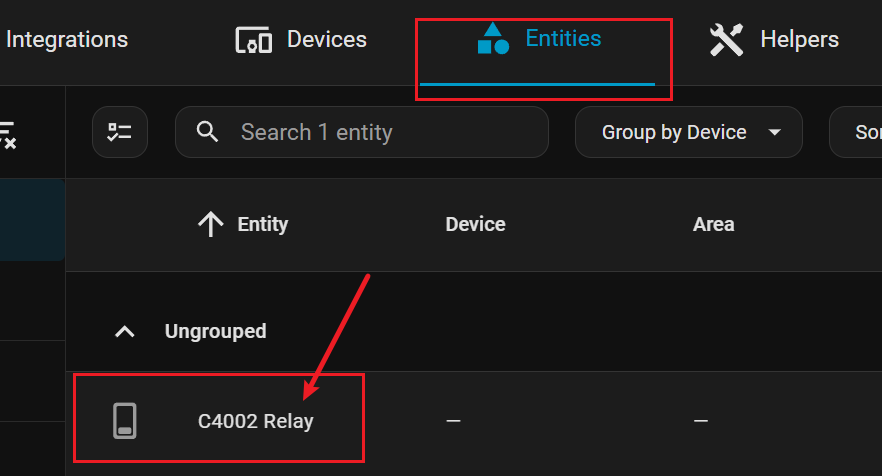
Go to Settings → Devices & services → MQTT to see the relay switch entity.

Return to Overview, click Edit Dashboard.
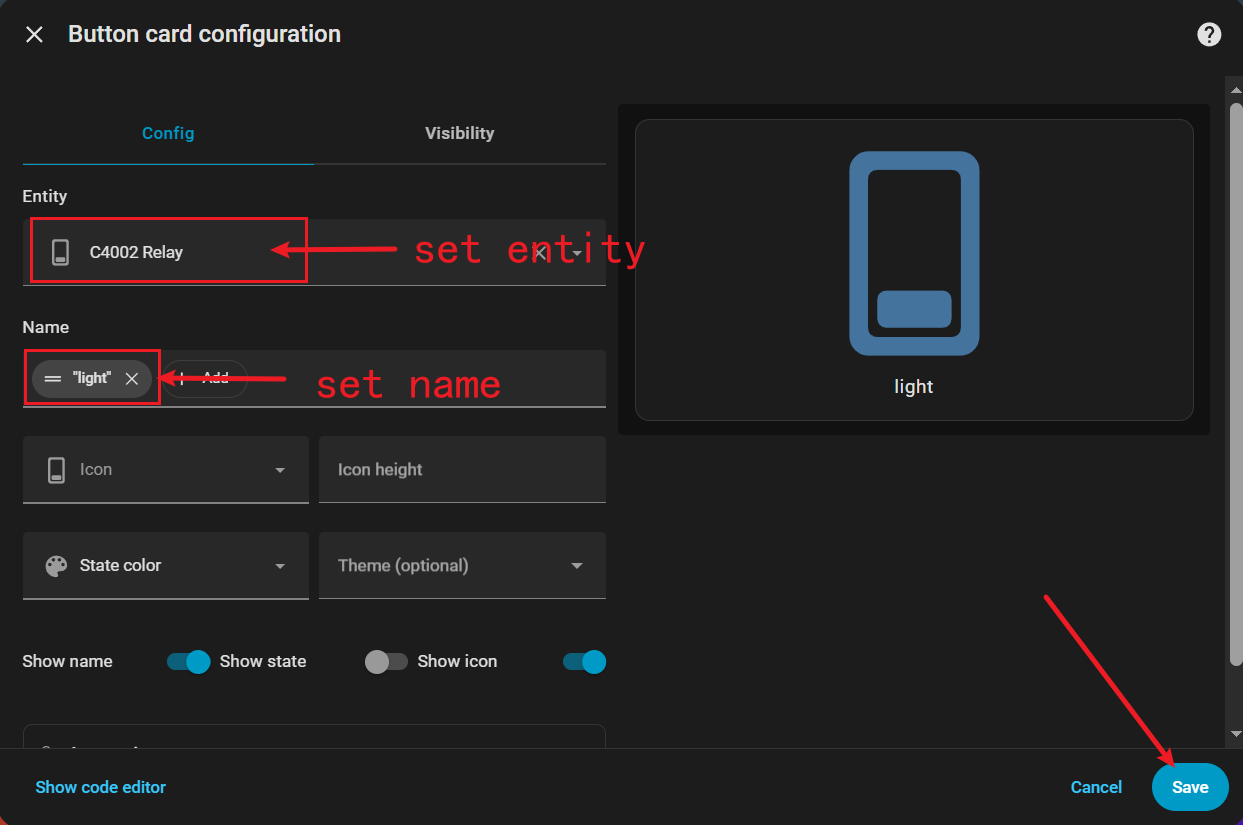
Click + ADD CARD and select Switch.

Select C4002 Relay entity, set name to light, click Save.
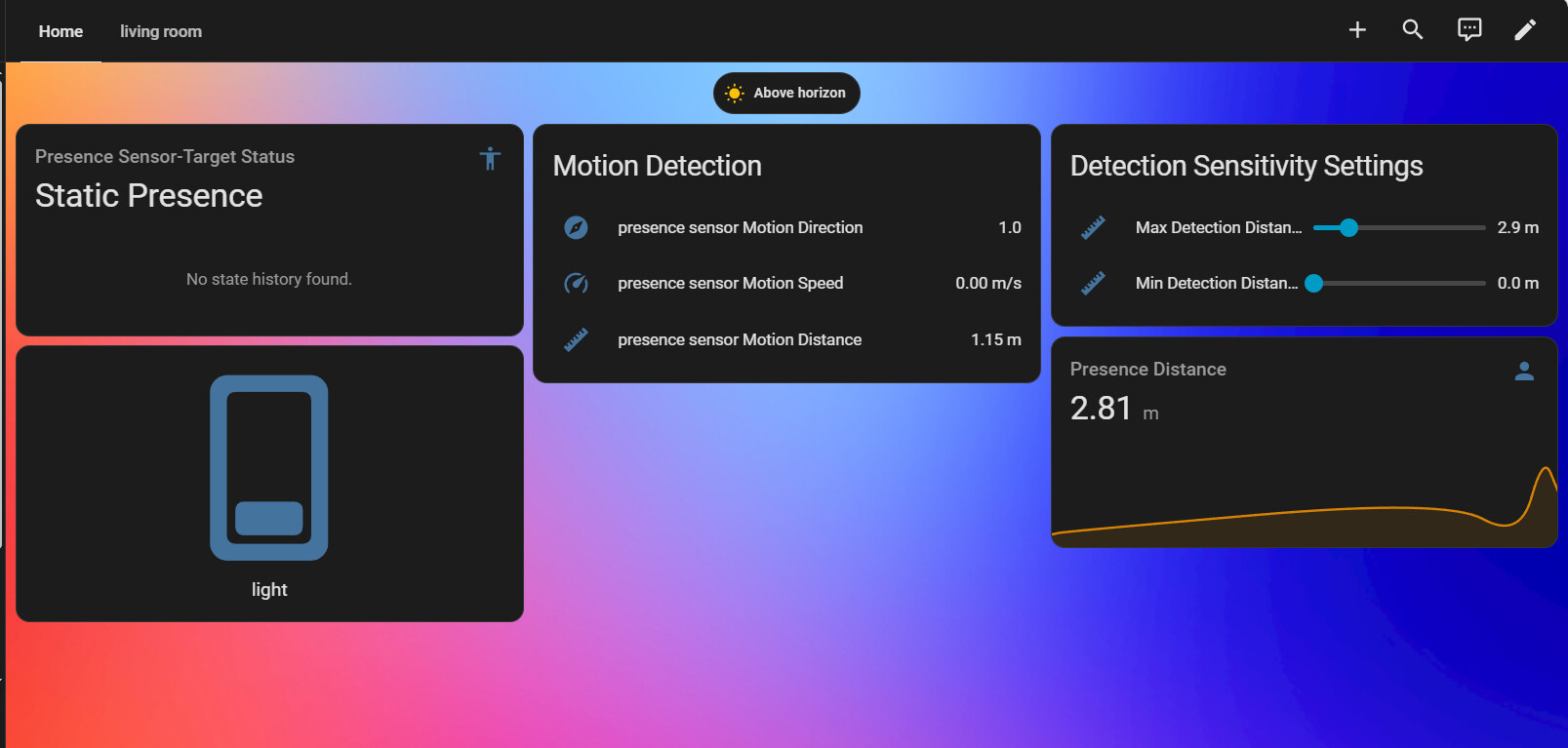
You can now control the light via the dashboard switch.
When set to ON, Home Assistant sends command via MQTT → ESP32-C6 closes relay → light turns on → state updates to dashboard.
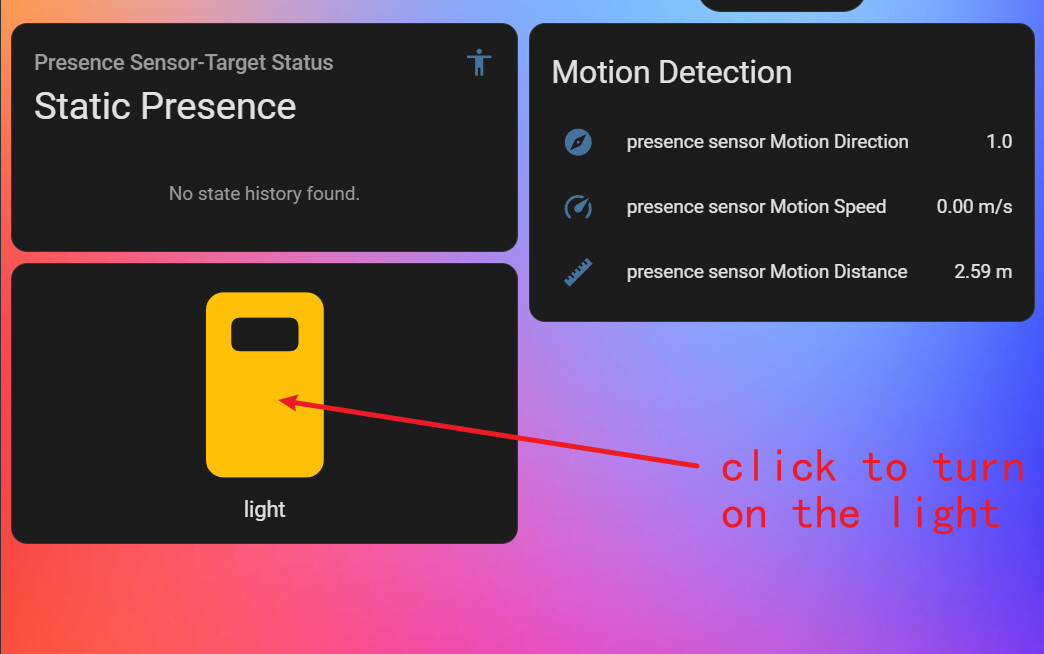
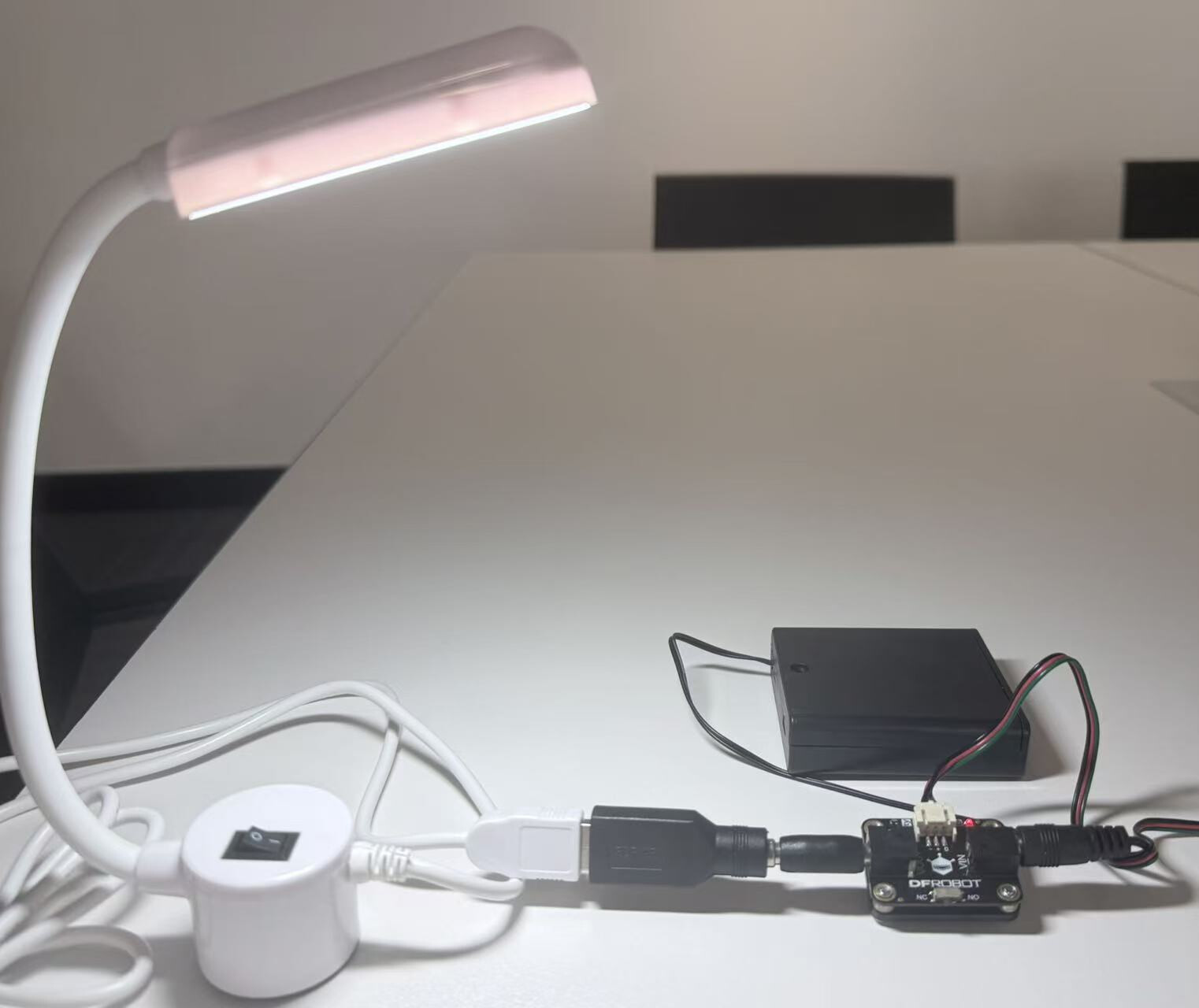
When set to OFF, relay disconnects and light turns off.


Step Three: Writing Automation Rules
The automation trigger should be “room occupancy status”. The entity sensor.esp32_c6_target_status_text returns three states. Convert it to a binary sensor for easier automation use.
Open configuration.yaml via File editor.
Add this binary sensor configuration:
template:
  - binary_sensor:
      - name: "Room Occupancy"
        unique_id: room_occupancy_binary
        device_class: occupancy
        state: >
          {{ is_state('sensor.esp32_c6_target_status_text', 'Motion')
             or is_state('sensor.esp32_c6_target_status_text', 'Static Presence') }}
Save and restart Home Assistant.
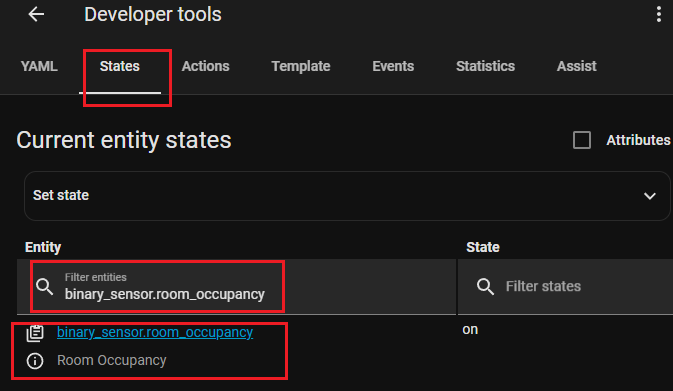
Go to Settings → Developer tools → States, search for binary_sensor.room_occupancy. ‘on’ = occupied, ‘off’ = unoccupied.
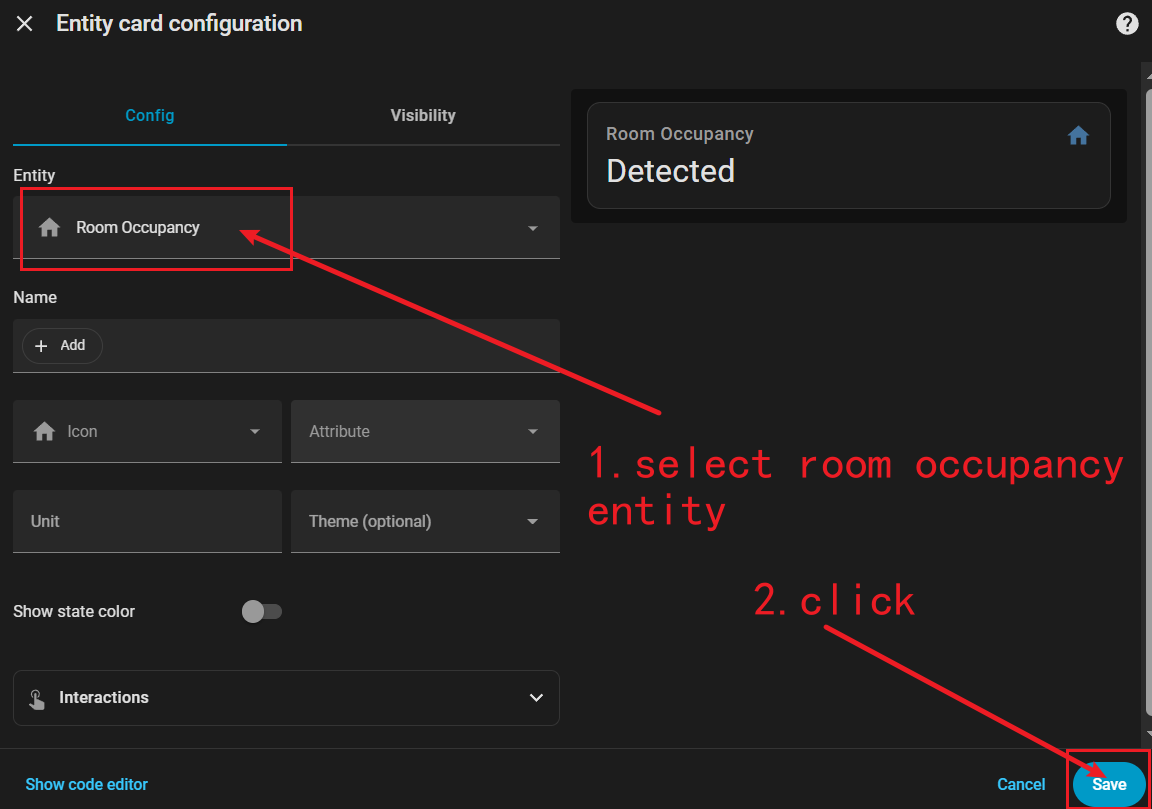
Add to dashboard: Edit Dashboard → + Add Card → Entities Card → select Room Occupancy.
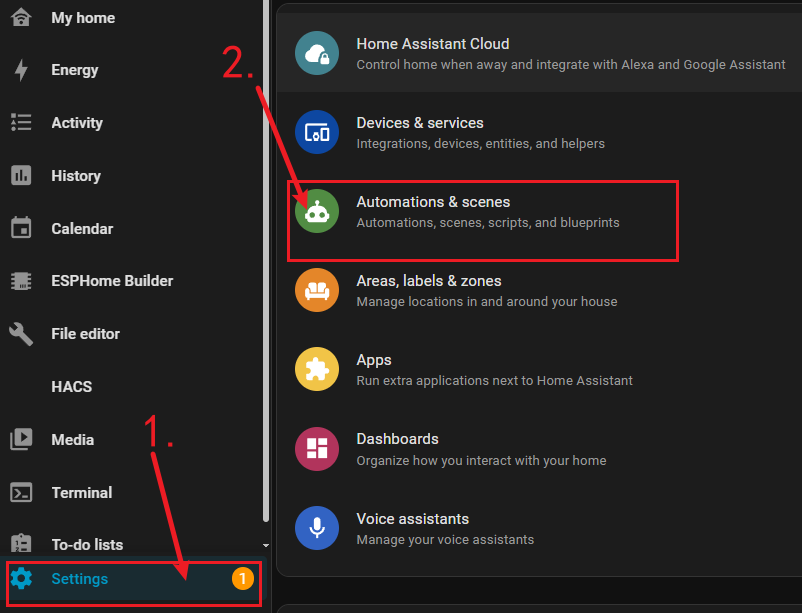
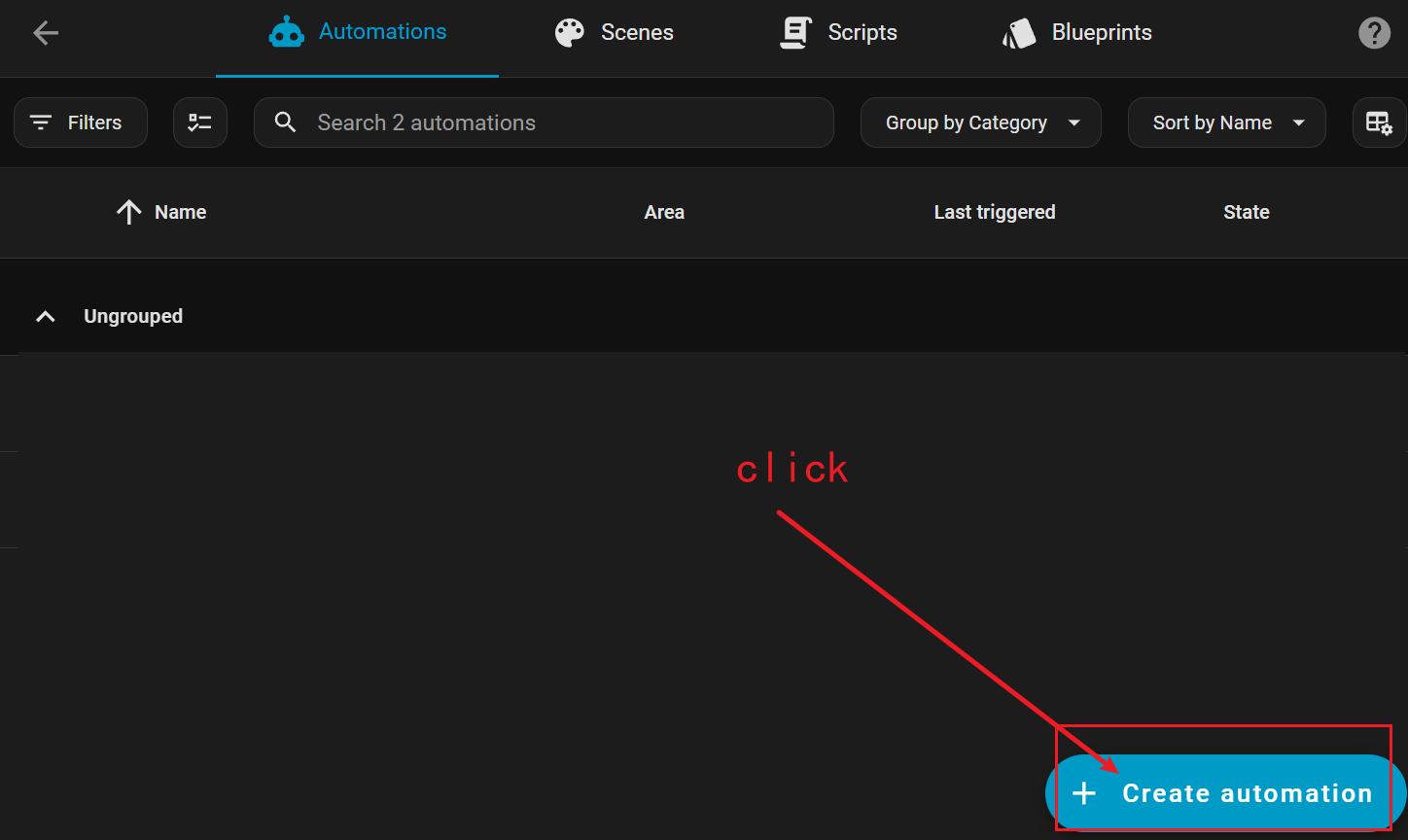
Create automation: Settings → Automations & Scenes → Automations → + Add Automation → Start with an empty automation.
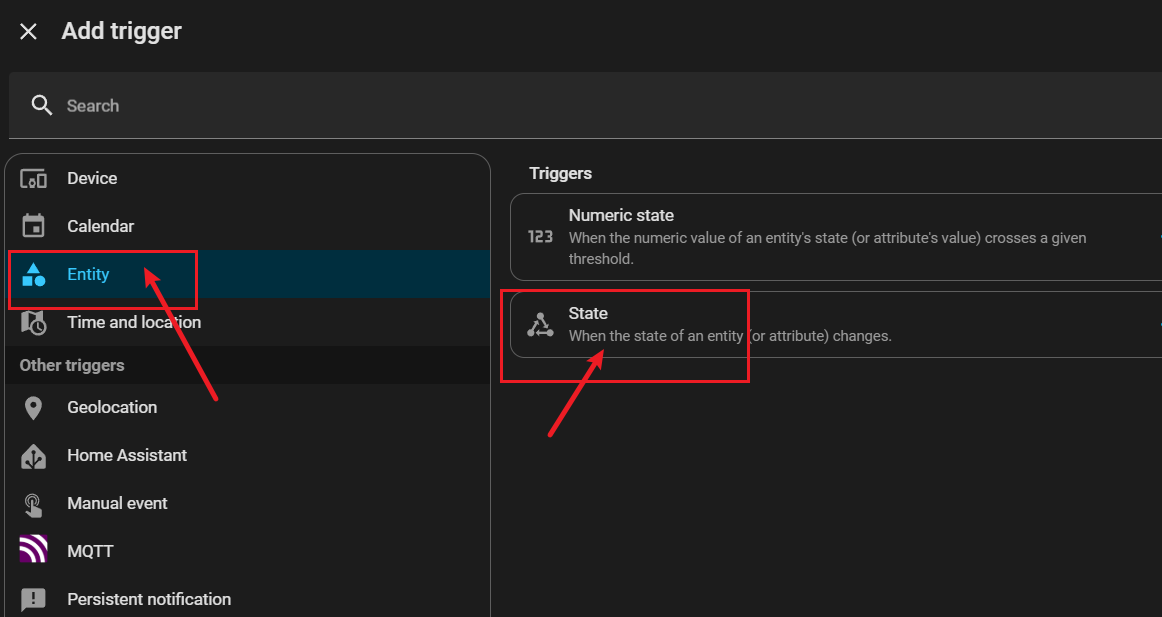
Click ADD trigger → Entity → State.
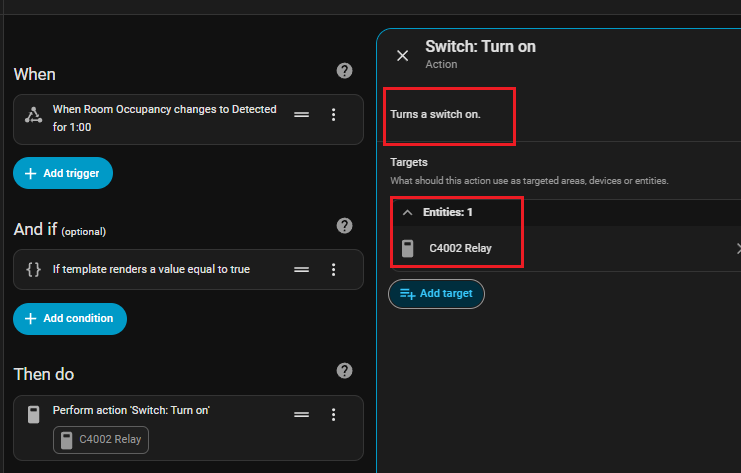
Set Entity to Room Occupancy, To to Detected, For to 00:01:00. Trigger name: ‘when room occupancy changes to detected for 1m’.
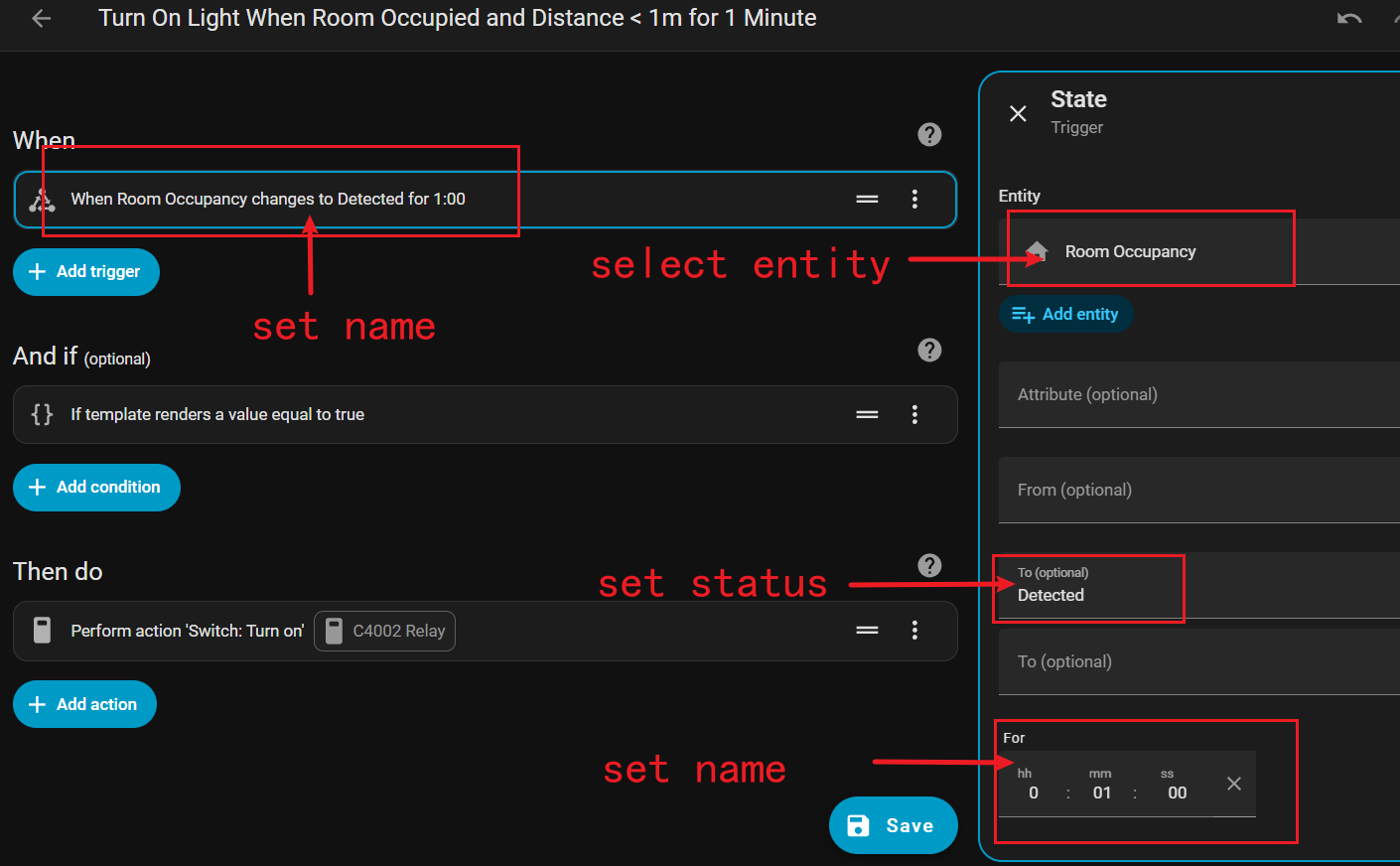
Add condition to prevent false triggers (C4002 may detect people outside the room). Only activate when target is < 2 meters away.
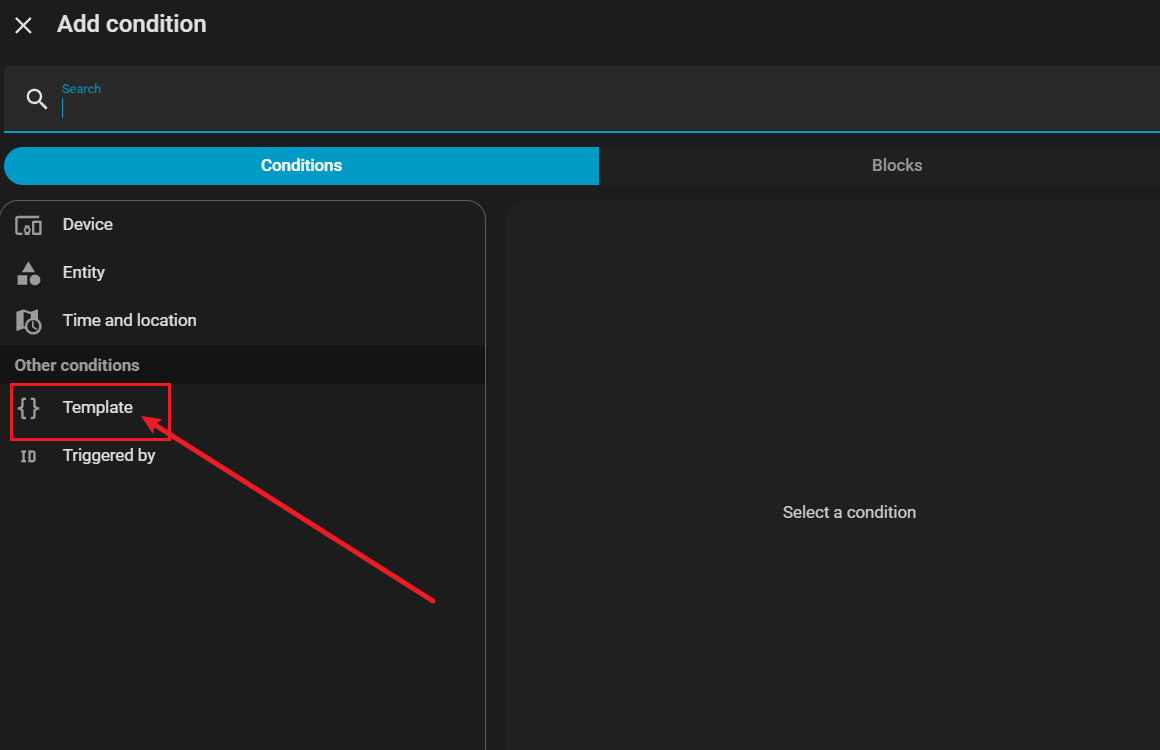
Click Add condition → Template.
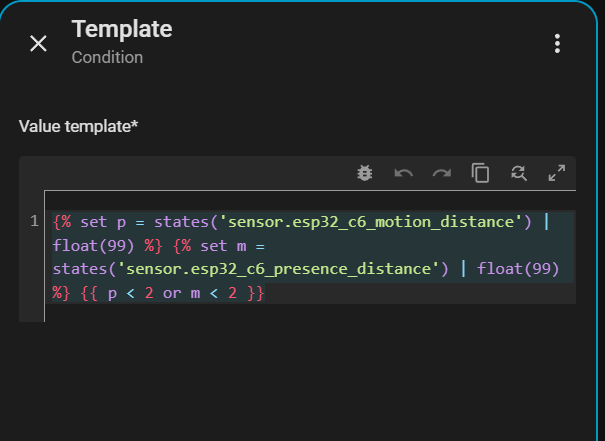
Enter:
{% set p = states('sensor.esp32_c6_motion_distance') | float(99) %}
{% set m = states('sensor.esp32_c6_presence_distance') | float(99) %}
{{ p < 2 or m < 2 }}
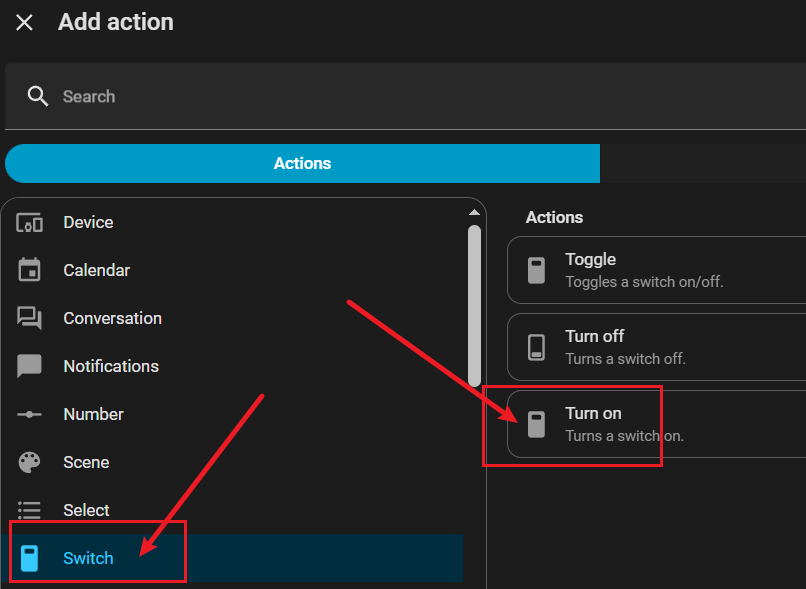
Click Add Action → Switch → Turn on, select C4002 Relay.
For auto light-off: + Add Automation → Start with an empty automation.
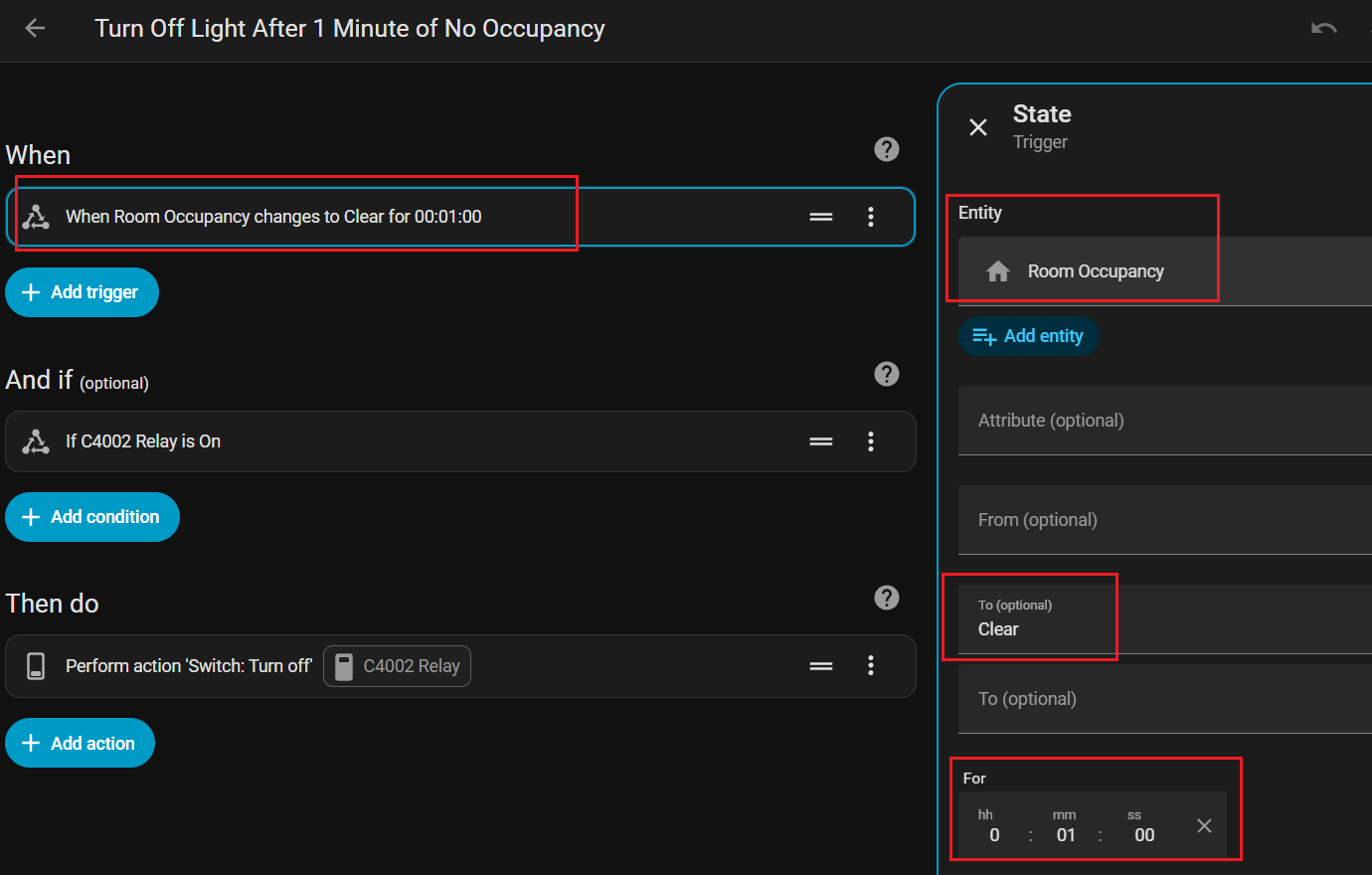
Trigger: Entity → State, Room Occupancy, To = Clear, For = 00:01:00.
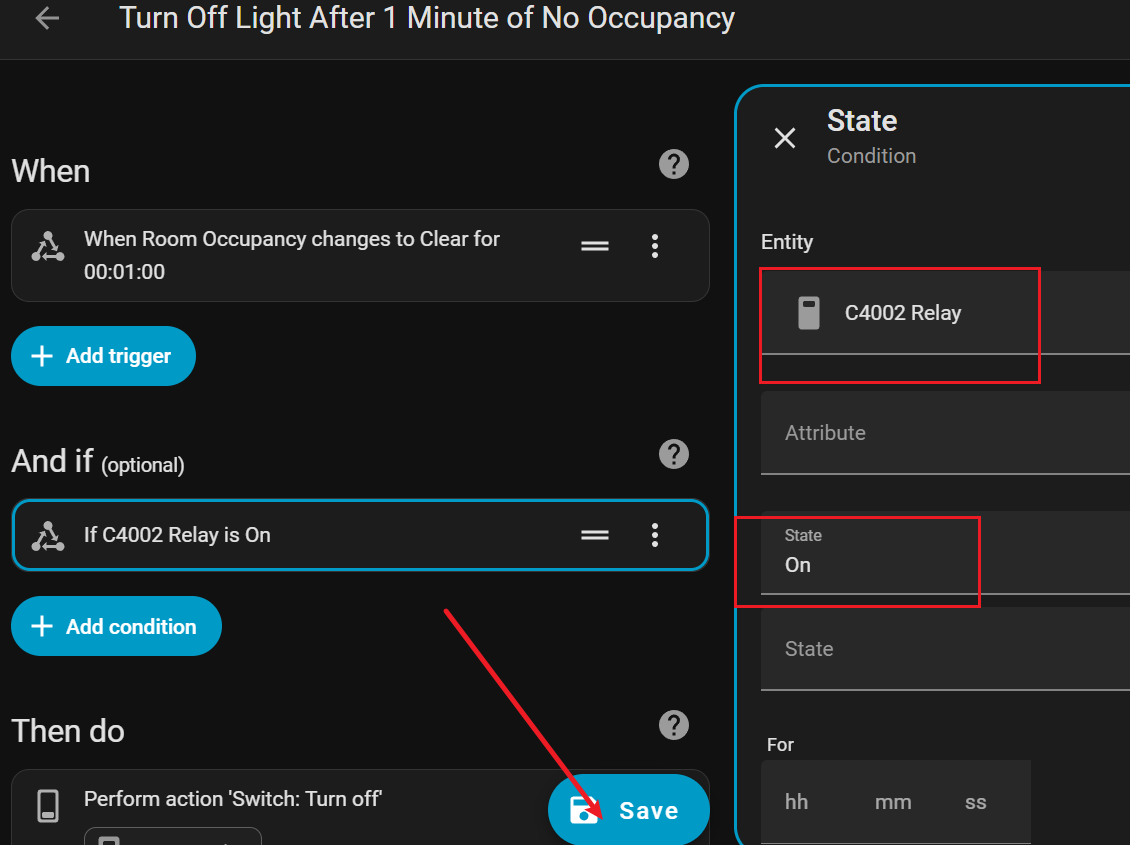
Condition: Entity → State, C4002 Relay = On.
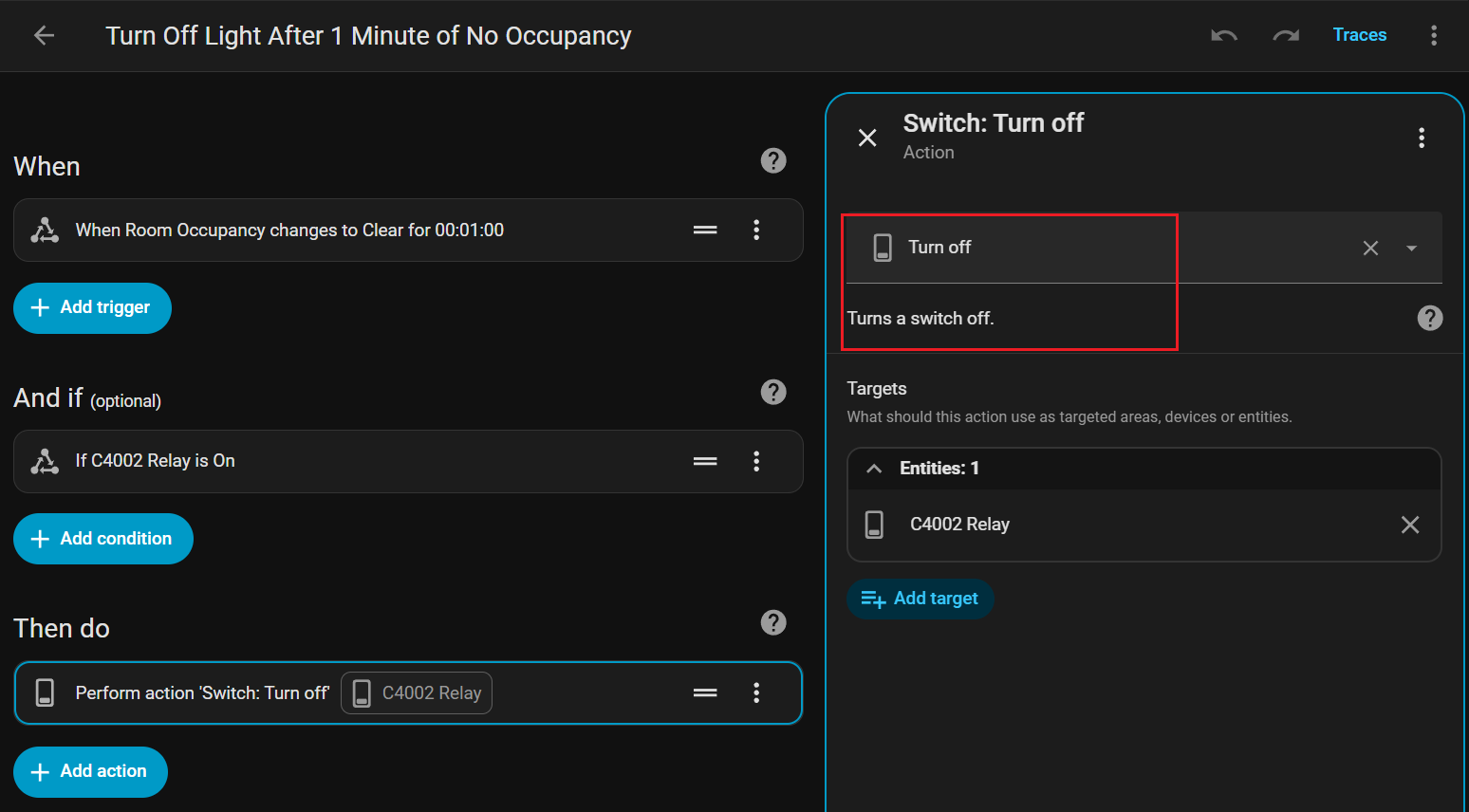
Action: Switch → Turn off, select C4002 Relay.
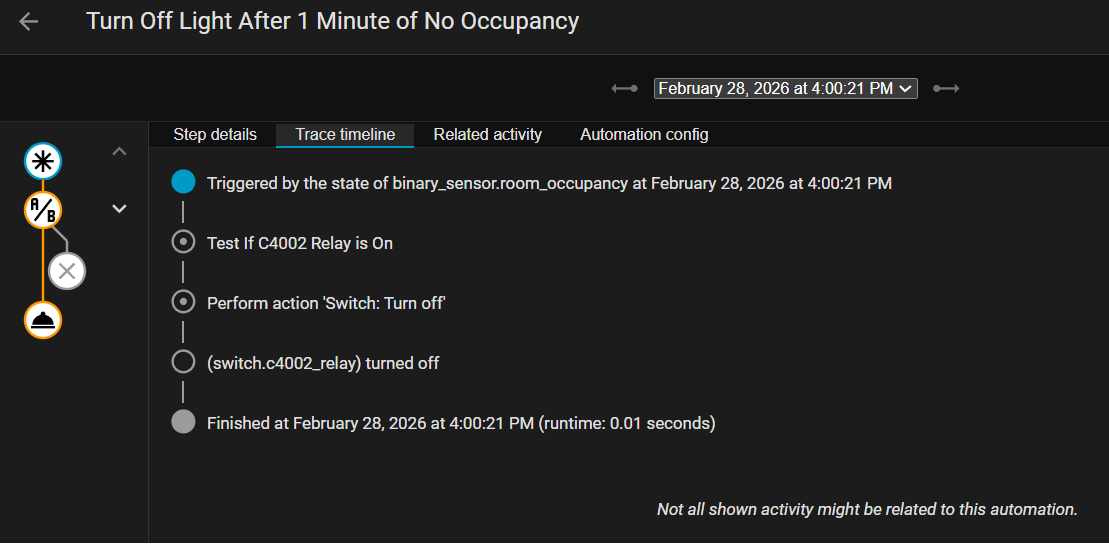
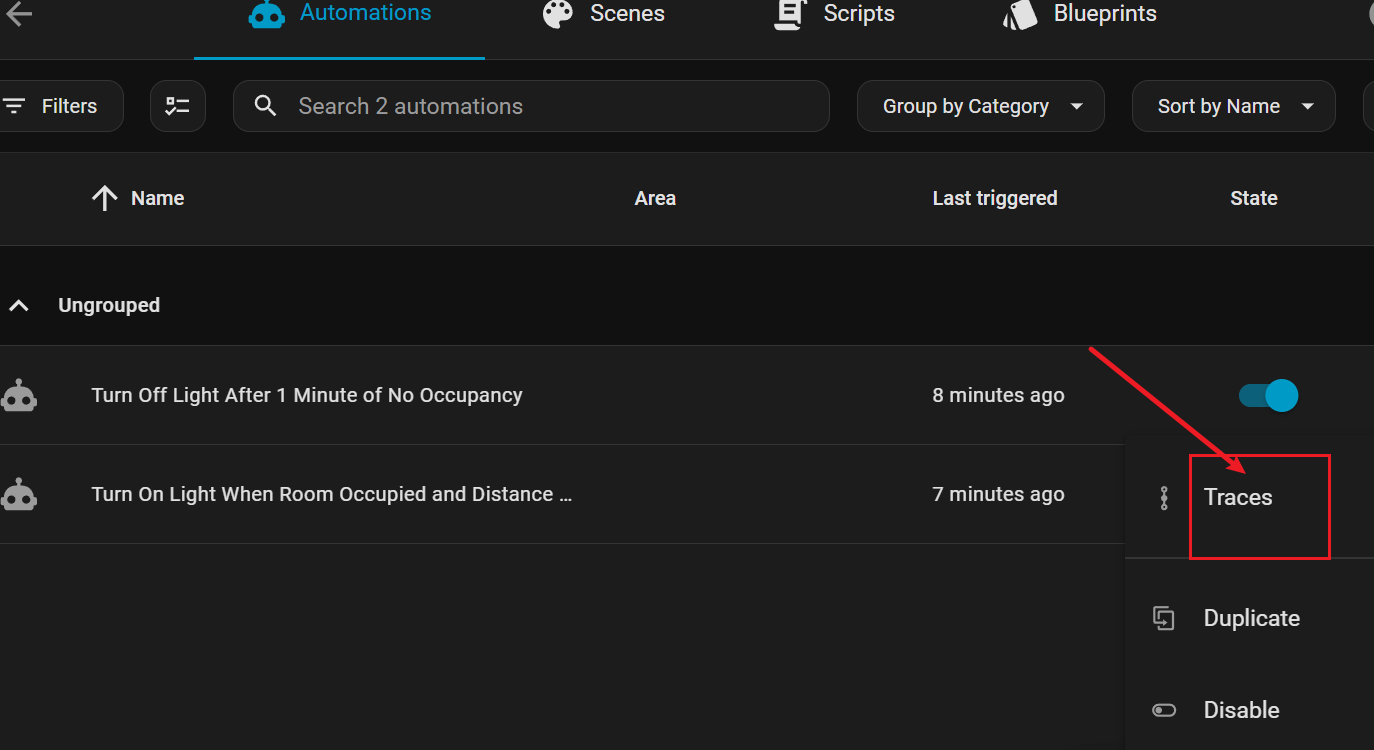
Click Trace to track automation execution.
On the dashboard, when someone enters: Room Occupancy changes from off → on. After 1 minute delay, relay closes and light turns on.
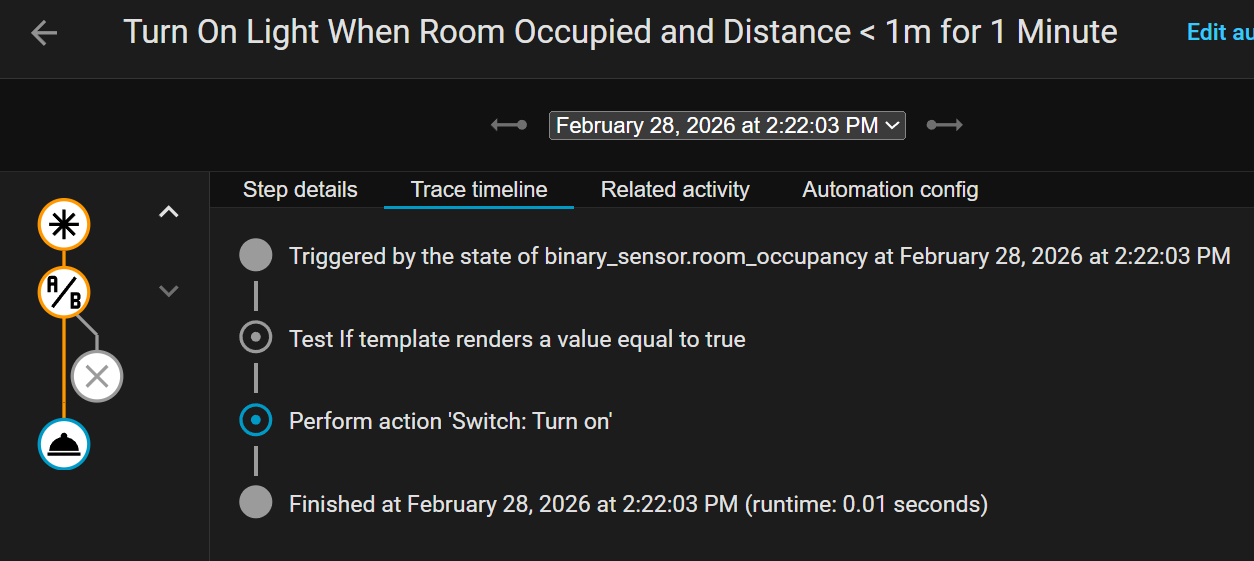
When room is unoccupied for 1 minute and light is on: relay turns off, light switches off.